

Before you flash: Flashing firmware will erase all data on your device. Back up contacts, photos, and apps before proceeding. FlashGuideHub is not responsible for any damage caused by following this guide.
About the Samsung Galaxy A06
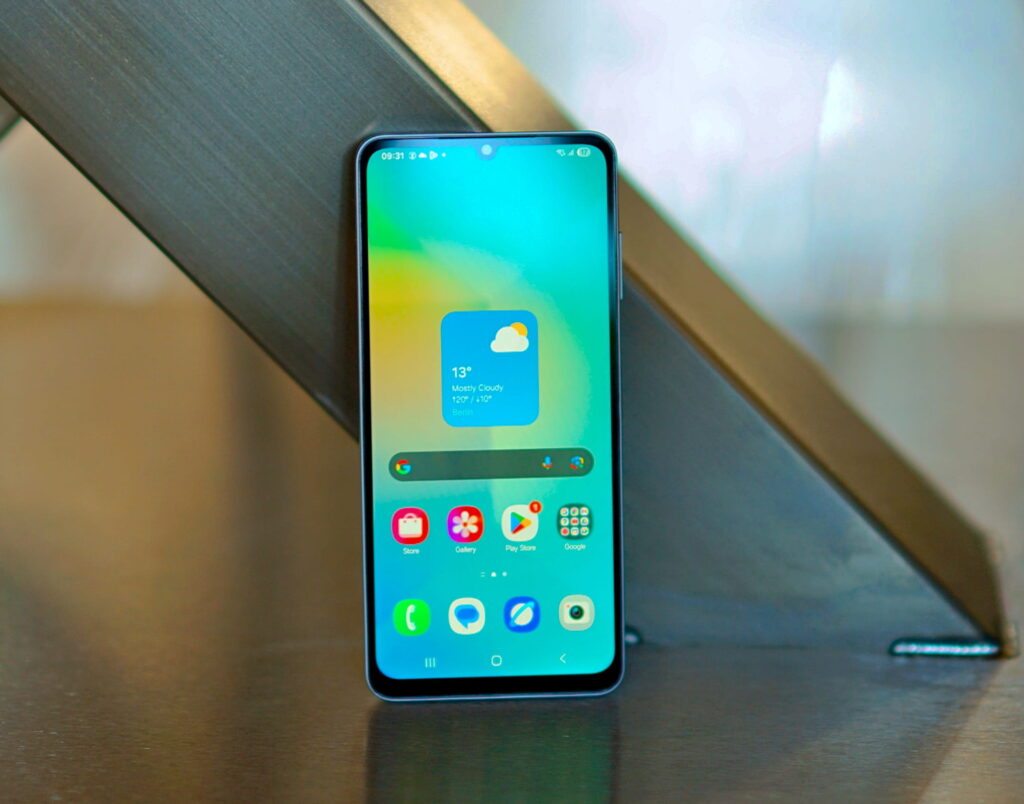
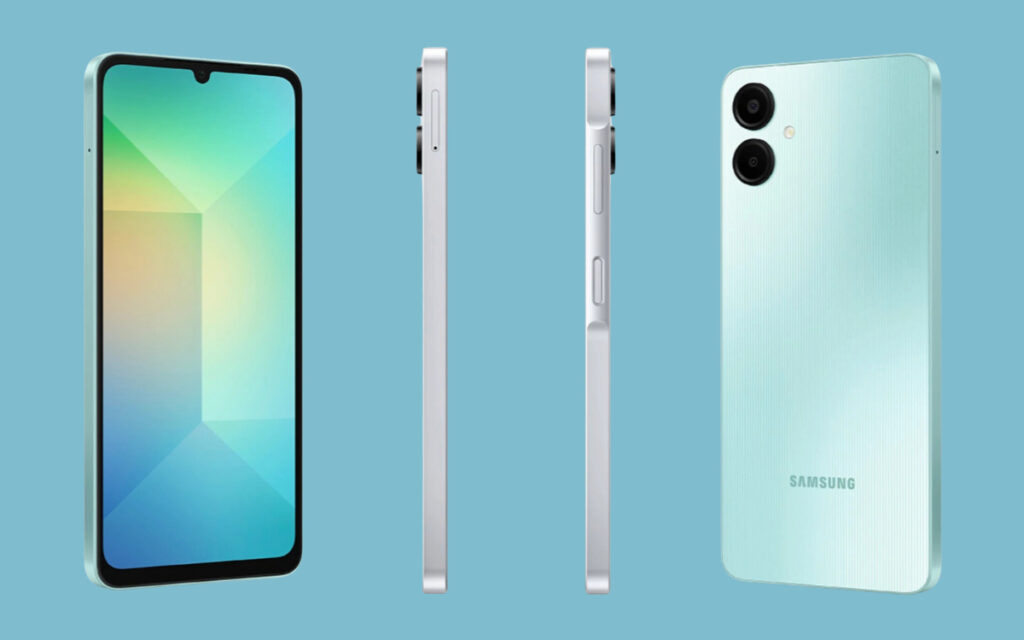
The Samsung Galaxy A06 is an entry-level Android smartphone released in August 2024, running the MediaTek Helio G85 (MT6769Z) — a 12nm MediaTek chip used under Samsung's branding. Despite the MediaTek SoC, the A06 does not use SP Flash Tool — Samsung uses its own BL/AP/CP/CSC .tar.md5 firmware format flashed exclusively via Odin.
As of firmware A065FXXS5BYG6, the Galaxy A06 is permanently locked at binary U5 — attempting to downgrade to U4 or earlier will fail in Odin. Always verify your exact model code (SM-A065F for global LTE) before downloading firmware, as regional variants carry different radio calibrations and the binary counter is non-reversible.
Which Flash Mode Should You Use?
Flash with CSC (Full Wipe)
Loads BL + AP + CP + CSC into Odin. The CSC file triggers a full factory reset, wiping all user data and reflashing every partition. Best for fixing bootloops, stuck Samsung logo, or performing a clean One UI firmware restore.
Flash with HOME_CSC (Data-Safe)
Replaces the One UI system without wiping user data. Use HOME_CSC instead of CSC in the CSC slot of Odin. Best for repairing a failed OTA update or system corruption while keeping apps and personal files intact.
Flash AP Only (Partition Repair)
Loads only the AP file into Odin, leaving BL, CP, and CSC slots empty. Useful for replacing just the main system image after a failed manual patch. Not recommended for bricked or bootlooping devices — always flash all partitions for reliability.
What You Need Before Flashing
Odin runs on Windows 7, 8, 10, and 11 (64-bit). It is not officially supported on macOS or Linux. Use a native Windows installation rather than a virtual machine, as VM USB pass-through frequently causes Odin connection failures.
The Samsung Android USB Composite Device driver must be installed before connecting your Galaxy A06. Without it, Odin will not detect the device in Download Mode. Download from Samsung's official developer page.
Use Odin v3.14.4 or a later release. Very old versions of Odin may not support the Galaxy A06's firmware format. Extract Odin to a short path with no spaces — e.g. C:\Odin — before running it.
Download the 4-file or 5-file firmware package that exactly matches your model and region. You should have BL, AP, CP, CSC, and optionally HOME_CSC files ending in .tar.md5. Verify the firmware version string matches your model code (SM-A065F or SM-A065M) before downloading.
The Galaxy A06 has a 5000mAh non-removable battery. Charge to at least 50% before starting — power failure mid-flash is one of the most common causes of a soft brick on Samsung devices.
Flashing with CSC wipes all user data. Back up to Google Drive, Google Photos, and use a file manager to copy documents and APKs. If you use HOME_CSC instead, data may be preserved, but always back up before any firmware flash.
Both Windows Defender real-time protection and third-party antivirus must be disabled. They routinely block Odin's USB communication or flag the .tar.md5 firmware files as false positives.
How to Flash the Samsung Galaxy A06 — Quick Overview
These 8 steps are tailored to the Samsung Galaxy A06 (Helio G85). For screenshots, an interactive checklist, and troubleshooting, open the full Odin (Samsung) guide.
-
Verify Your Model Number
-
Install Samsung Android USB Driver
-
Download the Correct Firmware Package
-
Extract the Firmware Package
-
Enter Download Mode on the Galaxy A06
-
Open Odin and Connect Your Device
-
Load Firmware Files into Odin
-
Flash and Wait for PASS
Identifying Firmware Package Files for MT6769Z
The Galaxy A06 firmware package is distributed as 4 or 5 separate .tar.md5 files — not a single zip and not a scatter file. The most important file to identify before loading Odin is the AP file, which contains the main Android system image. Its filename follows this pattern:
AP_A065F*.tar.md5
After extracting the firmware zip, you should find five files beginning with BL_, AP_, CP_, CSC_, and HOME_CSC_. Load each into its matching slot in Odin (BL → BL, AP → AP, CP → CP, CSC → CSC). If your package contains only four files and no HOME_CSC, use CSC for a full wipe. If a package has no AP file, it is not a compatible stock firmware package — find the correct firmware before continuing.
Critical: The Galaxy A06 5G (SM-A066B) uses a completely different chipset — the MediaTek Dimensity 6300 — and has its own separate firmware packages that are incompatible with the SM-A065F. Never flash SM-A065F firmware onto an SM-A066B, or vice versa. Also note the regional model split: SM-A065F covers most international markets, while SM-A065M serves select Latin American regions. Always confirm your exact model number in Settings → About Phone → Model Number before downloading firmware.
Samsung Galaxy A06 Firmware Versions
Known stock firmware releases for the Samsung Galaxy A06. Always verify the version matches your device model and region before flashing.
| Version | Region | Android Version | Size | MD5 | Download |
|---|---|---|---|---|---|
A065FXXS8CYK2 |
Global (AFR / XFA / XSG) | Android 16 (One UI 8) | ~4.8 GB | — | ⬇️ Download |
A065FXXS7BYJ1 |
Global (AFR / XFA) | Android 15 (One UI 7) | ~4.4 GB | — | ⬇️ Download |
A065FXXS4BYG5 |
UAE / Global (XSG) | Android 15 (One UI 7) | ~3.9 GB | — | ⬇️ Download |
More firmware builds (all regions & versions) → SamFW — SM-A065F full firmware list
Samsung Galaxy A06 — Important Notes
The Samsung Galaxy A06 does not support official bootloader unlocking through Samsung's OEM unlock path. Samsung has never released a developer unlock tool or unlock code for this model, meaning custom ROMs cannot be installed through the standard Fastboot route without exploiting existing vulnerabilities — such as the SW REV/BIT 1 vulnerability (CVE SVE-2024-2171) documented on XDA Developers. Knox warranty flags trip permanently on any attempt, voiding Samsung Care+ coverage.
Odin version compatibility matters on the Galaxy A06. Odin 3.14.4 is the recommended version for SM-A065F flashing; older builds such as Odin 3.12.3 have known issues with 5-partition packages and may fail to verify the AP hash correctly. Avoid Odin 3.15.x builds flagged in community reports as producing false MD5 check failures on large AP files. After a successful flash, Odin logs a green PASS result and the device reboots automatically — the first boot after flashing always takes 3–5 minutes longer than normal as Android rebuilds its runtime cache.
Common Errors on the Samsung Galaxy A06
SetupConnection.. [device not detected / timeout]
Odin cannot detect the Galaxy A06 in Download Mode. Cause: Samsung USB driver not installed, faulty cable, or USB port conflict. Fix: Reinstall the Samsung USB driver, try a USB 2.0 port, use a known-good data cable, and disable antivirus before launching Odin.
FAIL! (Auth)
Firmware not authorised for this device. Cause: Model number mismatch (e.g. SM-A065M firmware on SM-A065F) or wrong binary version. Fix: Re-download firmware matching your exact model code and region from SamMobile or SamFW.com.
Secure Check Fail: VBMETA
Android Verified Boot rejected the system image. Cause: vbmeta partition mismatch u2014 often after a partial flash or failed custom ROM attempt. Fix: Flash the complete 4-file stock firmware (BL + AP + CP + CSC) in a single Odin session.
FAIL! Bootloader downgrade not allowed
Attempted to flash firmware with a lower bootloader binary than currently installed. Cause: Permanent U5 binary lock introduced in A065FXXS5BYG6. Fix: Only flash firmware with a binary counter equal to or greater than your current version.
MD5 check failed
Firmware file is corrupted. Cause: Interrupted download or extraction error. Fix: Re-download the firmware, verify file size, re-extract with 7-Zip, and flash again without modifying the .tar.md5 files.
FAIL! Complete (Write) Operation Failed
Odin could not write to a partition. Cause: USB disconnection mid-flash, low battery, or failing USB port. Fix: Use a different cable and port, charge to 50%+, never move device during flash, then re-enter Download Mode and retry.
For the full Odin error database: Odin Error Directory →
Frequently Asked Questions — Samsung Galaxy A06
No. The Galaxy A06 uses Samsung's proprietary BL/AP/CP/CSC .tar.md5 firmware format, not MediaTek scatter packages. SP Flash Tool cannot read Samsung firmware. Odin is the only supported tool.
Flashing with CSC performs a full factory reset and wipes all user data. Using HOME_CSC updates system firmware while keeping personal apps and files. Use CSC for a clean restore; HOME_CSC when you want to keep data.
As of firmware A065FXXS5BYG6 the A06 is permanently on binary U5. Flashing any U4 or earlier build will fail in Odin. Only flash firmware with a binary counter equal to or greater than your current version.
Power off completely. Hold Volume Down + Volume Up simultaneously and connect the USB cable while holding both buttons. The Download Mode warning screen appears — press Volume Up to confirm.
Using the CSC file triggers a full factory wipe. Using HOME_CSC keeps data intact. Regardless of mode, always back up before flashing.
Ready to Flash?
Follow the full step-by-step Odin (Samsung) guide with interactive progress tracking, prerequisite checklist, and complete troubleshooting.