

Before you flash: Flashing firmware will erase all data on your device. Back up contacts, photos, and apps before proceeding. FlashGuideHub is not responsible for any damage caused by following this guide.
About the Xiaomi Mi 10 Ultra
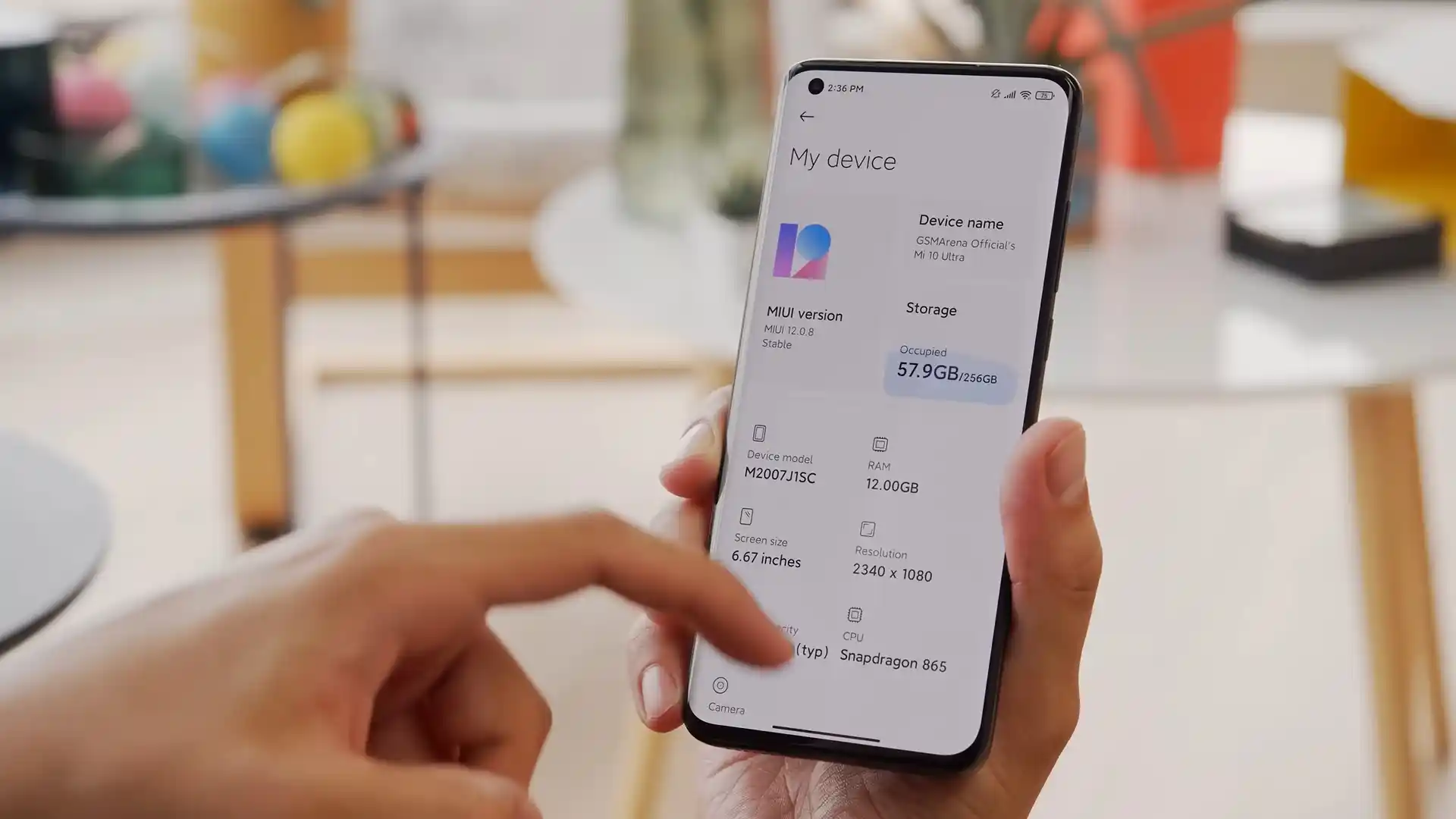
The Xiaomi Mi 10 Ultra (hardware codename cas, model M2007J1SC) was launched in August 2020, built on the Qualcomm Snapdragon 865 5G (SM8250, 7nm) processor. Marking Xiaomi's 10th anniversary, this flagship hardware platform features an Adreno 650 GPU, 6.67-inch 120Hz curved OLED panel, 120W wired fast charging, and an advanced quad-camera system with a custom 48 MP OmniVision sensor and 120x periscope telephoto zoom.
This walkthrough provides step-by-step instructions for flashing official stock Fastboot firmware and custom recovery packages on the Xiaomi Mi 10 Ultra. Whether you are unbricking a phone stuck in a bootloop, clearing system errors after an update, or migrating to multilingual Xiaomi.eu software, follow these verified instructions to restore your device safely.
Which Flash Mode Should You Use?
Xiaomi Mi Flash Tool (Fastboot)
Official flashing utility for unlocked Xiaomi handsets. Writes partition images directly to storage over Fastboot mode.
Stock Recovery / Local Update
Official on-device recovery update method for installing signed Recovery ZIP packages without wiping personal data.
Custom Recovery (TWRP / OrangeFox)
Custom recovery environment for installing Xiaomi.eu multilingual ROMs, creating full NANDroid backups, and root management.
Pre-Flash Equipment & USB Driver Verification for cas
A 64-bit Windows 10/11 computer with official Qualcomm USB drivers and current Android SDK Platform Tools.
An officially unlocked bootloader via the Xiaomi Mi Unlock desktop utility is required for Fastboot flashing.
Ensure the 4500 mAh dual-cell battery retains at least 50% charge to prevent shutdowns during 5GB+ super partition writes.
Use an authentic data sync cable connected directly to a rear motherboard USB 2.0 port to prevent communication drops.
5-Step Mi Flash & Fastboot Walkthrough for Mi 10 Ultra
These 5 steps are tailored to the Xiaomi Mi 10 Ultra (Snapdragon 865). For screenshots, an interactive checklist, and troubleshooting, open the full Mi Flash Tool guide.
-
Download and extract cas_images_OS1.0.4.0.TJJCNXM_20240605.0000.00_13.0_cn_628f989f7d.tgz with 7-Zip to C:\cas_fw
-
Hold Volume Down and Power buttons for 8 to 10 seconds to enter Fastboot mode
-
Connect via USB 2.0 port and verify terminal handshake via fastboot devices
-
Select clean all radio button in Mi Flash Tool to avoid relocking foreign bootloaders
-
Click Flash to write super partition images to UFS 3.1 storage and allow 5 to 8 minutes for boot
Fastboot Flashing Scripts & Mode Selection
Official Fastboot firmware packages for the Xiaomi Mi 10 Ultra contain raw image partitions and automated flasher scripts tailored for Snapdragon 865 UFS 3.1 storage: flash_all.bat (clean flash), flash_all_except_storage.bat (preserve user data), and flash_all_lock.bat (clean flash and relock bootloader). For general unbricking and restoring stock HyperOS, selecting flash_all.bat writes images cleanly across dynamic super partitions.
flash_all.bat
Official Fastboot packages for the Xiaomi Mi 10 Ultra contain batch flasher scripts for distinct repair requirements. Understanding their behavior helps you choose the correct option in Mi Flash Tool.
Flashing Safety Rule: Always confirm that "clean all" (flash_all.bat) is selected in Mi Flash Tool before flashing. Because the Mi 10 Ultra is a Chinese domestic model (M2007J1SC), never choose "clean all and lock" when installing modified or multilingual ROMs such as Xiaomi.eu, as relocking foreign signatures triggers an immediate hard brick.
Xiaomi Mi 10 Ultra Firmware Versions
Below are tested factory Fastboot and community multilingual ROM packages for the Xiaomi Mi 10 Ultra. For historical MIUI releases, official Recovery ZIPs, and additional TWRP recovery toolkits, browse the master archive.
| Version | Region | Android Version | Size | MD5 | Download |
|---|---|---|---|---|---|
OS1.0.4.0.TJJCNXM (HyperOS 1.0) |
China (CN Official) — M2007J1SC | Android 13.0 | 5.4 GB | 628f989f7d9bfbcd92940dba966d0bdf |
⬇️ Download |
OS1.0.4.0.TJJCNXM (Xiaomi.eu Multilingual) |
Europe / Multilingual (EU Custom ROM) | Android 13.0 | 4.4 GB | 724141b178f22b1b0c36790b9e6a3eb2 |
⬇️ Download |
TWRP 3.7.1_12 v9.0 FBEv2 (by skkk) |
Global / Custom Recovery | Android 13 / 14 / 15 FBEv2 | 135 MB | 751c1abd1a8ee9dbddcc7dffcf83c81b |
⬇️ Download |
Need additional packages like official Recovery ZIPs or older MIUI releases? Browse the full Xiaomi Mi 10 Ultra archive on AndroidFirmwareFile.com →
Snapdragon 865 Dynamic Partitions & Batch Scripts
The Qualcomm Snapdragon 865 platform utilizes dynamic partitions with a non-A/B System-as-Root structure. Flashing packages like cas_images_OS1.0.4.0.TJJCNXM_20240605.0000.00_13.0_cn_628f989f7d.tgz writes logical partitions (system, vendor, product) inside a 5GB+ super container. Always maintain an uninterrupted connection to a rear motherboard USB 2.0 port throughout the entire 5 to 8 minute installation.
Troubleshooting Xiaomi Mi 10 Ultra Flashing Errors
Mi Flash script error: "update sparse crc list failed"
Occurs when older versions of Mi Flash fail to parse the CRC checksum block in the flash_all.bat script for large dynamic super partition images. Open flash_all.bat in a text editor (like Notepad++), delete the lines containing "check-crc", save the file, and re-run the flashing process in Mi Flash.
super.img write timeout: "error: cannot load 'super.img': data too large or timeout"
The 5GB+ dynamic super partition container can time out when transferring over front-panel USB 3.0 ports or unpowered hubs. Connect the phone directly to a native motherboard USB 2.0 port on the rear of the PC, use the original Xiaomi Type-C cable, and verify you are running current Android SDK Platform Tools.
Camera calibration loss: "camera list no match" or periscope freeze after flashing persist
Occurs if the dedicated persist partition is wiped or overwritten with a generic image. The persist partition contains unique factory sensor calibration tables for the custom 48 MP OmniVision OV48C sensor, dual optical image stabilization (OIS), and the 120x periscope telephoto module. Flashing scripts should never touch persist; if damaged, restore a verified persist backup taken from this specific handset.
Bootloader locked rejection: "FAILED (remote: 'Erase is not allowed in Lock State')"
Fastboot cannot write partitions because the bootloader is locked. Boot into Android, activate Developer Options, check OEM Unlocking and USB Debugging, bind your Mi Account under Mi Unlock Status, and complete the official unlocking procedure using the desktop Xiaomi Mi Unlock tool before flashing.
Encountering issues during flashing? Review these verified workshop troubleshooting notes for the Xiaomi Mi 10 Ultra. Troubleshooting & Common Errors →
Workshop Troubleshooting & Recovery Partition Mechanics
The Xiaomi Mi 10 Ultra features a non-A/B (A-only) System-as-Root architecture with a dedicated physical recovery partition. Unlike newer Virtual A/B phones where the recovery ramdisk is merged into the boot image, the Mi 10 Ultra allows you to permanently flash custom recoveries by executing "fastboot flash recovery twrp.img". You can also test a recovery temporarily without writing to onboard storage by executing "fastboot boot twrp.img".
Official Chinese HyperOS and Xiaomi.eu custom ROMs generate different cryptographic encryption keys in Android's File-Based Encryption (FBEv2) subsystem. Performing a standard factory wipe only cleans cache and system state without rebuilding the encryption metadata. Navigating to Wipe > Format Data and typing "yes" destroys the mismatched encryption keys, allowing the new ROM to boot properly without bootlooping to recovery.
If an interrupted flash corrupts the primary bootloader partition, the Snapdragon 865 processor enters Qualcomm Emergency Download (EDL 9008) mode. Hardware test points are located on the motherboard beneath the back cover, camera assembly, and graphite cooling foil. Shorting these pins to ground while inserting the USB cable forces the phone into EDL mode; however, flashing Snapdragon 865 firehose programmer images requires an authorized Xiaomi service account.
Ready to Flash?
Follow the full step-by-step Mi Flash Tool guide with interactive progress tracking, prerequisite checklist, and complete troubleshooting.