

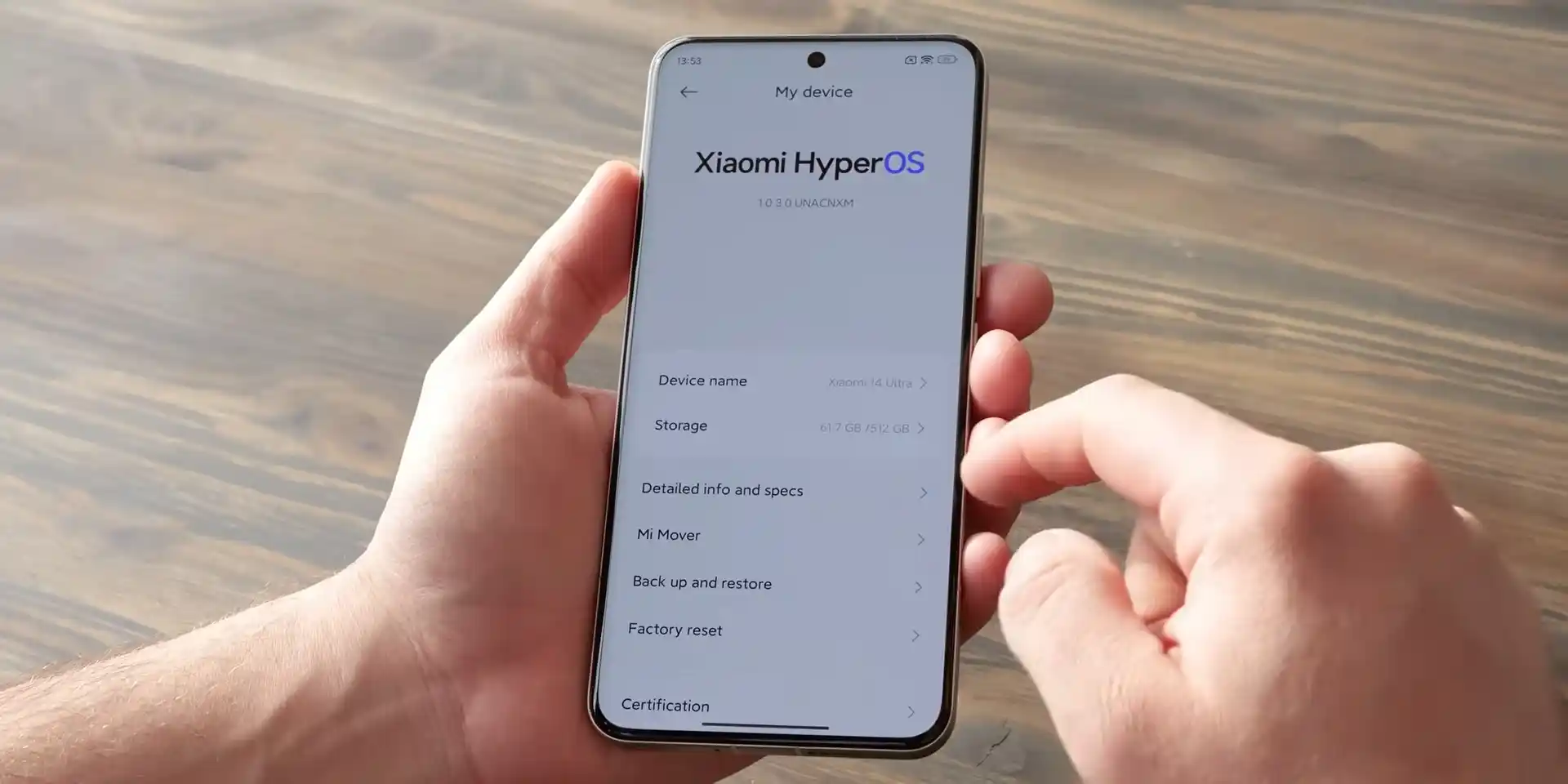
Before you flash: Flashing firmware will erase all data on your device. Back up contacts, photos, and apps before proceeding. FlashGuideHub is not responsible for any damage caused by following this guide.
About the Xiaomi 14 Ultra
The Xiaomi 14 Ultra (released February 2024) is built on the Qualcomm Snapdragon 8 Gen 3 (SM8650-AB) platform with an Adreno 750 GPU and a Leica quad 50 MP camera array. This workshop walkthrough provides verified technical procedures for flashing official stock Fastboot firmware, recovering from bootloops, and unbricking the handset using Mi Flash Tool.
Because the Xiaomi 14 Ultra utilizes Google dynamic partitions with userspace fastbootd alongside Qualcomm Keymaster 5.0 hardware encryption, flashing requires careful attention to tool configuration, partition streaming stages, and bootloader status.
Which Flash Mode Should You Use?
Fastboot Mode (Bootloader)
Primary flashing interface used by Mi Flash Tool to execute raw partition writes and invoke fastbootd.
Stock Recovery / Sideload Mode
Native recovery interface for applying official full recovery update ZIP packages via ADB sideload.
What You Need Before Flashing
A reliable 64-bit Windows computer with updated Qualcomm HS-USB QDLoader drivers and Android SDK Platform Tools.
A quality USB Type-C data cable connected directly to a rear motherboard USB port to avoid transmission packet drops.
Ensure the 5000 mAh / 5300 mAh battery has at least 50% charge before beginning the flashing procedure.
The device bootloader must be officially unlocked using the Xiaomi Mi Unlock desktop utility prior to Fastboot flashing.
How to Flash the Xiaomi 14 Ultra — Quick Overview
A quick 5-step overview built specifically for the Xiaomi 14 Ultra. The full Mi Flash Tool guide adds screenshots, progress tracking, and fixes for common errors.
-
Unlock bootloader with Mi Unlock
-
Decompress Fastboot TGZ archive twice
-
Reboot into Fastboot mode
-
Configure Mi Flash Tool with "clean all"
-
Flash partitions and await initial boot
Xiaomi 14 Ultra Fastboot Partition Structure & Script Execution
Flashing the Xiaomi 14 Ultra utilizes the official raw partition batch file flash_all.bat bundled within the unpacked Fastboot TGZ archive. This script orchestrates raw sparse chunk streaming across bootloader Fastboot and userspace fastbootd.
flash_all.bat
The Fastboot TGZ archive contains raw system image partitions alongside three standardized Windows execution batch scripts. Below is the operational function of each script:
Technicians must always select clean all (which executes flash_all.bat) inside Mi Flash Tool. Selecting clean all and lock on cross-regional or community firmware triggers a hard security brick.
Xiaomi 14 Ultra Firmware Versions
Official factory Fastboot ROM packages for the Xiaomi 14 Ultra (aurora) across international and domestic regional channels:
| Version | Region | Android Version | Size | MD5 | Download |
|---|---|---|---|---|---|
OS3.0.305.0.WNAEUXM (HyperOS 3.0) |
EEA / Europe (EU) | Android 16.0 | 8.8 GB | 9ea0b35f811cecf7426e792c0b89aa5f |
⬇️ Download |
OS3.0.308.0.WNACNXM (HyperOS 3.0) |
China (CN) | Android 16.0 | 10.0 GB | a2586d4d6cd20e03e5c9f1a0179a63dc |
⬇️ Download |
Need additional regional releases, OTA recovery payloads, or TWRP images? Browse the full archive on AndroidFirmwareFile.com →
Xiaomi 14 Ultra — Important Notes
The Xiaomi 14 Ultra platform manages large system partitions by transitioning automatically into userspace fastbootd during the flash script execution. Ensure your host computer remains awake and do not disturb the USB Type-C connection during partition writing.
Troubleshooting Xiaomi 14 Ultra Flashing & Fastbootd Issues
Fastbootd Re-enumeration Timeout: "FAILED (remote: 'fastbootd transport stalled or device not recognized')"
When flashing the massive dynamic super container on the Snapdragon 8 Gen 3 platform, the device transitions automatically from bootloader Fastboot into userspace fastbootd. If host USB 3.2 ports with aggressive power-saving governors take longer than 10 seconds to re-bind the fastbootd interface, the flash script aborts. Workshop technicians suggest connecting directly to a rear motherboard USB port, running Mi Flash Tool as Administrator, and temporarily disabling Windows USB selective suspend.
Leica Calibration Failure: "Camera FC / Telephoto OIS Motor Noise after Erasing Persist"
The Xiaomi 14 Ultra relies on factory-calibrated optical alignment data stored in the /persist partition for its 1-inch LYT-900 stepless variable aperture and dual telephoto OIS motors. If a technician mistakenly flashes or erases the persist image, the camera app will force close or produce loud actuator clicking noises. Technicians strongly warn against ever erasing or wiping the persist partition during firmware repair.
Snapdragon 8 Gen 3 Anti-Rollback Guard: "FAILED (remote: 'Anti-rollback check error')"
Qualcomm Snapdragon 8 Gen 3 processors enforce hardware-fused Anti-Rollback (ARB) security indexes. Attempting to downgrade from Android 16 HyperOS 3.0 back to earlier HyperOS 1.0 builds causes the primary bootloader to reject the flash command to prevent security index rollback. Technicians advise checking the current rollback index via "fastboot getvar anti" before attempting any firmware version downgrade.
Bootloader Relock Security Trap: "The system has been destroyed / dm-verity failed after flash_all_lock.bat"
Selecting "clean all and lock" (flash_all_lock.bat) when flashing Xiaomi.eu ROMs or cross-regional firmware causes the primary bootloader to command a hardware lock. The Snapdragon 8 Gen 3 bootloader validates the signed vbmeta hash against regional eFuses upon startup; if any hash mismatch is detected, the bootloader locks and immediately halts boot execution. Technicians advise always selecting "clean all" (flash_all.bat) without relocking.
Encountering flashing errors with Mi Flash Tool or fastbootd? Consult our bench error directory below: Troubleshooting & Error Resolutions →
Frequently Asked Questions — Xiaomi 14 Ultra
On Android 16 HyperOS 3.0, dynamic super partitions are flashed via userspace fastbootd. During execution of flash_all.bat, the handset automatically reboots from bootloader Fastboot into fastbootd (displaying an English Fastbootd menu on screen). Do not disconnect the cable during this 8 to 10-second transition; Mi Flash Tool will re-enumerate the device interface and continue streaming the raw sparse chunks.
Android 16 on the Snapdragon 8 Gen 3 enforces Qualcomm Keymaster 5.0 File-Based Encryption (FBE). If booting into an older custom recovery build or without entering the lock screen security credential, internal storage mounts as 0 MB. To install the Xiaomi.eu ROM or custom zip packages, use the Kyuofox A15/A16 TWRP build, or tap Wipe > Format Data and type "yes" in TWRP to initialize fresh userdata encryption.
Fastboot USB interfaces on certain AMD Ryzen motherboards can drop transmission packets when transferring large sparse chunks over USB 3.1/3.2 controllers. If Mi Flash Tool hangs at "" or stalls midway, technicians recommend connecting the phone through a rear USB 2.0 port, using an unpowered USB 2.0 intermediate hub, or executing the flash on an Intel-based host PC.
Emergency Download (EDL 9008) mode on Snapdragon 8 Gen 3 devices requires an authorized Xiaomi service technician account with active cryptographic firehose tokens. Community tools cannot flash EDL firehose programmers without Xiaomi server signing. If the phone was merely soft-bricked by an interrupted Fastboot flash, holding Power and Volume Down for 15 seconds will force the device out of EDL mode and reboot it back into standard Fastboot mode, allowing you to re-run flash_all.bat cleanly.
Ready to Flash?
Follow the full step-by-step Mi Flash Tool guide with interactive progress tracking, prerequisite checklist, and complete troubleshooting.