

Before you flash: Flashing firmware will erase all data on your device. Back up contacts, photos, and apps before proceeding. FlashGuideHub is not responsible for any damage caused by following this guide.
About the Xiaomi Mi 11 Ultra & Mi 11 Pro
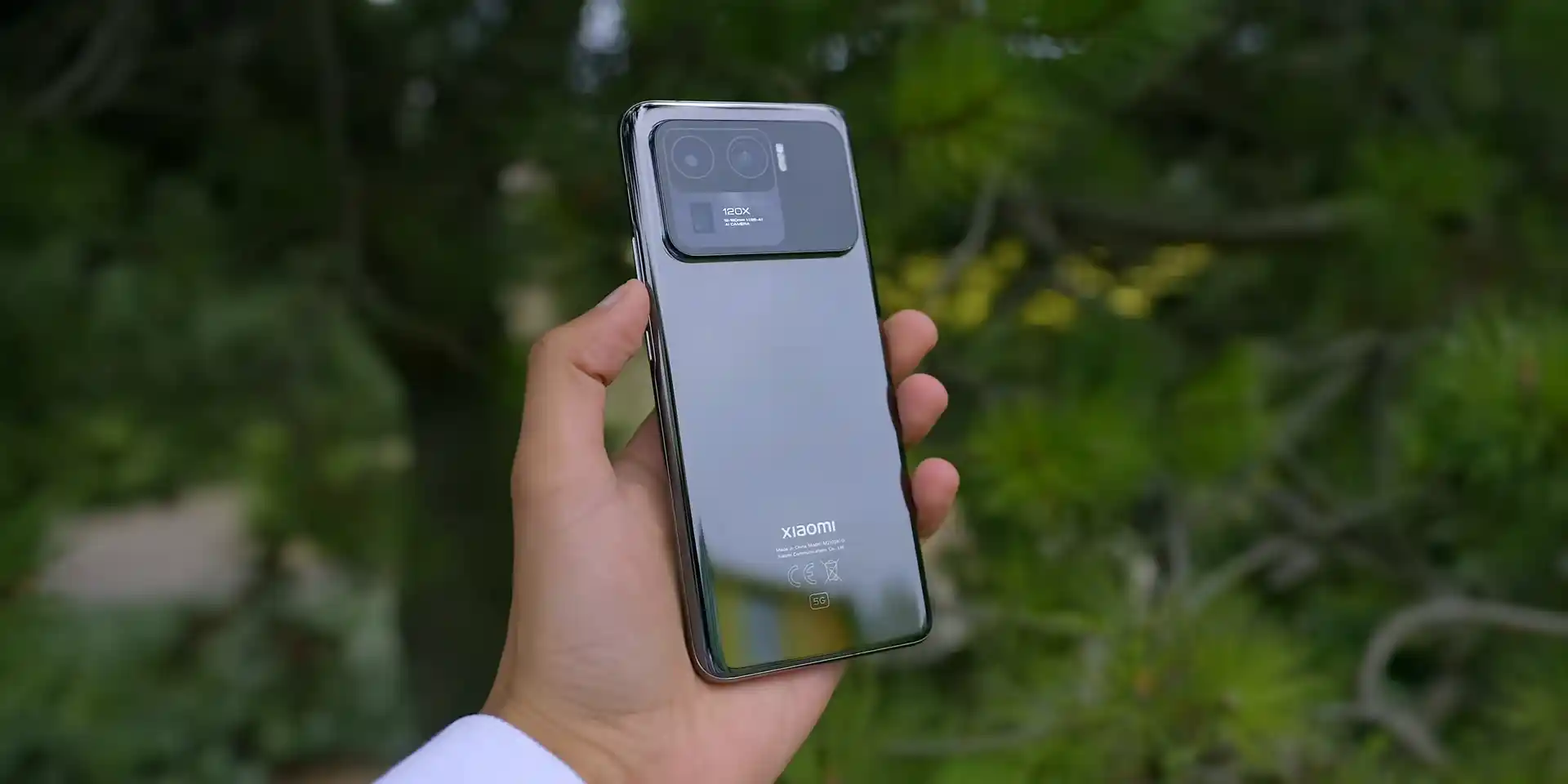
The Xiaomi Mi 11 Ultra & Mi 11 Pro (hardware codename star, model numbers M2102K1G, M2102K1C, and M2102K1I) was released in April 2021, built on the Qualcomm Snapdragon 888 5G (5nm) platform with an Adreno 660 GPU, 6.81-inch Quad HD+ 120Hz AMOLED display, a secondary 1.1-inch rear notification display, triple rear cameras featuring a 50 MP Samsung GN2 sensor, and a 5000 mAh silicon-oxygen battery with 67W fast charging.
This guide provides step-by-step instructions for flashing official stock Fastboot firmware on the Xiaomi Mi 11 Ultra & Mi 11 Pro using Xiaomi Mi Flash Tool. Whether you need to recover a device stuck on the boot screen, fix software errors after an update, or return to a clean factory state, follow these verified steps to flash safely.
Which Flash Mode Should You Use?
Xiaomi Mi Flash Tool (Fastboot)
Official flashing utility for unlocked Xiaomi devices. Writes partition images directly over Fastboot and userspace fastbootd.
Stock Recovery / Local Update
Official on-device recovery update method for installing official Recovery OTA ZIP packages without wiping personal data.
Essential Equipment & Pre-Flash Driver Preparation
A 64-bit Windows 10/11 computer with official Qualcomm Android USB drivers and Android SDK Platform Tools.
An officially unlocked bootloader via the Xiaomi Mi Unlock utility is mandatory for Fastboot partition flashing.
Ensure the 5000 mAh battery holds at least 50% charge to prevent power loss while writing 7GB+ super partition images.
Use an authentic data sync cable connected directly to a rear motherboard USB 2.0 port to prevent communication drops.
5-Step Mi Flash & Fastboot Restoration Walkthrough
A fast reference for flashing the Xiaomi Mi 11 Ultra & Mi 11 Pro (Snapdragon 888) using Mi Flash Tool. For the complete walkthrough with images and error troubleshooting, see the full guide.
-
Download and unpack star_eea_global_images_OS2.0.3.0.UKAEUXM_20250430.0000.00_14.0_eea_eb04542688.tgz with 7-Zip
-
Reboot device to Fastboot mode via physical key combo
-
Connect to PC USB 2.0 port and verify handshake via fastboot devices
-
Configure Mi Flash with clean all script and verify device ID
-
Flash device and complete initial first-boot HyperOS cache rebuild
Fastboot Script Structure & Flashing Modes
Fastboot firmware archives for the Xiaomi Mi 11 Ultra and Mi 11 Pro unpack into an images folder containing raw partition binaries alongside automated flashing scripts: flash_all.bat (clean flash), flash_all_except_storage.bat (preserve user data), and flash_all_lock.bat (clean flash and relock bootloader). Technicians recommend strictly selecting flash_all.bat to format user storage cleanly across UFS 3.1 partitions.
flash_all.bat
Official Fastboot packages for the Xiaomi Mi 11 Ultra and Mi 11 Pro contain automated batch scripts for different repair scenarios. Understanding these scripts ensures you select the correct flashing operation in Mi Flash Tool.
Never run flash_all_lock.bat when flashing cross-regional firmware (such as Global or EEA software on a Chinese M2102K1C handset), as relocking the bootloader against mismatched regional signatures will result in an immediate hard brick.
Xiaomi Mi 11 Ultra & Mi 11 Pro Firmware Versions
Below are verified factory Fastboot packages for distinct regional models of the Xiaomi Mi 11 Ultra and Mi 11 Pro. For historical MIUI releases, regional OTA files, and Xiaomi.eu custom ROMs, browse the master archive.
| Version | Region | Android Version | Size | MD5 | Download |
|---|---|---|---|---|---|
OS2.0.3.0.UKAEUXM (HyperOS 2.0) |
EEA (Europe / UK) — M2102K1G | Android 14.0 | 6.5 GB | eb0454268819478793560777c6cded62 |
⬇️ Download |
OS2.0.6.0.UKAMIXM (HyperOS 2.0) |
Global (MI) — M2102K1G | Android 14.0 | 6.6 GB | ec1c03c4a3f70371e55dda4d91698988 |
⬇️ Download |
OS2.0.1.0.UKACNXM (HyperOS 2.0) |
China (CN) — M2102K1C | Android 14.0 | 7.2 GB | 1545168a469a17aef5d45f7de11b8477 |
⬇️ Download |
Need additional packages like Xiaomi.eu custom ROMs, China builds, or TWRP images? Browse the full Xiaomi Mi 11 Ultra & Mi 11 Pro archive on AndroidFirmwareFile.com →
Snapdragon 888 Partition Layout & Script Execution Notes
The Qualcomm Snapdragon 888 platform utilizes Google Virtual A/B dynamic partition architecture (super.img). Flashing begins in standard bootloader Fastboot mode and automatically transitions into userspace fastbootd mode to write logical partitions (system, vendor, product, and odm). Maintain an uninterrupted USB connection throughout the entire process.
Troubleshooting Xiaomi Mi 11 Ultra & Mi 11 Pro Flashing Errors
super.img transfer timeout: "error: cannot load 'super.img': data too large or timeout"
The 7GB+ dynamic super partition image can time out when transferring over certain third-party USB 3.0/3.1 ports. Connect the device directly to a rear motherboard USB 2.0 port and use the latest official Android SDK Platform Tools to ensure stable packet transfer.
Bootloader locked rejection: "FAILED (remote: 'Erase is not allowed in Lock State')"
Mi Flash cannot write partitions because the bootloader is locked. Ensure "OEM Unlocking" is enabled in Developer Options, associate your authorized Mi Account, and unlock the device with the official Xiaomi Mi Unlock tool before proceeding.
Cross-region relock brick: "The system has been destroyed after flashing with flash_all_lock.bat"
Occurs when an imported Chinese hardware model (M2102K1C) is flashed with Global or EEA software and locked via flash_all_lock.bat. Xiaomi hardware fuses block foreign regional software on locked Chinese motherboards. To avoid this, always select "clean all" (flash_all.bat). Recovering requires unlocking the bootloader via the original associated Mi account or authorized EDL servicing.
Encountering issues during flashing? Review these verified workshop troubleshooting notes for the Xiaomi Mi 11 Ultra and Mi 11 Pro. Troubleshooting & Common Errors →
Technical Workshop Questions & Unbricking Mechanics
On the Xiaomi Mi 11 Ultra and Mi 11 Pro, Qualcomm's Android 11+ Virtual A/B architecture does not use a dedicated physical recovery partition; the recovery ramdisk is housed within the boot image. Executing "fastboot flash recovery twrp.img" can damage the kernel boot partition and cause a bootloop. Instead, always execute "fastboot boot twrp-3.7.0_11-0-star.img" to launch the recovery environment temporarily from memory without altering system partitions.
Yes. The 1.1-inch rear notification display is controlled by dedicated hardware initialization drivers located inside the vendor and ODM partitions. When third-party custom ROMs or corrupt system updates cause the rear screen to remain dark, flashing an official Fastboot package with "clean all" rewrites these low-level drivers and restores factory touch and display communication.
No. Factory optical image stabilization (OIS) baselines, laser autofocus tables, and individual sensor tuning for the 50 MP Samsung GN2 and dual 48 MP Sony IMX586 cameras reside inside the dedicated "persist" partition. Official Fastboot flashing scripts (flash_all.bat) deliberately avoid flashing or erasing persist, keeping factory camera calibration intact.
Ready to Flash?
Follow the full step-by-step Mi Flash Tool guide with interactive progress tracking, prerequisite checklist, and complete troubleshooting.