

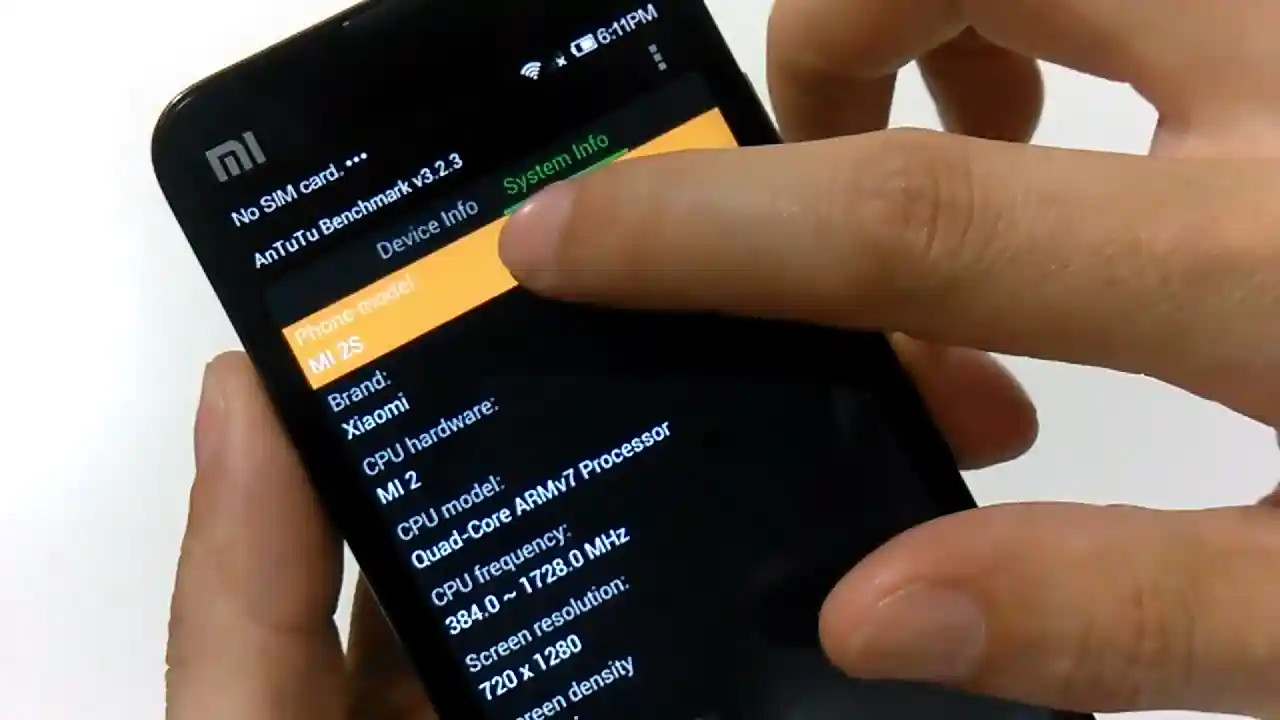
Before you flash: Flashing firmware will erase all data on your device. Back up contacts, photos, and apps before proceeding. FlashGuideHub is not responsible for any damage caused by following this guide.
About the Xiaomi Mi 2 / Mi 2S
This workshop guide provides step-by-step bench instructions to flash official stock Fastboot firmware to the Xiaomi Mi 2 / Mi 2S (October 2012 / April 2013) using Mi Flash Tool. Writing system and partition binaries to Qualcomm's Qualcomm Snapdragon S4 Pro (Mi 2) / Snapdragon 600 (Mi 2S) platform over eMMC storage requires stable USB driver handshakes and correct batch script selection.
Whether your phone is trapped in a startup bootloop, recovering from corrupted partitions, or returning to clean official MIUI 9 (Android 5.0.2 Lollipop), follow the verified prerequisites, battery precautions, and step-by-step flashing procedures detailed below.
Which Flash Mode Should You Use?
Xiaomi Mi Flash Fastboot Flashing (Recommended)
Standard official method for restoring stock MIUI firmware using an unlocked bootloader and Mi Flash Tool in Fastboot mode.
Qualcomm EDL 9008 Emergency Unbrick
Low-level hardware unbrick mode for flashing raw partition images directly to eMMC storage when Fastboot mode is inaccessible.
Custom Recovery (TWRP Installation)
Custom recovery environment used for installing multi-language community packages like xiaomi.eu or managing root access.
What You Need Before Flashing
Fastboot flashing requires an unlocked bootloader; early Mi 2/Mi 2S production batches shipped with open bootloaders.
A 64-bit Windows PC with Qualcomm QDLoader 9008 drivers and updated Android SDK Platform Tools installed.
Ensure the removable BM20 or BM30 battery has at least 50% charge to prevent shutdown during eMMC partition writes.
Use a certified microUSB data sync cable plugged directly into a rear motherboard USB port.
Flashing stock Fastboot firmware with "clean all" completely wipes internal storage and applications.
Decompress the .tgz archive twice using 7-Zip until flash_all.bat is exposed in a clean root directory.
How to Flash the Xiaomi Mi 2 / Mi 2S — Quick Overview
5-step quick reference for the Xiaomi Mi 2 / Mi 2S. Need visuals or troubleshooting help? The full Mi Flash Tool guide covers everything in detail.
-
Verify phone codename is aries
-
Decompress Fastboot TGZ archive twice
-
Enter Fastboot mode
-
Configure Mi Flash Tool with "clean all"
-
Flash firmware and await first boot
Firmware Package for Snapdragon APQ8064 (flash_all.bat)
Official Fastboot firmware packages for the Xiaomi Mi 2 and Mi 2S are distributed as .tgz archives containing raw partition binaries (boot.img, recovery.img, system.img, cache.img, userdata.img, emmc_appsboot.mbn) written via flash_all.bat or Qualcomm EDL rawprogram0.xml across the Snapdragon APQ8064 eMMC storage controller.
flash_all.bat
Official Xiaomi Mi 2 & Mi 2S firmware is distributed as a compressed .tgz archive. Extract the archive twice using 7-Zip until the folder containing "flash_all.bat" and the raw partition images is visible.
Fastboot Flashing Note: Always select "clean all" (flash_all.bat) when using Mi Flash Tool on imported hardware to avoid locking the bootloader against custom or community firmware.
Xiaomi Mi 2 / Mi 2S Firmware Versions
Official stock firmware downloads for the Xiaomi Mi 2 / Mi 2S. Verify your hardware model variant before downloading.
| Version | Region | Android Version | Size | MD5 | Download |
|---|---|---|---|---|---|
V9.2.2.0.LXAMIEK (MIUI 9 Global) |
Global (MI / Worldwide) | Android 5.0.2 | 828.13 MB | 2b5d73471b2fc572b9d4e7a3d2ba5d53 |
⬇️ Download |
This unified platform has 5 additional recovery, regional, and community packages in the full archive. Browse the complete archive on AndroidFirmwareFile.com →
Xiaomi Mi 2 / Mi 2S — Important Notes
The Xiaomi Mi 2 and Mi 2S house a removable 2,000 mAh BM20 or 3,100 mAh BM30 battery. Writing full MIUI 9 partition images takes approximately 2 to 3 minutes over eMMC storage. Confirm that your battery has at least 50% charge before beginning the flashing process to prevent unexpected shutdowns during partition writes.
Troubleshooting Xiaomi Mi 2 & Mi 2S Flashing & MIUI Errors
Partition Reallocation Failure: "FAILED (remote: partition table doesn't exist)"
When upgrading from legacy Android 4.1 dual-system layouts to Android 5.0.2 Lollipop, Fastboot can reject image streaming if the repartition sequence is interrupted. Technicians recommend executing flash_all.bat directly so the script executes partition.mbn and reallocates the unified system layout before flashing system binaries.
Fastboot Device Recognition Dropout: "Press any key to continue . . ." script stall
On modern 64-bit Windows 10 and Windows 11 PCs, USB 3.0/3.1 xHCI host controllers can drop the Fastboot USB communication pipe during large system.img writes. Technicians suggest connecting the phone to a native USB 2.0 port on the motherboard rear panel and verifying Google WinUSB driver binding in Device Manager.
Emergency Protocol Dropout: "Device communication terminated in 9008 mode"
When attempting emergency recovery over Qualcomm 9008 mode, loose microUSB cable seating or unverified serial driver handshakes cause transfer terminations. Technicians recommend connecting with a short certified data cable directly to an onboard USB port and confirming the assigned COM port in Device Manager under Ports (COM & LPT).
For solving common Mi Flash Tool timeout codes, Qualcomm 9008 connection drops, and TWRP recovery issues: Xiaomi Flashing Error Directory →
Frequently Asked Questions — Xiaomi Mi 2 / Mi 2S
No. The Qualcomm Snapdragon S4 Pro and Snapdragon 600 (APQ8064/APQ8064T) platform on the Mi 2 and Mi 2S does not enforce server-side firehose cryptographic authorization. Technicians can enter 9008 mode by bridging the motherboard test points located beneath the battery housing or using a specialized deep flash cable, allowing Mi Flash Tool to flash rawprogram0.xml and patch0.xml directly without account authentication.
When moving from stock official MIUI to the community xiaomi.eu release, a standard factory reset is insufficient. Workshop technicians recommend booting into TWRP recovery, navigating to Wipe > Advanced Wipe, selecting Dalvik / ART Cache, System, Data, and Cache partitions to format them cleanly, and rebooting back into recovery before copying and flashing the ROM zip file.
Qualcomm's APQ8064 bootloader ROM communicates via the USB 2.0 High-Speed specification. Modern PC motherboards with third-party USB 3.0/3.1 xHCI host controllers can cause timing jitter or packet drops during large system image writes. Connecting the microUSB cable to an onboard rear USB 2.0 port ensures consistent serial throughput throughout the flashing routine.
Before flashing any files, put the phone into Fastboot mode by holding Volume Down and Power, then execute "fastboot getvar product" from a command prompt. If the terminal returns "aries", the device is the quad-core Snapdragon Mi 2 or Mi 2S. If it returns "taurus", it is the dual-core Snapdragon S4 Pro Mi 2A, which uses an entirely different partition map, 4.5-inch display driver, and baseband stack.
Ready to Flash?
Follow the full step-by-step Mi Flash Tool guide with interactive progress tracking, prerequisite checklist, and complete troubleshooting.