

Before you flash: Flashing firmware will erase all data on your device. Back up contacts, photos, and apps before proceeding. FlashGuideHub is not responsible for any damage caused by following this guide.
About the Xiaomi Mi 5 / Mi 5 Prime / Mi 5 Pro
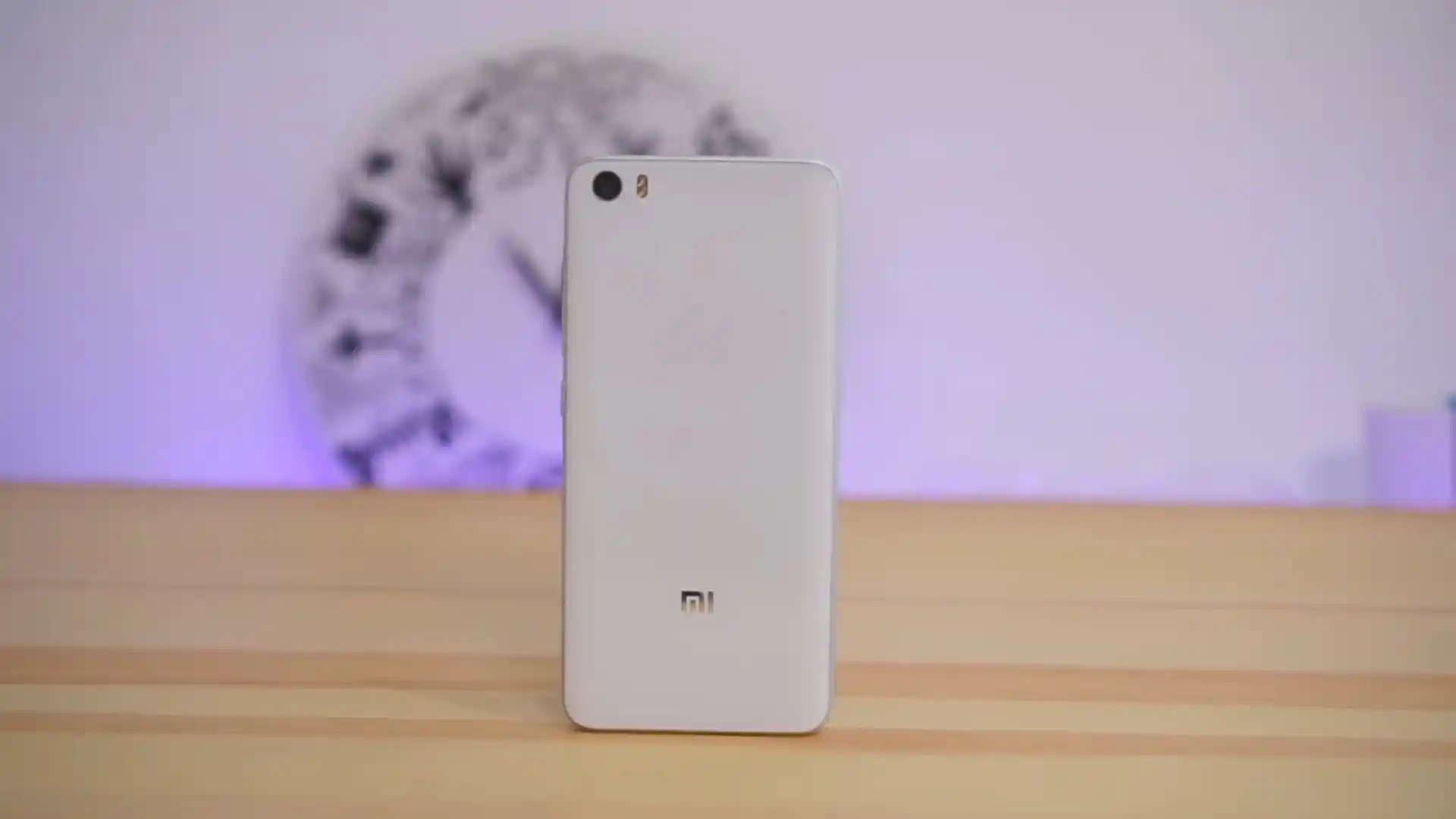
The Xiaomi Mi 5 / Mi 5 Prime / Mi 5 Pro (codename: gemini) debuted in February 2016 on Qualcomm's Qualcomm Snapdragon 820 MSM8996 (14nm) platform with high-speed UFS 2.0 flash storage, USB Type-C, and 4-axis OIS camera hardware.
Whether you need to revive a hard-bricked Mi 5 via Qualcomm EDL 9008 with gemini_global_images_V10.2.2.0.OAAMIXM_20190115.0000.00_8.0_global_d05f4a2bfd.tgz or upgrade to Xiaomi.eu MIUI 11 through twrp-3.7.0_9-0-gemini.img, follow the steps below.
Which Flash Mode Should You Use?
64-Bit Mi Flash Tool — UFS EDL 9008 (Locked or Bricked)
Writes multi-LUN UFS 2.0 factory partitions over Qualcomm QDLoader 9008 without requiring an unlocked bootloader.
Mi Flash Tool / Fastboot CLI (Unlocked Bootloader)
Executes flash_all.bat or installs twrp-3.7.0_9-0-gemini.img directly over the Android Bootloader USB-C connection.
TWRP / Local Updater (Recovery ZIP)
Flashes xiaomi.eu_multi_MI5_V11.0.2.0.OAACNXM_v11-8.0.zip inside Official TWRP 3.7.0_9-0 or installs miui_MI5Global_V10.2.2.0.OAAMIXM_d16c808eba_8.0.zip via stock Updater.
Essential Setup Before Flashing Xiaomi Mi 5 (gemini)
Legacy 32-bit Mi Flash tools fail on Snapdragon 820 UFS 2.0 sector maps. Always use a 64-bit build on 64-bit Windows.
Connect directly to a rear motherboard USB 2.0 port using a quality Type-C data cable to avoid EDL COM dropouts.
Extract the .tgz download twice using 7-Zip into C:\gemini_fw\ without spaces so flash_all.bat and XML maps resolve cleanly.
Ensure the 3,000 mAh battery holds solid charge (or inspect the internal battery flex if opening the back for test points).
Mi 5 has no microSD slot and flash_all.bat erases internal UFS storage completely. Copy personal files to a PC first.
64-Bit Mi Flash & UFS EDL 9008 Steps for Snapdragon 820
5-step quick reference for the Xiaomi Mi 5 / Mi 5 Prime / Mi 5 Pro. Need visuals or troubleshooting help? The full Mi Flash Tool guide covers everything in detail.
-
Install 64-bit Mi Flash Tool (2016.08.30+) and Qualcomm HS-USB QDLoader 9008 drivers
-
Extract gemini_global_images_V10.2.2.0.OAAMIXM_20190115.0000.00_8.0_global_d05f4a2bfd.tgz twice to C:\gemini_fw\
-
Boot to EDL 9008 (adb reboot edl / test points) if locked, or Fastboot (Vol Down + Power) if unlocked
-
Select C:\gemini_fw\ inside 64-bit Mi Flash Tool and verify "clean all" is selected
-
Click Flash, allow UFS 2.0 image writes to complete, and hold Power 10 seconds to reboot
Finding flash_all.bat & 8996 UFS Firehose Files in Snapdragon 820 Packages
Official Xiaomi Mi 5 Fastboot packages ship as double-packed .tgz archives. Unpacking twice with 7-Zip places flash_all.bat at the outer folder alongside the images subfolder containing prog_ufs_firehose_8996_ddr.elf plus multi-LUN rawprogram0–5 XML maps:
flash_all.bat
Extracting gemini_global_images_V10.2.2.0.OAAMIXM_20190115.0000.00_8.0_global_d05f4a2bfd.tgz twice with 7-Zip puts flash_all.bat at the outer level next to the images folder containing prog_ufs_firehose_8996_ddr.elf and rawprogram0–5 XML maps. Point 64-bit Mi Flash Tool at the outer folder.
Codename gemini spans ONLY the Xiaomi Mi 5 Standard (32GB), Prime (64GB), and Ceramic Pro (128GB). Never flash images built for the Mi 5s (capricorn) or Mi 5s Plus (natrium).
Always point 64-bit Mi Flash Tool to the outer directory holding flash_all.bat (for example C:\gemini_fw\), never the nested images subfolder.
Keep "clean all" highlighted; relocking a bootloader on cross-regional software will freeze startup.
Xiaomi Mi 5 / Mi 5 Prime / Mi 5 Pro Firmware Versions
Verified Global MIUI 10, China MIUI 10, Xiaomi.eu MIUI 11, and Official TWRP 3.7.0_9-0 packages for the Xiaomi Mi 5 / Mi 5 Prime / Mi 5 Pro (gemini). Browse the full archive below for CDN mirrors and China Recovery ZIP details.
| Version | Region | Android Version | Size | MD5 | Download |
|---|---|---|---|---|---|
V10.2.2.0.OAAMIXM |
Global (MI / MI5Global) — MIUI 10.2 | Android 8.0 (Oreo), Jan 2019 | 1.58 GB | d05f4a2bfd2d26057998d23c86e97b72 |
⬇️ Download |
V10.2.2.0.OAAMIXM (OTA) |
Global Recovery ZIP | Android 8.0 (Oreo), Jan 2019 | 1.38 GB | d16c808eba4f89e329138b84518799d7 |
⬇️ Download |
V10.2.1.0.OAACNXM |
China (CN / MI5) — MIUI 10.2 | Android 8.0 (Oreo), Dec 2018 | 1.80 GB | 1b761a2ea8bf1c096e8927fab461f2bd |
⬇️ Download |
V11.0.2.0.OAACNXM (Xiaomi.eu) |
Europe / Multilingual MIUI 11 (TWRP) | Android 8.0 (Oreo), Jan 2020 | 1.4 GB | 9ca4c8e07a358249964b7215824f6a3b |
⬇️ Download |
TWRP 3.7.0_9-0 |
Official Custom Recovery (gemini) | Fastboot / TWRP IMG | 21.52 MB | a79f6e3aa35997d2259fc5e0eebe07e3 |
⬇️ Download |
Browse all 6 Android 8.0 MIUI 10, Xiaomi.eu MIUI 11 & TWRP files for Mi 5 on AndroidFirmwareFile.com → View full archive on AndroidFirmwareFile.com →
Choosing UFS EDL 9008, Fastboot & TWRP Recovery Options
The Xiaomi Mi 5 / Prime / Pro (codename gemini) runs Qualcomm's Snapdragon 820 (MSM8996) paired with UFS 2.0 storage. With gemini_global_images_V10.2.2.0.OAAMIXM_20190115.0000.00_8.0_global_d05f4a2bfd.tgz, both locked and unlocked handsets restore cleanly via EDL 9008 or Fastboot.
For running Global MIUI 10 phones, miui_MI5Global_V10.2.2.0.OAAMIXM_d16c808eba_8.0.zip installs through the Updater app. Unlocked owners wanting Xiaomi.eu's final MIUI 11 Android 8.0 port (xiaomi.eu_multi_MI5_V11.0.2.0.OAACNXM_v11-8.0.zip) should flash twrp-3.7.0_9-0-gemini.img and format Data before installation.
Fixing Mi 5 (gemini) UFS Storage, TWRP Encryption & Driver Errors
Tool Error: "Not enough storage" / UFS Sector Write Failure
Older 32-bit Mi Flash releases fail on UFS 2.0 4096-byte LUN mapping and hit memory limits transferring 1.5GB+ MSM8996 images over EDL. Uninstall legacy 32-bit Mi Flash and install a 64-bit build (2016.08.30 Beta or 2017+ release) on 64-bit Windows.
Status: "FAILED (remote: Partition flashing is not allowed)"
Occurs when Fastboot commands target a Mi 5 with a locked bootloader. Switch into Qualcomm EDL 9008 mode ("adb reboot edl" from an intact ROM, a deep-flash USB-C cable, or shorting the two motherboard EDL test points) and flash via COM port instead.
TWRP Prompt: "Enter Password" / "Unable to mount /data"
Android 8.0 Oreo encryption prevents recovery from reading /data cleanly when migrating from MIUI Global to Xiaomi.eu V11.0.2.0.OAACNXM. Inside twrp-3.7.0_9-0-gemini.img, go to Wipe -> Format Data (type "yes"), reboot straight back to Recovery, and then flash the Xiaomi.eu ZIP.
Device Manager Warning: "QHSUSB_BULK" Driver Missing
Windows detected the Snapdragon 820 emergency port without signed Qualcomm 9008 drivers. Run Mi Flash Tool -> Driver -> Install on 64-bit Windows (or temporarily disable Windows Driver Signature Enforcement) until it registers under Ports as QDLoader 9008.
Need help troubleshooting another UFS COM or Fastboot message? Mi Flash & UFS Qualcomm EDL Error Directory →
UFS Firehose, 4-Axis OIS /persist & TWRP RAM Boot Q&A
Yes. Because the 2016 Xiaomi Mi 5 (Snapdragon 820 / MSM8996) uses an unauthenticated Firehose loader (prog_ufs_firehose_8996_ddr.elf) inside every Fastboot .tgz download, even locked or hard-bricked units can restore stock firmware directly through Qualcomm QDLoader 9008 without needing Xiaomi service-center credentials.
Unlike eMMC Redmi phones using 512-byte sectors, the Mi 5 runs on UFS 2.0 storage with 4096-byte sectors spread across multiple LUNs (rawprogram0.xml through rawprogram5.xml). Always let Mi Flash Tool parse every XML file automatically rather than flashing single LUN tables in QFIL unless you manually switch Storage Type to UFS.
No. Xiaomi's stock flash_all.bat and rawprogram scripts deliberately leave the /persist partition untouched, keeping your 16 MP IMX298 4-axis OIS gyroscope baselines, proximity sensor data, and Wi-Fi/Bluetooth MAC addresses intact across clean stock restores.
Yes, especially if you want to back up intact stock partitions first. On an unlocked Mi 5 in Fastboot mode, run "fastboot boot twrp-3.7.0_9-0-gemini.img" to launch TWRP once without overwriting stock Mi Recovery, or run "fastboot flash recovery twrp-3.7.0_9-0-gemini.img" when ready for Xiaomi.eu MIUI 11.
Ready to Flash?
Follow the full step-by-step Mi Flash Tool guide with interactive progress tracking, prerequisite checklist, and complete troubleshooting.