

Before you flash: Flashing firmware will erase all data on your device. Back up contacts, photos, and apps before proceeding. FlashGuideHub is not responsible for any damage caused by following this guide.
About the Xiaomi Mi 8 SE
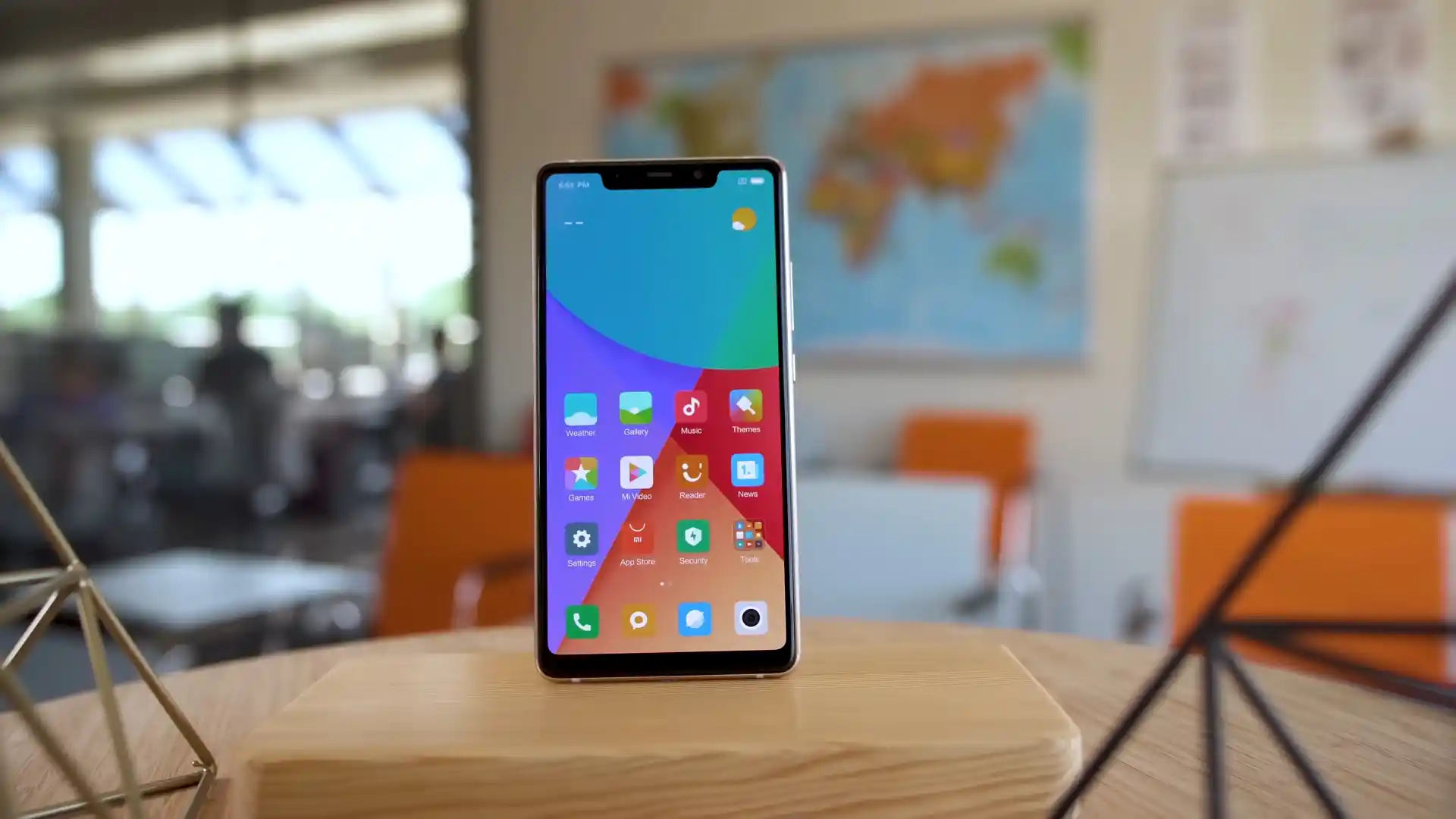
The Xiaomi Mi 8 SE (codename: sirius, model M1805E2A) launched in May 2018 on Qualcomm's Qualcomm Snapdragon 710 SDM710 (10nm) platform with an A-only eMMC 5.1 partition layout and China-only factory firmware.
Whether you are restoring stock Android 10 with sirius_images_V12.5.1.0.QEBCNXM_20210625.0000.00_10.0_cn_0969fb8c9f.tgz or installing Xiaomi.eu via TWRP 3.7.0_9-0, follow the steps below carefully.
Which Flash Mode Should You Use?
Mi Flash Tool (Fastboot — Clean All)
Writes full MIUI 12.5 Android 10 stock partitions via flash_all.bat to restore firmware, modem, and vendor cleanly.
TWRP 3.7.0_9-0 / PBRP 3.1.0 Recovery
Installs Xiaomi.eu V12.5.1.0.QEBCNXM multilingual builds and handles Android 10 /data decryption after formatting.
Fastboot CLI (Manual Partition & Recovery)
Allows temporary recovery testing via "fastboot boot" or flashing individual recovery images over Platform-Tools.
Pre-Flash Setup for Mi 8 SE (sirius) & Unlocked Bootloader
M1805E2A requires an unlocked bootloader for Mi Flash, TWRP, and Xiaomi.eu; never select "clean all and lock" on non-stock builds.
Avoid power drops while writing the 2.68 GB Fastboot archive to eMMC 5.1 storage.
Connect directly to a rear motherboard USB 2.0 socket to prevent Fastboot transfer stalls.
Formatting /data for FBE decryption or running flash_all.bat erases internal storage completely.
Mi Flash & TWRP Walkthrough (MIUI 12.5 Android 10)
A fast reference for flashing the Xiaomi Mi 8 SE (Snapdragon 710) using Mi Flash Tool. For the complete walkthrough with images and error troubleshooting, see the full guide.
-
Unlock the Bootloader via Mi Unlock and Verify Model M1805E2A (sirius)
-
Extract sirius_images_V12.5.1.0.QEBCNXM_20210625.0000.00_10.0_cn_0969fb8c9f.tgz Twice to C:\sirius\
-
Hold Volume Down + Power to Boot Fastboot and Connect to a Rear USB 2.0 Port
-
Pick "clean all" in Mi Flash (Never Lock Bootloader on Xiaomi.eu) — or Flash TWRP 3.7.0_9-0
-
Format Data ("yes") in TWRP Before Flashing Xiaomi.eu and Wait 8–12 Minutes for First Boot
Locating flash_all.bat Inside SDM710 Archives
Qualcomm Snapdragon 710 Fastboot archives for Xiaomi Mi 8 SE (sirius) contain flash_all.bat alongside rawprogram0.xml, patch0.xml, and SDM710 partition images inside the images folder:
flash_all.bat
Extracting sirius_images_V12.5.1.0.QEBCNXM_20210625.0000.00_10.0_cn_0969fb8c9f.tgz twice with 7-Zip places flash_all.bat next to the images folder holding rawprogram0.xml and SDM710 partition images.
Codename sirius covers ONLY the M1805E2A Xiaomi Mi 8 SE. Never flash Mi 8 (dipper) or Mi 9 SE (grus) packages onto sirius.
Because Xiaomi never issued a Global ROM for sirius, always pick "clean all" (flash_all.bat) in Mi Flash Tool and avoid "clean all and lock" if you plan to run Xiaomi.eu or custom recoveries.
Xiaomi Mi 8 SE Firmware Versions
Tested Android 10 MIUI 12.5 Fastboot and Xiaomi.eu packages for Xiaomi Mi 8 SE (sirius / M1805E2A) alongside TWRP 3.7.0_9-0. Browse all 5 builds—including the China Recovery OTA ZIP and PBRP 3.1.0 ZIP—on AndroidFirmwareFile.
| Version | Region | Android Version | Size | MD5 | Download |
|---|---|---|---|---|---|
V12.5.1.0.QEBCNXM (China Fastboot) |
China Stable (CN) | Android 10 (MIUI 12.5) | 2.68 GB | 0969fb8c9fc8686034fd9fae5dfd625a |
⬇️ Download |
V12.5.1.0.QEBCNXM (Xiaomi.eu Multilang) |
Xiaomi.eu (Multi-Language) | Android 10 (MIUI 12.5) | 2.54 GB | d8e6da5632cf534d4719b52f153bd962 |
⬇️ Download |
TWRP 3.7.0_9-0 (TeamWin Port) |
Custom Recovery IMG | Android 10 / 9-0 Tree | 34.87 MB | 126b69aac1b64fd0e301955c2b1d48a1 |
⬇️ Download |
Browse all 5 Xiaomi Mi 8 SE (sirius) files including China OTA & PBRP 3.1.0 on AndroidFirmwareFile.com → View full Xiaomi Mi 8 SE archive on AndroidFirmwareFile.com →
China-Only M1805E2A, Xiaomi.eu & Persist Partition Notes
Clean Fastboot Base Before Custom ROMs: Before installing xiaomi.eu_multi_MI8SE_V12.5.1.0.QEBCNXM_v12-10.zip from older Android 8.1 or 9 builds, flash sirius_images_V12.5.1.0.QEBCNXM_20210625.0000.00_10.0_cn_0969fb8c9f.tgz using flash_all.bat so the bootloader, modem, and vendor partitions match Android 10.
Once updated, flash twrp-3.7.0_9-0-sirius-TeamWin.img via Fastboot (or chain PBRP-sirius-3.1.0-20210713-0726-OFFICIAL.zip inside TWRP), format /data to clear FBE encryption, and leave the persist partition untouched.
Fixing Mi 8 SE (sirius) Lock Bricks, 0 MB Encryption & Sensor Losses
Bootloader Lock Brick: "This MIUI version can't be installed on this device"
Community threads report that selecting "clean all and lock" in Mi Flash while running Xiaomi.eu or cross-modified software on China-only M1805E2A hardware locks the bootloader and blocks boot. Keep "clean all" selected; recovering a locked brick requires authorized SDM710 Qualcomm EDL 9008 test-point flashing.
TWRP Storage Shows 0 MB or Garbled Names (Android 10 FBE Encryption)
Older recoveries or an unformatted /data partition leave File-Based Encryption locked when booting twrp-3.7.0_9-0-sirius-TeamWin.img. Experienced owners recommend tapping Wipe > Format Data, typing "yes", rebooting straight back into recovery, and copying the ROM via MTP or USB-C OTG.
Sensors, Fingerprint, or Wi-Fi Stop Working After Wiping the Persist Partition
Repair forum members warn against selecting "persist" in TWRP Advanced Wipe on sirius, as it holds factory fingerprint, gyroscope, and proximity calibration. If sensors fail, extract persist.img from sirius_images_V12.5.1.0.QEBCNXM_20210625.0000.00_10.0_cn_0969fb8c9f.tgz and flash it back to the persist partition.
Need help fixing another Snapdragon Fastboot or recovery code? Mi Flash & Recovery Error Directory →
TWRP Testing, PBRP Chaining & A-Only Partition FAQ
Running fastboot boot twrp-3.7.0_9-0-sirius-TeamWin.img loads the recovery in RAM first so you can confirm touch input and storage mounting match your current Android vendor base. Once written permanently with fastboot flash recovery, hold Volume Up + Power immediately on reboot—otherwise stock MIUI restores factory recovery on first startup.
Because PitchBlack Recovery 3.1.0 ships as a flashable .zip installer rather than a raw .img file, Fastboot cannot flash it directly. Boot or flash twrp-3.7.0_9-0-sirius-TeamWin.img first, copy PBRP-sirius-3.1.0-20210713-0726-OFFICIAL.zip over USB-C MTP, install the ZIP inside TWRP, and reboot back into recovery.
Attempting to jump across major Android bases (such as Android 8.1 Oreo or Android 9 Pie) straight to Android 10 MIUI 12.5 via local recovery ZIPs frequently aborts with E:Verification msg is NULL. Clean-flashing the full sirius_images_V12.5.1.0.QEBCNXM_20210625.0000.00_10.0_cn_0969fb8c9f.tgz Fastboot archive updates the bootloader, modem, and vendor partitions together.
The sirius board uses a classic A-only Treble eMMC 5.1 layout with dedicated boot, recovery, system, and vendor partitions. You do not need fastboot set_active slot commands, and custom recoveries flash straight to the recovery partition.
Ready to Flash?
Follow the full step-by-step Mi Flash Tool guide with interactive progress tracking, prerequisite checklist, and complete troubleshooting.