

Before you flash: Flashing firmware will erase all data on your device. Back up contacts, photos, and apps before proceeding. FlashGuideHub is not responsible for any damage caused by following this guide.
About the Xiaomi Redmi Pad SE 8.7 4G
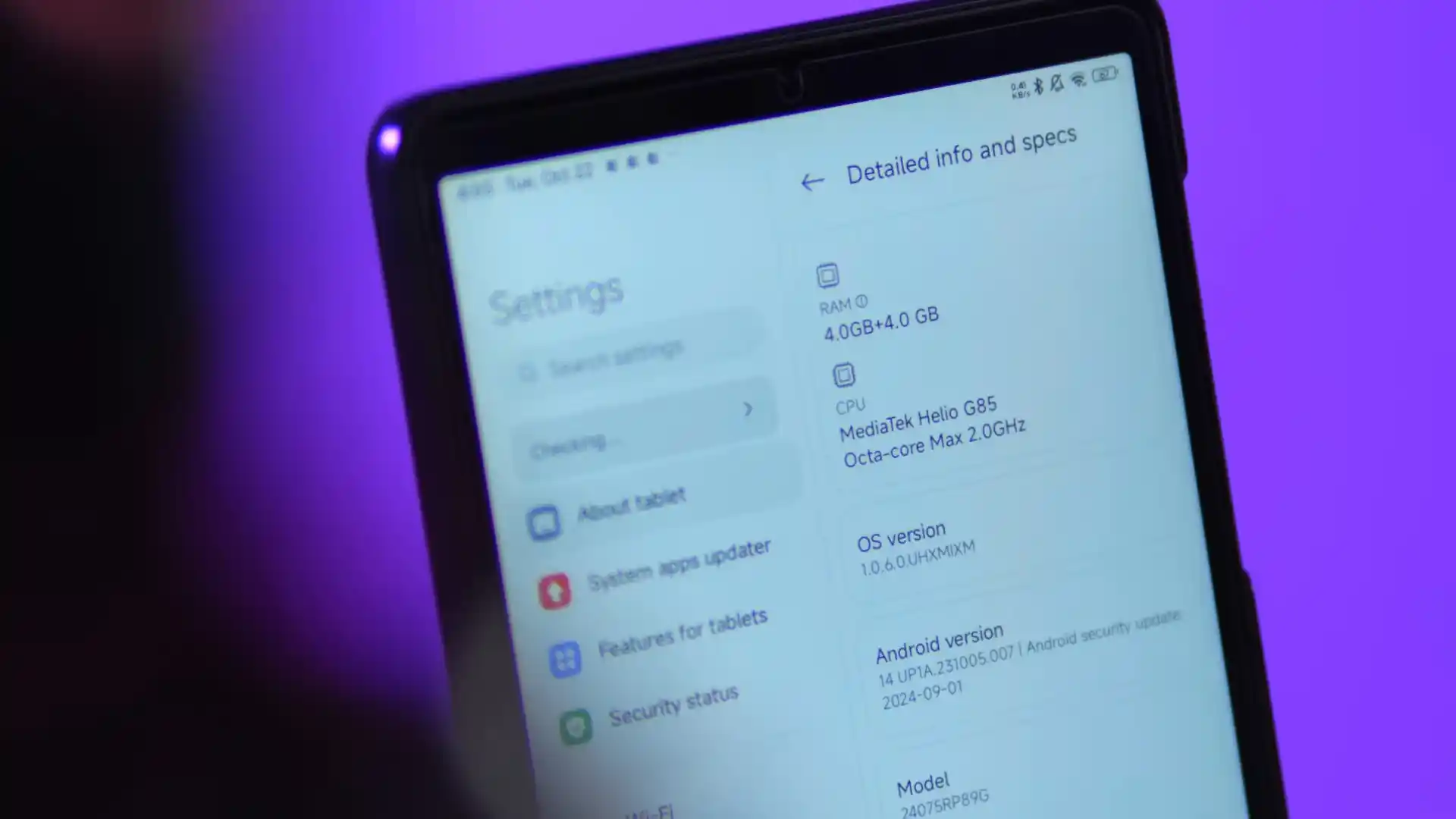
This workshop guide provides step-by-step bench instructions to flash official stock Fastboot firmware to the Xiaomi Redmi Pad SE 8.7 4G (August 2024) using Mi Flash Tool. Writing multi-gigabyte system and dynamic super partitions to MediaTek's MediaTek Helio G85 MT6769Z (12nm) platform over eMMC 5.1 storage requires stable USB driver handshakes and correct batch script selection.
Whether your tablet is trapped in a startup bootloop, recovering from corrupted partitions, or returning to clean official HyperOS 3.0 (Android 16.0), follow the verified prerequisites, 6,650 mAh battery precautions, and step-by-step flashing procedures detailed below.
Which Flash Mode Should You Use?
Xiaomi Mi Flash Fastboot Flashing (Recommended)
Standard official method for restoring stock firmware using an unlocked bootloader and Mi Flash Tool in Fastboot mode.
MediaTek BROM / Preloader Mode
Low-level hardware recovery mode used when the tablet is completely unbootable or cannot enter Fastboot.
Recovery Sideload & Local Update
Official recovery interface used for installing signed recovery update packages directly over USB or on-device storage.
What You Need Before Flashing
Fastboot flashing requires an officially unlocked bootloader via the Xiaomi Mi Unlock utility.
A 64-bit Windows PC with MediaTek USB VCOM drivers and updated Android SDK Platform Tools installed.
Ensure the 6,650 mAh battery has at least 50% charge to prevent shutdown during sparse partition writes.
Use a certified USB Type-C data sync cable plugged directly into a rear motherboard USB port.
Flashing stock Fastboot firmware with "clean all" completely wipes internal storage and applications.
Decompress the .tgz archive twice using 7-Zip until flash_all.bat is exposed in a clean root directory.
How to Flash the Xiaomi Redmi Pad SE 8.7 4G — Quick Overview
5-step quick reference for the Xiaomi Redmi Pad SE 8.7 4G. Need visuals or troubleshooting help? The full Mi Flash Tool guide covers everything in detail.
-
Unlock bootloader with Mi Unlock
-
Decompress Fastboot TGZ archive twice
-
Enter Fastboot mode
-
Configure Mi Flash Tool with "clean all"
-
Flash firmware and await first boot
Firmware Package for Helio G85 (flash_all.bat)
Official Fastboot firmware packages for the Xiaomi Redmi Pad SE 8.7 4G are distributed as .tgz archives containing partition binaries (boot.img, recovery.img, vbmeta.img, modem.img, and sparse super.img) managed by flash_all.bat across the MediaTek Helio G85 platform.
flash_all.bat
Official Xiaomi Redmi Pad SE 8.7 4G firmware is distributed as multi-gigabyte .tgz archives. Extract the archive twice using 7-Zip until the folder containing "flash_all.bat" and the raw partition images is visible.
Fastboot Flashing Rule: Always select "clean all" (flash_all.bat) when using Mi Flash Tool on imported hardware to avoid triggering the "The system has been destroyed" lock brick.
Xiaomi Redmi Pad SE 8.7 4G Firmware Versions
Official stock firmware downloads for the Xiaomi Redmi Pad SE 8.7 4G. Verify your hardware model variant before downloading.
| Version | Region | Android Version | Size | MD5 | Download |
|---|---|---|---|---|---|
OS3.0.301.0.WNZEUXM (HyperOS 3.0) |
Europe / EEA (EU) | Android 16.0 | 5.8 GB | a6b189ff4011e4bf51a14c2c5443fa58 |
⬇️ Download |
OS3.0.301.0.WNZMIXM (HyperOS 3.0) |
Global (MI) | Android 16.0 | 6.0 GB | ea84c6c06a5833481232841b80d0d540 |
⬇️ Download |
This tablet has additional regional and recovery builds in the full archive. Browse the complete archive on AndroidFirmwareFile.com →
Xiaomi Redmi Pad SE 8.7 4G — Important Notes
The Xiaomi Redmi Pad SE 8.7 4G houses a 6,650 mAh internal battery. Writing full dynamic super partition images over eMMC 5.1 takes approximately 4 to 6 minutes. Confirm that your battery has at least 50% charge before beginning the flashing process to prevent unexpected shutdowns during partition writes.
Troubleshooting Redmi Pad SE 8.7 4G Flashing & HyperOS Errors
Super Partition Write Timeout: "FAILED (remote: 'data too large' / write timeout)"
During partition streaming on the Helio G85 platform, writing large super partition chunks onto eMMC 5.1 storage can exceed USB controller wait limits. Technicians recommend using a short OEM USB Type-C cable plugged into a rear motherboard USB 2.0 port and running Mi Flash Tool as Administrator.
Modem Partition Mismatch: "FAILED (remote: 'baseband partition verification failure')"
Attempting to flash Wi-Fi model (flare) firmware onto 4G hardware (spark) or vice versa. The cellular model requires active modem partition blocks. Always verify "fastboot getvar product" returns "spark" prior to flashing.
Fastboot Device Enumeration Failure: "Device not found / waiting for device"
Conflicting driver filters from third-party tools can intercept the MediaTek USB handshake in Fastboot mode. Uninstall conflicting filter drivers in Windows Device Manager and reinstall the official Google Android Bootloader Interface driver.
For solving common Mi Flash Tool timeout codes, fastbootd transition delays, and HyperOS recovery issues: Xiaomi Flashing Error Directory →
Frequently Asked Questions — Xiaomi Redmi Pad SE 8.7 4G
In Fastboot mode, the Redmi Pad SE 8.7 4G uses standard Google Android Composite ADB and Fastboot interface drivers. Ensure Windows Device Manager displays "Android Bootloader Interface". For hardware unbrick procedures, install signed MediaTek MTK USB VCOM drivers to detect the preloader handshake.
No. Attempting to flash Wi-Fi-only firmware onto the 4G model will erase baseband modem calibration and disable cellular networking. Always confirm your device codename is strictly "spark" before flashing.
Because the tablet utilizes eMMC 5.1 storage rather than high-speed UFS, writing the 5GB+ super partition image takes longer. If Mi Flash Tool reports write stalls or timeouts, connect directly to a rear motherboard USB 2.0 port and disable USB selective suspend in Windows power options.
This warning appears when previous user data encryption keys clash with the newly written system partition. To resolve this, use the physical volume buttons in stock Mi Recovery to highlight "Wipe Data", select "Wipe All Data", and confirm with the Power button before rebooting into the system.
Ready to Flash?
Follow the full step-by-step Mi Flash Tool guide with interactive progress tracking, prerequisite checklist, and complete troubleshooting.