

Before you flash: Flashing firmware will erase all data on your device. Back up contacts, photos, and apps before proceeding. FlashGuideHub is not responsible for any damage caused by following this guide.
About the Xiaomi Mi Pad 3
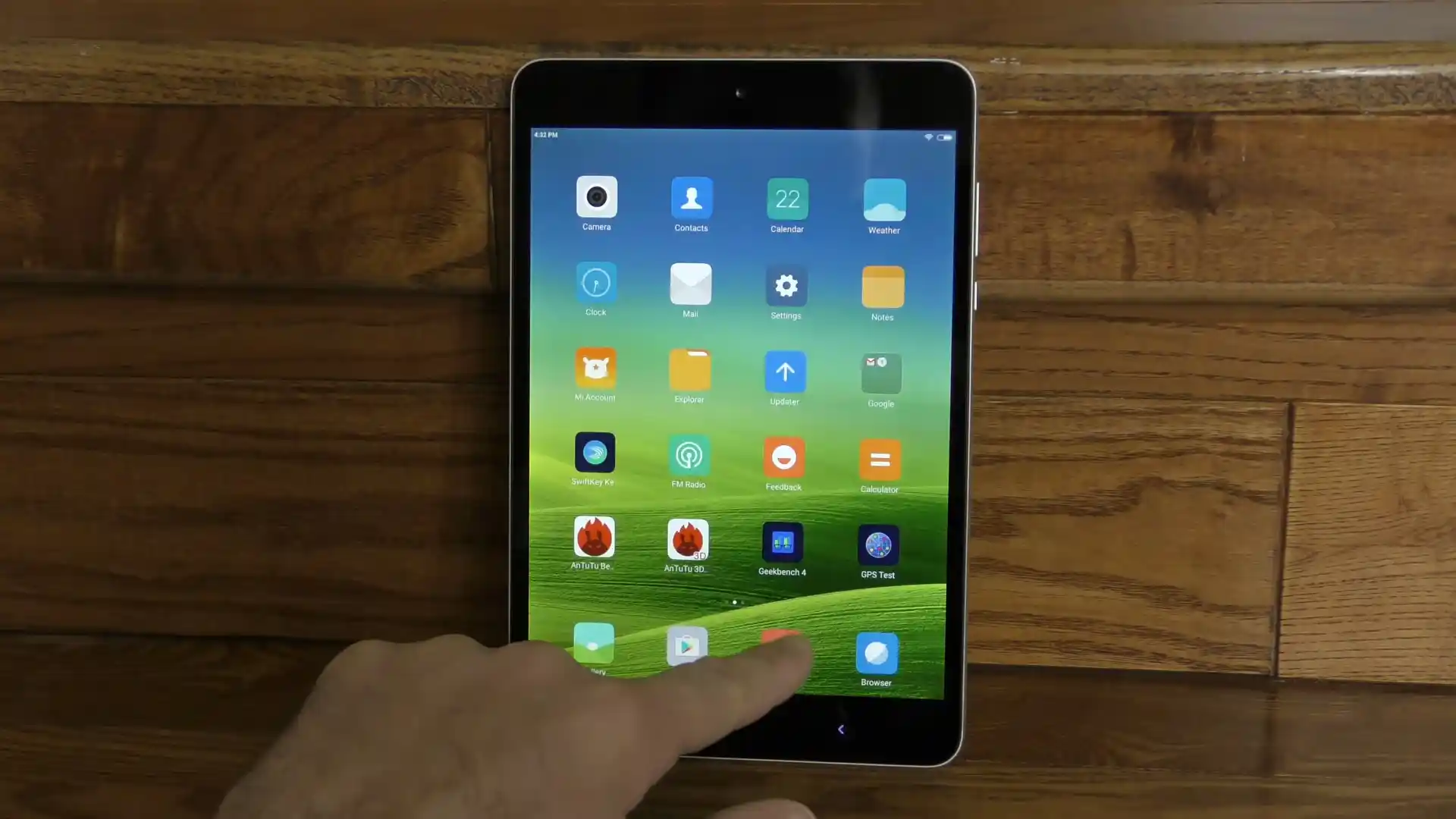
The Xiaomi Mi Pad 3 (codename: cappu) launched in April 2017 as Xiaomi's third-generation tablet engineered around the MediaTek MT8176 (28nm HPM) platform. The device features a sharp 7.9-inch 2048x1536 display, 4 GB of RAM, and a 6,600 mAh battery.
Whether you need to recover a tablet stuck on the boot screen, clear away unofficial reseller bloatware, or return the system to factory condition, this guide provides verified, step-by-step instructions.
Which Flash Mode Should You Use?
Mi Flash Tool (Fastboot ROM)
The official factory restoration route for cappu. Mi Flash Tool runs flash_all.bat to flash boot, system, and userdata partitions in a single clean pass. Requires an unlocked bootloader and erases all internal data.
SP Flash Tool (Scatter Flashing)
Low-level MediaTek unbrick mode used to restore bricked partitions using scatter files (MT8173_Android_scatter.txt) and MTK Preloader VCOM drivers.
TWRP Custom Recovery
Custom recovery environment used to flash ZIP packages (such as Xiaomi.eu multilingual ROMs), wipe cache partitions, and perform Nandroid backups.
Fastboot CLI (Command Line)
Flash individual partition images (such as recovery.img or boot.img) directly from your command prompt using Google Platform Tools.
Pre-Flash Requirements for the MediaTek Mi Pad 3
Your tablet bootloader must be unlocked using the official Xiaomi Mi Unlock tool before flashing partition images.
A Windows computer with MediaTek Preloader USB VCOM drivers installed so Fastboot and recovery mode connect smoothly.
A reliable USB Type-C data cable plugged directly into a rear PC motherboard USB 2.0 port.
Ensure the 6,600 mAh battery has ample charge so the tablet does not cut power during the flashing process.
Flashing with flash_all.bat completely formats internal eMMC storage. Copy essential files to a PC first.
5-Minute Mi Flash & Fastboot Steps (cappu)
5-step quick reference for the Xiaomi Mi Pad 3. Need visuals or troubleshooting help? The full Mi Flash Tool guide covers everything in detail.
-
Confirm hardware codename cappu in Fastboot mode
-
Unlock the bootloader using the official Xiaomi Mi Unlock tool
-
Extract cappu_images_V10.2.1.0.NCICNXM_20181224.0000.00_7.0_cn_4e50042edd.tgz twice with 7-Zip
-
Configure Mi Flash Tool with clean all
-
Connect via rear USB port and flash stock MIUI 10
Extracting MT8176 Fastboot TGZ & flash_all.bat
Xiaomi distributes official Mi Pad 3 factory firmware as compressed .tgz Fastboot packages. Once extracted twice using 7-Zip, the root directory contains the master flashing scripts (flash_all.bat for Windows, flash_all.sh for Linux/macOS) alongside individual partition binaries (boot.img, system.img, and recovery.img):
flash_all.bat
Xiaomi factory firmware is distributed as a compressed .tgz Fastboot package (cappu_images_V10.2.1.0.NCICNXM_20181224.0000.00_7.0_cn_4e50042edd.tgz). Once extracted twice using 7-Zip, flash_all.bat (for Windows) and flash_all.sh (for Linux/macOS) sit in the root directory alongside an images subfolder containing individual partition binaries. Point Mi Flash Tool directly to the top-level folder.
The Mi Pad 3 runs on a MediaTek MT8176 chipset. Never flash images from the Intel-based Mi Pad 2 or Snapdragon-based Mi Pad 4, as architecture mismatches will cause a hard brick.
Inside the extracted .tgz folder, flash_all.bat sits at the root level. Point Mi Flash Tool directly to this top-level directory (e.g. C:\cappu_fw), not inside the images subfolder.
Important: If performing low-level partition restoration with SP Flash Tool, always uncheck the PRELOADER checkbox to avoid corrupting the initial bootloader handshake.
Xiaomi Mi Pad 3 Firmware Versions
Tested stock Fastboot builds for the China release of the Xiaomi Mi Pad 3. If you need recovery packages, Xiaomi.eu multilingual ROMs, or custom recovery images, browse the complete repository below.
| Version | Region | Android Version | Size | MD5 | Download |
|---|---|---|---|---|---|
V10.2.1.0.NCICNXM |
China (CN) — MIUI 10.2 (Android 7.0) | Android 7.0, Dec 2018 | 1.17 GB | 4e50042edd3069f9daa4dbbc653fe9bd |
⬇️ Download |
Browse all Recovery ZIPs, Xiaomi.eu multilingual builds, and TWRP images on AndroidFirmwareFile.com → View full archive on AndroidFirmwareFile.com →
MediaTek MT8176 Architecture & Partition Guidelines
The Xiaomi Mi Pad 3 (hardware codename 'cappu') is built on MediaTek's 28nm MT8176 hexa-core processor with an Imagination PowerVR GX6250 GPU, a 7.9-inch 2048x1536 Retina display, and a 6,600 mAh battery. In retail channels, it was sold under model number M1612.
Because the device was a mainland China exclusive, official stock firmware is available only on the China Stable branch running Android 7.0 Nougat (MIUI 10 build V10.2.1.0.NCICNXM). For multilingual support and integrated Google Play Services, users can install the community-maintained Xiaomi.eu ROM via Goayandi's updated TWRP custom recovery image.
Troubleshooting Xiaomi Mi Pad 3 Flashing Issues
FAILED (remote: "command not allowed") or Bootloader Locked Rejection
Fastboot rejects partition write commands when the bootloader is locked. On the MediaTek Mi Pad 3, unlocking requires binding your Mi Account inside Developer Options and using the official Xiaomi Mi Unlock utility. Once approved and unlocked, Fastboot commands will execute normally.
MediaTek VCOM USB Port Dropout / Handshake Timeout during SP Flash Tool unbrick
When connecting the tablet in MediaTek BROM download mode, the Preloader VCOM connection may cycle or disconnect within 2 seconds. Install signed MediaTek USB VCOM drivers, connect via a rear USB 2.0 port, and hold Volume Down while inserting the USB cable to stabilize the flashing handshake.
TWRP Unresponsive Touchscreen / Frozen on "Swipe to Unlock" Screen
Occurs when flashing older TWRP builds compiled without proper touch digitizer drivers for cappu. Boot back into Fastboot mode and reflash Goayandi's updated TWRP build (twrp-3.2.3-0-cappu-20180906.img), which includes fixed touch panel driver modules.
Mi Flash Error: "cannot open cappu_images...tgz" or flash_all.bat not found
Mi Flash Tool cannot read directly from compressed .tgz archives. Use 7-Zip to extract the .tgz archive twice until the extracted folder containing flash_all.bat and the images directory is visible. Point Mi Flash Tool directly to this extracted directory.
For the full firmware error database: Fastboot Error Directory →
Mi Pad 3 Flashing, TWRP & Driver Q&A
Stock MIUI builds include an automated boot script that detects custom recoveries and overwrites the recovery partition with the stock recovery image on the first normal system boot. To keep TWRP permanent, execute "fastboot flash recovery twrp-3.2.3-0-cappu-20180906.img" and immediately boot into recovery by holding Volume Up + Power (or running "fastboot boot twrp-3.2.3-0-cappu-20180906.img") before allowing the tablet to boot into system.
The MediaTek MT8176 power management unit enters a deep low-voltage lockout state if the 6,600 mAh battery drops below 3.0V. When this happens, the tablet will not register in Fastboot or Windows Device Manager. Leave the tablet plugged into a standard 5V/2A wall charger for at least 60 to 90 minutes to trickle charge the cell back above safety thresholds before connecting to a PC.
When performing a clean wipe in TWRP before installing a custom ROM like Xiaomi.eu, standard wipe options (System, Data, Dalvik / ART Cache, and Cache) are completely safe. However, you must never format or wipe the NVRAM or NVDATA partitions; these raw partitions contain factory-calibrated radio configuration and Wi-Fi MAC address tables that cannot easily be regenerated if wiped.
The Mi Pad 3 operates on legacy MediaTek bootloader security without modern Xiaomi Anti-Rollback (ARB) hardware fuses. You can safely flash between MIUI 8, MIUI 9, and MIUI 10 Fastboot packages using flash_all.bat without the bootloader tripping an anti-rollback brick. However, always perform a full userdata wipe when switching major MIUI versions to avoid startup crashes.
Ready to Flash?
Follow the full step-by-step Mi Flash Tool guide with interactive progress tracking, prerequisite checklist, and complete troubleshooting.