

Before you flash: Flashing firmware will erase all data on your device. Back up contacts, photos, and apps before proceeding. FlashGuideHub is not responsible for any damage caused by following this guide.
About the Xiaomi Redmi 6A
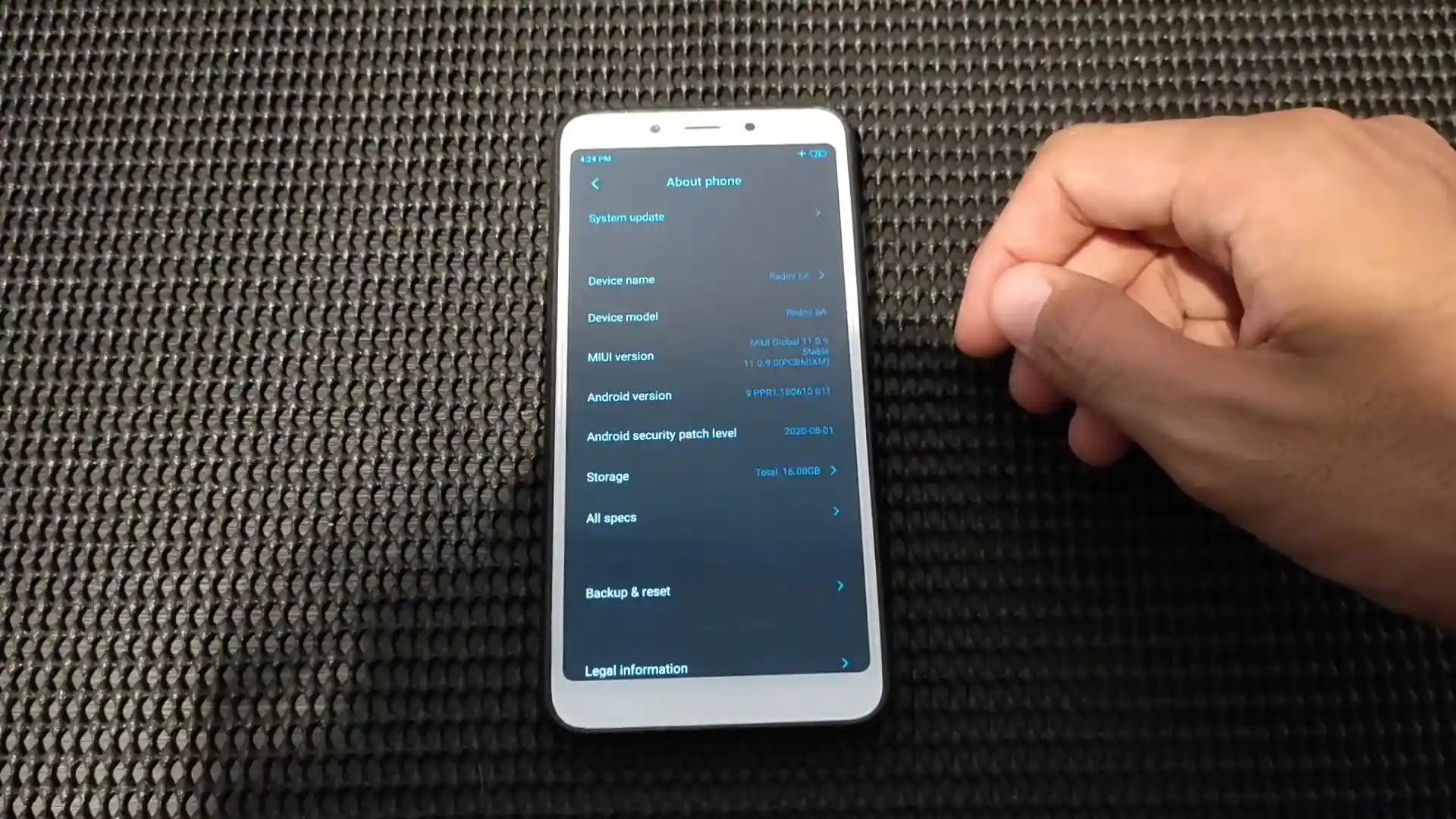
The Xiaomi Redmi 6A (codename: cactus) shipped in June 2018 on MediaTek's quad-core MediaTek Helio A22 (MT6761, 12nm) chip with Android 8.1 Oreo out of the box and wrapped up official updates on Android 9.0 Pie (MIUI 11 Global / MIUI 12.0 China Beta).
Whether you are restoring a sluggish 2 GB RAM unit back to stock using cactus_global_images_V11.0.9.0.PCBMIXM_20200916.0000.00_9.0_global_c0a9fb7059.tgz, sideloading MIUI 11 Recovery, or unlocking custom recovery with OrangeFox-cactus-stable@R11.1_4.zip, follow the steps below.
Which Flash Mode Should You Use?
Mi Flash Tool (Fastboot .tgz Full Restore)
Cleanest full restore path for unlocked Redmi 6A handsets using flash_all.bat to re-write boot, system, vendor, and userdata while keeping nvdata IMEI blocks safe.
SP Flash Tool + mtkclient (MT6761 BROM Unbrick)
Low-level MediaTek Helio A22 scatter flashing for black-screen bricks or locked bootloaders stuck on the logo. Uses MT6761_Android_scatter.txt inside the extracted images folder.
Custom Recovery (OrangeFox R11.1_4 / TWRP 3.7.0 / PBRP 3.1.0)
Flash recovery.img via Fastboot once unlocked, format encrypted data, and install lightweight custom Android 10–13 Certus/cactus ROMs for smoother 2 GB RAM responsiveness.
Pre-Flash Checks for MediaTek Helio A22 (cactus)
Run "fastboot getvar product" or check single-camera/no-fingerprint hardware so Redmi 6 (MT6762) files are never flashed.
Use Xiaomi/Google Fastboot drivers for standard flashing and UsbDk + VCOM drivers if unbricking over BROM.
Avoid loose charging-only microUSB leads or front-panel hubs that drop connection mid-write on eMMC 5.1.
Redmi 6A charges slowly at 5W (5V/1A); verify solid charge before starting a 6-minute Fastboot wipe.
Never choose "Format All + Download" in SP Flash Tool so nvram/nvdata IMEI calibration stays intact.
Mi Flash & MT6761 Scatter Walkthrough for Redmi 6A
5-step quick reference for the Xiaomi Redmi 6A. Need visuals or troubleshooting help? The full Mi Flash Tool guide covers everything in detail.
-
Verify your bootloader unlock status in Mi Unlock and check fastboot getvar product reads "cactus"
-
Extract cactus_global_images_V11.0.9.0.PCBMIXM_20200916.0000.00_9.0_global_c0a9fb7059.tgz twice to C:\cactus_fw\
-
Install Google Android Bootloader drivers (Fastboot) or signed MediaTek VCOM drivers (BROM recovery)
-
Hold Volume Down + Power to enter Fastboot and plug a tight microUSB cable into a rear PC USB 2.0 port
-
Choose "clean all" in Mi Flash Tool on C:\cactus_fw\ and wait 5–8 minutes for boot reboot
Locating flash_all.bat & MT6761 Scatter Files in MT6761 Archives
Official Xiaomi Redmi 6A (cactus) Fastboot packages ship as double-compressed .tgz archives. Extracting twice with 7-Zip places flash_all.bat at the outer directory next to the images folder containing MT6761_Android_scatter.txt, preloader_cactus.bin, system.img, and boot.img:
MT6761_Android_scatter.txt / flash_all.bat
Double-extracting cactus_global_images_V11.0.9.0.PCBMIXM_20200916.0000.00_9.0_global_c0a9fb7059.tgz with 7-Zip unpacks flash_all.bat at the root beside an images folder holding MT6761_Android_scatter.txt, preloader_cactus.bin, system.img, and vendor.img. Use the outer folder for Mi Flash Tool, or point SP Flash Tool directly to MT6761_Android_scatter.txt after bypassing BROM SLA lock.
Codename cactus applies strictly to the Xiaomi Redmi 6A (Helio A22 / MT6761). Never cross-flash Redmi 6 (cereus / MT6762) or Redmi 6 Pro (sakura) files.
Point Mi Flash Tool to the outer folder holding flash_all.bat (for example C:\cactus_fw\), never inside the nested images directory.
Use "clean all" rather than "clean all and lock" on out-of-region handsets, and keep "Download Only" selected if working with MT6761_Android_scatter.txt in SP Flash Tool.
Xiaomi Redmi 6A Firmware Versions
One verified Fastboot package per major regional branch for the Xiaomi Redmi 6A (cactus), plus Official OrangeFox R11.1_4. Grab stock Recovery ZIPs, TWRP 3.7.0_9-0, and PBRP 3.1.0 from AndroidFirmwareFile.
| Version | Region | Android Version | Size | MD5 | Download |
|---|---|---|---|---|---|
V11.0.9.0.PCBMIXM |
Global (MI) — Final MIUI 11 Fastboot | Android 9.0 Pie (Sep 2020) | 1.68 GB | c0a9fb70590bc0dfc6639d9301fa7047 |
⬇️ Download |
V12.0.2.0.PCBCNXM |
China (CN Stable Beta) — MIUI 12.0 Fastboot | Android 9.0 Pie (Jun 2021) | 2.35 GB | 50b3f7ed9e61481e4aa604c9772c6c55 |
⬇️ Download |
V11.0.4.0.PCBRUXM |
Russia (RU) — Final MIUI 11 Fastboot | Android 9.0 Pie (Jun 2020) | 1.68 GB | ab7ea38da2df8857ba71fc7c4ea2f5c7 |
⬇️ Download |
OrangeFox R11.1_4 |
Custom Recovery (cactus) | Android 9.0–12+ Recovery (Mar 2022) | 37.25 MB | 3aca4aa4495e284b2ad7a84cffc3d88e |
⬇️ Download (2) |
Need China V11.0.5.0 Recovery ZIPs, Official TWRP 3.7.0_9-0, or PBRP 3.1.0? View all 10 files on AndroidFirmwareFile.com → View full archive on AndroidFirmwareFile.com →
Fastboot, SP Flash BROM & Custom Recovery Paths
On the Xiaomi Redmi 6A (cactus), choose your flashing path based on bootloader state. If your phone still reaches the Fastboot mascot (Volume Down + Power) and has an unlocked bootloader, extract cactus_global_images_V11.0.9.0.PCBMIXM_20200916.0000.00_9.0_global_c0a9fb7059.tgz and run Mi Flash Tool with "clean all"—it takes roughly 6 minutes over microUSB 2.0 and never touches sensitive IMEI nvdata partitions. If Fastboot is gone and Windows sees only a cycling MediaTek USB Port in Device Manager, you must go through MT6761 BROM mode using SP Flash Tool paired with mtkclient BROM payload unlock.
Fixing Redmi 6A (cactus) BROM SLA, Preloader & FBE Recovery Errors
STATUS_BROM_CMD_SEND_DA_FAIL / MediaTek SLA Lock
Preloader Hard Brick (Dead Boot / Port Reconnect Cycle)
0 MB Internal Partition Mount & FBE Encryption Lockout
Need help decoding another SP Flash Tool code or Fastboot rejection? MT6761 BROM & Fastboot Error Directory →
Android Version Limits, mtkclient Auth & IMEI Safety Q&A
No. Xiaomi never released an official Android 10 stock MIUI build for Redmi 6A (cactus)—all official Fastboot and Recovery builds remain on Android 9.0 Pie—and Xiaomi.eu does not support this MediaTek MT6761 platform. Moving to Android 10+ requires unlocking the bootloader, booting a custom recovery like OrangeFox R11.1_4, and flashing a community AOSP ROM.
Because MediaTek Helio A22 (MT6761) BROM enforces Xiaomi SLA authentication in SP Flash Tool, standard authorized Mi Service accounts are blocked for everyday owners. Running the open-source mtkclient tool on Linux or Windows (with UsbDk/libusb filters) sends a BROM exploit payload while Volume keys are held at USB plug-in, unlocking direct scatter writing or DA bypass without server credentials.
Yes. Xiaomi's flash_all.bat script in official cactus Fastboot packages rewrites system, boot, vendor, userdata, and cache while leaving nvram, nvdata, and proinfo untouched. By contrast, flashing a scatter file with destructive wipe modes in third-party MediaTek utilities can erase nvdata and leave the phone with no IMEI or baseband.
Ready to Flash?
Follow the full step-by-step Mi Flash Tool guide with interactive progress tracking, prerequisite checklist, and complete troubleshooting.