

Before you flash: Flashing firmware will erase all data on your device. Back up contacts, photos, and apps before proceeding. FlashGuideHub is not responsible for any damage caused by following this guide.
About the Xiaomi Mi Pad
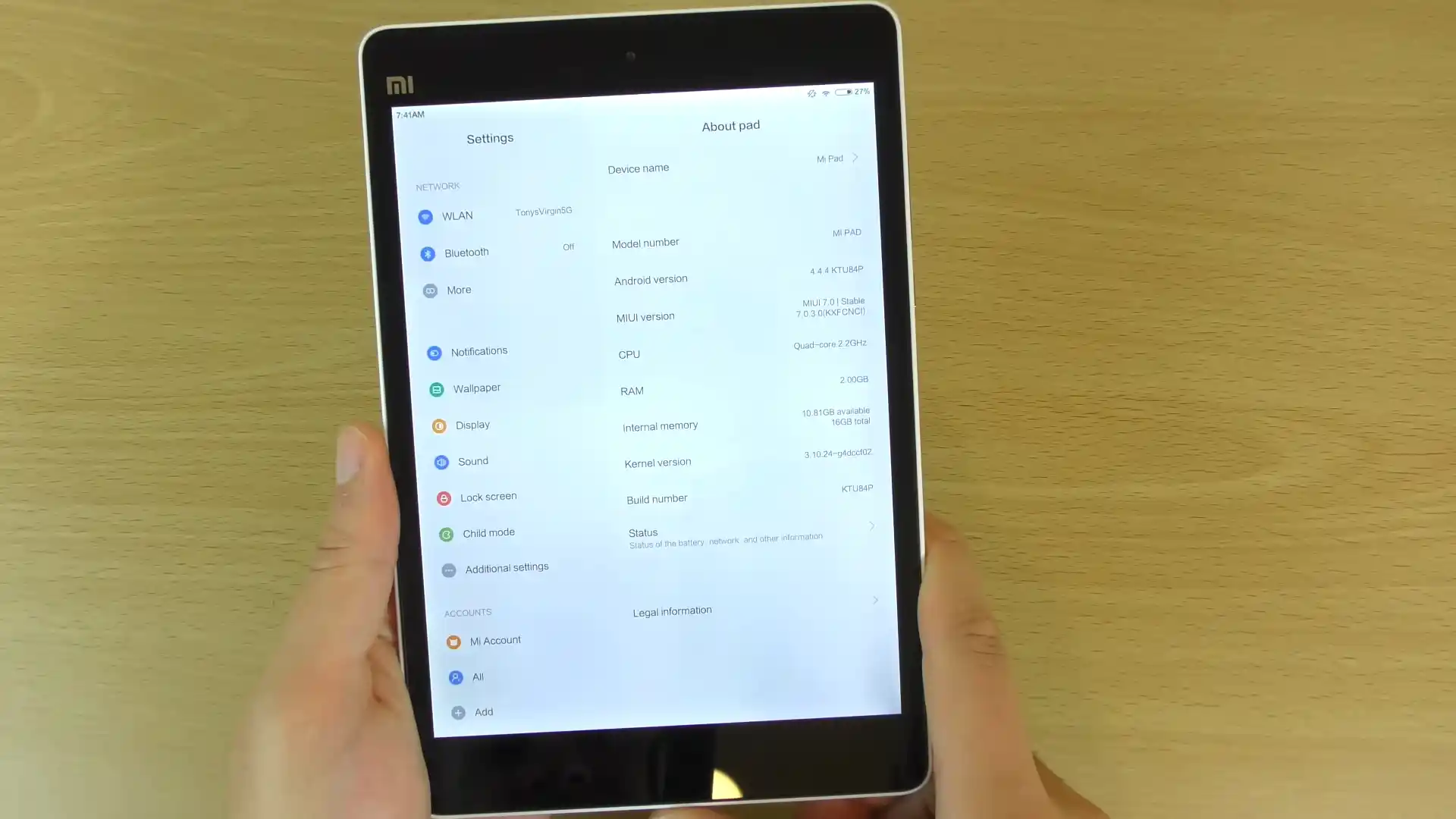
The Xiaomi Mi Pad (codename: mocha) launched in July 2014 as Xiaomi's premier compact tablet engineered around the Nvidia Tegra K1 (T124 / CD570M-A1, 28nm HPM) platform. The device features a sharp 7.9-inch 2048x1536 Retina display, 2 GB of RAM, and a 6,700 mAh battery.
Whether you need to recover a tablet stuck on the boot screen, clear away corrupted system caches, or return the system to factory condition, this guide provides verified, step-by-step instructions.
Which Flash Mode Should You Use?
Mi Flash Tool (Fastboot ROM)
The official factory restoration route for mocha. Mi Flash Tool runs flash_all.bat to flash boot, recovery, and system partitions in a single clean pass. Erases all internal storage data.
TWRP Custom Recovery
Custom recovery environment used to flash ZIP packages (such as Xiaomi.eu MIUI 7), merge system partitions via sysrepart, and manage Nandroid backups.
Fastboot CLI (Command Line)
Flash individual partition images (such as recovery/SOS or boot.img) directly from terminal using Google Platform Tools.
Pre-Flash Hardware Checks for Nvidia Tegra K1 (mocha)
The original Mi Pad 1 features an open bootloader by default on factory KitKat builds; ensure fastboot commands are accepted without device locks.
A Windows computer with Google USB Drivers and ADB/Fastboot Platform Tools installed to ensure reliable communication with the Tegra K1.
A high-grade Micro-USB data cable plugged directly into a native rear USB 2.0 motherboard port to prevent communication dropouts.
Ensure the 6,700 mAh battery holds at least 50% charge, or trickle-charge via PC USB if the tablet was deeply drained.
Running flash_all.bat wipes all internal eMMC flash storage partitions clean, including user apps, photos, and saved documents.
5-Step Mi Flash & Fastboot Walkthrough (mocha)
5-step quick reference for the Xiaomi Mi Pad. Need visuals or troubleshooting help? The full Mi Flash Tool guide covers everything in detail.
-
Verify Tegra K1 board status and confirm codename mocha via fastboot
-
Extract mocha_global_images_V7.5.2.0.KXFMIDE_20160712.0000.26_4.4_global_da3d0b8d81.tgz twice with 7-Zip
-
Inspect battery voltage and connect via native motherboard USB 2.0 port
-
Configure Mi Flash Tool with clean all script
-
Execute flash_all.bat and monitor Tegra partition flashing
Extracting Nvidia Tegra K1 Fastboot TGZ & flash_all.bat
Xiaomi distributes official Mi Pad (mocha) factory firmware as compressed .tgz Fastboot archives. When extracted twice with 7-Zip, the root folder contains the primary flashing scripts (flash_all.bat for Windows and flash_all.sh for Linux) alongside individual partition binaries (boot.img, recovery.img, and system.img):
flash_all.bat
Official Xiaomi stock firmware for the Mi Pad 1 is packaged as a compressed .tgz Fastboot archive (mocha_global_images_V7.5.2.0.KXFMIDE_20160712.0000.26_4.4_global_da3d0b8d81.tgz). After decompressing twice with 7-Zip, the root directory exposes flash_all.bat alongside the images subfolder containing kernel (boot.img), recovery (recovery.img), and system partition binaries. Point Mi Flash Tool directly to this root directory.
The Xiaomi Mi Pad runs on an Nvidia Tegra K1 32-bit SoC. Never attempt to flash firmware from Intel-based Mi Pad 2, MediaTek Mi Pad 3, or Qualcomm Mi Pad 4 tablets, as differing architectures will cause bootloader failure.
Inside the extracted .tgz directory, flash_all.bat is located at the root level. Configure Mi Flash Tool to target this top-level folder (such as C:\mocha_fw) rather than the images subfolder.
Note for custom ROM enthusiasts: Factory partition tables designate dual OS slots (system and system1, each ~640MB-1.2GB). Modern custom ROMs (Android 7.1 through 11) exceed this boundary and require merging these partitions with sysrepart in TWRP.
Xiaomi Mi Pad Firmware Versions
Tested stock Fastboot and community builds for the Xiaomi Mi Pad. For historical versions, China developer builds, and legacy TWRP images, browse the complete repository below.
| Version | Region | Android Version | Size | MD5 | Download |
|---|---|---|---|---|---|
V7.5.2.0.KXFMIDE |
Global (MI) — MIUI 7.5 (Android 4.4.4) | Android 4.4.4, Jul 2016 | 615.70 MB | da3d0b8d81ea2f3fd57fa478ecae272f |
⬇️ Download |
V9.2.4.0.KXFCNEK |
China (CN) — MIUI 9.2 (Android 4.4.4) | Android 4.4.4, Apr 2018 | 550.81 MB | 0d819c67da12b16135cb93ac77338176 |
⬇️ Download |
V7.3.1.0.KXFCNDD_v7-4.4 |
Multilingual (Xiaomi.eu MIUI 7) | Android 4.4.4, Jun 2016 | 351.60 MB | 4e16ee0623e19bb4adad102fead42c19 |
⬇️ Download |
Browse all Recovery ZIPs, Xiaomi.eu multilingual builds, and TWRP images on AndroidFirmwareFile.com → View full archive on AndroidFirmwareFile.com →
Nvidia Tegra K1 Architecture & Dual Partition Layout
The Xiaomi Mi Pad 1 (hardware codename 'mocha') launched in 2014 powered by the 28nm Nvidia Tegra K1 (T124) quad-core processor paired with 192 Kepler CUDA cores, a 7.9-inch 2048x1536 IPS display, 2 GB LPDDR3 RAM, and a 6,700 mAh battery. Regulatory documentation identifies it under model number A0101.
Official software ended on Android 4.4.4 KitKat with MIUI 9.2 for the China region and MIUI 7.5 for the Global region (package mocha_global_images_V7.5.2.0.KXFMIDE_20160712.0000.26_4.4_global_da3d0b8d81.tgz). For an updated experience with working Google Mobile Services and multilingual support, the community-maintained Xiaomi.eu MIUI 7 release can be installed via custom recovery (TWRP 3.4.0-0).
Troubleshooting Xiaomi Mi Pad (mocha) Flashing Issues
FAILED (remote: "data transfer failure") during large partition write
Occurs when writing large system.img files over modern USB 3.0 or USB 3.1 controller ports due to legacy Tegra USB timing dropouts. Connect the tablet to a native USB 2.0 port on the rear motherboard header with a short Micro-USB cable.
System partition size mismatch: "No space left on device" in TWRP
Occurs when flashing custom ROM packages that exceed the stock 640MB to 1.2GB dual system partition boundary. Run the sysrepart partition merge ZIP in TWRP to combine system and system1 into a unified 2.4GB partition before installing larger ROMs.
Device hangs at "sending system..." or Mi Flash halts at flash_all.bat line 12
Indicates an outdated fastboot binary or Windows PATH collision with older SDK utilities. Update to the latest Google Android Platform Tools, ensure USB drivers are up to date, and execute flash_all.bat from a folder path without spaces (such as C:\mocha_fw).
For the full firmware error database: Fastboot Error Directory →
Xiaomi Mi Pad (mocha) Flashing & Recovery Q&A
The Nvidia Tegra K1 storage mapping on the Mi Pad 1 links the hardware recovery partition to the physical block /dev/block/platform/sdhci-tegra.3/by-name/SOS. While standard Google fastboot accepts "fastboot flash recovery <image>.img", certain older terminal scripts or manual dd commands fail unless explicitly pointed to the SOS partition block name. Using official TWRP images like twrp-3.4.0-0-mocha.img with standard fastboot syntax handles this mapping automatically.
Factory partition tables on mocha allocate dual system slots (system and system1, each ~640 MB to 1.2 GB). Because modern Android 7 through Android 11 custom ROMs exceed this size, users frequently run sysrepart in TWRP to merge both slots into a single ~2.4 GB partition. Before executing any repartitioning script, always verify TWRP 3.1.1-0 or higher is installed, back up all internal data to a PC or microSD card, and never disconnect power or reboot midway through the partition table modification.
When the 6,700 mAh battery drops below 3.0V due to prolonged storage, the Tegra K1 power management IC (PMIC) enters a low-voltage safety lockout where the display remains completely black and standard wall chargers fail to register. To recover, connect the tablet to a PC USB 2.0 port using a Micro-USB cable and leave it undisturbed for 45 to 60 minutes. The steady 500mA PC trickle current wakes the battery controller, allowing the tablet to boot into Fastboot mode.
Ready to Flash?
Follow the full step-by-step Mi Flash Tool guide with interactive progress tracking, prerequisite checklist, and complete troubleshooting.