

Before you flash: Flashing firmware will erase all data on your device. Back up contacts, photos, and apps before proceeding. FlashGuideHub is not responsible for any damage caused by following this guide.
About the Xiaomi Pad 5 Pro 12.4
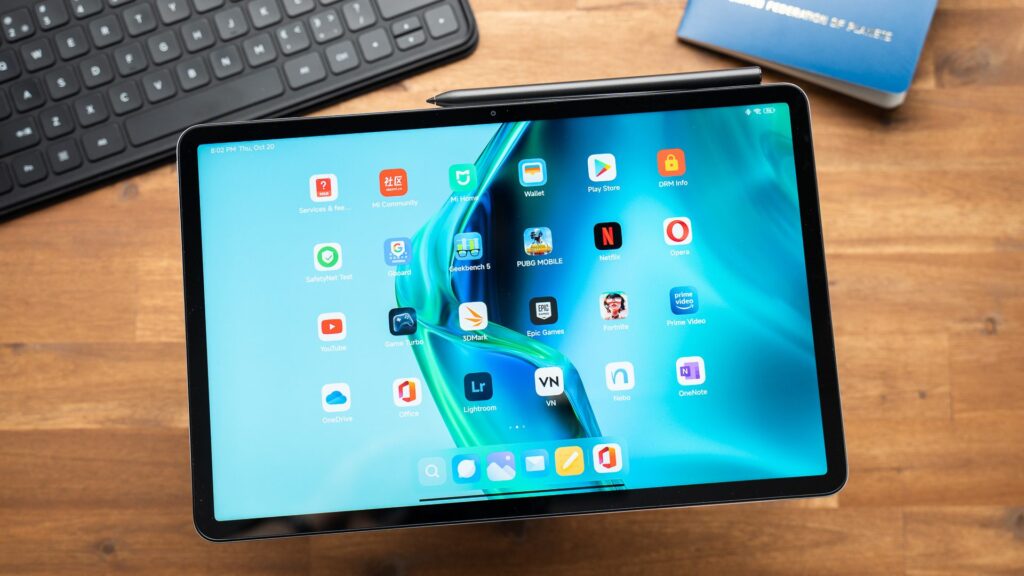
Internally, Xiaomi labeled the Xiaomi Pad 5 Pro 12.4 as dagu, releasing it through China retail channels only, starting in October 2021 (China only). Powering it is the Qualcomm SM8250-AC Snapdragon 870 5G (7nm), paired with a 120Hz 2.5K display and a 10000mAh cell, giving it one of the largest batteries fitted to an Android tablet at the time of launch.
Unlike most Xiaomi devices, dagu never branched into separate regional firmware trees. Every ROM that exists for it, from the original launch build to the final HyperOS 2 release, carries the same China build suffix.
Which Flash Mode Should You Use?
Mi Flash Tool (Fastboot ROM)
dagu's primary flashing route. Point Mi Flash Tool at the extracted China archive and it drives flash_all through the bootloader, display calibration, and system partitions automatically. The tablet needs its bootloader unlocked before this will run, and every byte of user data goes with it.
Manual ADB / Fastboot Commands
Runs fastboot flash commands one at a time from Platform Tools rather than handing the whole job to Mi Flash Tool. Worth reaching for when just one partition needs attention, like patching a damaged display calibration segment, though getting the command sequence right becomes your responsibility alone.
EDL / QFIL (Emergency)
dagu's Snapdragon 870 can fall back on Qualcomm's Emergency Download mode once fastboot no longer answers at all. QFIL needs a signed programmer file for this chipset that Xiaomi has kept out of public hands, so recovering a tablet stuck in EDL is realistically a job for a repair shop rather than a home fix.
What You Need Before Flashing
There's no Mac or Linux build of Mi Flash Tool, only Windows. Download it alongside the Xiaomi USB driver package from Xiaomi's developer site ahead of time.
Switch on OEM Unlocking under Developer Options, then bind a China-region Mi Account and wait for Xiaomi to clear the request before running Mi Unlock Tool on a PC. Approval itself is what triggers the wipe.
Read the current build string under Settings, About tablet, then match it against a CNXM package in the version table below. No other regional suffix applies to this tablet.
A charge-only USB-C cable will not be recognized by fastboot; it has to carry data. The cable in the tablet's box works, or any cable known to be data-rated, connected to a port on the PC itself rather than through a hub.
Even with a 10000mAh cell, a mid-flash shutdown can leave the display or bootloader partition half-written and the tablet unable to reboot cleanly. Get the charge above 60% first and don't disconnect the cable until the process reports done.
Both the unlock step and the flash itself will clear the tablet's storage independently of one another. Get anything worth keeping onto a PC or cloud account before starting either one.
How to Flash the Xiaomi Pad 5 Pro 12.4 — Quick Overview
These 8 steps are tailored to the Xiaomi Pad 5 Pro 12.4 (Snapdragon 870). For screenshots, an interactive checklist, and troubleshooting, open the full Mi Flash Tool guide.
-
Confirm fastboot reports dagu before downloading a ROM
-
Understand that dagu has no Global, EEA, or India release
-
Unlock the bootloader through a China-registered Mi Account
-
Match the CNXM build suffix to the tablet's current MIUI or HyperOS version
-
Install the Xiaomi USB driver and open Mi Flash Tool
-
Extract the downloaded .tgz and select the top-level folder
-
Start the flash and let it finish without interruption
-
Check Wi-Fi, the rear camera, and the 120Hz refresh rate after first boot
Finding the Firmware Package for SM8250-AC
Xiaomi ships dagu firmware as a single China-region fastboot archive (.tgz) for every build it has ever released. Once fully extracted, the folder Mi Flash Tool needs contains a flashing script sitting next to the partition images:
flash_all.bat
The .tgz needs to be fully unpacked before this script does anything useful. Once extraction finishes, flash_all.bat waits at the top of the folder for Windows users, with flash_all.sh alongside it for Linux and Mac, both sitting next to an images directory that holds every partition file. Mi Flash Tool cannot read straight from the compressed archive, so this step cannot be skipped.
dagu only ever shipped on one branch: China (CNXM). Xiaomi did not build a Global, EEA, Russia, or India firmware tree for the Pad 5 Pro 12.4, and this reflects the tablet's actual sales history rather than a gap in what has been archived.
Inside the extracted .tgz, flash_all.bat sits at the top level for Windows, flash_all.sh sits beside it for Linux and Mac, and an images folder next to both holds the individual partition files. Point Mi Flash Tool's Select field at that top-level folder, never the images subfolder, before clicking Flash.
Because only a China build exists, expect the system language, default app store, and bundled services to load in their China-market configuration after flashing, no matter which of the three versions below is used.
Xiaomi Pad 5 Pro 12.4 Firmware Versions
Known stock fastboot ROM releases for the Xiaomi Pad 5 Pro 12.4, spanning its original MIUI Pad 13 launch build through the final HyperOS 2 update. All three carry the same China build suffix.
| Version | Region | Android Version | Size | MD5 | Download |
|---|---|---|---|---|---|
OS2.0.10.0.ULZCNXM |
China (CN) u2014 HyperOS 2 (Android 14) | — | 5.1 GB | — | ⬇️ Download |
More builds and hash checks for dagu → View the source listing on MiFirm.net →
Xiaomi Pad 5 Pro 12.4 — Important Notes
dagu is the internal codename Xiaomi used for the Pad 5 Pro 12.4, a tablet sold exclusively through China retail channels starting in October 2021. It paired a 12.4 inch, 120Hz, 2.5K display with a 10000mAh battery and 67W wired charging, specs that made it one of the largest-battery Android tablets on the market at launch.
HyperOS 2 on Android 14 is the final software update dagu received, and Xiaomi has not listed it for a HyperOS 3 build. Readers outside China searching for equivalent current hardware with an official Global release should look at the Xiaomi Pad 6 or Pad 6 Pro instead, since those carry separate codenames, separate firmware trees, and ongoing update support that dagu no longer has.
The Snapdragon 870 inside dagu supports Qualcomm's EDL (Emergency Download) mode at the hardware level, but Xiaomi has not published the signed programmer file this platform needs for QFIL. In practice, Mi Flash Tool with a properly unlocked bootloader is the only self-service recovery path most owners have, and a tablet stuck in EDL with no other option typically needs a repair center with access to that file.
Common Errors on the Xiaomi Pad 5 Pro 12.4
Mi Flash Tool device list stays empty while dagu sits in fastboot mode
Open Device Manager on the PC with the tablet still connected. If it lists under Other devices instead of Android Bootloader Interface, the Xiaomi/Qualcomm USB driver did not install correctly. Reinstall the driver package, swap to a cable confirmed to carry data rather than charge-only, and connect to a rear USB port on a desktop instead of a front panel header or hub.
FAILED (remote: 'Command not allowed')
dagu's bootloader is still locked and rejecting the write Mi Flash Tool is sending. Check Developer Options for a line reading Bootloader unlocked. Because dagu is a China-exclusive device, Mi Account unlock approval for accounts registered outside China can run noticeably longer than for Global-market Xiaomi phones, so a stuck countdown timer in Mi Unlock Tool usually means the wait is not finished.
Sahara Fail S9
Mi Flash Tool loses its Sahara-protocol handshake with the Snapdragon 870 mid-flash, almost always because the .tgz did not extract fully or the original download stopped partway. Delete the extracted folder, redownload the CNXM package for the exact version needed, extract it fresh to a short path like C:\dagu_rom, and confirm the USB-C cable is seated fully before retrying.
Touchscreen stops responding after a flash while the display still shows the home screen
This points to an incomplete write of the touch-controller firmware bundled inside dagu's display calibration partition, usually from a cable disconnect during the final seconds of the flash. Reboot into fastboot with Volume Up and Power, reselect the same extracted CNXM folder, and run a full clean-all flash again rather than a partial reflash.
Tablet stuck on the Mi logo after flashing completes
A hang right after a reported success usually means the write was interrupted before every partition finished, often from the PC entering sleep mode mid-session on a long 10000mAh-battery flash cycle. Hold Volume Up and Power for about 10 seconds to force dagu back into fastboot mode, reopen Mi Flash Tool, and run the same CNXM package again with clean all selected.
For the full firmware error database: Fastboot Error Directory →
Frequently Asked Questions — Xiaomi Pad 5 Pro 12.4
No. Xiaomi never released the Pad 5 Pro 12.4 outside China, and no Global, EEA, or India firmware branch exists for the dagu codename. Readers wanting a Global-market Xiaomi tablet with similar hardware should look at the Xiaomi Pad 6 or Pad 6 Pro, which are separate codenames with their own official international ROMs and are not interchangeable with dagu firmware.
No. HyperOS 2 on Android 14 is the final confirmed update for dagu, and Xiaomi has not scheduled a HyperOS 3 build for this tablet. The fastboot ROMs in the table below represent the complete update history rather than a snapshot missing a newer release.
Yes, at first. Every dagu ROM ships with Chinese as the default system language and Xiaomi's GetApps store configured for the China region instead of Google Play. English and other languages can be added afterward under Settings, Languages and input, but Google Play Services is not preinstalled and is usually sideloaded separately.
No, and this is not affected by which firmware build is installed. The Pad 5 Pro 12.4 was built as a Wi-Fi-only tablet with no cellular modem in any configuration Xiaomi sold, so there is no CNXM build, past or future, that adds mobile data support.
Ready to Flash?
Follow the full step-by-step Mi Flash Tool guide with interactive progress tracking, prerequisite checklist, and complete troubleshooting.