

Before you flash: Flashing firmware will erase all data on your device. Back up contacts, photos, and apps before proceeding. FlashGuideHub is not responsible for any damage caused by following this guide.
About the Xiaomi Pad 7 Ultra
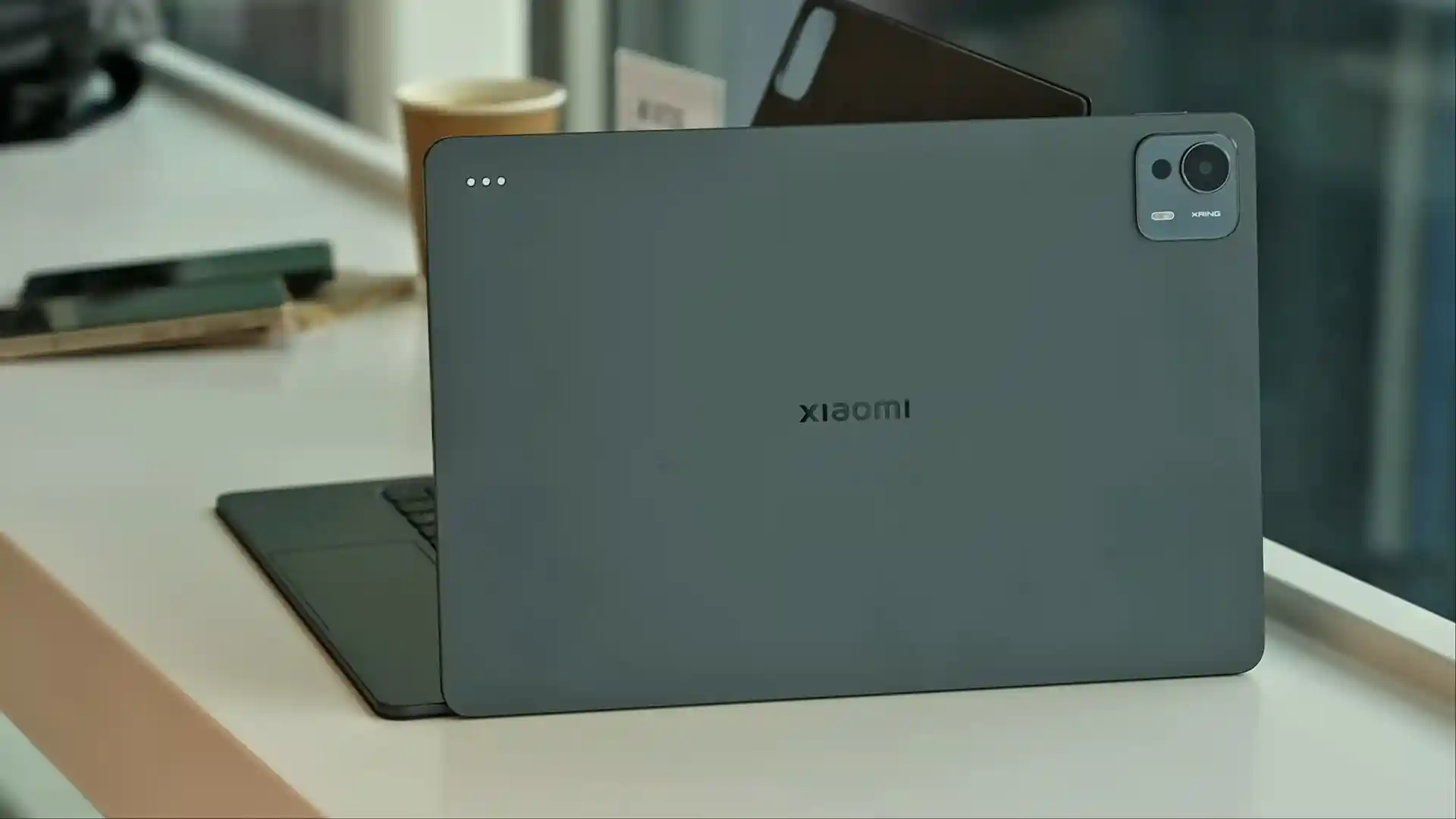
The Xiaomi Pad 7 Ultra (codename: jinghu) launched in May 2025 as Xiaomi's flagship 14.0-inch AMOLED tablet powered by the custom 3nm Xiaomi XRing O1 (3nm TSMC) chipset and a 12,000 mAh Silicon-Carbon battery with 120W charging.
Whether you need to fix a tablet stuck on the HyperOS boot logo, recover after a bad system update, or restore clean factory software using jinghu-images-OS3.0.302.0.WOXCNXM-user-20260721.0000.00-16.0-cn-5f08576def.tgz, follow the verified steps below.
Which Flash Mode Should You Use?
Mi Flash Tool (Fastboot ROM)
The official full-restore method for jinghu. Executes flash_all.bat to flash boot, vendor_boot, super, and userdata partitions over fastbootd. Requires an unlocked bootloader and erases all user data.
Mi Assistant (Recovery Sideload)
Non-destructive recovery sideloading via stock Mi Recovery for tablets with locked bootloaders using signed OTA ZIP packages.
Fastboot CLI (Command Line)
Flash individual partition images like init_boot.img or switch manually into userspace fastbootd from your PC command terminal.
Essential Setup Before Flashing 9.2GB HyperOS 3.0 Files
Fastboot packages require an unlocked bootloader via Xiaomi Community authorization. Locked tablets should use the Recovery ZIP with Mi Assistant.
A 64-bit Windows PC with Xiaomi USB drivers and modern Platform-Tools capable of writing 9GB+ super.img sparse images.
Connect the original high-current USB-C cable directly to a rear motherboard USB 2.0 port (especially on AMD Ryzen systems).
Keep the 12,000 mAh battery well charged before flashing so power never cuts out mid-flash.
Running flash_all.bat wipes internal UFS 4.1 storage completely. Save important work and media beforehand.
Fastbootd & Mi Flash Walkthrough for Pad 7 Ultra (jinghu)
A condensed step-by-step summary specific to the Xiaomi Pad 7 Ultra. Follow the full Mi Flash Tool guide for screenshots, an interactive progress checklist, and complete troubleshooting.
-
Confirm codename jinghu and bootloader status
-
Extract jinghu-images-OS3.0.302.0.WOXCNXM-user-20260721.0000.00-16.0-cn-5f08576def.tgz twice using 7-Zip
-
Use a native rear USB 2.0 port and Platform-Tools v35+
-
Select C:\jinghu_fw\ and verify "clean all"
-
Click Flash and wait 5–10 minutes to write UFS 4.1 partitions
Finding flash_all.bat Inside XRing O1 Packages
Xiaomi distributes official Pad 7 Ultra factory firmware as compressed .tgz Fastboot packages. Once extracted twice with 7-Zip, the top directory holds the master batch script (flash_all.bat for Windows, flash_all.sh for Linux/macOS) alongside raw partition binaries (boot.img, init_boot.img, vendor_boot.img, and the 9GB+ super.img):
flash_all.bat
Xiaomi factory Fastboot images (such as jinghu-images-OS3.0.302.0.WOXCNXM-user-20260721.0000.00-16.0-cn-5f08576def.tgz) ship as compressed .tgz archives. Extract the archive twice with 7-Zip to expose flash_all.bat alongside the images folder, then point Mi Flash Tool directly to that parent directory.
The OX firmware code identifies the Xiaomi Pad 7 Ultra (jinghu) built on the custom 3nm XRing O1 processor — never flash these files onto standard Snapdragon Pad 7 or Pad 7 Pro models.
Make sure Mi Flash Tool points directly to the folder holding flash_all.bat (for example C:\jinghu_fw\), not inside the nested images folder.
Crucial: Always select "clean all" (flash_all.bat). Never choose "clean all and lock" (flash_all_lock.bat) on imported tablets, as locking the bootloader against cross-regional or modified partitions triggers an immediate security boot freeze.
Xiaomi Pad 7 Ultra Firmware Versions
Verified China Stable Fastboot and Recovery builds for the Xiaomi Pad 7 Ultra (jinghu). For additional beta OTA packages and archived files, visit the complete archive page below.
| Version | Region | Android Version | Size | MD5 | Download |
|---|---|---|---|---|---|
OS3.0.302.0.WOXCNXM |
China (CN) — HyperOS 3.0 (Android 16) | Android 16.0, Jul 2026 | 9.2 GB | 5f08576def714e4407c649a5f11c3245 |
⬇️ Download |
OS3.0.302.0.WOXCNXM (OTA) |
China (CN) — Recovery ZIP (Locked/Unlocked) | Android 16.0, Jul 2026 | 8.2 GB | 273fdb14ca091a1a62e3e14137abe50a |
⬇️ Download |
Browse all China Stable and Beta OTA packages for Xiaomi Pad 7 Ultra on AndroidFirmwareFile.com → View full archive on AndroidFirmwareFile.com →
XRing O1 Partition Notes & Sideload Alternatives
The Xiaomi Pad 7 Ultra (hardware codename 'jinghu', model 25032RP42C) runs Xiaomi's first flagship 3nm in-house XRing O1 10-core processor paired with an ARM Immortalis-G925 MC16 GPU, a 14.0-inch 3.2K AMOLED display, and a 12,000 mAh Silicon-Carbon battery supporting 120W HyperCharge.
If your bootloader is unlocked, Mi Flash Tool restores every factory partition cleanly using jinghu-images-OS3.0.302.0.WOXCNXM-user-20260721.0000.00-16.0-cn-5f08576def.tgz. If your bootloader is still locked and the tablet will not boot, use stock Mi Recovery's Mi Assistant mode to sideload the signed OTA archive (jinghu-ota_full-OS3.0.302.0.WOXCNXM-user-16.0-273fdb14ca.zip).
Troubleshooting Xiaomi Pad 7 Ultra Flashing & Fastbootd Issues
Fastbootd Super Partition Write Failed: "write to device failed" or "sparse header error"
HyperOS 3.0 super partition images for the 14-inch Pad 7 Ultra exceed 9GB and write in large sparse chunks over userspace fastbootd. Older fastboot binaries fail to allocate buffers for these chunks. Update Google Android SDK Platform-Tools inside Mi Flash to v35.0.0 or newer, reconnect directly to a rear motherboard port, and re-run flash_all.bat.
Mi Flash Freezes at 0 Seconds or "cannot receive hello packet" on AMD Ryzen PCs
Certain AMD Ryzen motherboard USB 3.0/3.2 xHCI controllers drop packets during initial Fastboot detection on XRing O1 hardware. Switch the Type-C cable to a native rear motherboard USB 2.0 port (or connect through a simple unpowered USB 2.0 hub) and ensure the Google Android Bootloader Interface driver is bound cleanly in Device Manager.
Mi Flash Error: "flash_all.bat not found" or "mismatched directory depth"
This happens when you select the compressed .tgz file directly or pick the inner "images" subfolder inside Mi Flash Tool. Extract the archive twice with 7-Zip and select the top-level parent directory (e.g. C:\jinghu_fw\) that sits directly above flash_all.bat and the images folder.
Recovery Loop After Flashing: "Data is corrupted" on Stock Mi Recovery Screen
Leftover File-Based Encryption (FBE) metadata on the userdata partition can fail validation checks after switching HyperOS builds. Use the volume keys in stock Mi Recovery to highlight "Wipe Data", choose "Wipe All Data", and press Power to format userdata cleanly before rebooting.
For the full firmware error database: Fastboot Error Directory →
Pad 7 Ultra Root, Mi Assistant & Bootloader Q&A
Yes. If your bootloader is locked and the tablet is stuck on the boot screen, you cannot run Fastboot scripts, but you can sideload an official signed Recovery ZIP instead. Power off the tablet, hold Volume Up + Power to enter Mi Recovery, choose "Connect with MIAssistant", plug into your PC running Xiaomi PC Suite / Mi Assistant, and load jinghu-ota_full-OS3.0.302.0.WOXCNXM-user-16.0-273fdb14ca.zip to reinstall system files without unlocking the bootloader.
Unlike Snapdragon-powered tablets, the Xiaomi Pad 7 Ultra uses Xiaomi's custom in-house 3nm XRing O1 silicon. Qualcomm Firehose programmers, QPST, and EDL 9008 drivers will not detect or flash this board. Deep hardware recovery on hard-bricked units relies on Xiaomi's proprietary USB service interface and authorized service credentials.
Because the Xiaomi Pad 7 Ultra runs Android 15/16 under Google's modern Virtual A/B partition layout, the generic ramdisk resides inside init_boot.img rather than boot.img. To gain Magisk or KernelSU root access, extract init_boot.img from the Fastboot archive, patch it in your root manager app, and flash it via "fastboot flash init_boot magisk_patched.img".
Selecting "clean all and lock" executes flash_all_lock.bat and commands the bootloader to relock right after flashing. If any non-stock, modified, or regionally mismatched firmware is present, Xiaomi's anti-rollback and cryptographic lock check will freeze the tablet in recovery with "This MIUI version can't be installed on this device". Always keep "clean all" checked.
Ready to Flash?
Follow the full step-by-step Mi Flash Tool guide with interactive progress tracking, prerequisite checklist, and complete troubleshooting.