

Before you flash: Flashing firmware will erase all data on your device. Back up contacts, photos, and apps before proceeding. FlashGuideHub is not responsible for any damage caused by following this guide.
About the Xiaomi POCO C40
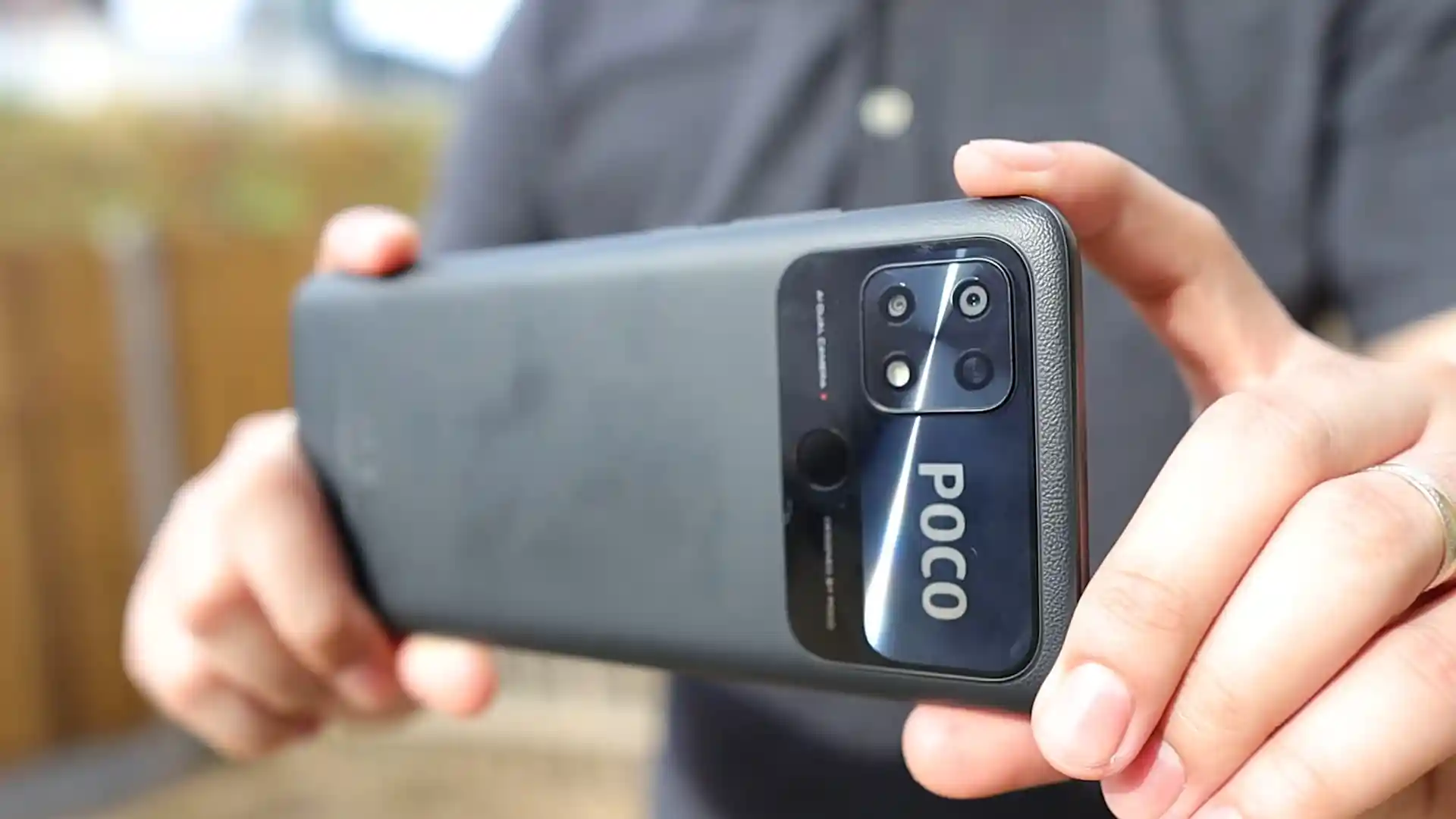
The Xiaomi POCO C40, launched in June 2022 on the JLQ JR510 processor, represents an entry-level smartphone featuring a 6.71-inch HD+ Dot Drop screen, 13 MP dual rear camera, and a 6,000 mAh battery. Whether you need to restore your phone from an update bootloop, fix system bugs, or return to clean factory software, this guide provides verified Fastboot flashing steps.
Official flashing on the Xiaomi POCO C40 is performed using Xiaomi's Mi Flash Tool in Fastboot mode. Follow each preparatory step carefully to ensure flawless partition deployment without risking bootloader or baseband corruption.
Which Flash Mode Should You Use?
Fastboot Mode (Mi Flash Tool)
Primary flashing environment used by Mi Flash Tool to write bootloader, radio, and system partitions.
Stock Recovery Mode
Stock recovery environment for OTA zip sideloading, factory data wipes, and Mi Assistant connections.
Essential Equipment & Pre-Flash Driver Verification
A computer running Windows 10 or 11 with Google Android USB drivers and the latest Android SDK Platform Tools installed.
An officially unlocked bootloader via the Xiaomi Mi Unlock utility. Flashing stock Fastboot images on locked devices will fail.
Use the original Xiaomi data cable or a certified USB cable plugged directly into a rear motherboard USB 2.0 port.
Ensure the 6,000 mAh battery holds at least 50% capacity to prevent power interruption during the flash operation.
Fastboot .tgz packages require two extractions (tar.gz -> tar -> folder) using 7-Zip to extract the images directory properly.
5-Step Mi Flash Walkthrough for POCO C40 (frost)
5-step quick reference for the Xiaomi POCO C40. Need visuals or troubleshooting help? The full Mi Flash Tool guide covers everything in detail.
-
Unlock bootloader with Mi Unlock
-
Decompress Fastboot TGZ archive twice
-
Enter Fastboot mode
-
Configure Mi Flash Tool with "clean all"
-
Flash firmware and await first boot
Understanding the Fastboot Flash Script on POCO C40
On the %1$s with its JLQ processor, official Fastboot flashing is coordinated by the %2$s batch script. The script manages the sequential writing of boot, recovery, system, and dynamic super partition sparse chunks through standard Fastboot protocol.
flash_all.bat
Official factory packages for the POCO C40 are structured as Fastboot archives managed by Windows batch scripts (flash_all.bat). The script automatically detects the device communication mode, provisions partition tables, writes essential modem and boot firmware, and writes the dynamic super partition.
Always confirm that "clean all" (%2$s) is selected in Mi Flash Tool. Selecting "clean all and lock" on cross-regional firmware builds will lock the bootloader against mismatched security certificates and brick the phone.
Additional POCO C40 Firmware Builds
Tested and recommended official stock Fastboot firmware builds for the Xiaomi POCO C40. Select the package matching your specific hardware model variant.
| Version | Region | Android Version | Size | MD5 | Download |
|---|---|---|---|---|---|
V13.0.12.0.RGFEUXM (Android 11.0) |
5.0 GB | 1fd2efcccf3688c7d2a3b8aec5e7ef0f |
⬇️ Download | ||
V13.0.26.0.RGFMIXM (Android 11.0) |
5.3 GB | 35e94a69c898912b622efcfd4736092e |
⬇️ Download | ||
V13.0.12.0.RGFIDXM (Android 11.0) |
5.0 GB | 4a2e35ef38218e8c2e354bc0e29f9dca |
⬇️ Download |
Looking for additional regional channels or recovery OTA builds? Browse all frost firmware packages on AndroidFirmwareFile.com →
JLQ JR510 Architecture & eMMC Storage Considerations
Workshop Technician Tips for the JLQ JR510 Platform
When servicing the Xiaomi POCO C40 at the bench, keep the following hardware and protocol rules in mind:
- USB Controller Stability: Because super partition chunks are written onto eMMC 5.1 flash storage, connect the device directly to a rear motherboard USB 2.0 port to prevent communication timeouts during large file streaming.
- Battery Safety Threshold: The internal 6,000 mAh battery must have at least 50% charge. If power drops mid-flash while flashing the super partition, the device will require low-level recovery procedures to revive.
- Decompression Hierarchy: Xiaomi Fastboot archives (.tgz) contain an internal tar archive. Always use 7-Zip to extract the file twice until the 'images' folder and '%2$s' batch script appear in the primary directory.
Troubleshooting POCO C40 Flashing Issues
Super Partition Write Timeout: "FAILED (remote: 'data too large' / write timeout)"
During partition writing on the JLQ JR510 platform, writing the multi-gigabyte super partition onto eMMC 5.1 storage can exceed USB controller wait limits on Windows hubs. Users recommend using a short OEM USB Type-C cable plugged into a rear motherboard USB 2.0 port and running Mi Flash Tool as Administrator.
Bootloader Relock Recovery Freeze: "This MIUI version cant be installed on this device"
Selecting "clean all and lock" (flash_all_lock.bat) when flashing cross-regional software triggers regional security locks. The phone becomes stuck on a recovery warning screen. Always select "clean all" (flash_all.bat) before clicking Flash in Mi Flash Tool.
Fastboot Device Connection Failure: "Device not found / waiting for device"
Older third-party MediaTek or Qualcomm driver filter packages (such as libusb or MTK filter drivers) can intercept the JLQ JR510 USB handshake in Fastboot mode. Uninstall conflicting filter drivers in Windows Device Manager and reinstall the official Google Android Bootloader Interface driver.
Fix common flashing interruptions, Fastboot handshake errors, and bootloop issues encountered on the POCO C40. Troubleshooting & Error Resolutions →
Frequently Asked Questions About POCO C40 Flashing
Unlike Qualcomm or MediaTek handsets that use manufacturer-specific QDLoader or MTK VCOM drivers, the JLQ JR510 platform connects using standard Google Android Composite ADB and Bootloader Interface drivers. Install the latest Android SDK Platform-Tools and ensure Windows Device Manager displays "Android Bootloader Interface" without yellow warning signs when connected in Fastboot mode.
Because the POCO C40 utilizes single-lane eMMC 5.1 flash storage rather than high-speed UFS, writing the 4GB+ super partition image takes longer. If Mi Flash Tool reports write stalls or "FAILED (remote: data too large)", connect the phone directly to a rear motherboard USB 2.0 port, avoid front panel hubs, and disable USB selective suspend in Windows power options.
Executing flash_all_lock.bat relocks the hardware bootloader. If you flash European (EEA) firmware onto an imported global or regional unit with mismatched cryptographic root-of-trust signatures, the bootloader aborts booting and enters an unrecoverable recovery loop. Always select "clean all" (flash_all.bat) to leave the bootloader unlocked when flashing.
This warning appears when previous user data encryption keys clash with the newly written system partition. To resolve this, use the physical volume buttons in stock Mi Recovery to highlight "Wipe Data", select "Wipe All Data", and confirm with the Power button before rebooting into the system.
Ready to Flash?
Follow the full step-by-step Mi Flash Tool guide with interactive progress tracking, prerequisite checklist, and complete troubleshooting.