

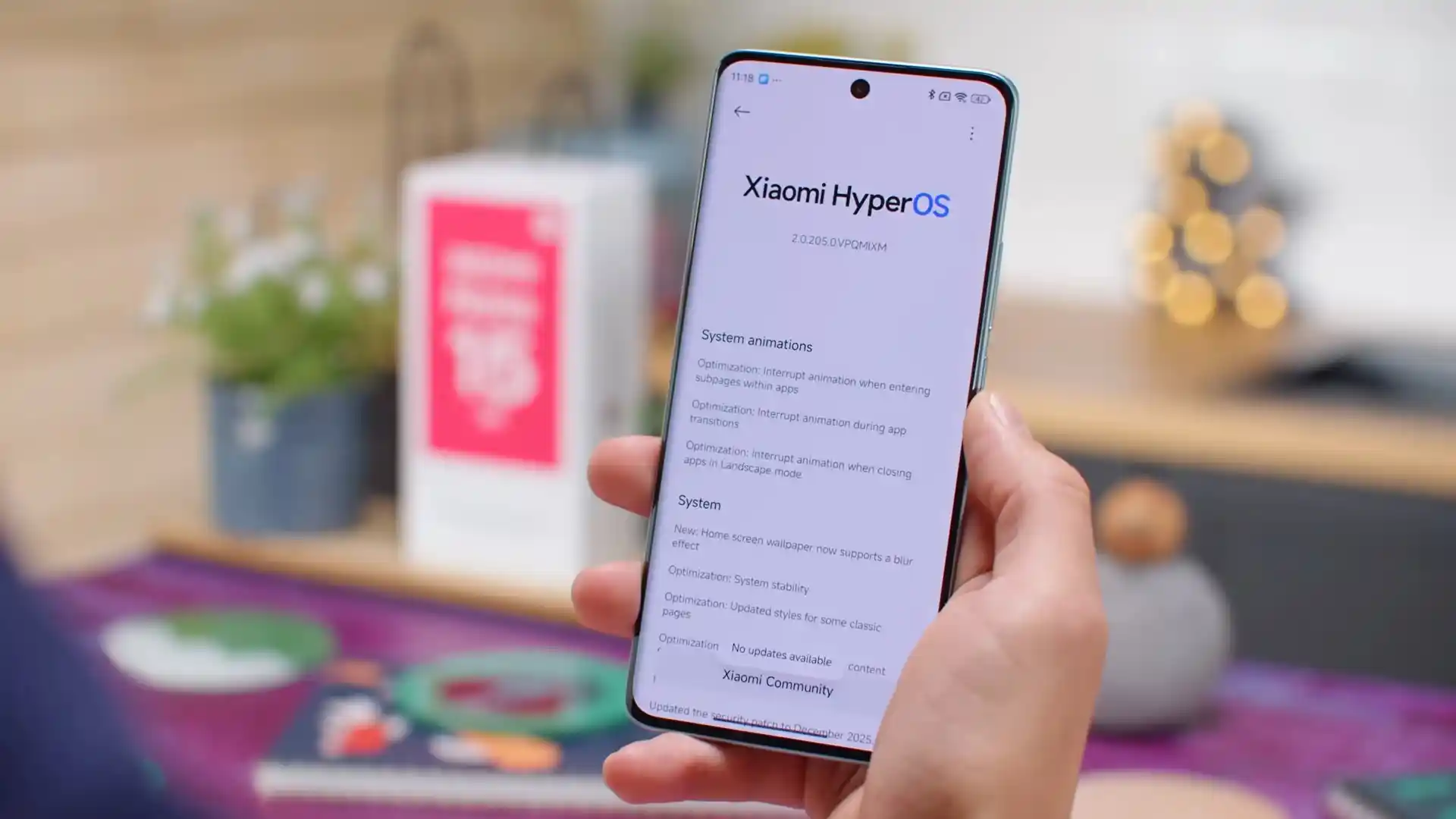
Before you flash: Flashing firmware will erase all data on your device. Back up contacts, photos, and apps before proceeding. FlashGuideHub is not responsible for any damage caused by following this guide.
About the Xiaomi Redmi 15 5G
The Xiaomi Redmi 15 5G was launched in April 2026, built on the Qualcomm Snapdragon 6s Gen 3 platform. Known under codename spring, the handset combines an expansive 6.9-inch 144Hz display, an enormous 7000 mAh Silicon-Carbon battery, 33W fast charging, and a 50 MP AI camera running HyperOS 3.0.
Flashing official Fastboot firmware recovers devices from bootloops, unbricks damaged partition tables, and restores clean factory HyperOS software. Follow the verified package links and bench steps below to flash your phone safely.
Which Flash Mode Should You Use?
Xiaomi Mi Flash Fastboot Flashing (Recommended)
Standard official method for restoring stock HyperOS firmware using an unlocked bootloader and Mi Flash Tool in Fastboot mode.
Fastbootd Dynamic Partition Terminal Mode
Userspace fastboot interface executed from recovery to flash modern dynamic super partition chunks directly via command line.
Recovery Sideload & Local Update
Official recovery interface used for installing signed OTA update packages directly over USB without a computer script.
What You Need Before Flashing
Fastboot flashing requires an officially unlocked bootloader via the Xiaomi Community / Mi Unlock tool.
A 64-bit Windows PC with updated Mi Flash Tool (2024+) and Google Android platform-tools v35+.
Ensure the 7000 mAh battery has at least 40% charge to prevent shutdown during super partition writing.
Use a quality USB Type-C cable plugged directly into a rear motherboard port for fast transfers.
Flashing stock Fastboot firmware with "clean all" completely wipes internal storage and applications.
Decompress the .tgz archive twice using 7-Zip until flash_all.bat is exposed in a clean directory.
How to Flash the Xiaomi Redmi 15 5G — Quick Overview
5-step quick reference for the Xiaomi Redmi 15 5G. Need visuals or troubleshooting help? The full Mi Flash Tool guide covers everything in detail.
-
Unlock bootloader with Mi Unlock
-
Decompress Fastboot TGZ archive twice
-
Enter Fastboot mode
-
Configure Mi Flash Tool with "clean all"
-
Flash firmware and await first boot
Firmware Package for Snapdragon 6s Gen 3 (flash_all.bat)
Official Fastboot firmware packages for the Xiaomi Redmi 15 5G are distributed as multi-gigabyte .tgz archives containing dynamic super partition images (system.img, product.img, vendor.img, system_dlkm.img, vendor_dlkm.img) written via flash_all.bat and fastbootd userspace protocols.
flash_all.bat / rawprogram0.xml
Official Xiaomi Redmi 15 5G firmware is distributed as multi-gigabyte .tgz archives. Extract the archive twice using 7-Zip until the folder containing "flash_all.bat" and the dynamic partition images is visible.
Fastboot Flashing Rule: Always select "clean all" (flash_all.bat) when using Mi Flash Tool on cross-regional hardware to avoid triggering the regional bootloader lock brick.
Xiaomi Redmi 15 5G Firmware Versions
Curated official stock firmware packages for the Xiaomi Redmi 15 5G. Verify your hardware model variant before downloading.
| Version | Region | Android Version | Size | MD5 | Download |
|---|---|---|---|---|---|
OS3.0.2.0.WOUEUXM |
Europe (EU/EEA) | Android 16.0 (HyperOS 3.0) | 7.8 GB | 91ba737392c974359c2782ebe34fb788 |
⬇️ Download |
This phone family has 3 additional regional builds and OrangeFox custom recovery. Browse the complete archive on AndroidFirmwareFile.com →
Xiaomi Redmi 15 5G — Important Notes
The Xiaomi Redmi 15 5G contains an immense 7000 mAh silicon-carbon internal battery. Writing the full 8 GB HyperOS dynamic super partition image takes approximately 3 to 5 minutes. Confirm that your battery has at least 40% charge before beginning the flashing process to prevent unexpected shutdowns during partition writes.
Troubleshooting Xiaomi Redmi 15 5G Flashing & HyperOS Errors
Fastboot Timeout: "Not catch checkpoint ($fastboot -s .* lock)" or flash stall
HyperOS 3.0 super partition chunks exceed 7 GB. When flashing through outdated versions of Mi Flash Tool or legacy fastboot binaries, buffer pipes overflow and time out. Workshop technicians suggest using platform-tools v35 or newer, connecting directly to a rear motherboard USB 3.0/3.2 port with an authentic high-speed Type-C cable, and avoiding USB hubs.
Bootloader Lock Brick: "This MIUI / HyperOS version can't be installed on this device"
Occurs when users flash Global or European firmware onto an imported Chinese hardware unit (Redmi Note 15R 5G) while leaving "clean all and lock" checked. The re-locked bootloader reads the hardware region in the misc partition and halts boot. Technicians advise booting back into Fastboot mode and re-flashing the device with "clean all" (flash_all.bat) or using an approved Mi Unlock account to unlock the device.
OrangeFox Recovery /data Decryption Error: "0MB internal storage"
Frequently reported when flashing custom recovery over official Android 16.0 HyperOS builds due to active forced File-Based Encryption (FBEv2). Forum members suggest selecting Wipe > Format Data (typing "yes"), rebooting back into recovery, and then transferring ROM packages via MTP or USB OTG.
For solving common Mi Flash Tool timeout codes, fastbootd issues, and HyperOS recovery errors: Xiaomi & Qualcomm Flashing Error Directory →
Frequently Asked Questions — Xiaomi Redmi 15 5G
To enter Fastboot mode: Power off the phone completely, then hold Volume Down and Power simultaneously until the device vibrates and displays the orange Fastboot logo. To enter Recovery mode: Turn off the phone, hold Volume Up and Power together until the screen turns on, then release Power while holding Volume Up until the HyperOS Recovery or OrangeFox interface appears.
HyperOS 3.0 partitions exceed 7 GB and are encapsulated inside a dynamic "super" container. When executing flash_all.bat, the script flashes basic bootloader components in classical fastboot mode before issuing the command "fastboot reboot fastboot". This switches the phone into userspace "fastbootd" mode with a distinct multi-language menu on the screen, allowing dynamic resizing and flashing of system, product, and vendor partitions.
If the phone hangs at the HyperOS splash screen or bootloops after an interrupted update, press and hold Volume Down and Power simultaneously for 10 to 15 seconds. This forces a hardware power cutoff and immediately catches the bootloader before secondary initialization, dropping the phone straight into Fastboot mode for recovery flashing.
Ensure your bootloader is unlocked. Connect the phone in Fastboot mode to your PC, open a command terminal, and execute "fastboot flash recovery_ab OrangeFox-R11.3-Unofficial-spring.img" (or "fastboot flash recovery OrangeFox-R11.3-Unofficial-spring.img" depending on partition layout). Then immediately execute "fastboot boot OrangeFox-R11.3-Unofficial-spring.img" to boot directly into recovery and prevent stock recovery from overwriting it.
Ready to Flash?
Follow the full step-by-step Mi Flash Tool guide with interactive progress tracking, prerequisite checklist, and complete troubleshooting.