

Before you flash: Flashing firmware will erase all data on your device. Back up contacts, photos, and apps before proceeding. FlashGuideHub is not responsible for any damage caused by following this guide.
About the Xiaomi Redmi 2 / Redmi 2 Prime / Redmi 2 Pro
The Xiaomi Redmi 2 / Redmi 2 Prime / Redmi 2 Pro was released in January 2015 (Redmi 2) / August 2015 (Redmi 2 Prime), built upon Qualcomm's 64-bit Qualcomm Snapdragon 410 MSM8916 (28nm LP) processor and a 4.7-inch 720p HD display. This comprehensive workshop guide details the official flashing procedure for restoring stock Fastboot firmware, recovering from bootloops, and setting up custom recoveries on the wt88047 platform.
Whether you need to unbrick a handset stuck on the initial boot screen, return to factory software, or install a debloated multilingual ROM, this guide covers verified flashing methods using official Xiaomi tools and Fastboot images.
Which Flash Mode Should You Use?
Mi Flash Fastboot Mode
Standard official flashing interface for the Redmi 2. Restores full factory TGZ firmware packages via fastboot automation scripts.
TWRP Custom Recovery Mode
Touch-driven custom recovery for flashing flashable ZIP ROMs like Xiaomi.eu, installing root, and taking complete nandroid backups.
Emergency Download Mode (EDL 9008)
Low-level Qualcomm hardware recovery mode for unbricking dead devices when bootloader partitions are corrupted or non-responsive.
Pre-Flash Hardware Checks & Qualcomm Driver Setup
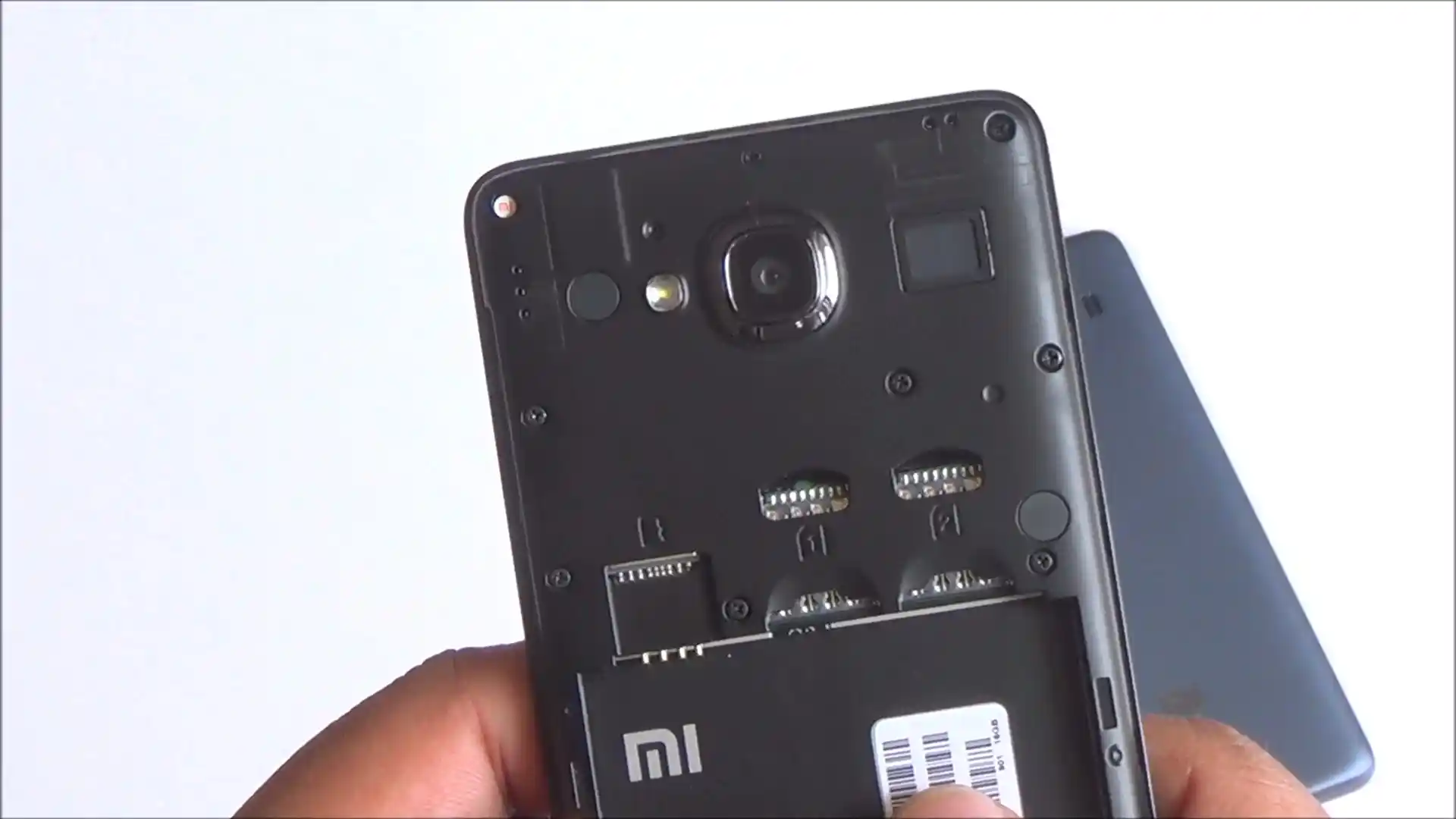
Ensure your removable BM44 battery holds sufficient charge or reseat a freshly charged pack to prevent power loss during firmware writing.
Install verified Qualcomm USB and Google Fastboot drivers to ensure reliable hardware connection in Fastboot and EDL modes.
Connect your micro-USB cable directly into a rear USB 2.0 port to prevent communication drops associated with USB 3.0 controllers.
Extract the compressed .tgz archive twice using 7-Zip directly into a top-level folder such as C:\wt88047_fw.
5-Step Fastboot & Mi Flash Walkthrough for wt88047
A quick 5-step overview built specifically for the Xiaomi Redmi 2 / Redmi 2 Prime / Redmi 2 Pro. The full Mi Flash Tool guide adds screenshots, progress tracking, and fixes for common errors.
-
Download & Extract wt88047_pro_global_images_V9.2.5.0.LHJMIEK_20180119.0000.00_5.1_global_c43306f3d5.tgz to C:\wt88047_fw
-
Verify Open Bootloader State (No Mi Unlock Account Binding Required on MSM8916)
-
Perform Cold Hardware Reset via Removable BM44 Battery & Enter Fastboot Mode
-
Launch Mi Flash Tool, Browse to Firmware Folder, and Select Clean All (flash_all.bat)
-
Click Flash, Write Qualcomm Partitions, and Await Initial Android Boot
Qualcomm Fastboot Partition Architecture & Flash Scripts
Official Fastboot flashing scripts (flash_all.bat) and partition configurations for Xiaomi Redmi 2 and Redmi 2 Prime (wt88047).
flash_all.bat
Xiaomi Fastboot packages for Qualcomm chipsets automate the flashing process through batch scripts rather than raw manual partition addressing. The flash_all.bat script manages the sequence of erasing and writing boot, recovery, system, and modem partitions via fastboot CLI commands.
Official Fastboot packages bundle flash_all.bat, flash_all_except_storage.bat, and flash_all_lock.bat. Always select flash_all.bat (clean all) for factory software recovery.
Xiaomi Redmi 2 / Redmi 2 Prime / Redmi 2 Pro Firmware Versions
Download official stock Fastboot firmware, custom recoveries, and verified community ROMs for Xiaomi Redmi 2 and Redmi 2 Prime (wt88047).
| Version | Region | Android Version | Size | MD5 | Download |
|---|---|---|---|---|---|
V9.2.5.0.LHJMIEK |
Global (MI — 2GB Prime/Pro) | Android 5.1.1 (MIUI 9.2) | 943.7 MB | c43306f3d5bd4d98264aa81114d1b3f0 |
⬇️ Download |
V8.2.1.0.KHJMIDL |
Global (MI — 1GB Standard) | Android 4.4.4 (MIUI 8.2) | 1.08 GB | c5fecbbd3a7a0e030b854eb8c20e1bec |
⬇️ Download |
V8.2.1.0.LHJCNDL_v8-5.1 |
Multilingual Community (Xiaomi.eu) | Android 5.1.1 (MIUI 8.2) | 565.0 MB | a9e728a6fa4c573699186ee0d86566dc |
⬇️ Download |
3.7.0_9-0 (wt88047) |
Official TeamWin Recovery | Android 4.4 – 11.0+ | 14.6 MB | add9b51ffc00902758aaa4ad0870934c |
⬇️ Download |
Need additional regional builds, historical versions, or stock recovery OTA archives? Explore the complete Xiaomi Redmi 2 & Prime archive on AndroidFirmwareFile
Qualcomm MSM8916 Partition Layout & Recovery Architecture
The Xiaomi Redmi 2 and Redmi 2 Prime (wt88047) utilize a classic non-A/B partition layout on Qualcomm Snapdragon 410 hardware. Official restoration packages such as wt88047_pro_global_images_V9.2.5.0.LHJMIEK_20180119.0000.00_5.1_global_c43306f3d5.tgz execute flash_all.bat to flash kernel (boot.img), recovery.img, radio baseband (NON-HLOS.bin), and system.img directly to physical block partitions.
Troubleshooting Redmi 2 & Prime (wt88047) Flashing Errors
FAILED (remote: data too large) / Write Error at Block during Fastboot Flash
Legacy Fastboot bootloaders on Qualcomm MSM8916 can experience USB buffer overruns when transferring uncompressed system partition images over modern USB 3.0/3.1 controllers. To fix this, connect the handset to a native USB 2.0 port or an external USB 2.0 hub, and verify that the firmware path does not contain spaces or special characters.
Stock Mi-Recovery Overwrites Custom Recovery Image on Initial System Boot
Stock MIUI contains an install-recovery.sh script in the system partition that automatically restores stock Mi-Recovery during initial boot. After executing fastboot flash recovery twrp-3.7.0_9-0-wt88047.img, do not allow the device to boot into system; immediately hold Volume Up and Power to enter TWRP, then swipe to allow system modifications.
Qualcomm HS-USB QDLoader 9008 Port Handshake Stall in Emergency Download Mode
If the primary bootloader partition or partition table is wiped, the MSM8916 falls back to low-level Emergency Download Mode (EDL 9008). In Device Manager, confirm the device appears under Ports as Qualcomm HS-USB QDLoader 9008. If communication stalls, reseat the removable BM44 battery to power-cycle the board and reinstall Qualcomm QDLoader driver v2.1.2.2.
Encountering issues during flashing? Refer to our troubleshooting solutions for typical Qualcomm and Fastboot errors on wt88047. Common Flashing Errors →
Flashing Workshop & Hardware Troubleshooting FAQ
No. The Redmi 2 and Redmi 2 Prime were released in 2015, prior to Xiaomi implementing its server-based bootloader lock policy (which began with the Redmi Note 3 in 2016). The bootloader on wt88047 is unlocked by default out of the factory. You do not need to apply for unlocking permissions, link a Mi Account in Developer Options, or wait for an unlock countdown timer before flashing Fastboot packages or custom recoveries.
This notice appears because early Fastboot implementations on Android 4.4 and 5.1 did not negotiate modern chunked buffer sizes with host computers. While it displays as an advisory warning, fastboot continues writing the image. However, if the process actually freezes at this step, the culprit is almost always a modern USB 3.0 xHCI controller incompatibility. Connecting through a USB 2.0 port resolves the transfer stall.
A brief vibration without screen illumination on wt88047 indicates a soft bootloader crash. Remove the back cover, pull out the BM44 battery, wait 15 seconds, and reinsert it. Press and hold Volume Down and Power while connecting the USB cable to your computer. If the orange Fastboot rabbit screen appears, flash the stock fastboot image using Mi Flash. If the screen remains blank, check Device Manager to see if the device connects under Ports (COM & LPT) as Qualcomm HS-USB QDLoader 9008.
To install the Xiaomi.eu MIUI 8 stable build (xiaomi.eu_multi_HM2XWCPro_V8.2.1.0.LHJCNDL_v8-5.1.zip), first ensure you have the 2 GB RAM Prime/Pro hardware. Flash official TWRP via fastboot using "fastboot flash recovery twrp-3.7.0_9-0-wt88047.img", boot directly into TWRP, perform a wipe of System, Data, Cache, and Dalvik, and then install the Xiaomi.eu ZIP via OTG drive, microSD card, or ADB sideload.
Ready to Flash?
Follow the full step-by-step Mi Flash Tool guide with interactive progress tracking, prerequisite checklist, and complete troubleshooting.