

Before you flash: Flashing firmware will erase all data on your device. Back up contacts, photos, and apps before proceeding. FlashGuideHub is not responsible for any damage caused by following this guide.
About the Xiaomi 17 Ultra
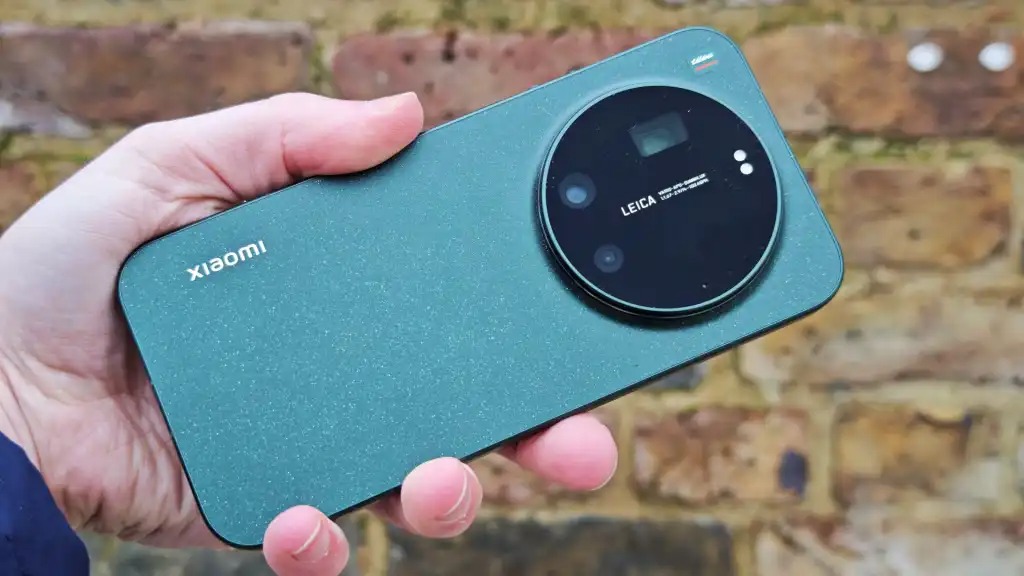
The Xiaomi 17 Ultra (codename: nezha) is Xiaomi's 2026 Android flagship, announced in February 2026 and released in March 2026, powered by the Qualcomm SM8850-AC Snapdragon 8 Elite Gen 5 (3 nm) chipset. It ships in two hardware variants distinguished by model number — 2512BPNDAG for global markets and 2512BPNDAC for the Chinese market — each running a region-specific HyperOS 3 firmware branch.
Each variant's firmware carries a unique HyperOS branch suffix (MIXM for Global, CNXM for China) that determines system features and OTA update eligibility. The Firmware Package section below explains how to identify your variant's branch and select the correct Fastboot ROM before flashing.
Which Flash Mode Should You Use?
Mi Flash Tool (Fastboot ROM)
The standard method for the Xiaomi 17 Ultra. Mi Flash Tool provides a GUI over Qualcomm's standard Fastboot interface and auto-executes the flash_all.bat script from Xiaomi's official Fastboot ROM archive, writing all partitions — bootloader, radio, system, vendor — in a single automated pass. Requires a prior bootloader unlock and erases all user data.
Manual ADB / Fastboot Commands
Advanced users can bypass the Mi Flash Tool GUI and flash individual partitions directly using the fastboot binary from Android SDK Platform Tools. This approach requires knowing each partition name and executing them in the correct sequence. It is useful for targeted partition repairs — for example, flashing only the radio image — without reinstalling the entire firmware, but is not recommended for full system restoration.
EDL / QFIL (Emergency)
The Snapdragon 8 Elite Gen 5 (SM8850) supports Qualcomm Emergency Download mode at the hardware level, accessible by shorting the designated test points on the nezha PCB when the device is completely unresponsive and cannot reach Fastboot. However, Xiaomi does not publicly distribute the Qualcomm programmer (.elf) files required for QFIL to communicate with the nezha hardware — EDL flashing is limited to Xiaomi authorised service centres holding these proprietary files.
What You Need Before Flashing
Mi Flash Tool is Windows-only for its GUI mode. Download Mi Flash Tool (v20.2.0 or newer) and the Xiaomi USB driver package from the official Xiaomi developer portal. On Linux or Mac, the flash_all.sh script from the extracted ROM can be run directly with Android SDK Platform Tools, but Mi Flash Tool itself is not available.
Fastboot flashing requires a previously unlocked bootloader. In Developer Options, bind your Mi Account under Unlock Status. Download Mi Unlock Tool on a Windows PC and sign in with the same account. Xiaomi enforces a mandatory 168-hour waiting period after account binding before the unlock is granted — plan ahead.
Download the Fastboot ROM matching your device's firmware branch. Check Settings → About Phone → OS version for the branch suffix (MIXM = Global / 2512BPNDAG; CNXM = China / 2512BPNDAC). Decompress the .tgz fully to a folder path with no spaces before running Mi Flash Tool.
A data-capable USB-C cable is mandatory — charge-only cables do not support the Fastboot protocol. The Xiaomi 17 Ultra's USB-C 3.2 Gen 2 port works with any data-rated USB-C cable; use a certified cable from a reputable manufacturer. Connect directly to a USB port on your PC rather than a hub.
The flash_all script writes multiple large partitions over 5–15 minutes. The Xiaomi 17 Ultra's 6000mAh battery is sealed — unlike a removable battery, it cannot be swapped if it dies mid-flash. Ensure at least 30% charge before starting, and keep the USB cable connected throughout. The 90W HyperCharge brings the battery from near-empty to 30% in under 10 minutes.
Both the bootloader unlock and the flash_all "Clean all" mode erase all user data. The Xiaomi 17 Ultra has no microSD slot, so all internal storage is at risk. Back up photos to Google Photos or Xiaomi Cloud, contacts to Google Contacts, and any important files to a PC or cloud drive before beginning.
How to Flash the Xiaomi 17 Ultra — Quick Overview
A condensed step-by-step summary specific to the Xiaomi 17 Ultra. Follow the full Mi Flash Tool guide for screenshots, an interactive progress checklist, and complete troubleshooting.
-
Apply for bootloader unlock and wait 7 days
-
Run Mi Unlock Tool to unlock the bootloader
-
Download the correct HyperOS 3 Fastboot ROM
-
Install Mi Flash Tool and Xiaomi USB drivers
-
Select the firmware folder and flash
Finding the Firmware Package for SM8850
The Xiaomi 17 Ultra firmware is distributed by Xiaomi as a compressed Fastboot ROM archive (.tgz). After fully extracting the archive, locate:
flash_all.bat
This script is inside the extracted Fastboot ROM folder. After decompressing the .tgz archive (decompress twice if needed — once for the outer .tgz, once for the inner .tar), locate flash_all.bat (Windows) or flash_all.sh (Linux/Mac) at the top level of the resulting folder, alongside an images/ subdirectory. Do not attempt to run the script from inside a compressed archive — extract fully to a local folder before proceeding.
The Xiaomi 17 Ultra (codename: nezha) ships in two hardware configurations distinguishable by model number: 2512BPNDAG is the Global variant and 2512BPNDAC is the China variant. Each carries a different HyperOS firmware branch. The branch suffix in the OS build string identifies your device: MIXM (Global), CNXM (China), EUXM (EEA/Europe). Downloading a Fastboot ROM from the wrong branch does not permanently brick the device but can break OTA update eligibility and disable region-specific system features — always match the firmware branch to the branch the device shipped with.
After decompressing the .tgz archive, you will find flash_all.bat (Windows) and flash_all.sh (Linux/Mac) at the top level, alongside an images/ subdirectory containing individual .img files for each partition. Do not run the script from inside a compressed archive — decompress fully to a folder path containing no spaces or non-ASCII characters before executing.
Note: Do not confuse the Xiaomi 17 Ultra (nezha) with the Xiaomi 17 (non-Ultra, different codename and chipset), the Xiaomi 17 Pro Max, or the Chinese Leica Leitzphone powered by Xiaomi, which includes an additional mechanical zoom ring on the camera module and a dedicated hardware security chip. Factory images for those variants are not compatible with nezha hardware.
Xiaomi 17 Ultra Firmware Versions
Known HyperOS 3 Fastboot ROM releases for the Xiaomi 17 Ultra. Always verify the branch suffix matches your device region before flashing.
| Version | Region | Android Version | Size | MD5 | Download |
|---|---|---|---|---|---|
OS3.0.301.0.WPAMIXM |
2512BPNDAC u2014 Global (MIXM) | — | 12.0 GB | — | ⬇️ Download |
OS3.0.7.0.WPACNXM |
2512BPNDAC u2014 China (CNXM) | — | 10.2 GB | — | ⬇️ Download |
Showing latest stable builds. Additional branches and historical versions available at: View full Xiaomi 17 Ultra firmware list →
Xiaomi 17 Ultra — Important Notes
The Xiaomi 17 Ultra is Xiaomi's 2026 flagship, featuring a triple-camera system co-developed with Leica. The primary sensor is a 1-inch 50MP unit, while the 200MP periscope telephoto delivers continuous 3.2–4.3× optical zoom. The Leica Leitzphone edition adds a physical zoom ring to the camera island. Flashing with Mi Flash Tool restores the complete HyperOS 3 partition layout, including the A/B (seamless update) partition scheme introduced in Android 13+ devices. The super partition contains vendor_dlkm, odm, and product sub-partitions — the flash_all script handles all of these automatically, which is why using the full script is strongly recommended over individual fastboot flash commands.
The Xiaomi 17 Ultra's 6000mAh silicon-carbon (Si/C) battery supports 90W HyperCharge wired and 50W wireless charging. Because the battery is sealed, there is no option to remove it if it drains during a long flash session. Keep the USB cable connected throughout flashing and ensure the device is at 30% charge or above before starting. The 90W wired charging can top up from near-empty to 100% in approximately 40 minutes, so a short charge before flashing is straightforward even in time-constrained situations.
Common Errors on the Xiaomi 17 Ultra
"waiting for device" — Mi Flash Tool or fastboot does not detect the phone
Mi Flash Tool cannot communicate with the device in Fastboot mode. On Windows, open Device Manager and confirm that "Android Bootloader Interface" or "Qualcomm HS-USB QDLoader 9008" appears when the phone is connected in Fastboot mode — an Unknown Device entry means the Xiaomi USB drivers are not correctly installed. Use a USB-C data cable capable of data transfer; charge-only cables will not work. Try a different USB port (USB 2.0 ports are more reliable for Fastboot than USB 3.0 on some systems). Confirm the phone screen shows the Fastboot logo — a black screen or the HyperOS lock screen means Fastboot mode was not entered correctly. Hold Volume Down + Power for 8 seconds to retry.
"auth failed" or "token mismatch" — bootloader lock prevents flashing
Mi Flash Tool reports an auth or token error when the device bootloader is still locked. The Xiaomi 17 Ultra's Fastboot interface rejects partition writes from any tool if the lock state is active. Complete the official bootloader unlock process through Mi Unlock Tool, ensuring you have waited the full 168 hours (7 days) after account binding. After unlocking, re-enter Fastboot mode and retry the flash session in Mi Flash Tool.
"Flash failed" — firmware branch or variant mismatch
Mi Flash Tool flashes the partition images but the device fails to boot, or the tool returns a flash failed error mid-process. This is most commonly caused by flashing a firmware package from the wrong HyperOS branch (e.g., CNXM China firmware on a MIXM Global device) or a firmware build intended for a different Xiaomi device entirely. Verify your device's branch code in Settings → About Phone → OS version, or check the model number (2512BPNDAG = Global, 2512BPNDAC = China), then download and flash the exactly matching Fastboot ROM. Do not use firmware packages not labelled for the Xiaomi 17 Ultra (nezha).
"send-data failed" — USB transfer error during flashing
The flash process begins but stops partway through with a send-data or transfer error. The most common cause is a faulty USB cable or an unstable USB port. Replace the USB-C cable with a data-rated cable from a reputable manufacturer; cheap charging-only cables drop the Fastboot connection under sustained bulk transfer. Connect directly to a USB port on the motherboard rather than a USB hub or front-panel port. Disable USB selective suspend in Windows Power Options before flashing. If the error recurs at the same partition, the extracted ROM archive may be corrupt — re-download the .tgz and fully re-extract it before retrying.
Device stuck on Xiaomi logo (Mi Bunny) after flashing
A bootloop or hang on the Xiaomi logo after flashing indicates that one or more partitions — most commonly init_boot, vendor_boot, or the super partition sub-images — were not fully written. Re-enter Fastboot mode by holding Volume Down + Power for 10 seconds until the Fastboot screen appears. Open Mi Flash Tool, re-select the extracted firmware folder, choose "Clean all" (not "Save user data"), and reflash. If the device no longer responds to the Volume Down + Power combination, attempt a hardware reset by holding Power for 15+ seconds, then immediately hold Volume Down + Power. Devices that cannot reach Fastboot after a full flash failure require Xiaomi service centre intervention.
For the full Mi Flash Tool error database: Mi Flash Tool Error Directory →
Frequently Asked Questions — Xiaomi 17 Ultra
Yes — without exception. The Xiaomi 17 Ultra's Snapdragon 8 Elite Gen 5 bootloader is software-locked at the factory. Mi Flash Tool will reject the flashing session and report an auth error if the bootloader has not been officially unlocked via Mi Unlock Tool. This is distinct from MediaTek devices, where the BROM port can be accessed unconditionally via test points or USB handshake. On the Xiaomi 17 Ultra, EDL mode via QFIL is also gated behind Qualcomm programmer files that Xiaomi does not publicly release, so Mi Flash Tool with an unlocked bootloader is the only viable self-service firmware restoration path.
The bootloader unlock step wipes all user data immediately upon approval. Subsequently, selecting "Clean all" in Mi Flash Tool erases all partitions including userdata and cache, returning the device to factory condition. The "Save user data" option skips the userdata and cache partitions in an attempt to preserve personal files, but this mode is unreliable when the firmware corruption extends to system partitions and may still result in data loss. Back up photos to Google Photos or Xiaomi Cloud, contacts to Google Contacts, and app data to a PC or cloud service before starting. The internal storage has no microSD expansion, so there is no removable card to preserve data on.
Navigate to Settings → About Phone → All Specs → OS version. The build tag appended to the version string identifies your branch: MIXM indicates the Global firmware, EUXM indicates EEA (European Economic Area), CNXM indicates China, and INXM indicates India. If the phone will not boot, check the model number printed on the box or inside the SIM card tray — 2512BPNDAG is the Global variant and 2512BPNDAC is the China variant. Always download the Fastboot ROM (.tgz) that precisely matches your firmware branch; cross-branch flashing (e.g., CNXM on a MIXM device) does not brick the device immediately but breaks OTA updates and may disable region-specific system features.
HyperOS branch switching (CNXM → MIXM or vice versa) is technically possible using Mi Flash Tool and the appropriate Fastboot ROM — the Xiaomi 17 Ultra's bootloader does not enforce a region lock at the firmware level. However, the hardware variants (2512BPNDAG Global and 2512BPNDAC China) differ in their cellular band configurations. Flashing a China ROM on a Global hardware unit will not cause a permanent failure, but the device will only operate on the frequency bands supported by the Global hardware regardless of which firmware is installed. If you need both China system features and global band support, the Global hardware running Global firmware is the correct configuration.
The Snapdragon 8 Elite Gen 5 (SM8850) does support Qualcomm Emergency Download (EDL) mode at the hardware level, accessible by shorting the designated test points on the nezha PCB. However, Xiaomi does not publicly distribute the Qualcomm programmer (.elf) file required for QFIL to communicate with the device in EDL mode. Without this programmer file, QFIL cannot initialise the connection and the device remains inaccessible even in 9008 mode. EDL flashing on the Xiaomi 17 Ultra is limited to Xiaomi authorised service centres that hold the proprietary programmer files. For end users, Mi Flash Tool with an unlocked bootloader is the only fully supported firmware recovery method.
Ready to Flash?
Follow the full step-by-step Mi Flash Tool guide with interactive progress tracking, prerequisite checklist, and complete troubleshooting.