

Before you flash: Flashing firmware will erase all data on your device. Back up contacts, photos, and apps before proceeding. FlashGuideHub is not responsible for any damage caused by following this guide.
About the Xiaomi Redmi 5A
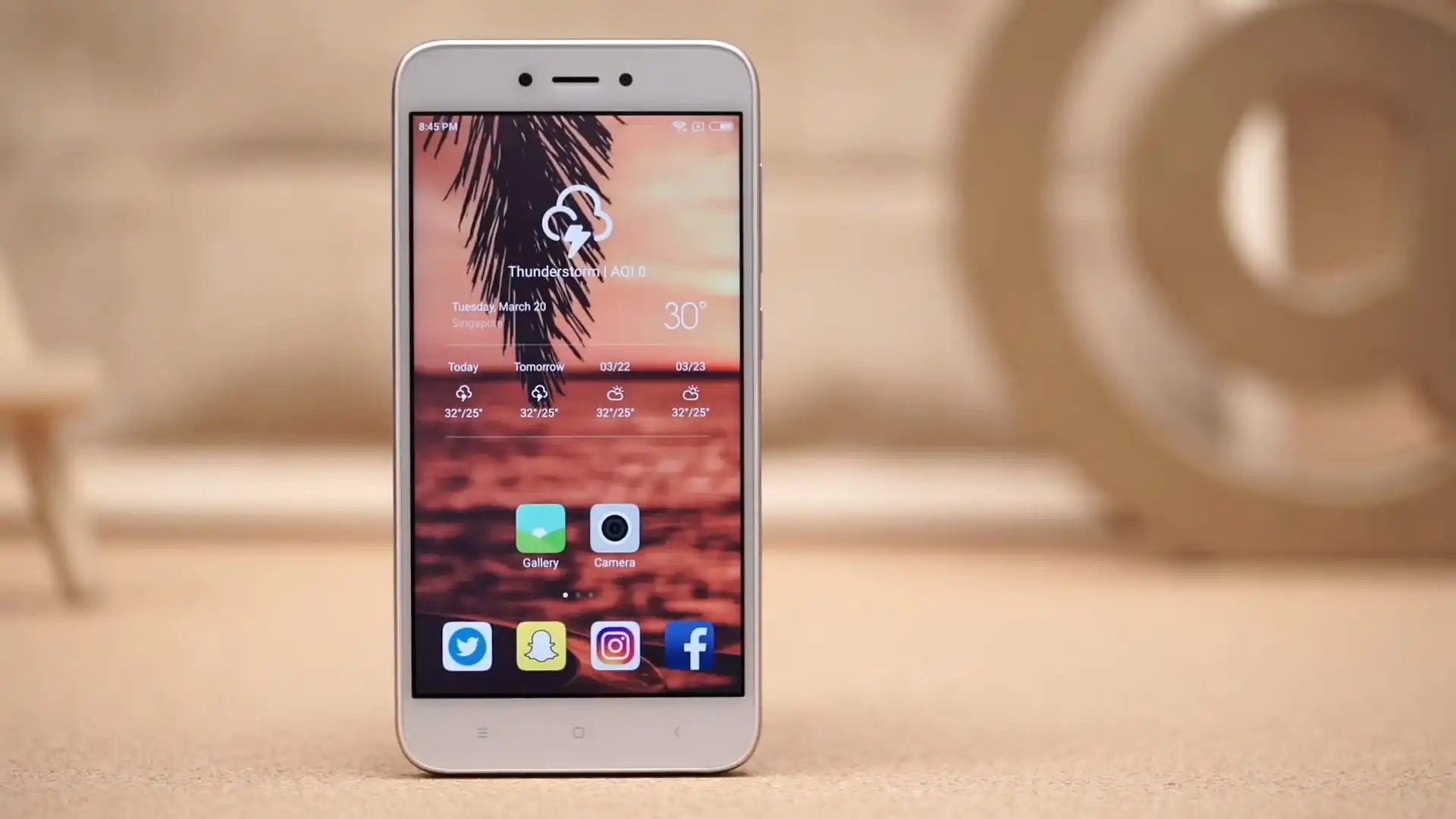
The Xiaomi Redmi 5A was released in November 2017, built on the Qualcomm Snapdragon 425 MSM8917 platform. Featuring a 5.0-inch HD display, a 13 MP rear camera with PDAF autofocus, and a 3000 mAh battery, the handset delivered dependable budget performance.
Flashing official factory firmware via Xiaomi Mi Flash Tool repairs soft-bricked handsets, restores damaged partition tables, and reinstates certified MIUI performance. Follow the verified driver setup and flashing steps below to service your device safely.
Which Flash Mode Should You Use?
Fastboot Mode (Bootloader Flashing)
Standard factory flashing mode for unlocked devices. Deploys full partition tables via Mi Flash Tool or flash_all.bat scripts.
Qualcomm HS-USB QDLoader 9008 (EDL Mode)
Emergency download mode accessed via motherboard test points. Communicates directly with the Snapdragon 425 boot ROM without requiring an unlocked bootloader.
Stock Android Recovery Mode
Factory recovery interface for executing data wipes, cache maintenance, or ADB sideload packages.
What You Need Before Flashing
Maintain at least 50% battery level to prevent unexpected power cutoffs during partition writing.
Connect via a certified microUSB cable directly to a rear USB 2.0 port on the PC motherboard.
Install Xiaomi Qualcomm USB drivers to ensure Fastboot and EDL 9008 communication.
Fastboot deployment requires an unlocked bootloader via the official Xiaomi Mi Unlock tool.
How to Flash the Xiaomi Redmi 5A — Quick Overview
5-step quick reference for the Xiaomi Redmi 5A. Need visuals or troubleshooting help? The full Mi Flash Tool guide covers everything in detail.
-
Unlock bootloader & extract Fastboot TGZ archive
-
Install Qualcomm USB drivers & Mi Flash Tool
-
Boot Redmi 5A into Fastboot mode
-
Select firmware folder & choose "clean all"
-
Flash firmware and await automatic reboot
Firmware Package for MSM8917
Official Fastboot firmware packages for the Xiaomi Redmi 5A (riva) contain partition binaries (boot.img, system.img, recovery.img, cust.img, and modem) executed via flash_all.bat, rawprogram0.xml, and patch0.xml. When loaded in Xiaomi Mi Flash Tool, these scripts flash partition blocks directly to the Qualcomm Snapdragon 425 eMMC 5.1 storage controller.
flash_all.bat
Xiaomi Fastboot packages distribute partition images packaged alongside batch deployment scripts. The flash_all.bat script writes images directly to eMMC partitions via Fastboot.
The Redmi 5A (board codename riva) is powered by the Qualcomm Snapdragon 425 (MSM8917) quad-core processor with 2GB/3GB RAM, 16GB/32GB eMMC 5.1 storage, and a 3000 mAh battery.
Always verify your board codename is "riva" before flashing. Never flash packages meant for the older Redmi 4A (rolex) or sibling Redmi 5 (rosy), as partition structures differ significantly.
Xiaomi Redmi 5A Firmware Versions
Official Global stable Fastboot package for Xiaomi Redmi 5A (riva). Contains raw partition images and deployment scripts.
| Version | Region | Android Version | Size | MD5 | Download |
|---|---|---|---|---|---|
V11.0.2.0.OCKMIXM (20191106.0000.00) |
Global Stable (MI) — Multilingual with GMS | Android 8.1 (MIUI 11.0) | 1.88 GB | 605da3d46df07d6824c84a87f7f96b49 |
⬇️ Download |
Need additional regional builds or recovery zips? Browse the complete Xiaomi Redmi 5A archive on AndroidFirmwareFile.com →
Xiaomi Redmi 5A — Important Notes
Flashing official Fastboot TGZ firmware via Mi Flash Tool resolves bootloops, restores corrupt bootloader partitions, and returns the device to pristine factory software.
If your device is soft-bricked and will not enter Fastboot mode, remove the rear cover and short the two gold EDL test points near the battery terminal with metallic tweezers while inserting the microUSB cable to force Qualcomm HS-USB QDLoader 9008 mode.
Troubleshooting Xiaomi Redmi 5A (riva) Flashing & EDL Issues
Display Driver Conflict: Black Screen or Inverted Touch Post-Flash (Tianma / Shenchao Panels)
The Redmi 5A was manufactured with LCD panels from multiple suppliers (Tianma, Shenchao, and EBBG). Flashing older custom recovery images or mismatched custom kernels lacking multi-panel drivers causes the screen to stay completely black while the system boots. Technicians recommend flashing official stock boot.img packages that include unified panel driver tables.
Boot Failure: "This MIUI version can't be installed on this device" Regional Lockout
Triggered when selecting "clean all and lock" in Mi Flash Tool when flashing Global firmware (OCKMIXM) onto Chinese hardware units (model MCE3B). The bootloader security check detects the region mismatch between software certificates and hardware tags, locking startup. Technicians resolve this by entering EDL 9008 mode via motherboard testpoints and reflashing with "clean all" (flash_all.bat) to leave the bootloader unlocked.
Encountering flashing errors or driver dropouts on the Redmi 5A? Review our workshop troubleshooting notes below. Troubleshooting & Known Quirks →
Frequently Asked Questions — Xiaomi Redmi 5A
Press and hold the Power button continuously for 10 to 12 seconds until the screen turns completely dark and the device shuts down. Immediately press and hold Volume Down and Power buttons together until the orange Fastboot logo appears on the LCD panel.
Yes. Because the Snapdragon 425 platform on the Redmi 5A predates Xiaomi's server-side EDL authentication system, technicians can recover bricked devices without authorized accounts. Remove the rear cover, short the two gold EDL test points near the battery connector using metal tweezers, and connect the microUSB cable to enter Qualcomm HS-USB QDLoader 9008 mode.
Unlike phones with shared hybrid trays, the Redmi 5A utilizes an independent triple-slot tray. After flashing a clean Global Fastboot image, check the dialer (*#06#) to confirm both IMEI 1 and IMEI 2 register properly with their distinct hardware radio calibrations.
Ready to Flash?
Follow the full step-by-step Mi Flash Tool guide with interactive progress tracking, prerequisite checklist, and complete troubleshooting.