

Before you flash: Flashing firmware will erase all data on your device. Back up contacts, photos, and apps before proceeding. FlashGuideHub is not responsible for any damage caused by following this guide.
About the Xiaomi Redmi 9A / 9i / 9AT / 10A / 10A Sport
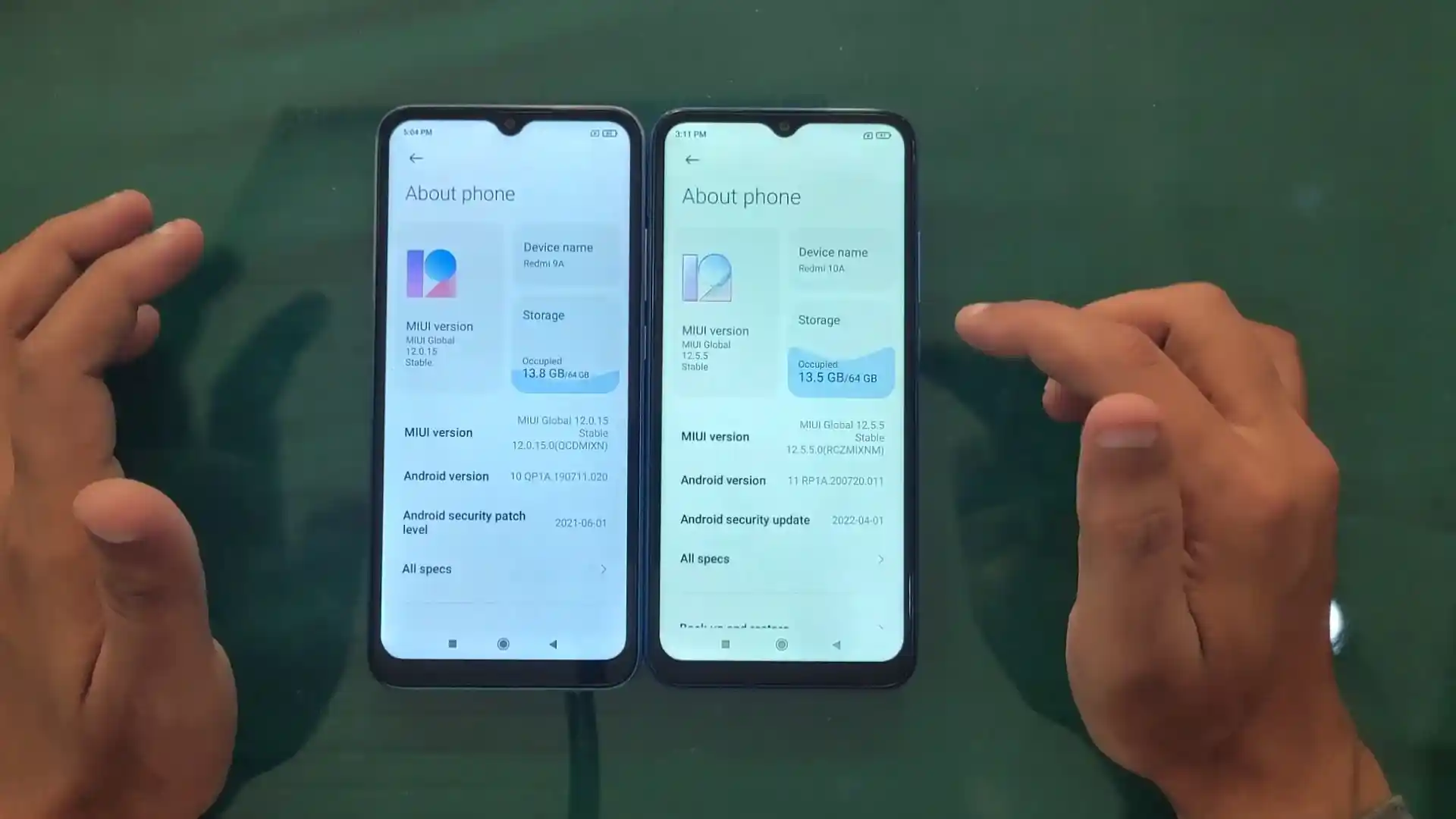
The Xiaomi Redmi 9A / 9i / 9AT / 10A / 10A Sport was launched in July 2020 (9A) / March 2022 (10A), built on the MediaTek Helio G25 MT6762G (12nm TSMC) processor. Known under hardware codenames dandelion (for Redmi 9A, 9i, and 9AT) and dandelion_c3l2 (for Redmi 10A and 10A Sport), this platform powers popular budget smartphones with a 6.53-inch HD+ display and a 5000 mAh battery.
Flashing official Fastboot firmware recovers devices from bootloops, unbricks damaged partition tables, and restores clean factory software. Follow the verified package downloads and step-by-step restoration instructions below to flash your phone safely.
Which Flash Mode Should You Use?
Xiaomi Mi Flash Fastboot Flashing (Recommended)
Standard official method for restoring stock MIUI firmware using an unlocked bootloader and Mi Flash Tool in Fastboot mode.
Stock Mi Recovery (System Updater)
Official on-device recovery method for installing signed Recovery OTA ZIP archives without wiping user files.
Pre-Flash Hardware Checks & MediaTek Driver Setup
Fastboot partition flashing requires an officially unlocked bootloader via the Xiaomi Mi Unlock utility.
A 64-bit Windows PC with updated Xiaomi Fastboot drivers, MediaTek USB VCOM drivers, and Android SDK Platform-Tools.
Ensure the 5000 mAh battery has at least 50% charge to prevent unexpected shutdown during system partition writing.
Connect directly to a native motherboard USB 2.0 port to prevent communication drops during multi-gigabyte transfers.
Flashing stock Fastboot firmware with clean all formats internal storage; save all essential personal files beforehand.
5-Step Fastboot & Mi Flash Walkthrough for dandelion
A fast reference for flashing the Xiaomi Redmi 9A / 9i / 9AT / 10A / 10A Sport (Helio G25) using Mi Flash Tool. For the complete walkthrough with images and error troubleshooting, see the full guide.
-
Unlock bootloader through official Xiaomi Mi Unlock tool
-
Extract dandelion_c3l2_eea_global_images_V12.5.18.0.RCZEUXM_20240827.0000.00_11.0_eea_0ec4b20435.tgz with 7-Zip
-
Boot into Fastboot mode and verify Micro-USB data line detection in Device Manager
-
Confirm clean all script is selected to prevent bootloader relock on imported hardware
-
Flash system partitions to eMMC storage and handle BROM port loops via battery reset
Firmware Package for MediaTek Helio G25 (flash_all.bat)
Official Fastboot firmware packages for the Xiaomi Redmi 9A and Redmi 10A (dandelion / dandelion_c3l2) are distributed as multi-gigabyte .tgz archives containing raw partition images executed via flash_all.bat across the MediaTek Helio G25 MT6762G eMMC 5.1 storage controller.
flash_all.bat
Official stock Fastboot package containing the flash_all.bat flasher script, raw partition images, and MT6762G boot files.
Fastboot Flashing Rule: Always choose "clean all" (flash_all.bat) when flashing with Mi Flash Tool on imported hardware to avoid locking the bootloader on cross-regional software. Redmi 10A packages integrate fingerprint drivers absent in 9A releases.
Verified Fastboot & Recovery Packages (dandelion)
Official stock firmware downloads for the Xiaomi Redmi 9A / 9i / 9AT / 10A / 10A Sport. Make sure to check your exact model variant before downloading.
| Version | Region | Android Version | Size | MD5 | Download |
|---|---|---|---|---|---|
V12.5.18.0.RCZEUXM (MIUI 12.5) |
EEA Europe (Redmi 10A) | Android 11.0 | 4.4 GB | 0ec4b204351ee0c467a1e45cbdecafc1 |
⬇️ Download |
V12.5.16.0.RCZMIXM (MIUI 12.5) |
Global (Redmi 10A) | Android 11.0 | 4.6 GB | f90c3c88a383789e18087d76c082ce52 |
⬇️ Download |
V12.0.21.0.QCDEUXM (MIUI 12) |
EEA Europe (Redmi 9A / 9AT) | Android 10.0 | 4.0 GB | db83cc4a87ae7d9bb276f4484739ba18 |
⬇️ Download |
V12.0.22.0.QCDMIXM (MIUI 12) |
Global (Redmi 9A) | Android 10.0 | 4.2 GB | 4f38e7c55573bbd16af7c623e74adaa2 |
⬇️ Download |
Looking for all regional branches, custom recoveries, or historical builds? Browse the complete dandelion archive on AndroidFirmwareFile.com →
Helio G25 Partition Architecture & Sibling Rules
The Redmi 9A and 10A house a 5000 mAh internal lithium-polymer battery supporting 10W charging. Flashing full system and vendor partitions takes approximately 5 to 7 minutes over eMMC 5.1 storage. Confirm that your battery has at least 50% charge before beginning the flashing process to prevent unexpected shutdowns.
Troubleshooting Redmi 9A & 10A Flashing Errors
STATUS_DA_HASH_MISMATCH (-1073283068)
Occurs in SP Flash Tool when the Download Agent (DA) file does not match the security keys of the Helio G25 bootloader. Use an MTK authentication bypass utility or flash via standard Fastboot mode using Mi Flash Tool with an unlocked bootloader.
FAILED (remote: Device is locked. Cannot flash images)
The bootloader is currently locked, preventing Fastboot commands from writing partitions like system, boot, or vendor. Boot into Android, activate OEM Unlocking in Developer Options, and run the official Xiaomi Mi Unlock tool.
MediaTek USB Port Connects and Disconnects in Loop
The phone is stuck in an infinite BROM handshake reboot cycle after an interrupted flash. Unplug the USB cable, hold Volume Up + Volume Down while plugging the cable back into a motherboard USB port, or disconnect the battery cable for 2 minutes to clear power registers.
Fingerprint Scanner Option Missing in Settings After Flash
Caused by flashing a Redmi 9A firmware package (dandelion / QCD or RCD prefix) onto a Redmi 10A (dandelion_c3l2). Redmi 9A firmware does not include the fingerprint driver stack. Reflash the correct dandelion_c3l2 RCZ package using Mi Flash Tool.
Encountering issues during flashing? Review these verified workshop solutions for the MediaTek Helio G25 platform. Troubleshooting & Common Errors →
Frequently Asked Questions About Flashing dandelion
To protect against unauthorized factory tampering and prevent grey-market vendors from modifying regional software, Xiaomi enabled Download Agent (DA) authentication and SLA security on Helio G25 devices. Standard SP Flash Tool cannot communicate with the phone without authorized service credentials or an active MTK handshake bypass.
Both OrangeFox (R12.0_1 / R11.1) and TWRP (3.7.1_12-0 / 3.7.0_11-0) provide full partition backup and ZIP installation. OrangeFox is widely preferred for custom ROM installations due to automated Magisk survival and MIUI OTA protection scripts, while TWRP offers a lightweight environment for fast partition restoration.
Micro-USB connectors can degrade with dust or physical wear, leading to intermittent pin contact during large continuous data transfers. Front PC chassis ports or USB 3.0 hubs can also cause packet drops with older MediaTek controllers. Switching to a native motherboard USB 2.0 port solves data write timeouts.
Ready to Flash?
Follow the full step-by-step Mi Flash Tool guide with interactive progress tracking, prerequisite checklist, and complete troubleshooting.