

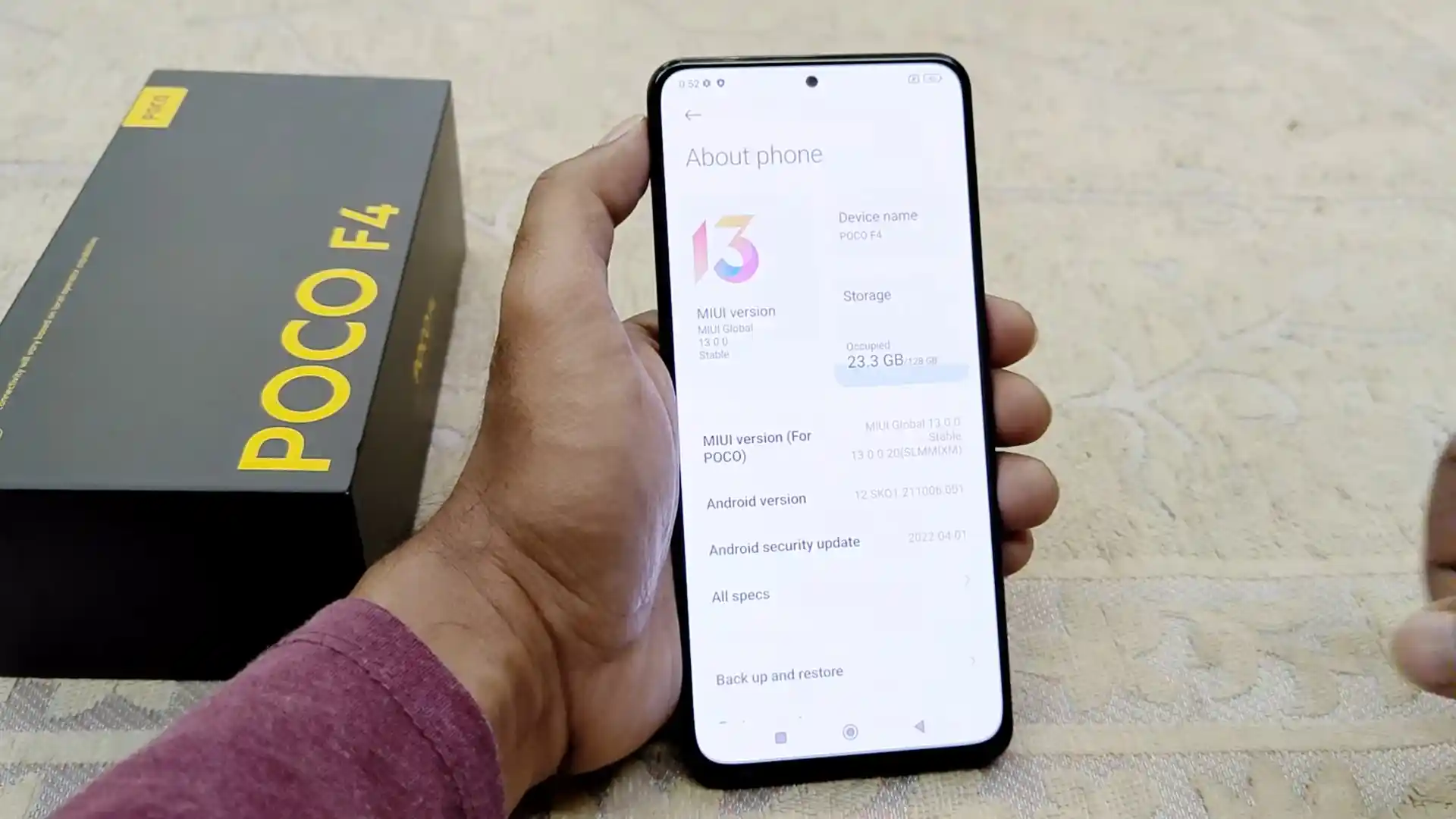
Before you flash: Flashing firmware will erase all data on your device. Back up contacts, photos, and apps before proceeding. FlashGuideHub is not responsible for any damage caused by following this guide.
About the Xiaomi POCO F4 / Redmi K40S
The Xiaomi POCO F4 / Redmi K40S (hardware codename: munch) is a high-performance smartphone platform released in March 2022 (Redmi K40S) / June 2022 (POCO F4), featuring Qualcomm's Qualcomm Snapdragon 870 5G SM8250-AC (7nm TSMC) processor. It is marketed as the POCO F4 across global markets and as the Redmi K40S in mainland China.
Because both models share the identical Qualcomm Snapdragon 870 motherboard architecture, official Fastboot firmware packages can be flashed using Mi Flash Tool to unbrick devices stuck in a bootloop, resolve system bugs, or return to a clean factory state.
Which Flash Mode Should You Use?
Mi Flash Tool (Fastboot ROM)
The official factory method for munch. Mi Flash Tool executes flash_all.bat from the decompressed .tgz archive, writing boot, dynamic super, and modem partitions in a clean pass. Requires an unlocked bootloader.
Custom Recovery (TWRP / OrangeFox)
Snapdragon 870 devices on Android 12+ lack a dedicated recovery partition. Boot the custom recovery image temporarily using fastboot boot recovery.img, then flash the installer zip or select Flash current OrangeFox in Advanced settings.
Manual Fastboot CLI Commands
Execute individual fastboot commands via Android SDK Platform Tools. Useful for flashing individual images like boot.img or testing custom recoveries without a full factory wipe.
Qualcomm EDL / 9008 Mode
Hardware-level Emergency Download mode on the Snapdragon 870, accessible via motherboard test points when the phone suffers a complete brick and fails to enter Fastboot. Requires Xiaomi authorized service center credentials.
Essential Equipment & Pre-Flash Checklist for Xiaomi POCO F4 / Redmi K40S
Mi Flash Tool runs on 64-bit Windows. Install the Xiaomi/Qualcomm USB driver package before connecting the phone.
Enable OEM Unlocking and USB Debugging in Developer Options, bind your Mi Account, and complete unlock verification via Mi Unlock.
Decompress the official .tgz archive twice using 7-Zip to expose flash_all.bat and the images directory.
Connect directly to a rear motherboard USB 2.0 port to prevent communication drops during large super partition transfers.
Ensure the internal 4500 mAh battery holds at least 50% charge to complete the 3 to 5-minute flashing pass without unexpected shutdown.
Flashing with flash_all.bat completely erases internal storage. Back up all personal files and tokens prior to flashing.
Step-by-Step Mi Flash Walkthrough for Xiaomi POCO F4 / Redmi K40S
A condensed step-by-step summary specific to the Xiaomi POCO F4 / Redmi K40S. Follow the full Mi Flash Tool guide for screenshots, an interactive progress checklist, and complete troubleshooting.
-
Unlock Bootloader: Bind your Mi Account under Settings > Developer Options and complete verification via Mi Unlock.
-
Extract Fastboot ROM: Decompress munch_eea_global_images_OS1.0.8.0.ULMEUXM_20250409.0000.00_14.0_eea_3e3b9452dd.tgz with 7-Zip to C:\munch_fw\.
-
Boot Fastboot Mode: Power down and hold Volume Down + Power until FASTBOOT appears, then connect to a rear USB 2.0 port.
-
Configure Mi Flash: Launch Mi Flash Tool, select C:\munch_fw\, click Refresh, and strictly select "clean all" (flash_all.bat).
-
Flash Firmware: Click Flash to transfer partitions; allow ~300-400 seconds until the phone reboots automatically to HyperOS.
Fastboot Package Structure for Snapdragon 870 5G
Xiaomi distributes official munch Fastboot firmware as a compressed .tgz archive. Once decompressed twice using 7-Zip, the root directory exposes flash_all.bat, flash_all_except_data_storage.bat, and flash_all_lock.bat alongside an images folder containing the raw partition images:
flash_all.bat
Xiaomi fastboot ROMs contain flash_all.bat (Windows batch script) and flash_all.sh (Linux/macOS shell script) at the root level of the decompressed .tgz archive. Ensure you decompress the archive twice using 7-Zip until the flash_all scripts and the images folder reside in a root directory without spaces (e.g., C:\munch_fw\). Point Mi Flash Tool at this folder.
The POCO F4 and Redmi K40S (munch) share unified motherboard hardware powered by Qualcomm's Snapdragon 870 5G processor. Factory Fastboot archives contain flash_all.bat for complete reinstallation across all partitions.
Always decompress your .tgz archive twice until flash_all.bat and the images folder reside in a top-level directory without spaces (such as C:\munch_fw\). Point Mi Flash Tool's Select path at this folder.
If you are flashing a cross-region ROM (such as European or Global firmware onto a Chinese Redmi K40S model 22021211RC), never choose flash_all_lock.bat. Relocking the bootloader on non-native firmware triggers an unrecoverable mismatch error.
Tested Fastboot & Custom ROM Packages for Xiaomi POCO F4 / Redmi K40S
Tested stock HyperOS 1.0 fastboot ROM packages and Xiaomi.eu community releases for the Xiaomi POCO F4 / Redmi K40S. Verify the regional branch corresponds to your network requirements before flashing.
| Version | Region | Android Version | Size | MD5 | Download |
|---|---|---|---|---|---|
OS1.0.8.0.ULMEUXM |
Europe / EEA (EU) — POCO F4 HyperOS (Android 14) | Android 14.0, Apr 2025 | 5.9 GB | 3e3b9452dd2058c7bd878f7bc2406526 |
⬇️ Download |
OS1.0.7.0.ULMINXM |
India (IN) — POCO F4 HyperOS (Android 14) | Android 14.0, Apr 2025 | 5.4 GB | 6ee08da5ae6983733dabafc905417c95 |
⬇️ Download |
OS1.0.15.0.ULMCNXM |
China (CN) — Redmi K40S HyperOS (Android 14) | Android 14.0, Mar 2026 | 6.2 GB | 2f6342532f8800153457149a77bf82fe |
⬇️ Download |
OS1.0.15.0.ULMCNXM (Xiaomi.eu) |
Europe / Multi-Language — Xiaomi.eu Custom ROM | Android 14.0, Mar 2026 | 4.92 GB | — | ⬇️ Download |
More regional builds, OTA zips, and custom recoveries for munch → View the complete archive on AndroidFirmwareFile.com →
Important Architecture & Hardware Notes for Xiaomi POCO F4 / Redmi K40S
The Xiaomi POCO F4 and Redmi K40S (codename: munch) utilize Qualcomm's Snapdragon 870 5G mobile platform combined with UFS 3.1 storage and dynamic Virtual A/B partitioning. In this guide, we use official factory Fastboot package munch_eea_global_images_OS1.0.8.0.ULMEUXM_20250409.0000.00_14.0_eea_3e3b9452dd.tgz to demonstrate clean system reinstallation via Mi Flash Tool.
Because the device uses Virtual A/B dynamic partitions, system, vendor, and product partitions reside inside a single super.img container. During flashing, Mi Flash Tool writes this container in multiple sparse chunks. Connecting directly to a rear USB 2.0 port ensures continuous data transmission without communication dropouts.
Troubleshooting POCO F4 & Redmi K40S Flashing Errors
Fastbootd Super Partition Write Failure: "FAILED (remote: 'Sparse Image write failure')" or write timeout
When transferring large dynamic partition chunks (super.img) exceeding 4GB over USB 3.0 or front-panel ports, aggressive power management can cause communication timeouts. Connect the phone directly to a rear motherboard USB 2.0 port using a certified cable, run Mi Flash Tool as Administrator, and ensure fastboot drivers are fully updated.
Recovery Partition Flashing Error: "cannot load 'recovery': No such partition" or "FAILED (remote: 'Partition error')"
Snapdragon 870 devices running Android 12 and higher utilize Virtual A/B architecture, where recovery code resides in the boot ramdisk rather than a dedicated recovery partition. Running legacy commands like "fastboot flash recovery recovery.img" fails because no such partition exists. To use custom recovery, run "fastboot boot recovery.img" to launch the environment temporarily, then flash the installer ZIP.
Bootloader Region Lock Brick: "This MIUI/HyperOS version can't be installed on this device"
Occurs when flashing European or Global firmware onto a Chinese Redmi K40S (model 22021211RC) while selecting "clean all and lock" (flash_all_lock.bat). Xiaomi bootloaders enforce cryptographic signature verification against hardware board region; relocking on mismatched regional firmware halts the bootloader at recovery. Recovery requires unlocking via the original Mi account or authorized Qualcomm EDL 9008 servicing.
For the full firmware error database: Mi Flash Tool Error Directory →
Workshop & Troubleshooting FAQs — Xiaomi POCO F4 / Redmi K40S
Because munch utilizes Google Virtual A/B architecture, official OTA updates write fresh boot code to the inactive slot. After flashing an OTA update or custom ROM ZIP within TWRP or OrangeFox, navigate to Advanced and choose "Flash Current TWRP" or "Flash OrangeFox Recovery" before rebooting. Alternatively, flash the twrp-installer-3.7.1_12-0-munch.zip immediately after any system modification to patch ramdisk code across both slots A and B.
This symptom occurs when computer USB controllers (especially on certain AMD Ryzen motherboards or third-party USB 3.1 hubs) drop the Fastboot command pipeline. Switching from a front-panel case port to an Intel or chipset-native rear USB 2.0 port resolves the communication freeze. In persistent cases, updating to the latest Google USB drivers via Windows Device Manager stabilizes the interface.
The persist partition (persist.img) holds factory calibration tables for the side-mounted fingerprint scanner, camera dual-sensor alignment, and optical proximity sensor. Official factory Fastboot scripts (flash_all.bat) deliberately avoid formatting or writing persist. Never run manual commands such as "fastboot erase persist" or flash an unverified persist image, as wiping this partition permanently corrupts biometric and camera calibration.
If the phone suffers a complete brick and cannot reach the Fastboot bootloader screen, Emergency Download (EDL 9008) mode can be accessed by shorting two test point pads on the motherboard located beneath the graphite heat dissipation sheet near the main camera connector. However, on the Snapdragon 870 platform, Xiaomi requires cryptographic server challenge authentication, meaning flashing the firehose programmer requires authorized service credentials.
Ready to Flash?
Follow the full step-by-step Mi Flash Tool guide with interactive progress tracking, prerequisite checklist, and complete troubleshooting.