

Before you flash: Flashing firmware will erase all data on your device. Back up contacts, photos, and apps before proceeding. FlashGuideHub is not responsible for any damage caused by following this guide.
About the Xiaomi Redmi Note 10 Pro / Redmi Note 10 Pro Max
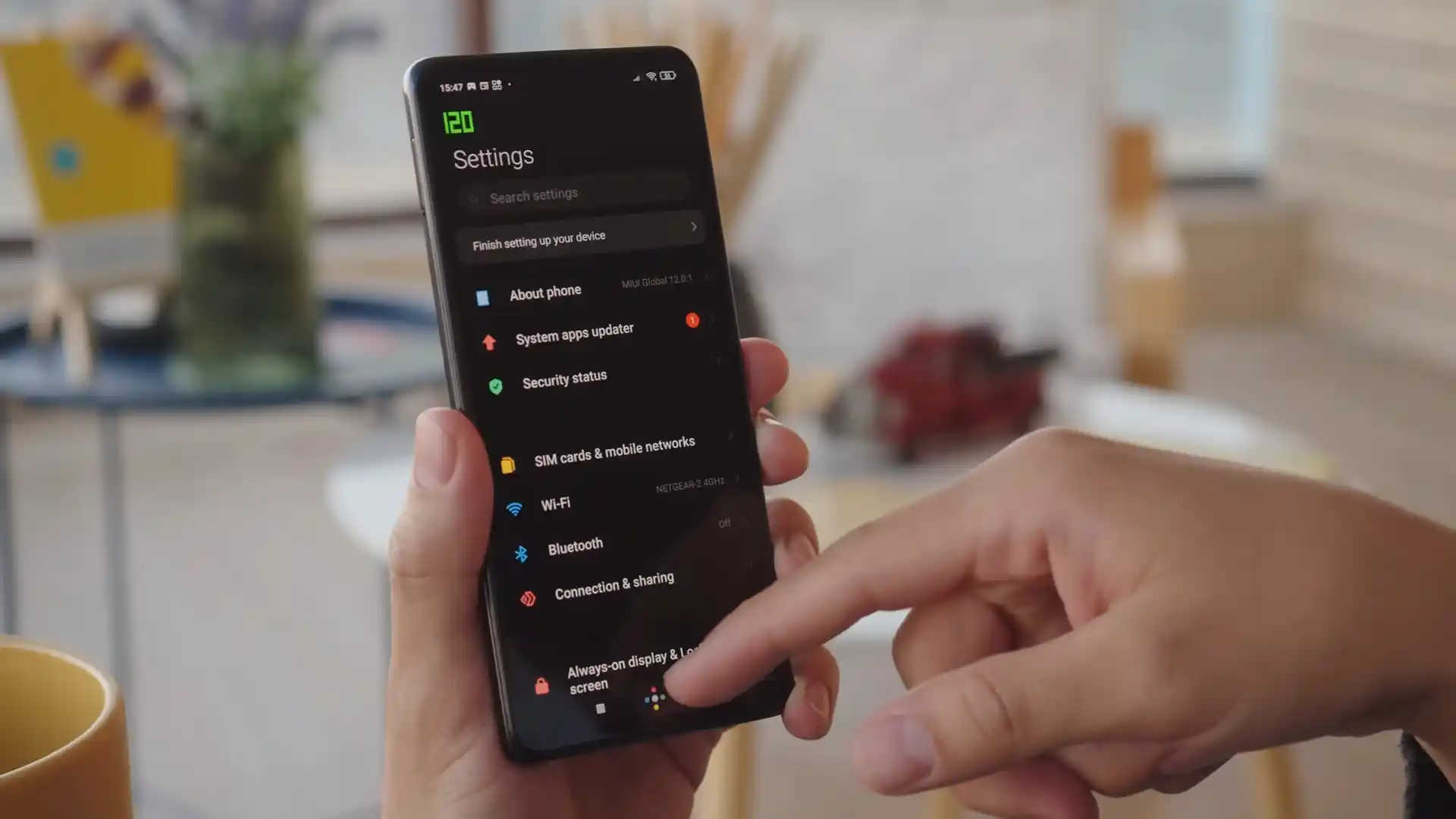
The Xiaomi Redmi Note 10 Pro / Redmi Note 10 Pro Max was released in March 2021 on the Qualcomm Snapdragon 732G SM7150-AC (8nm, 64-bit Octa-core: 2x 2.3 GHz Kryo 470 Gold + 6x 1.8 GHz Kryo 470 Silver) platform. Featuring a 6.67-inch 120Hz AMOLED DotDisplay, high-resolution quad-camera system, and a 5020 mAh battery with 33W fast charging, the device became one of Xiaomi's most popular mid-range smartphones worldwide.
Flashing official factory Fastboot firmware using Xiaomi Mi Flash Tool repairs corrupted dynamic partitions, fixes persistent bootloops, and restores official MIUI stability. Follow the verified steps below to flash your device safely.
Which Flash Mode Should You Use?
Fastboot Mode (Bootloader Flashing)
Official flashing interface for bootloader-unlocked handsets. Writes partition blocks via Mi Flash Tool or flash_all.bat scripts.
Custom Recovery Mode (OrangeFox / TWRP / PBRP)
Interface for flashing community custom ROMs (such as Xiaomi.eu), ZIP mods, or performing partition-level storage wipes.
Stock Recovery / Local Update
Official on-device recovery method for installing signed regional MIUI update packages without a PC.
Qualcomm HS-USB QDLoader 9008 (EDL Mode)
Emergency download mode accessed via motherboard test points. Requires authorized Xiaomi service credentials on Snapdragon 732G.
Essential Workshop Equipment & Mi Flash Requirements
A PC running 64-bit Windows with Xiaomi Mi Flash Tool and official Qualcomm USB drivers installed.
Download and unpack the official sweet or sweetin Fastboot archive twice with 7-Zip until flash_all.bat is visible.
Ensure the 5020 mAh battery holds at least 50% charge to ensure stable power delivery throughout the flashing process.
Connect an authentic USB Type-C data cable directly into a rear USB 2.0 port on the computer motherboard.
In Mi Flash Tool, select "clean all" at the bottom right. Never select "clean all and lock" on modified devices.
5-Step Mi Flash Walkthrough for Redmi Note 10 Pro
A quick 5-step overview built specifically for the Xiaomi Redmi Note 10 Pro / Redmi Note 10 Pro Max. The full Mi Flash Tool guide adds screenshots, progress tracking, and fixes for common errors.
-
Extract sweet_eea_global_images_V14.0.9.0.TKFEUXM TGZ archive twice using 7-Zip
-
Power off handset and hold Volume Down + Power until orange Fastboot bunny displays
-
Connect via native rear motherboard USB 2.0 port to prevent Snapdragon 732G packet drops
-
Load extracted firmware root directory and tick "clean all" (flash_all.bat) in Mi Flash Tool
-
Click Flash and allow 5 to 10 minutes on first boot as Android 13 FBE encryption initializes
Fastboot Rawprogram XML & Firmware Package for SM7150
Official Fastboot firmware packages for the Xiaomi Redmi Note 10 Pro and Pro Max (sweet / sweetin) utilize rawprogram0.xml and patch0.xml partition layouts executed through flash_all.bat. When loaded into Xiaomi Mi Flash Tool, these scripts write boot, dtbo, super, recovery, cust, and modem partition images directly to the Snapdragon 732G UFS 2.2 storage controller.
rawprogram0.xml
Official factory Fastboot firmware for the Xiaomi Redmi Note 10 Pro and Pro Max utilizes rawprogram0.xml and patch0.xml executed through flash_all.bat. In Mi Flash Tool, select the root extracted folder containing these scripts.
The Redmi Note 10 Pro (codename sweet) and Redmi Note 10 Pro Max (codename sweetin) share the Qualcomm Snapdragon 732G platform with 6GB or 8GB LPDDR4X RAM, UFS 2.2 storage, and a 5020 mAh battery supporting 33W charging.
Always verify whether your device is international sweet (M2101K6G with NFC and 108MP camera) or Indian sweetin (M2101K6P / M2101K6I without NFC) before flashing. Never flash firmware designed for the newer Redmi Note 12 Pro 4G (codename sweet_k6a).
Xiaomi Redmi Note 10 Pro / Redmi Note 10 Pro Max Firmware Versions
Tested stock firmware packages for confirmed hardware variants of the Xiaomi Redmi Note 10 Pro / Redmi Note 10 Pro Max. Always confirm your model codename (sweet vs sweetin) before flashing.
| Version | Region | Android Version | Size | MD5 | Download |
|---|---|---|---|---|---|
V14.0.9.0.TKFEUXM (20231121) |
EEA / Europe Stable (EUXM) | Android 13.0 (MIUI 14) | 6.5 GB | f8148fe5dbc5b9a7cd6c91225b1a4c55 |
⬇️ Download |
V14.0.1.0.TKFINXM (20230327) |
India Stable (INXM) | Android 13.0 (MIUI 14) | 4.6 GB | 254cb6ea06755d9601b8f40e74b4bfe9 |
⬇️ Download |
V14.0.9.0.TKFMIXM (v14-13) |
Xiaomi.eu Multilingual (Recovery) | Android 13.0 (MIUI 14) | 4.0 GB | d34e35ae64146e868108b6051517627a906907b8ef5bebca42d59250f7b235d4 |
⬇️ Download |
This device family includes 21 verified packages across EEA, Global, India, Russia, Turkey, Taiwan, Xiaomi.eu, TWRP, OrangeFox, and PBRP releases. Browse the complete 21-package archive on AndroidFirmwareFile.com →
Snapdragon 732G Dynamic Partition Layout & Hardware Notes
Flashing official Fastboot firmware through Xiaomi Mi Flash Tool unbricks handsets stuck in bootloops, resolves software glitches after system updates, and restores the factory MIUI 14 operating system.
Because the Qualcomm Snapdragon 732G architecture requires authorized Xiaomi service credentials for emergency download (EDL 9008) recovery, keeping your bootloader officially unlocked and preserving Fastboot access is your primary repair path.
Troubleshooting Redmi Note 10 Pro & Pro Max Flashing & Mi Flash Errors
Custom Recovery Bootloop: "dm-verity corruption / device boots back to Fastboot"
Forum members note that flashing custom recoveries directly over stock MIUI 14 triggers AVB 2.0 verification failure. Executing fastboot --disable-verity --disable-verification flash vbmeta vbmeta.img using matching stock vbmeta before rebooting into recovery permanently resolves the loop.
Fastboot Sparse Transfer Dropout: "FAILED (remote: 'data too large') or write timeout on super.img"
Community repair threads document this when flashing through front PC USB 3.0 ports or AMD USB host controllers during the transfer of the 4GB+ super.img dynamic partition. Switching to a native rear USB 2.0 port directly on the PC motherboard eliminates data dropouts.
Mi Flash Red Notice: "error: Not catch checkpoint ($fastboot -s .* lock)"
Owners frequently report this warning appearing at the end of flashing when "clean all" is selected. This is a harmless false alarm caused by Mi Flash expecting a bootloader re-lock status string that flash_all.bat does not provide. If the partition writes finished and the device reboots, the installation succeeded.
For in-depth Xiaomi Fastboot error codes, EDL testpoint pinouts, and driver troubleshooting: Mi Flash Tool Error Directory →
Workshop Flashing & Troubleshooting FAQ
On the Snapdragon 732G platform, raw emergency download mode (EDL 9008) requires authorized Xiaomi service credentials to flash firehose images. If your phone dropped into 9008 mode due to an interrupted flash, experienced repairers recommend pressing and holding Volume Down and Power together for 15 to 20 seconds to attempt forcing a reboot back into standard Fastboot mode before pursuing authorized account flashing.
The persist partition contains individual factory calibration matrices for the Samsung 108MP HM2 or 64MP GW3 camera modules, proximity sensor, and side fingerprint scanner. Official Fastboot flashing with Mi Flash Tool using the "clean all" script safely bypasses persist. Never erase or overwrite persist.img with images from another handset, as this causes permanent sensor baseline corruption.
The Snapdragon 732G Fastboot interface can experience handshaking issues with third-party USB 3.0 controllers or AMD Ryzen motherboard USB host chips. Connecting the handset to a native USB 2.0 port directly on the PC rear I/O panel or passing through an unpowered USB 2.0 hub ensures stable communication during the entire flashing procedure.
Following a clean installation with Mi Flash Tool, the Qualcomm Snapdragon 732G processor must initialize File-Based Encryption (FBE) cryptographic keys across internal UFS 2.2 storage and compile Dalvik/ART runtime cache files. This first boot sequence typically requires 5 to 10 minutes. Do not disconnect power or force reboot the handset while the animated MIUI logo is displayed.
Ready to Flash?
Follow the full step-by-step Mi Flash Tool guide with interactive progress tracking, prerequisite checklist, and complete troubleshooting.