

Before you flash: Flashing firmware will erase all data on your device. Back up contacts, photos, and apps before proceeding. FlashGuideHub is not responsible for any damage caused by following this guide.
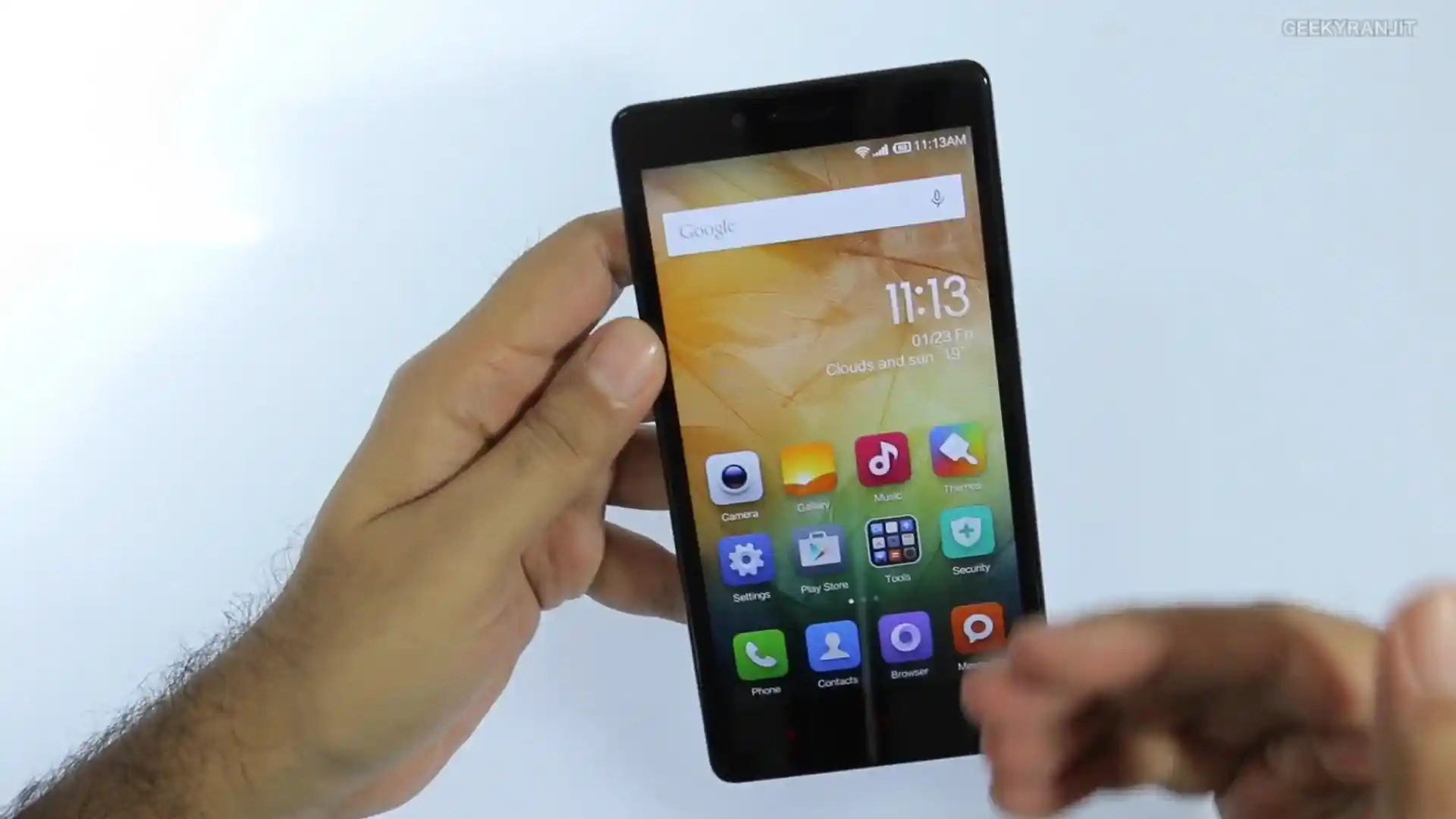
About the Xiaomi Redmi Note 4G
The Xiaomi Redmi Note 4G (hardware codename dior, released in August 2014) is built on the Qualcomm Snapdragon 400 MSM8928 (28nm LP, Quad-core 1.60 GHz ARM Cortex-A7) platform featuring a quad-core 1.60 GHz Cortex-A7 processor, 2GB LPDDR3 RAM, and an 8GB eMMC 4.5 internal flash storage layout. Operating on a legacy 32-bit ARMv7-A partition architecture without System-as-Root, the handset delivers official stock restoration through the Qualcomm Fastboot environment.
Whether you are recovering an unbootable handset stuck on the initial Mi logo, wiping system errors, or installing custom recovery software, this handbook provides the official stock Fastboot and Recovery procedures. Following our verified walkthrough with package dior_global_images_V9.2.3.0.KHIMIEK_20180406.0000.00_4.4_global_5168e928f9.tgz will restore your device safely to factory condition.
Which Flash Mode Should You Use?
Xiaomi Fastboot Mode
Primary flashing environment for installing official stock Fastboot TGZ packages and custom recovery images via Mi Flash Tool or command line.
Official TeamWin TWRP Recovery
Custom recovery environment compiled by dianlujitao on an Android 9.0 kernel base. Supports flashing custom ROM ZIPs, GApps, and creating NANDroid backups.
Stock Android Mi-Recovery Mode
Stock recovery menu used to execute factory data wipes, cache wipes, or apply official recovery update.zip packages.
Qualcomm HS-USB QDLoader 9008 (EDL Mode)
Emergency download mode accessed via motherboard test points. Communicates directly with the Snapdragon 400 boot ROM for deep hardware recovery.
Essential Equipment & Pre-Flash Setup for dior
Ensure the removable 3,100 mAh BM42 battery holds sufficient charge or recharge it in an external cradle before flashing.
A PC running 64-bit Windows with Mi Flash Tool and official Qualcomm USB drivers installed.
Extract package dior_global_images_V9.2.3.0.KHIMIEK twice with 7-Zip until flash_all.bat is located in the root directory.
Connect via a shielded Micro-USB cable to a rear USB 2.0 port on the computer motherboard to prevent data dropouts.
In Mi Flash Tool, select the "clean all" (flash_all.bat) script at the bottom right before clicking Flash.
5-Step Mi Flash Restoration Guide for Redmi Note 4G
These 5 steps are tailored to the Xiaomi Redmi Note 4G (Snapdragon 400). For screenshots, an interactive checklist, and troubleshooting, open the full Mi Flash Tool guide.
-
Download & unpack dior_global_images_V9.2.3.0.KHIMIEK_20180406.0000.00_4.4_global_5168e928f9.tgz
-
Install Qualcomm USB drivers & launch Mi Flash Tool on 64-bit Windows
-
Boot into Fastboot mode via Volume Down + Power button handshake
-
Select extracted firmware directory & activate "clean all" (flash_all.bat)
-
Click Flash & monitor raw eMMC 4.5 partition write completion
Fastboot Script & Partition Map for Snapdragon 400
Official Fastboot firmware packages for the Xiaomi Redmi Note 4G (dior) deploy partition images (boot.img, recovery.img, system.img, cache.img, and userdata.img) via flash_all.bat. In Mi Flash Tool, this batch script writes raw partition binaries directly to the Qualcomm Snapdragon 400 eMMC 4.5 storage controller.
flash_all.bat
Official factory Fastboot firmware for the Xiaomi Redmi Note 4G executes through flash_all.bat. In Mi Flash Tool, select the root extracted folder containing this script and choose "clean all" at the bottom right before clicking Flash.
The Redmi Note 4G (board codename dior, models 2014021 and 2014022) operates on a legacy 32-bit ARMv7-A non-A/B partition layout. It uses dedicated physical partitions at /dev/block/platform/msm_sdcc.1/by-name/ without Anti-Rollback fuses or dynamic partitions.
Xiaomi Redmi Note 4G Firmware Versions
Tested stock firmware package and official custom recovery for the confirmed single-SIM hardware variant of the Xiaomi Redmi Note 4G. Always confirm your model codename is "dior" before flashing.
| Version | Region | Android Version | Size | MD5 | Download |
|---|---|---|---|---|---|
V9.2.3.0.KHIMIEK (20180406.0000.00) |
Global Stable (International Retail) — Final Stock Build | Android 4.4.4 (MIUI 9.2) | 930.54 MB | 5168e928f979d3659afb5a30f8560123 |
⬇️ Download |
v3.7.0_9-0 Official Release |
Official TeamWin Custom Recovery (dior) | Custom Recovery (Android 9+ Kernel Tree) | 14.42 MB | 7de4c7c5c4b814b1f0fdbbf109396ad3 |
⬇️ Download |
The Redmi Note 4G archive includes 8 verified packages across Global Stable, China Stable, and official TeamWin TWRP custom recovery builds. Browse the complete 8-package archive on AndroidFirmwareFile.com →
Redmi Note 4G Hardware Architecture & Partition Layout
The single-SIM Xiaomi Redmi Note 4G (dior) uses a clean legacy partition map where each major system component occupies a dedicated physical block device on the eMMC 4.5 flash memory. Flashing package dior_global_images_V9.2.3.0.KHIMIEK_20180406.0000.00_4.4_global_5168e928f9.tgz via Mi Flash Tool with the flash_all.bat script writes complete binary images across the boot, recovery, system, cache, and userdata partitions, ensuring a clean factory state.
For owners seeking to install custom ROMs (such as LineageOS), official custom recovery image twrp-3.7.0_9-0-dior.img can be flashed directly via Fastboot. Because dior predates Xiaomi Anti-Rollback protection, bootloader unlocking and recovery installation do not require account verification wait periods.
Troubleshooting Xiaomi Redmi Note 4G (dior) Mi Flash & Fastboot Errors
Fastboot Error: target reported max-download-size buffer limit
On 32-bit Qualcomm Snapdragon 400 platforms, querying fastboot getvar max-download-size reports a 512MB RAM transfer buffer limit. Attempting to write unsparse system images directly via standalone fastboot triggers buffer overflows. Use Mi Flash Tool or execute fastboot flash -S 256M system system.img to chunk the file automatically and match the platform hardware buffer.
FAILED (remote: data too large) or eMMC Write Timeout during system.img
Observed during Fastboot operations when Mi Flash Tool attempts to write the uncompressed system partition over an unstable connection or to a failing eMMC 4.5 flash memory chip. To resolve this error, connect the Micro-USB cable to a native rear USB 2.0 port, verify that your Windows host is 64-bit, and use a standalone platform-tools Fastboot binary with default buffer sizes. If partition writes consistently time out across multiple cables, the internal eMMC flash chip may have entered a hardware write-protect state.
Qualcomm HS-USB QDLoader 9008 (QHSUSB_BULK) Emergency Mode
Triggered when the device experiences a hard brick, usually caused by flashing incompatible MediaTek or Snapdragon 410 partitions, wiping the primary bootloader, or interrupting a firmware write. The screen remains completely blank and Windows registers the handset as Qualcomm HS-USB QDLoader 9008. Experienced owners resolve this state by opening Mi Flash Tool in Emergency Download mode and flashing the raw partition images using the rawprogram0.xml script, or by accessing the motherboard EDL test points if button triggers fail.
For comprehensive Xiaomi Fastboot error codes, EDL testpoint instructions, and driver troubleshooting: Mi Flash Tool Error Directory →
Redmi Note 4G Workshop Troubleshooting & Flashing FAQ
Stock MIUI 9.2 builds on Android 4.4 KitKat include a startup script located at /system/etc/install-recovery.sh. On a normal Android boot cycle, this script detects modifications to the recovery partition and automatically overwrites TWRP with the original stock Mi-Recovery. To prevent this recovery restoration mechanism, immediately press and hold Volume Up + Power as soon as the terminal finishes executing the fastboot flash recovery command, forcing the handset to boot straight into TWRP before the main Android OS kernel loads.
The 28nm Qualcomm Snapdragon 400 (MSM8928) physical USB interface was designed around legacy USB 2.0 timing standards. Modern PC motherboards running third-party USB 3.0/3.1 xHCI host controllers frequently experience packet synchronization failures with older Fastboot bootloaders, leading to dropped connections or infinite wait loops in Mi Flash Tool. You can eliminate these handshake dropouts by connecting the Micro-USB cable directly to a native USB 2.0 port on the rear I/O shield of your PC.
No. First-generation Xiaomi handsets released in 2014 predate the modern Mi Account bootloader authorization lock system. The Redmi Note 4G bootloader accepts Fastboot flashing commands, kernel images, and custom recoveries directly without binding a Mi Account or waiting for an official unlock token, provided you boot the device into standard Fastboot mode.
Ready to Flash?
Follow the full step-by-step Mi Flash Tool guide with interactive progress tracking, prerequisite checklist, and complete troubleshooting.