

Before you flash: Flashing firmware will erase all data on your device. Back up contacts, photos, and apps before proceeding. FlashGuideHub is not responsible for any damage caused by following this guide.
About the ZTE Blade A6 Max
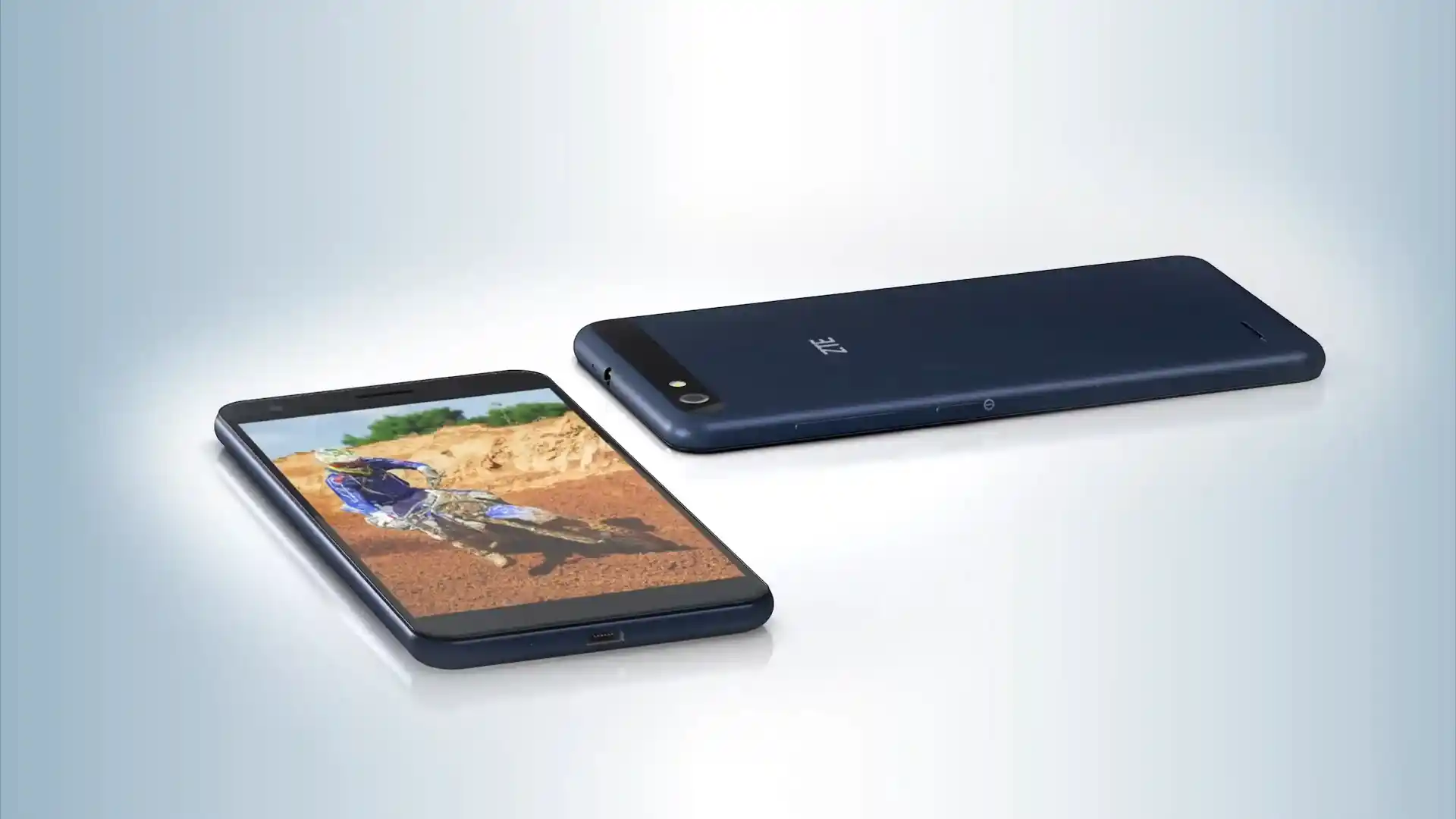
The ZTE Blade A6 Max, launched in 2018 on the Qualcomm Snapdragon 210 MSM8909 platform, is a long-lasting budget smartphone featuring a 4,000 mAh battery with reverse OTG charging. Whether your phone is caught in a bootloop on the ZTE logo, struggling with system lag, or needing a fresh factory installation, this guide provides verified restoration instructions.
Official software restoration on the ZTE Blade A6 Max is achieved using the built-in stock recovery with an external microSD card, or via Qualcomm emergency download mode for unbricking unresponsive hardware. Review the preparation checklist carefully before starting.
Which Flash Mode Should You Use?
Stock Android Recovery Mode
Built-in recovery menu used to install official update.zip packages from an external microSD card.
Qualcomm EDL 9008 Emergency Mode
Low-level hardware recovery mode used by QFIL to flash raw partitions when the bootloader is bricked.
Essential Equipment & MicroSD Preparation
Ensure your phone holds at least 50% charge to prevent sudden power loss while writing system partitions.
Prepare a reliable microSD card formatted to FAT32. Stock recovery cannot mount exFAT or NTFS file systems.
Download ZTE_Blade_A6_Max_GEN_RU_A0605_V7.0_190313_7.1.2_OTA.zip and place it on the root of your microSD card.
Keep a reliable micro-USB data cable handy for battery charging and potential emergency EDL restoration.
If your handset is hard-bricked, install Qualcomm HS-USB QDLoader 9008 drivers for emergency unbricking.
Performing a factory recovery update will erase user data. Back up all vital files before proceeding.
5-Step ZTE Blade A6 Max Stock Recovery Walkthrough
A quick 5-step overview built specifically for the ZTE Blade A6 Max. The full Local Update (On-Device) guide adds screenshots, progress tracking, and fixes for common errors.
-
Download ZTE_Blade_A6_Max_GEN_RU_A0605_V7.0_190313_7.1.2_OTA.zip
-
Format MicroSD Card to FAT32 and Rename to update.zip
-
Insert Card and Power Off Device Completely
-
Boot into Android Recovery via Hardware Buttons
-
Execute "Apply update from SD card" and Reboot
Firmware Package Details for ZTE Blade A6 Max
Official firmware for the ZTE Blade A6 Max (A0605) is packaged as a complete recovery update archive named update.zip, containing signed system, boot, and modem images for Qualcomm Snapdragon 210 hardware.
update.zip
ZTE provides recovery packages containing block-level partition updates that verify system signatures before installing over existing storage partitions.
Model verification: Ensure your phone is model A0605. Flashing packages intended for the standard Blade A6 (A0620 Snapdragon 435) will cause permanent bootloader failure.
Additional ZTE Blade A6 Max Firmware Builds
Need additional regional builds, historical maintenance dumps, or unbrick archives for the ZTE Blade A6 Max family?
| Version | Region | Android Version | Size | MD5 | Download |
|---|---|---|---|---|---|
GEN_RU_A0605_V7.0 |
Android 7.1.2 (Nougat) | 1.63 GB | 1BwGhz0L2N2RX282HEOqFCeyBP1FeG8HG |
⬇️ Download |
Browse the complete technical repository on AndroidFirmwareFile: View all ZTE Blade A6 Max packages on AndroidFirmwareFile.com →
Important Hardware & Reverse Charging Advisories
When servicing the ZTE Blade A6 Max, keep the following hardware safety guidelines in mind:
- MicroSD File System: ZTE stock recovery requires a FAT32-formatted microSD card. Cards formatted in exFAT or NTFS will fail to mount.
- File Placement & Name: Copy the firmware archive
ZTE_Blade_A6_Max_GEN_RU_A0605_V7.0_190313_7.1.2_OTA.zipto the root directory of your microSD card and rename it toupdate.zip. - Battery Threshold: Ensure the internal 4,000 mAh battery has at least 50% charge. An interrupted write cycle during recovery installation will leave system partitions corrupt.
- Reverse Charging Recalibration: After a clean factory flash, charge the phone undisturbed to 100% while powered off to recalibrate the OTG power bank fuel gauge.
ZTE Blade A6 Max Flashing & Recovery Troubleshooting
E:failed to mount /sdcard (No such file or directory) / Installation aborted
ZTE stock recovery on MSM8909 only recognises FAT32 partitions. If your microSD card is formatted as exFAT or NTFS, the recovery kernel cannot mount the block device. Reformat the microSD card on a PC with FAT32 file system and a 32 KB cluster size, then copy update.zip directly to the root directory.
Status 7: assert failed (getprop("ro.product.device") == "A0605")
This error occurs if you attempt to install A0605 firmware on a different model, such as the standard ZTE Blade A6 (A0620). The updater script halts execution to protect incompatible hardware. Confirm your model number in fastboot via "fastboot getvar product" or check the label under the SIM slot.
Qualcomm HS-USB QDLoader 9008 Sahara / Firehose Handshake Timeout
When attempting deep emergency unbricking via QFIL, Windows front-panel USB 3.0 ports cause protocol packet loss during the initial Sahara handshake. Switch to a rear motherboard USB 2.0 port, use a short microUSB cable, and ensure official Qualcomm signed QDLoader drivers are active.
Encountering issues while flashing your ZTE Blade A6 Max? Consult our verified solutions below for common SD-card mounting errors and QDLoader handshake drops. Troubleshooting & Error Guide →
ZTE Blade A6 Max Workshop Flashing FAQ
Because the 4,000 mAh battery is sealed internally, press and hold the Power button firmly for 12 to 15 seconds. The phone will perform a hardware power cut. As soon as the screen shuts off, immediately press and hold Volume Up and Power together to enter recovery before the bootloop restarts.
If your device can boot into Android, copy update.zip to the root of internal storage and open Settings > System Updates > Storage Update. However, if your phone is bootlooping on the ZTE logo, an external FAT32-formatted microSD card is required to flash via stock recovery.
If the phone becomes completely unresponsive and shows no charging icon, connect it to a Windows PC while checking Windows Device Manager. If it detects as "Qualcomm HS-USB QDLoader 9008", the device is in emergency EDL mode and requires QFIL to rewrite partition blocks directly.
Ready to Flash?
Follow the full step-by-step Local Update (On-Device) guide with interactive progress tracking, prerequisite checklist, and complete troubleshooting.