

Before you flash: Flashing firmware will erase all data on your device. Back up contacts, photos, and apps before proceeding. FlashGuideHub is not responsible for any damage caused by following this guide.
About the ZTE Nubia RedMagic 7 Pro
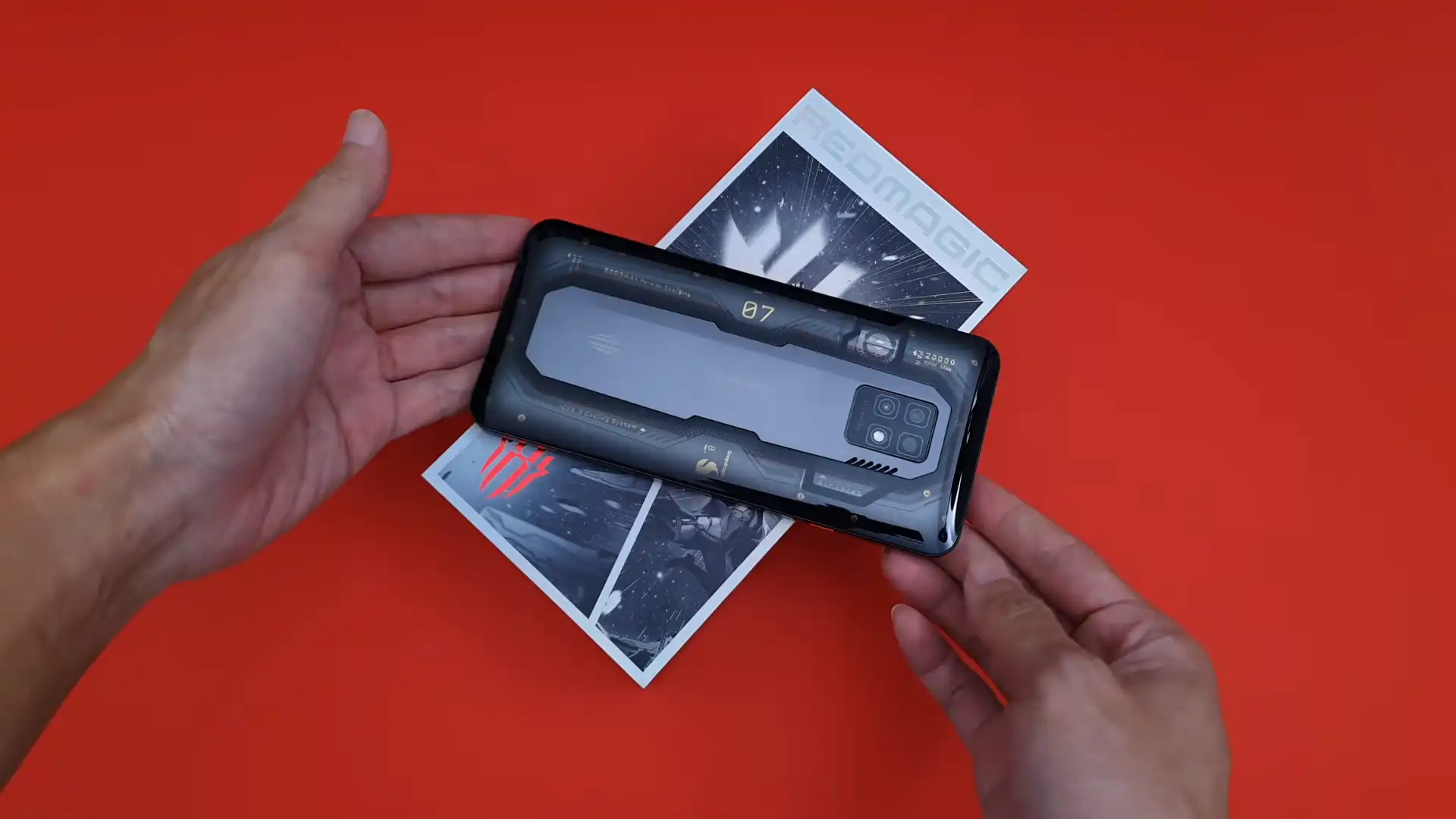
The ZTE Nubia RedMagic 7 Pro was released in February 2022, built on the Qualcomm Snapdragon 8 Gen 1 SM8450 platform. Featuring a 6.8-inch 120Hz AMOLED display with an Under-Display Camera (UDC), 500Hz shoulder touch triggers, and an internal 20,000 RPM centrifugal cooling fan, the device delivers flagship gaming performance.
Flashing official factory firmware restores soft-bricked units, resolves system instability, and reinstates certified RedMagic OS performance. Follow the verified bench steps and recovery procedures below to service your device safely.
Which Flash Mode Should You Use?
Local Update Mode (On-Device)
Official userland update method via Settings > System update > Local update. Verifies checksums and flashes payload blocks safely.
Stock Recovery OTG / ADB Sideload Mode
Hardware recovery menu flashing for devices experiencing bootloops or corrupted system partitions.
Qualcomm EDL 9008 Mode
Emergency download mode for deep brick recovery. Requires authorized ZTE service credentials on Snapdragon 8 Gen 1.
What You Need Before Flashing
Ensure the 5000 mAh battery is charged to at least 50% before initiating the update process.
Verify at least 10GB of free internal UFS 3.1 storage is available for archive decompression.
Back up important personal files and game data before upgrading across major Android versions.
Prepare a FAT32 or exFAT formatted USB-C flash drive if flashing via stock recovery OTG mode.
How to Flash the ZTE Nubia RedMagic 7 Pro — Quick Overview
A quick 5-step overview built specifically for the ZTE Nubia RedMagic 7 Pro. The full Local Update (On-Device) guide adds screenshots, progress tracking, and fixes for common errors.
-
Download official European EEA full OTA firmware
-
Place update.zip in the root of internal storage
-
Navigate to Local Update in System Settings
-
Verify package integrity and confirm installation
-
Allow system to complete flashing and automatic reboot
Firmware Package for SM8450
Official firmware packages for the ZTE Nubia RedMagic 7 Pro (NX709J) are distributed as full OTA update archives containing payload.bin partition blocks. When deployed through the native Local Update engine or stock recovery, the installer flashes system, vendor, product, odm, and boot blocks into the dynamic super partition.
update.zip
Official RedMagic OTA packages contain cryptographically signed payload blocks that flash directly to device partitions via the built-in system updater or stock recovery engine.
The ZTE Nubia RedMagic 7 Pro (codename NX709J) is powered by the Qualcomm Snapdragon 8 Gen 1 (SM8450) chipset with Adreno 730 graphics, Red Core 1 gaming coprocessor, and ICE 9.0 active cooling.
Always ensure your device model is NX709J before initiating firmware deployment. Do not flash packages designed for the standard RedMagic 7 (NX679J) or non-Pro variants.
ZTE Nubia RedMagic 7 Pro Firmware Versions
Official European EEA stable full OTA firmware package for ZTE Nubia RedMagic 7 Pro (NX709J).
| Version | Region | Android Version | Size | MD5 | Download |
|---|---|---|---|---|---|
V4.20 (NX709J_EEA_V420) |
Europe (EEA) — Multilingual with Google Mobile Services | Android 13 (RedMagic OS 6.0) | 3.89 GB | — | ⬇️ Download |
Need additional regional builds, Global ROMs, or older baseline versions? Browse the complete ZTE Nubia RedMagic 7 Pro archive on AndroidFirmwareFile.com →
ZTE Nubia RedMagic 7 Pro — Important Notes
Flashing official stock recovery firmware on the RedMagic 7 Pro restores factory stability, eliminates bootloops, and updates core thermal fan governors and gaming touch latency drivers.
If your device is stuck in a bootloop and cannot access the Android settings menu, place the official V420 firmware archive onto a USB-C flash drive formatted to FAT32, rename it to "update.zip", and flash it via Stock Recovery OTG update.
Troubleshooting ZTE Nubia RedMagic 7 Pro Flashing & System Errors
Payload Verification Error: "The update package is incompatible with the current system"
Occurs when attempting to flash a firmware package whose regional metadata or motherboard identifier does not match the active system partition. RedMagic OS checks the build.prop product and region tags (e.g. EEA vs China) before writing blocks. Technicians resolve this by verifying the exact board build string and ensuring only official EEA packages (V420) are deployed to European hardware.
Bootloop at RedMagic Logo: FBE Cryptographic Header Conflict Post-Android 13 Update
Reported when updating across major Android versions (from Android 12 baseline V2.38 to Android 13 V4.xx) if corrupted cache blocks or incompatible security patches persist in userdata. To resolve this, boot into stock recovery by holding Volume Up and Power, select "Wipe data / Factory reset", confirm the wipe, and reboot.
Active Turbofan Sensor Error: Fan Fails to Initialize or Triggers Overheat Alert Post-Flash
Observed when flashing non-certified recovery dumps that fail to initialize the proprietary I2C bus communicating with the Red Core 1 coprocessor and centrifugal fan controller. Repair technicians recommend reinstalling the official full stock OTA package to restore sensor calibration and thermal management daemons.
Encountering installation verification issues or bootloops on the RedMagic 7 Pro? Review our workshop bench notes below. Troubleshooting & Known Quirks →
Frequently Asked Questions — ZTE Nubia RedMagic 7 Pro
Press and hold the Power button and Volume Down button simultaneously for 10 to 12 seconds. The phone will perform a hardware-level battery disconnect simulation, cutting display power and forcing a clean cold reboot.
Turn off the device completely. Press and hold the Volume Up and Power buttons together. When the red RedMagic logo illuminates on the screen, release the Power button but continue holding Volume Up until the multilingual stock recovery menu appears.
ZTE enforces strict regional branch signing keys. Attempting to install a China domestic package (V2.xx/V3.xx) on a European (EEA) device, or attempting to flash standard RedMagic 7 (NX679J) firmware onto an NX709J board, causes the recovery payload verifier to reject the package to prevent modem failure.
Because the Snapdragon 8 Gen 1 (SM8450) platform implements secure boot with cryptographic hardware fuses, emergency flashing via QFIL requires an authorized ZTE server token and a signed OEM Firehose loader. General unbricking should first be attempted through stock recovery using an external USB-C flash drive with an official update.zip.
Ready to Flash?
Follow the full step-by-step Local Update (On-Device) guide with interactive progress tracking, prerequisite checklist, and complete troubleshooting.