

Before you flash: Flashing firmware will erase all data on your device. Back up contacts, photos, and apps before proceeding. FlashGuideHub is not responsible for any damage caused by following this guide.
About the 360 N5
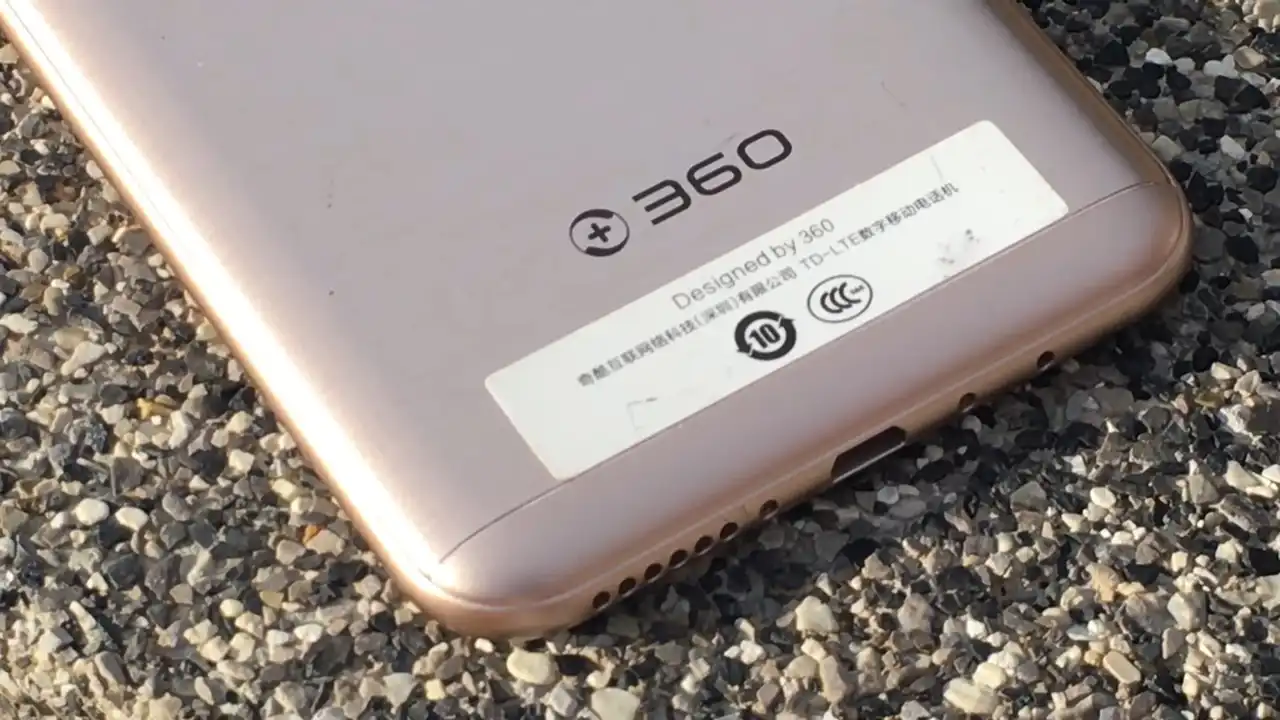
The 360 N5 was released in February 2017, built on the Qualcomm Snapdragon 653 MSM8976 Pro platform. Sold under model number 1605-A01 (motherboard codename QK1605), the device features a 5.5-inch 1080p display, 6 GB of RAM, and a large 4000 mAh battery.
Flashing official stock firmware restores clean system files, unbricks non-booting devices, and cures software crashes. Follow the verified CPB package details and bench-tested YGDP steps below to service your phone safely.
Which Flash Mode Should You Use?
YGDP Tool Flashing (Official Factory Method)
Official assembly flashing procedure for Coolpad and 360 Qualcomm devices using .CPB container packages.
What You Need Before Flashing
A PC running Windows 7, 8, 10, or 11 with Qualcomm HS-USB QDLoader USB drivers installed.
Confirm your phone is model 1605-A01 and your firmware package matches the QK1605 tag.
YGDP Tool installed with assembly login password (369 or 963) ready to use.
Firmware extraction and full partition flashing require adequate battery reserve.
Use a verified data cable connected to a direct motherboard USB port.
How to Flash the 360 N5 — Quick Overview
These 5 steps are tailored to the 360 N5 (Snapdragon 653). For screenshots, an interactive checklist, and troubleshooting, open the full YGDP Tool (Coolpad/360) guide.
-
Install Qualcomm USB drivers and YGDP Tool
-
Open YGDP and enter password
-
Load the 360 N5 CPB package
-
Put phone in download mode and connect
-
Click Start and wait for completion
Firmware Package for Snapdragon 653 (CPB Container)
Official 360 N5 firmware packages are packaged in the proprietary CPB container format (carrying the QK1605 hardware tag). Unlike raw Qualcomm zip packages that expose rawprogram0.xml and patch0.xml directly, a .CPB file bundles all bootloader components, baseband radio binaries, and system partition images into a protected single-file container.
QK1605.CPB
Official 360 firmware is distributed as a single .CPB package. YGDP Tool loads this container and decompresses individual partition images during the assembly setup step.
Hardware model verification: Verify your device model is 1605-A01 (QK1605). Do not flash CPB files created for the 360 N5S (1607-A01) or other QiKU/360 models, as differences in secondary display hardware and partition sizing will cause unrecoverable boot failures.
360 N5 Firmware Versions
Official stock CPB firmware packages for the 360 N5. Confirm model number 1605-A01 before downloading.
| Version | Region | Android Version | Size | MD5 | Download |
|---|---|---|---|---|---|
7.0.049.PX.170823 |
China / Official (Stock 360 OS 3.0) | Android 6.0.1 / 7.1.1 (360 OS 3.0) | 3.23 GB | d6d44c33362d07947ed2e00378c59809 |
⬇️ Download |
6.0.121.P2.170809 |
China / Official (Stock 360 OS 2.0) | Android 6.0.1 (360 OS 2.0) | 3.02 GB | 90ed0ab66a132e6184348cc41838dba9 |
⬇️ Download |
This device has 2 verified official stock CPB firmware packages available in our master archive. See the complete archive on AndroidFirmwareFile.com →
360 N5 — Important Notes
The 360 N5 is equipped with a 4000 mAh battery supporting Qualcomm Quick Charge 3.0. Flashing via YGDP writes over 3GB of partition data, which requires 5 to 10 minutes. Ensure the device battery is charged to at least 50% before initiating flashing. Keep the USB connection stable throughout the process.
Common Errors on the 360 N5
YGDP Error: "Assembly Login Incorrect"
Occurs when an invalid login code is entered. The official factory password for YGDP Tool is 369 (or 963 on some older versions).
YGDP Error: "Decompress CPB Failed / Invalid File"
Occurs when the .CPB file is corrupted or incompletely downloaded. Check the MD5 checksum of your downloaded CPB archive to confirm file integrity.
Device reboots into bootloop after flashing completes
Old user cache data can interfere with newly flashed system files. Boot into recovery mode (Volume Up + Power) and execute a factory data wipe.
For resolving common YGDP Tool port errors and CPB decompression issues: Qualcomm & YGDP Error Directory →
Frequently Asked Questions — 360 N5
Turn the phone completely off. Press and hold the Volume Up button, then insert the USB cable connected to your computer. The PC will detect the device as Qualcomm HS-USB QDLoader 9008 or Coolpad Fastboot/Download mode.
A .CPB package is a compressed multi-gigabyte factory archive. When you click "Apply", YGDP decompresses the system images to your computer disk before starting. Allow 2 to 5 minutes for unpacking without closing the program.
Open Windows Device Manager and make sure there is no yellow exclamation mark under "Ports (COM & LPT)". Reinstall the Qualcomm QDLoader USB driver, connect using a high-quality microUSB cable, and ensure the phone is connected directly to a motherboard USB port.
Yes. Because CPB files contain complete low-level bootloader and partition table files, YGDP completely re-writes damaged partitions from emergency download mode, making it the primary tool for unbricking.
Ready to Flash?
Follow the full step-by-step YGDP Tool (Coolpad/360) guide with interactive progress tracking, prerequisite checklist, and complete troubleshooting.