

PhoenixSuit – How to Flash Allwinner / Sunxi Firmware
Learn how to use PhoenixSuit to flash stock firmware on Allwinner (Sunxi) Android devices and tablets. This guide covers FEL mode entry, firmware image loading, the upgrade process, and how to resolve common errors including device detection failures and upgrade failures.
Pre-Flight Checklist
Complete ALL items before proceeding. Skipping any step increases the risk of bricking your device.
Guide Steps
Run the PhoenixSuit installer as Administrator. The installer typically includes Allwinner USB drivers — allow them to install when prompted.
After installation, open Device Manager and verify there are no unknown Allwinner devices listed. If so, right-click and update the driver pointing to the PhoenixSuit driver folder.
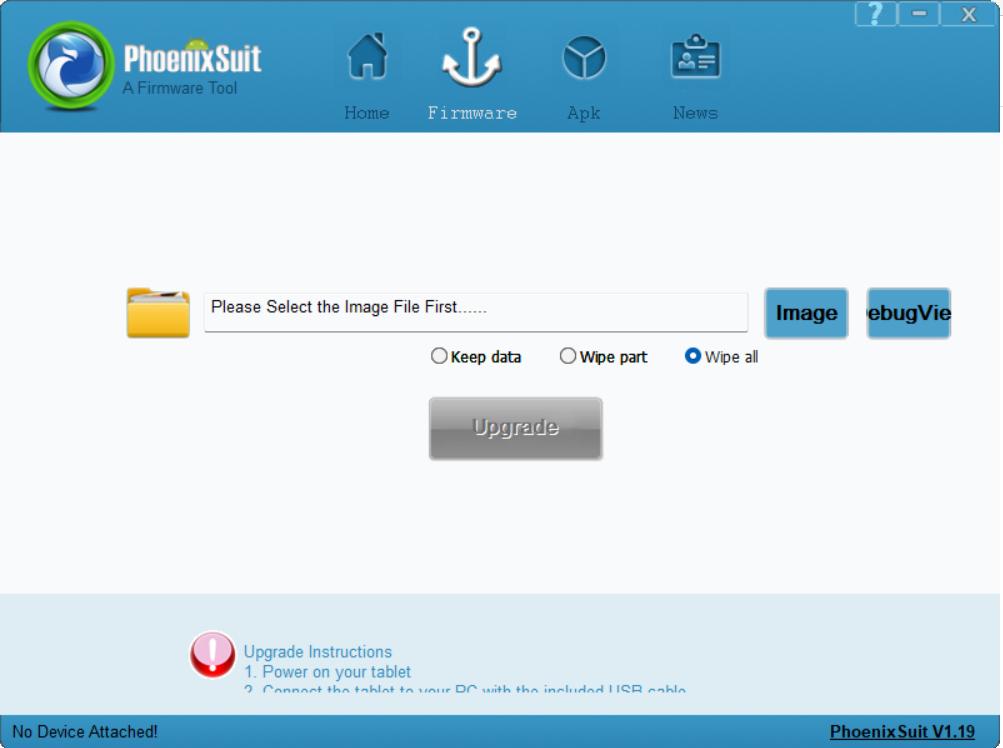
Launch PhoenixSuit. Go to the Firmware tab at the top of the application.
Click Image and browse to your firmware .img file. PhoenixSuit will validate the image — wait for the green checkmark or "Image Ready" confirmation.
FEL is the Allwinner equivalent of Download/EDL mode. To enter FEL mode:
- Power off the device completely.
- Hold the FEL button (some tablets have a small recessed button, often labeled FEL or RECOVERY).
- While holding FEL, connect the device to your PC via USB.
- Release the FEL button after connecting.
Alternatively, on devices without a FEL button, hold Volume Up + Power for 10 seconds with USB connected while the device is off.
PhoenixSuit will detect the device automatically and show a connection notification.
Once the device is detected and the firmware is loaded:
- Click the Upgrade button in PhoenixSuit.
- A prompt will ask: "Upgrade firmware, will lose all data. Continue?" — click Yes.
- The progress bar will advance through formatting, writing, and verifying stages.
When flashing completes, PhoenixSuit displays a "Upgrade Success" message. The device will reboot automatically.
First boot after a fresh flash can take 3–5 minutes as Android sets up. Do not interrupt this process.
After booting, verify the firmware version in Settings → About Tablet.
Congratulations! Flash Successful!
You've successfully completed all steps. Your device should now be running the new firmware. If it's booting normally — you're done! Check the troubleshooting section below if you encounter any issues.
Troubleshooting & FAQ
Common errors and their solutions. Read this before asking for help.
Ensure the device is in FEL mode (not normal boot). Reinstall the Allwinner USB driver from Device Manager. Try a different USB port (prefer USB 2.0) and a known-good data cable. On Windows 10/11, run PhoenixSuit as Administrator.
This usually means a driver issue or incorrect FEL mode. Disconnect, re-enter FEL mode, and try again. Also confirm the firmware .img is not corrupted — check its MD5/SHA1 hash against the source.
The most common causes are: wrong firmware for your chipset, corrupted image file, or USB connection interrupted during flash. Verify your firmware matches your exact Allwinner SoC model, redownload the firmware, and retry.
PhoenixSuit is Windows-only. Linux users can use the open-source sunxi-fel tool from the sunxi-tools package for Allwinner FEL-mode flashing via command line.
Prioritize our guides in your Google search results.
No comments yet. Be the first to share your experience with this guide!