

Samsung Smart Switch – Firmware Update & Emergency Recovery Guide
Samsung Smart Switch is the official PC tool for updating Samsung Galaxy firmware and recovering bricked devices. Works on Windows and macOS, downloads firmware automatically from Samsung servers, and never voids your warranty.
Pre-Flight Checklist
Complete ALL items before proceeding. Skipping any step increases the risk of bricking your device.
Guide Steps
Download and install Smart Switch from the official Samsung support page. Launch the application. You will see the main screen with connection options.
Smart Switch serves two purposes — Standard Firmware Update (device is booting) and Emergency Recovery / Initialization (device is bricked, bootlooping, or stuck). Follow the path that matches your situation below.
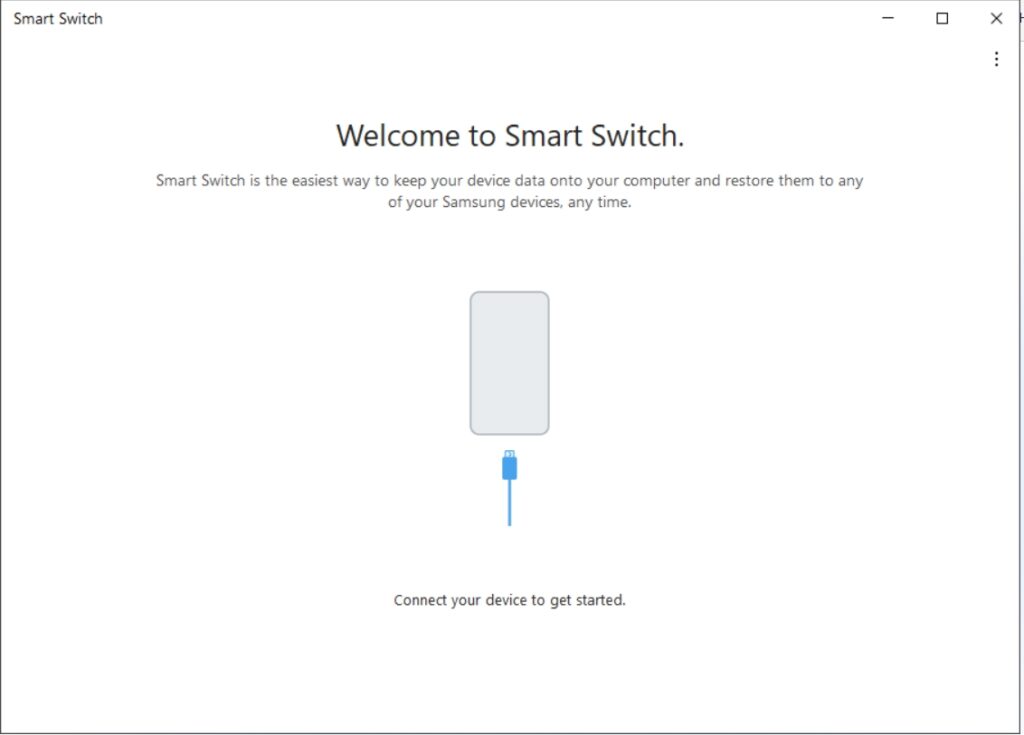
Connect your Samsung device to the PC via USB with the device powered on. Smart Switch detects it automatically and shows your device info, current software version, and available updates.
- If a software update is available, Smart Switch displays an Update notification. Click it to begin.
- Smart Switch downloads the firmware from Samsung servers and installs it. The device will reboot into download mode automatically.
- Do not disconnect the USB cable during the process. The device will reboot once or twice — this is normal.
- When complete, the device reboots to the home screen. The update is done.
Use this path when your Samsung device is bricked, stuck in a bootloop, fails to boot, or shows a software update error on screen.
- In Smart Switch, click the More button (top-right corner, three dots or gear icon).
- Select Emergency software recovery and initialization.
- On the next screen you will see two tabs: Emergency Recovery and Initialization. Choose the appropriate option:
- Emergency Recovery — Attempts to recover the device while preserving data. Use this first.
- Initialization (Device Initialization) — Full wipe and firmware reinstall. Erases all data. Use if Emergency Recovery fails or the device is severely bricked.
Smart Switch will prompt you to connect the device in download mode. Follow the on-screen instructions. The standard method for most modern Samsung devices:
- Power off your device completely.
- Hold Volume Down + Volume Up simultaneously, then connect the USB cable to the PC while still holding both buttons.
- The device screen will show a download mode warning. Release the buttons.
- Smart Switch detects the device and displays its model. Click Next to begin downloading and flashing firmware.
Smart Switch downloads the correct firmware for your exact model and region directly from Samsung's servers. This happens automatically — you do not need to source firmware manually.
The process takes 10–30 minutes depending on firmware size and internet speed. The progress bar updates in real time.
When complete, Smart Switch displays a success message and the device reboots automatically.
After the flash completes, the device reboots. First boot may take several minutes as Android reinitializes. Do not press any buttons or disconnect the USB.
After booting, verify the firmware version at Settings → About Phone → Software Information → Android Version / One UI Version. Confirm it matches the firmware Smart Switch installed.
Congratulations! Flash Successful!
You've successfully completed all steps. Your device should now be running the new firmware. If it's booting normally — you're done! Check the troubleshooting section below if you encounter any issues.
Troubleshooting & FAQ
Common errors and their solutions. Read this before asking for help.
No — Smart Switch is Samsung's official firmware tool and flashes only official Samsung firmware. Using it for a standard firmware update or emergency recovery does not void your warranty. This is the key advantage over third-party tools like Odin.
Smart Switch is Samsung's official, user-facing tool. It downloads firmware automatically from Samsung's servers, works on both Windows and macOS, and does not void your warranty. Odin is an unofficial (leaked Samsung internal) tool that requires you to manually source firmware files (.tar or .tar.md5 format) and is Windows-only. Odin gives more granular partition control but is intended for advanced users. For most users performing a stock firmware restore, Smart Switch is safer and simpler.
If the device is not detected at all in normal mode, go directly to the Emergency Recovery path: More → Emergency Software Recovery and Initialization. This path detects devices in download mode even when they cannot boot.
If Emergency Recovery fails, try Device Initialization in the same menu — this performs a full wipe and firmware reinstall. If that also fails, Smart Switch may provide an emergency recovery code — use this code on a different PC to attempt recovery via a second computer. If all else fails, the device may require Samsung service centre repair.
Yes — Smart Switch is available for both Windows and macOS, making it one of the only official Samsung firmware tools that works on Mac. Download the macOS version from samsung.com/us/support/owners/app/smart-switch. All functionality including Emergency Recovery is available on macOS.
Smart Switch supports all modern Samsung Galaxy smartphones and tablets — Galaxy S, A, M, F, Note, Z Fold, Z Flip series, and more. It works with any Samsung device that runs Android 4.3 or later. For very old Samsung devices (pre-Android 4.3) or Samsung feature phones, Kies (discontinued) or Odin may be needed.
Reference screenshots for this guide. Click any image to view full size.
Prioritize our guides in your Google search results.
No comments yet. Be the first to share your experience with this guide!