

SPD Factory Tool – How to Flash Unisoc / Spreadtrum Firmware
Learn how to use SPD Factory Tool to flash firmware on Unisoc and Spreadtrum Android devices. This guide covers FDL1/FDL2 loader loading, config file import, manual partition mapping, Erase + Download mode, and troubleshooting detection and scatter loading errors.
Pre-Flight Checklist
Complete ALL items before proceeding. Skipping any step increases the risk of bricking your device.
Guide Steps
SPD Factory Tool supports three firmware formats. Check what your firmware package contains:
.pacfile — A single packet file bundling all partitions. This is the most common format and the simplest to use via Load Packet.config.xml+ partition images — A config file mapping partition names to individual.img/.binfiles. Load via Load Config.- Individual partition files only —
fdl1.bin,fdl2.bin,boot.img,system.img, etc. Requires manual mapping.
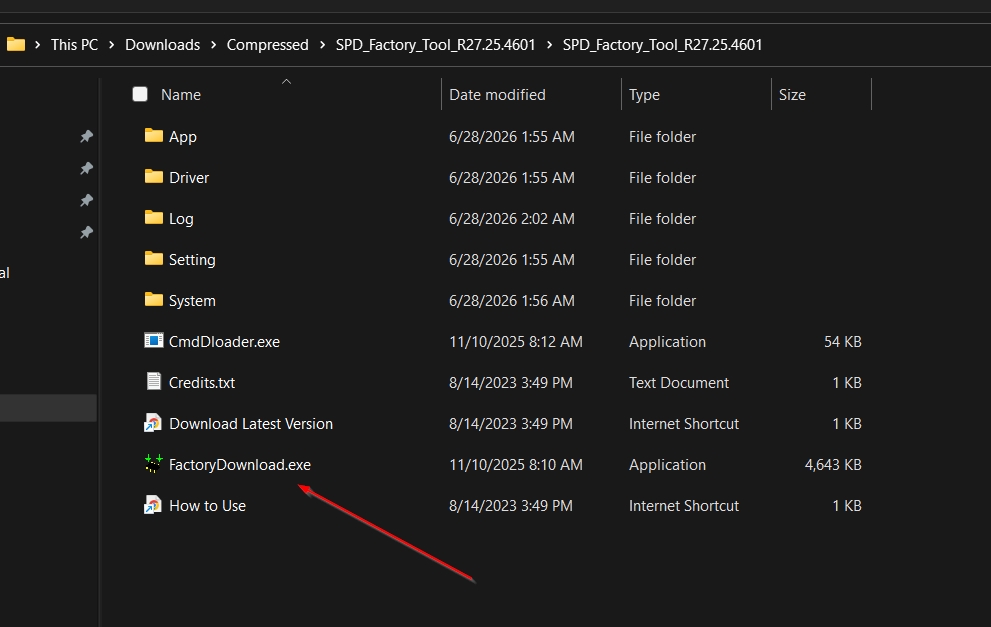
.pac file, use that — it is the fastest and least error-prone method.Right-click the SPD Factory Tool (FactoryDownload) executable and select "Run as administrator". The tool opens showing the partition panel and a status bar showing Ready at the bottom.
Do NOT connect your device yet.
Option A — Load Packet (.pac file) — Recommended
- Click Load Packet. A file browser opens filtered for
Packet Files (*.pac). - Navigate to your firmware folder and select the
.pacfile. - SPD Factory Tool reads the packet, populates the partition table automatically, and shows the firmware details. Verify the product name matches your device.
Option B — Load Config (config.xml)
- Click Load Config and select the
config.xmlfrom your firmware folder. - The tool maps partitions automatically from the XML. Verify all file paths resolve correctly — missing files will show as errors.
Option C — Manual Partition Mapping
- Load FDL1 →
fdl1.bin - Load FDL2 →
fdl2.bin - Map each remaining partition row to its corresponding
.imgor.binfile (BOOT, RECOVERY, SYSTEM, USERDATA, CACHE, MODEM, etc.).
In the settings panel, select Erase + Download for a reliable clean installation that wipes and rewrites all partitions. Use Download Only if you want to preserve user data, but this is less reliable for brick recovery.
Power off your device completely. Connect to your PC via USB while holding Volume Down, or simply plug in while powered off — many Spreadtrum/Unisoc devices enter download mode automatically when connected in the powered-off state.
The tool detects the device and shows a green status or COM port indicator in the port column.
Click the Start button. The tool flashes each partition in sequence. Progress bars update per-partition and overall. Total time is typically 4–10 minutes.
When finished, the tool shows SUCCESS and the device reboots automatically.
First boot may take several minutes as Android initializes. Once booted, verify the firmware in Settings → About Phone. The build number and Android version should match the firmware you flashed.
Congratulations! Flash Successful!
You've successfully completed all steps. Your device should now be running the new firmware. If it's booting normally — you're done! Check the troubleshooting section below if you encounter any issues.
Troubleshooting & FAQ
Common errors and their solutions. Read this before asking for help.
Both tools support .pac firmware files and work with Spreadtrum/Unisoc chipsets. SPD Factory Tool (FactoryDownload) is designed for factory and service use, offering full partition-level control including config XML loading and manual partition mapping. SPD Upgrade Tool is more streamlined and user-oriented, primarily built around .pac file loading. For most users with a .pac file, either tool works — SPD Factory Tool gives more control over which partitions to flash.
If using a .pac file, verify it is for your exact device model and chipset. If using config XML or manual mapping, check that FDL1 and FDL2 match your chipset (SC9820, SC9832, UMS512, etc.) and all file paths are correct. Also confirm the tool version is compatible with your chipset generation.
This occurs when using config XML or manual mapping and the referenced files are missing or have been renamed. Re-extract the firmware to a clean folder and do not rename any files. If your firmware includes a .pac file, use Load Packet instead — it avoids path resolution issues entirely.
Yes — use Download Only mode and uncheck the USERDATA partition before flashing. This preserves user data while reflashing system partitions. However, this is less reliable for brick recovery — for a hard brick, always use Erase + Download with all partitions.
Reference screenshots for this guide. Click any image to view full size.
Prioritize our guides in your Google search results.
No comments yet. Be the first to share your experience with this guide!