

Before you flash: Flashing firmware will erase all data on your device. Back up contacts, photos, and apps before proceeding. FlashGuideHub is not responsible for any damage caused by following this guide.
About the 360 F4
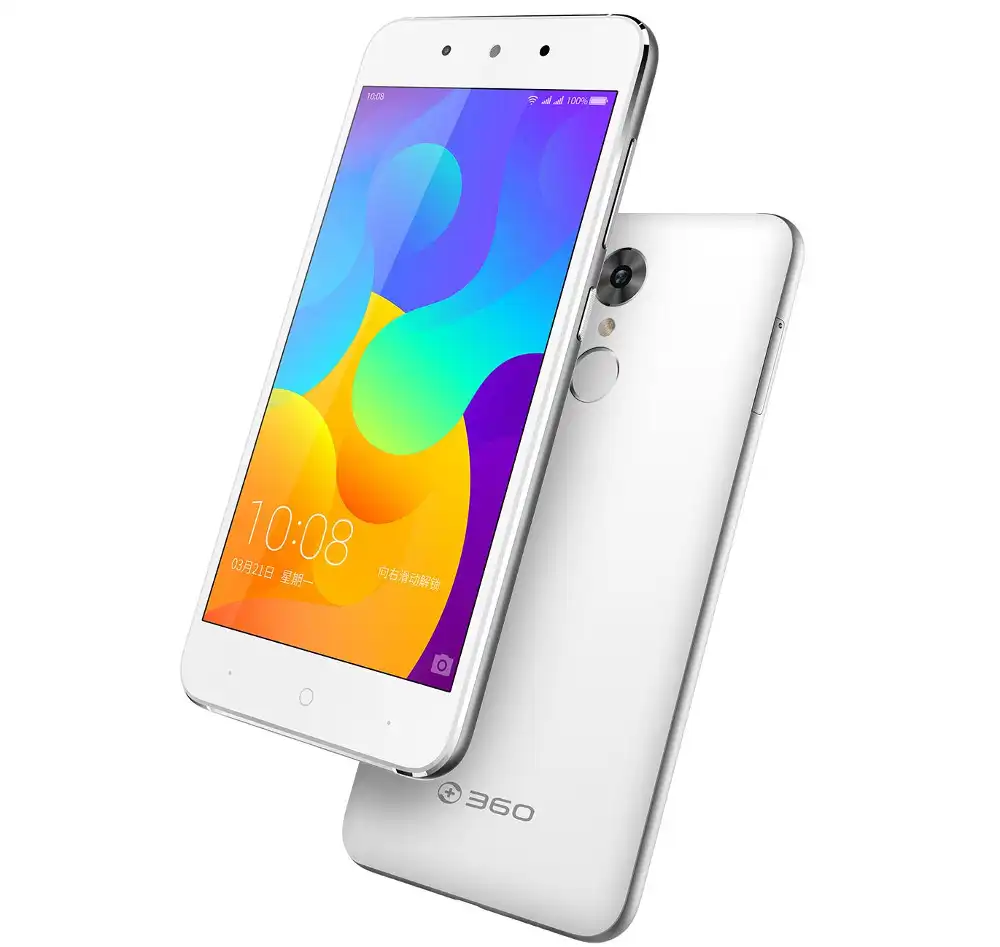
The 360 F4 was released in March 2016, built on the MediaTek MT6753 platform. Carrying model number 1501-M02 (China Mobile Edition), the phone features a 5.0-inch HD display, octa-core processor, and a 2500 mAh battery.
Flashing official factory firmware cures persistent software errors, recovers devices from bootloops, and restores original stock performance. Follow the verified file details and step-by-step YGDP instructions below to service your phone safely.
Which Flash Mode Should You Use?
YGDP Tool Flashing (Official Factory Method)
Standard factory servicing method for Coolpad and 360 devices using official .CPB packages.
What You Need Before Flashing
A PC running Windows 7, 8, 10, or 11 with MediaTek USB VCOM drivers installed.
Verify your phone model is 1501-M02 and check the MD5 checksum of your downloaded CPB file.
YGDP Tool ready to use with factory assembly password 369 or 963.
Ensure the battery has sufficient power to complete the entire flashing process.
Use a dependable USB data cable plugged directly into a main computer port.
How to Flash the 360 F4 — Quick Overview
A condensed step-by-step summary specific to the 360 F4. Follow the full YGDP Tool (Coolpad/360) guide for screenshots, an interactive progress checklist, and complete troubleshooting.
-
Install MediaTek USB drivers and YGDP Tool
-
Log in to YGDP Tool
-
Load the 1501-M02 CPB package
-
Connect phone in download mode
-
Click Start and wait for completion
Firmware Package for MediaTek MT6753 (CPB Container)
Official firmware for the 360 F4 is supplied as a signed .CPB container (file tag 1501_M02). This package includes MediaTek preloader files, partition tables, modem radio binaries, and system images inside an encrypted single-file container for YGDP Tool.
1501_M02_signed.CPB
Official 360 firmware comes in a single .CPB container file. YGDP Tool opens this file and automatically unpacks the MediaTek system and modem images.
Model check: Make sure your device is the China Mobile edition 1501-M02. Do not attempt to cross-flash CPB files meant for the all-network 1501-A02 or other 360 handsets, as modem and partition differences will cause software crashes.
360 F4 Firmware Versions
Official stock CPB firmware package for the 360 F4. Verify model 1501-M02 before downloading.
| Version | Region | Android Version | Size | MD5 | Download |
|---|---|---|---|---|---|
5.1.091.P1.1501_M02 |
China Mobile (Official Stock) | Android 5.1 Lollipop (360 OS) | 2.19 GB | e99e99d4d770c5f96ddb877dba48b23c |
⬇️ Download |
Need to check the full hardware specs and phone details? View full phone details on AndroidFirmwareFile.com →
360 F4 — Important Notes
The 360 F4 features a 2500 mAh battery. Flashing a full CPB archive writes multiple gigabytes of software to internal storage, which takes several minutes. Ensure your battery has at least 40% charge before you start, and keep the USB cable connected until YGDP shows that the flash is complete.
Common Errors on the 360 F4
YGDP Error: "Assembly Password Incorrect"
Enter the official factory code 369. If this code does not work on your copy of YGDP, use 963.
YGDP Error: "Decompress CPB Failed / Checksum Error"
This error indicates an incomplete or broken file download. Re-download the CPB file and verify its MD5 checksum before loading it into YGDP.
Phone stuck on 360 logo after successful flashing
Leftover cache from old software can prevent a clean boot. Power off, hold Volume Up + Power to enter recovery mode, and select "Wipe data/factory reset".
For solving common MediaTek VCOM driver errors and YGDP connection timeouts: MediaTek & YGDP Error Directory →
Frequently Asked Questions — 360 F4
Turn the phone off completely. Hold the Volume Down button (or Volume Up on some hardware revisions) and plug the USB cable into the computer. Release the button as soon as YGDP detects the COM port.
The .CPB file is a compressed multi-gigabyte factory package. When you click Apply, YGDP unpacks all system images to your hard drive before flashing starts. Wait 1 to 3 minutes for it to finish unpacking without closing the tool.
Check Windows Device Manager under "Ports (COM & LPT)" to see if the MediaTek Preloader or USB VCOM port shows an error icon. Reinstall the MediaTek USB VCOM driver, switch to a high-quality microUSB cable, and use a direct rear USB port.
Yes. YGDP writes a full set of factory images directly to the eMMC storage over MediaTek bootrom mode. This restores corrupted boot and system files even if the phone will not turn on normally.
Ready to Flash?
Follow the full step-by-step YGDP Tool (Coolpad/360) guide with interactive progress tracking, prerequisite checklist, and complete troubleshooting.