

Before you flash: Flashing firmware will erase all data on your device. Back up contacts, photos, and apps before proceeding. FlashGuideHub is not responsible for any damage caused by following this guide.
About the 360 N6 Pro
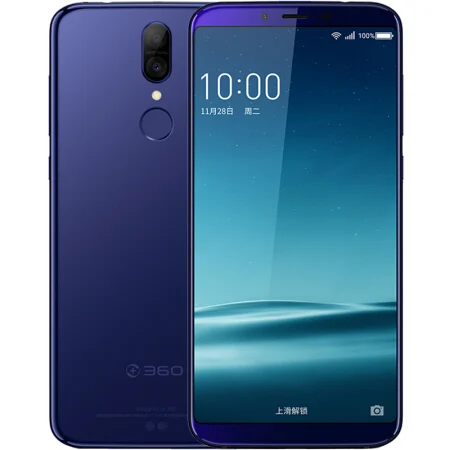
The 360 N6 Pro was released in November 2017, built on the Qualcomm Snapdragon 660 (SDM660 / MSM8976 Plus) platform. Carrying model number 1801-A01 (motherboard codename QK1801-A01), the phone features a 5.99-inch FHD+ display, up to 6 GB of RAM, and a 4050 mAh battery.
Flashing factory stock firmware cures persistent software errors, repairs corrupted partition tables, and unbricks non-booting devices. Follow the verified file details and step-by-step instructions below to service your phone safely.
Which Flash Mode Should You Use?
Qualcomm QFIL Flashing (EDL Mode)
Primary unbricking procedure using Qualcomm Flash Image Loader (QFIL) over Emergency Download 9008 mode.
Fastboot Mode Flashing
Alternative partition flashing using fastboot commands when the bootloader interface is available.
What You Need Before Flashing
A PC running Windows 7, 8, 10, or 11 with Qualcomm HS-USB QDLoader 9008 drivers installed.
Confirm your phone is model 1801-A01 and check the MD5 checksum of your downloaded zip file.
Qualcomm Flash Image Loader installed and ready to load XML partition files.
Ensure the battery has enough charge to complete full partition writing safely.
Use a verified data cable plugged directly into a rear computer USB port.
How to Flash the 360 N6 Pro — Quick Overview
A fast reference for flashing the 360 N6 Pro (Snapdragon 660) using QFIL. For the complete walkthrough with images and error troubleshooting, see the full guide.
-
Install Qualcomm USB drivers and QFIL
-
Extract firmware package
-
Configure QFIL tool
-
Connect phone in EDL mode
-
Click Download to flash
Firmware Package for Snapdragon 660 (QFIL / XML)
Official firmware for the 360 N6 Pro contains partition images designed for Qualcomm EDL mode and Fastboot. The package includes rawprogram0.xml and patch0.xml partition scripts alongside raw boot, system, modem, and vendor partition files.
rawprogram0.xml / prog_emmc_firehose_*.mbn
Official 360 N6 Pro firmware is supplied as a rawprogram archive. QFIL reads rawprogram0.xml and patch0.xml to flash individual partition images over Qualcomm EDL mode.
Model check: Verify that your device model is 1801-A01. Do not flash this firmware on the standard 360 N6 (1707-A01), which is powered by a Snapdragon 630 processor. Flashing files meant for a different chip will corrupt partition tables and prevent startup.
360 N6 Pro Firmware Versions
Official stock firmware package for the 360 N6 Pro. Confirm model number 1801-A01 before downloading.
| Version | Region | Android Version | Size | MD5 | Download |
|---|---|---|---|---|---|
116-19.6-12 |
Official / China (Stock 360 OS 3.0) | Android 7.1.1 Nougat (360 OS 3.0) | 1.60 GB | db42d61578342c149462bd6b5334e83c |
⬇️ Download |
Need to check the full hardware specs and phone details? View full phone details on AndroidFirmwareFile.com →
360 N6 Pro — Important Notes
The 360 N6 Pro features a 4050 mAh battery. Partition writing via QFIL takes 4 to 8 minutes depending on your computer speed. Make sure your phone battery is charged to at least 50% before you begin, and do not disconnect the USB cable during flashing.
Common Errors on the 360 N6 Pro
QFIL Error: "Sahara Fail / Sahara Protocol Handshake Failed"
This occurs when communication with the Qualcomm bootrom is interrupted. Unplug the USB cable, hold Power for 15 seconds to restart the phone, hold Volume Up + Down again, and re-connect the USB cable.
QFIL Error: "Cannot open COM port or access denied"
Another background tool (like PC Suite or MiFlash) may be locking the COM port. Close conflicting programs, run QFIL as administrator, and try a different USB port.
Phone stuck on the 360 logo after successful flashing
Old user app data in the cache partition can cause a bootloop. Boot the phone into recovery mode (Volume Up + Power) and select "Wipe data/factory reset".
For solving common Sahara handshake errors and Qualcomm port issues: Qualcomm & QFIL Error Directory →
Frequently Asked Questions — 360 N6 Pro
Turn the phone off completely. Press and hold both the Volume Up and Volume Down buttons at the same time, then plug in the USB cable. The phone screen will remain dark, and your PC will detect the device as Qualcomm HS-USB QDLoader 9008.
Open Windows Device Manager and check under "Ports (COM & LPT)". If you see "QHSUSB_BULK" with a yellow warning icon, re-install the Qualcomm QDLoader driver. Also make sure to connect directly to a rear USB 2.0 port on your computer.
Yes. Emergency Download (EDL) mode communicates directly with the Qualcomm bootrom chip. This allows QFIL to re-write all damaged bootloader, kernel, and system partitions even if the phone shows no display.
Yes. Flashing a full stock rawprogram package overwrites the entire internal memory and formats user partitions. If your device can still boot, make a complete backup beforehand.
Ready to Flash?
Follow the full step-by-step QFIL guide with interactive progress tracking, prerequisite checklist, and complete troubleshooting.