

Before you flash: Flashing firmware will erase all data on your device. Back up contacts, photos, and apps before proceeding. FlashGuideHub is not responsible for any damage caused by following this guide.
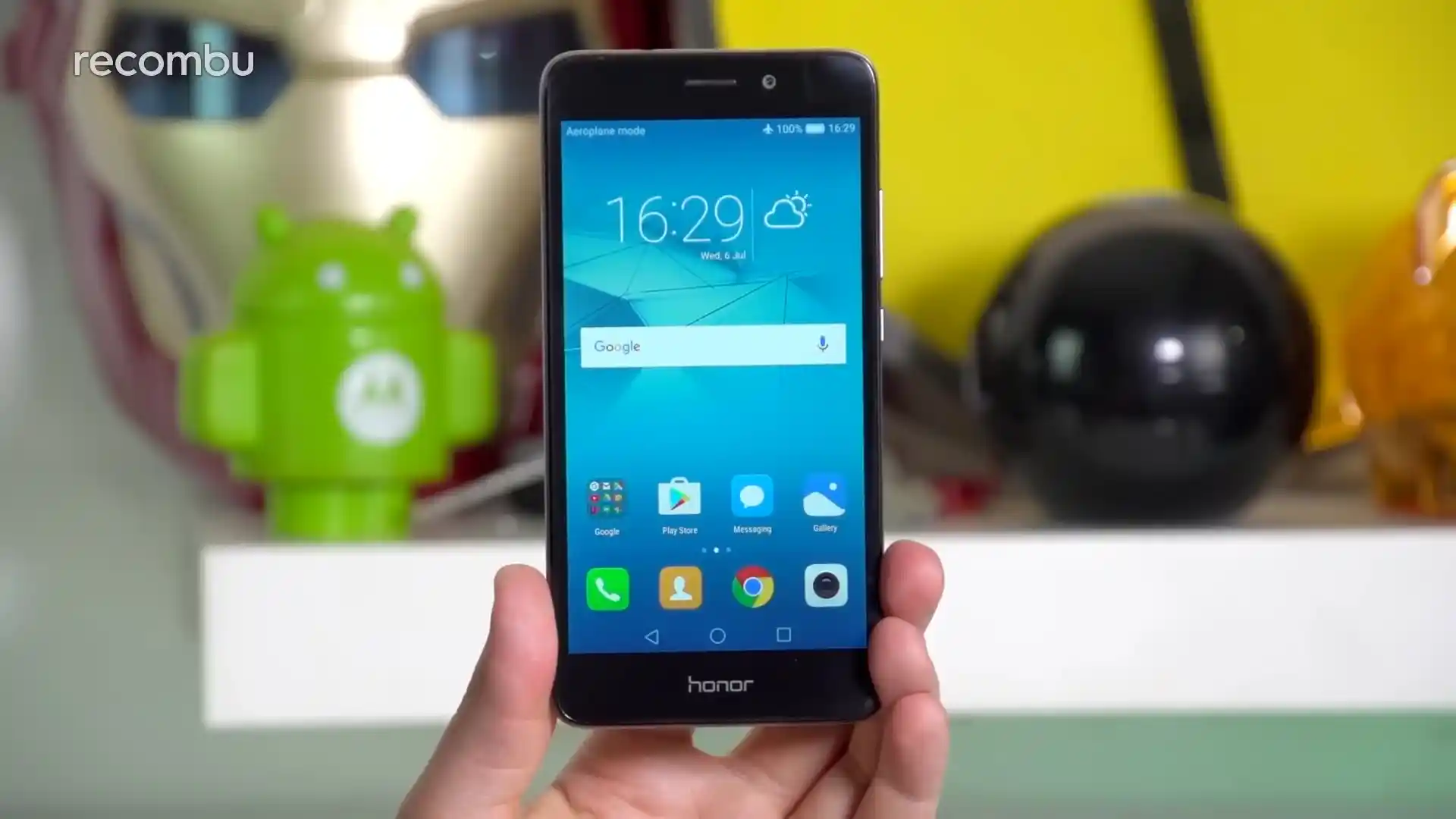
About the Honor 5C / Honor 7 Lite
This workshop bench guide walks you through flashing official stock firmware to the Honor 5C / Honor 7 Lite (May 2016) using the verified Huawei Dload SD card update procedure. Writing factory partition images to HiSilicon's HiSilicon Kirin 650 Hi6250 (16nm FinFET Plus, 64-bit Octa-Core: 4x 2.0 GHz Cortex-A53 + 4x 1.7 GHz Cortex-A53) platform requires preparing a dedicated FAT32 storage medium and executing exact physical button timing.
Whether your phone is looping at the Honor splash screen, failing system startup, or returning to clean factory EMUI 5.0 (Android 7.0), review the prerequisite SD card formatting, 3000 mAh battery safeguards, and step-by-step bench instructions detailed below.
Which Flash Mode Should You Use?
Huawei Dload 3-Button SD Update
The primary factory recovery route for nemo. Reads UPDATE.APP from the /dload folder on a FAT32 microSD card and writes factory partitions via stock recovery. Does not require an unlocked bootloader.
Huawei eRecovery Wi-Fi Restore
Official cloud-based recovery method built into EMUI. Connects to local Wi-Fi to query Huawei servers and download matched factory firmware directly to the phone.
Factory Board Software Unbrick (HMT / IDT)
Deep unbricking route for hard-bricked handsets with blank screens or wiped partition tables. Communicates with the Kirin 650 SoC in HiSilicon USB COM 1.0 mode via motherboard testpoints.
What You Need Before Flashing
Confirm your exact model (NEM-L51, NMO-L23, NEM-L22) and cust branch (C432, C675) before extracting UPDATE.APP.
Use a genuine Class 10 microSD card (32GB or smaller) formatted strictly to FAT32 with MBR partition scheme.
Ensure the 3000 mAh internal cell has at least 50% charge to maintain bus power during the 10-minute flash.
Keep a quality microUSB cable available in case power top-up or USB OTG connection is needed.
Use a PC equipped with 7-Zip to extract the multi-gigabyte zip archive and copy the dload folder.
Back up all personal files, as full stock firmware installation formats internal eMMC flash storage.
How to Flash the Honor 5C / Honor 7 Lite — Quick Overview
A quick 5-step overview built specifically for the Honor 5C / Honor 7 Lite. The full Huawei UPDATE.APP guide adds screenshots, progress tracking, and fixes for common errors.
-
Format a 16GB or 32GB microSD card to FAT32
-
Extract UPDATE.APP into the dload directory
-
Insert card and initiate 3-button hardware combination
-
Hold buttons until EMUI installation launches
-
Allow flashing to complete and reboot
Firmware Package for Hi6250
Official stock firmware for the Honor 5C and Honor 7 Lite is compiled as an encrypted UPDATE.APP container. This single container encapsulates individual raw partition images (boot.img, recovery.img, system.img, cust.img, and modem.img) mapped to the HiSilicon Kirin 650 (Hi6250) eMMC 5.1 storage bus. Flashing via the 3-button Dload method writes these blocks sequentially via stock recovery.
UPDATE.APP
Huawei firmware packages encapsulate system, bootloader, modem, and cust partitions into a signed UPDATE.APP binary. The stock EMUI recovery unpacks and writes these images to eMMC storage during Dload execution.
The Honor 5C / Honor 7 Lite is powered by the octa-core HiSilicon Kirin 650 processor with 2GB of RAM, 16GB of eMMC storage, a 5.2-inch 1080p display, and a 3000 mAh battery.
Always confirm that the regional cust code in the downloaded archive matches your phone's original region (C432 for Europe, C675 for India, C10 for Russia). Never attempt cross-regional Dload updates without prior oeminfo rebranding.
Honor 5C / Honor 7 Lite Firmware Versions
Official stock firmware Dload builds for the Honor 5C / Honor 7 Lite. Confirm that your device model and regional cust identifier match before initiating installation.
| Version | Region | Android Version | Size | MD5 | Download |
|---|---|---|---|---|---|
C432B365 (EMUI 5.0.4) |
Europe (NEM-L51) | Android 7.0 (EMUI 5.0.4) | 4.30 GB | — | ⬇️ Download |
C432B364 (EMUI 5.0) |
Europe (Honor 7 Lite NMO-L23) | Android 7.0 (EMUI 5.0) | 2.85 GB | — | ⬇️ Download |
C675B346 (EMUI 5.0) |
India (NEM-L22) | Android 7.0 (EMUI 5.0) | 2.20 GB | — | ⬇️ Download |
Looking for additional regional branches, historical builds, or factory board software? Browse the full archive on AndroidFirmwareFile.com →
Honor 5C / Honor 7 Lite — Important Notes
Flashing official stock UPDATE.APP firmware via Huawei Dload unbricks soft-bricked devices, clears persistent startup bootloops, and restores factory EMUI stability.
If your device fails to initiate Dload installation, format your microSD card as FAT32 MBR with 32KB cluster size, verify that UPDATE.APP resides directly inside the "dload" folder, and ensure the 3000 mAh battery holds at least 50% charge.
Troubleshooting Honor 5C Dload & Kirin 650 Flashing Issues
Dload Verification Failure: "Software install failed! / Incompatible with current version (Cust Mismatch)"
Community repair discussions on XDA-Developers indicate that Huawei stock recovery halts Dload execution at exactly 5% when the regional cust tag in UPDATE.APP does not match the device's factory oeminfo configuration (such as attempting to install European C432 firmware on an Indian C675 or Asian C636 board). Technicians advise querying "fastboot oem get-build-number" from Fastboot mode to verify the active cust branch prior to downloading.
MicroSD Handshake Abort: "Huawei Dload hangs on 'Checking update package' or reboots immediately"
Technicians report that the HiSilicon Kirin 650 bootloader is sensitive to SD card partition tables. MicroSD cards formatted as exFAT or partitioned with GPT (GUID Partition Table) fail detection during the 3-button boot sequence. Community repairers recommend using an MBR-partitioned Class 10 microSD card of 32GB or less, formatted as standard FAT32 with a 32KB allocation unit size.
EMUI Rollback Protection: "System update failed after flashing EMUI 4.1 over EMUI 5.0"
Attempting to directly flash an Android 6.0 (EMUI 4.1) Dload package onto an Honor 5C currently operating on Android 7.0 (EMUI 5.0) triggers an immediate security verification halt. Huawei implements anti-rollback counters between EMUI major versions. Restoring Android 6.0 requires first flashing an intermediate transition downgrade rollback package (e.g. NEM-L51 Rollback Package) before flashing full Marshmallow firmware.
Encountering installation aborts, SD card detection failures, or cust verification errors? Consult the comprehensive troubleshooting directory: Dload Error Directory →
Frequently Asked Questions — Honor 5C / Honor 7 Lite
Ensure the phone is powered down completely (hold Power for 10 seconds if caught in a bootloop). Insert your FAT32 microSD card containing the "dload" folder. Press and firmly hold Volume Up, Volume Down, and Power all at the exact same time. Continue holding all three physical buttons for 8 to 10 seconds. The moment the handset vibrates and the EMUI software update circle appears, release all buttons immediately.
Halting at exactly 5% indicates a regional cust mismatch or a downgrade restriction. Huawei stock recovery parses the package's VERLIST header and compares it against the oeminfo partition on the motherboard. If you attempt to flash an Indian C675 or Asian C636 package onto a European C432 board, or if you attempt to downgrade from EMUI 5.0 to EMUI 4.1 without an authorized rollback transition file, recovery aborts the write at 5% to protect radio calibration.
If the handset is rebooting rapidly, disconnect any USB charging cable. Hold the Power button continuously for 12 to 15 seconds until the display goes completely black to force power shutdown. With the microSD card seated, immediately press and hold Volume Up + Volume Down first, then press and hold Power. Alternatively, connect the phone to a PC via microUSB while holding Volume Up to enter Huawei eRecovery and restore via Wi-Fi.
Factory Board Software is required when a device is hard-bricked (showing a completely black screen, refusing to vibrate, lacking Fastboot access, or having a wiped eMMC partition table). In this condition, recovery cannot run Dload. Technicians short the HiSilicon testpoint on the motherboard while connecting USB to enter HiSilicon USB COM 1.0 mode, then deploy factory XML partition tables using Huawei Multi-Tool (HMT) or Huawei IDT.
Ready to Flash?
Follow the full step-by-step Huawei UPDATE.APP guide with interactive progress tracking, prerequisite checklist, and complete troubleshooting.