

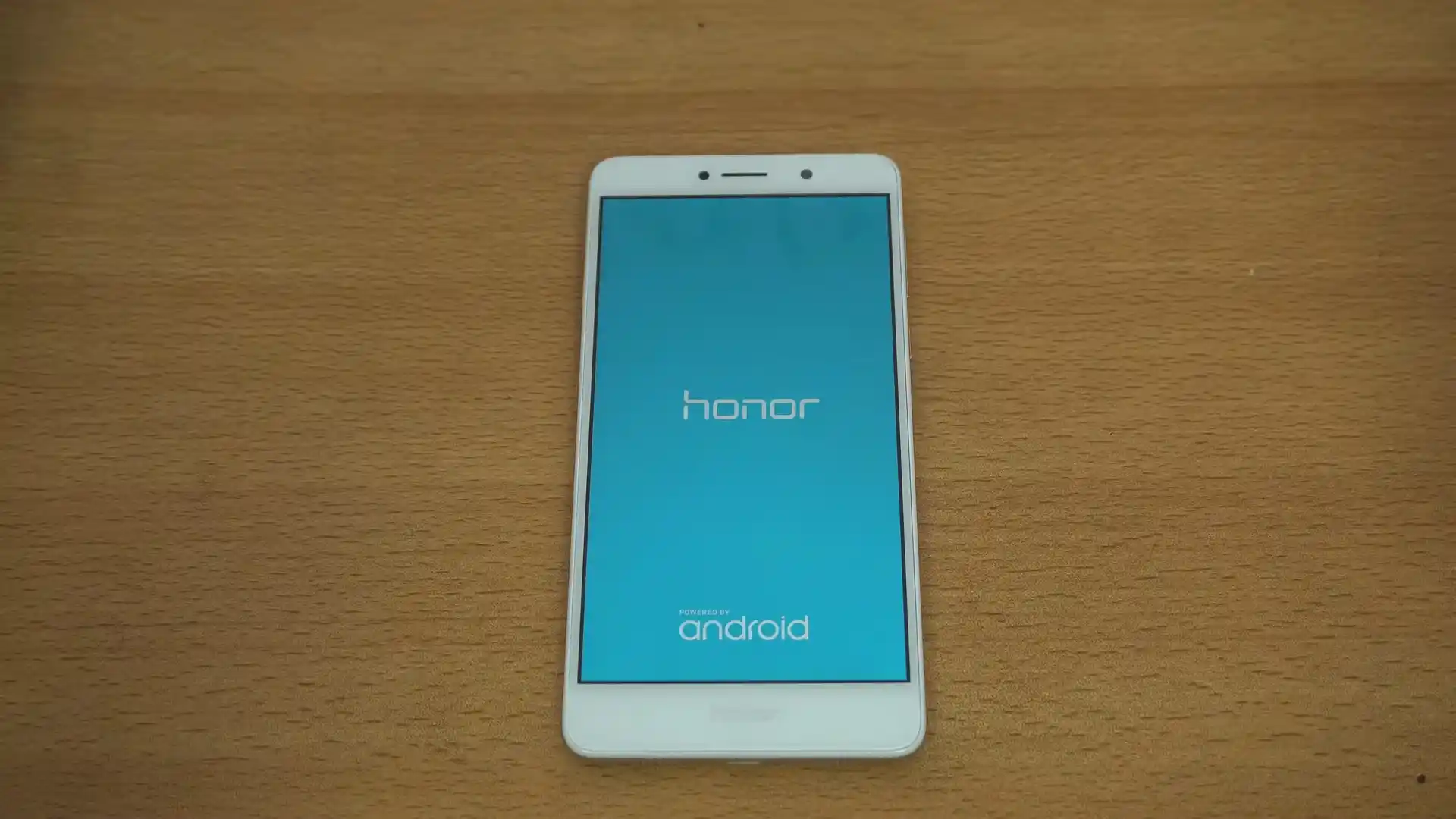
Before you flash: Flashing firmware will erase all data on your device. Back up contacts, photos, and apps before proceeding. FlashGuideHub is not responsible for any damage caused by following this guide.
About the Honor 6X
This workshop guide provides step-by-step instructions to flash official stock firmware to the Honor 6X () using Huawei UPDATE.APP.
Whether your device is trapped in a startup bootloop, recovering from corrupted partitions, or returning to a clean factory state, follow the verified prerequisites and flashing procedures below.
Which Flash Mode Should You Use?
Huawei Dload 3-Button (microSD Method)
Standard offline installation method using UPDATE.APP on a FAT32-formatted microSD card.
Huawei eRecovery (Wi-Fi OTA Download)
Emergency Wi-Fi restoration directly from Huawei/Honor recovery servers when the system will not boot.
Fastboot & Rescue Mode
Bootloader diagnostic interface used to check FRP/OEM lock states, verify build tags, and check battery status.
What You Need Before Flashing
A 64-bit Windows PC with official USB drivers and platform tools installed.
Ensure the battery holds at least 50% charge to prevent unexpected mid-flash power interruption.
Connect using a certified USB data cable plugged directly into a native motherboard USB port.
Flashing factory firmware will erase user data; back up critical files before proceeding.
How to Flash the Honor 6X — Quick Overview
A quick 8-step overview built specifically for the Honor 6X. The full Huawei UPDATE.APP guide adds screenshots, progress tracking, and fixes for common errors.
-
Download Matching Honor 6X Package
-
Extract Archive on Computer
-
Format MicroSD Card to FAT32
-
Create dload Directory
-
Insert Card and Power Down Phone
-
Trigger 3-Button Hardware Sequence
-
Allow Partition Writing to Complete
-
First Boot and Storage Rebuild
Honor 6X Firmware Versions
These are the verified primary stock packages for the Honor 6X hardware variants. If you require older Android 6.0 Marshmallow rollbacks, carrier-specific delta updates, or emergency board files, browse the full archive on AndroidFirmwareFile.
| Version | Region | Android Version | Size | MD5 | Download |
|---|---|---|---|---|---|
C432B382 |
Europe Open Market (C432) | Android 7.0 (EMUI 5.0.3) | 2.46GB | — | ⬇️ Download |
C675B330 |
India (C675) | Android 7.0 (EMUI 5.0) | 2.26GB | — | ⬇️ Download |
C730B112 |
Latin America / Colombia (C730) | Android 6.0 (EMUI 4.1.3) | 1.97GB | — | ⬇️ Download |
8.0.0.532(C00) |
China All-Netcom (C00) | Android 8.0 (EMUI 8.0) | 4.75GB | — | ⬇️ Download |
8.0.0.532(C01) |
China Mobile (C01) | Android 8.0 (EMUI 8.0) | 3.07GB | — | ⬇️ Download |
Need another regional variant, EMUI 4.1 rollback, or emergency board dump? Browse all 42 Honor 6X firmware packages on AndroidFirmwareFile.com →
Troubleshooting Honor 6X EMUI Flashing & Recovery Issues
Software install failed at 5% / Cust Mismatch Error
Attempting to flash a package whose cust identifier differs from the device factory oeminfo (e.g. attempting to install C432 onto C185 or C675). Verify your original cust code in Fastboot mode using the command "fastboot oem get-build-number" before downloading, and ensure your firmware package matches that exact regional identifier.
Device bootloops into eRecovery following 100% successful dload flash
Lingering userland encryption tokens (FBE / userdata partition mismatch) between major Android version transitions, such as updating from Android 6.0 to Android 7.0 without a factory reset. Boot into standard Recovery mode by holding Volume Up and Power while disconnected from USB, then perform a "Wipe data / factory reset" and "Wipe cache partition" before restarting.
For the full error database: Error Directory →
Frequently Asked Questions — Honor 6X
The Honor 6X EMUI recovery bootloader requires the microSD card to use the legacy Master Boot Record (MBR) partition table formatted strictly to FAT32. Modern cards formatted to exFAT, NTFS, or initialized with a GUID Partition Table (GPT) cannot be mounted by the recovery kernel. Technicians recommend reformatting the microSD card using Rufus or Windows Disk Management with MBR and 32KB cluster size before copying the dload folder.
Huawei and Honor retired legacy OTA lookup servers for older Kirin 655 EMUI 4 and EMUI 5 endpoints. If eRecovery fails to retrieve packages, verify that your Wi-Fi uses WPA2-PSK on a 2.4GHz channel, as the Kirin 655 radio does not support 5GHz networks. If the server continues to report connection failures, offline dload flashing via microSD card is the mandatory alternative.
The dload installer strictly enforces a 30% battery threshold before initiating partition write routines. If battery voltage drops below 3.65V during flashing, the power management IC (PMIC) triggers an emergency shutdown to prevent eMMC corruption, which can leave the bootloader half-written. Workshop benches should ensure the handset is charged to at least 50% prior to starting.
Board software (HL2BLNTMBD001051) is intended strictly for emergency hardware repair when an Honor 6X is hard-bricked, completely unresponsive, and fails to register in fastboot or recovery mode. Flashing requires opening the metal back cover and shorting the motherboard test point to ground while inserting the USB cable to force the HiSilicon USB COM / emergency download handshake.
Ready to Flash?
Follow the full step-by-step Huawei UPDATE.APP guide with interactive progress tracking, prerequisite checklist, and complete troubleshooting.