

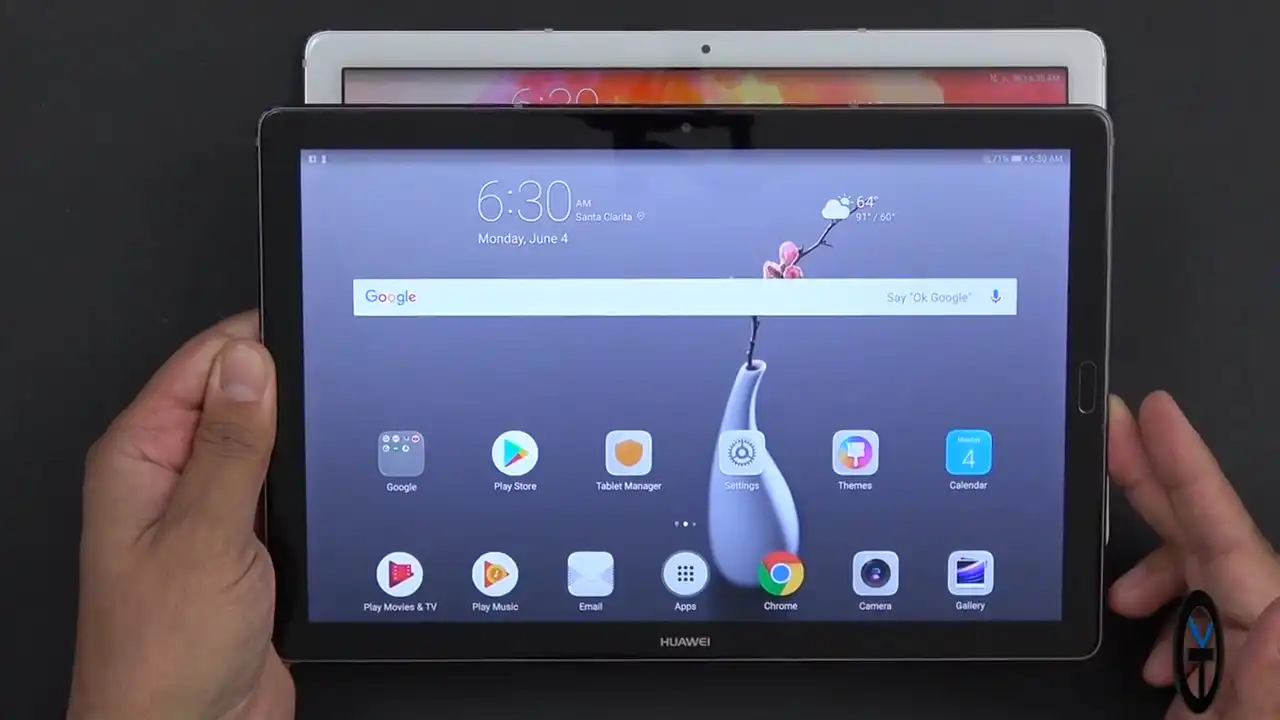
Before you flash: Flashing firmware will erase all data on your device. Back up contacts, photos, and apps before proceeding. FlashGuideHub is not responsible for any damage caused by following this guide.
About the Huawei MediaPad M5 10.8 / M5 Pro
The Huawei MediaPad M5 10.8 / M5 Pro (codenamed Cameron / CMR) is a premium tablet released in February 2018, built on the HiSilicon Kirin 960 (Hi3660) processor. Featuring a 10.8-inch 2560x1600 display and Harman Kardon audio, the device is available in Wi-Fi (CMR-W09), 4G LTE (CMR-AL09), and M5 Pro (CMR-W19, CMR-AL19) editions.
Flashing factory stock firmware restores clean software, fixes persistent boot loops, and removes system errors. Follow the verified package details and simple instructions below to service your tablet safely.
Which Flash Mode Should You Use?
Huawei Dload / SD Card Method (UPDATE.APP)
Official offline recovery flashing workflow using a microSD card or USB Type-C OTG flash drive.
Huawei eRecovery (Wi-Fi Recovery)
Official cloud-based recovery for restoring latest approved firmware over Wi-Fi without a PC or SD card.
What You Need Before Flashing
Confirm your model (CMR-W09, CMR-AL09, or Pro) and region code (C432 for Europe, C636 for Asia, C10 for Russia).
Use a quality microSD card (8GB or larger) formatted as FAT32 or exFAT, with a root folder named "dload".
Writing system and vendor partitions takes several minutes. Ensure sufficient charge before beginning.
A PC or file manager app is required to extract the downloaded ZIP/RAR package and copy UPDATE.APP.
The Dload method completely erases all personal data, photos, and apps on the tablet. Back up accessible files first.
How to Flash the Huawei MediaPad M5 10.8 / M5 Pro — Quick Overview
6-step quick reference for the Huawei MediaPad M5 10.8 / M5 Pro. Need visuals or troubleshooting help? The full Huawei UPDATE.APP guide covers everything in detail.
-
Check model code and region number
-
Format a microSD card or USB-C drive
-
Create a dload folder and copy UPDATE.APP
-
Power off and insert storage into tablet
-
Boot into 3-button Dload recovery mode
-
Wait for installation to finish
Firmware Package for HiSilicon Kirin 960
Official firmware for the Huawei MediaPad M5 10.8 & M5 Pro is packaged in Huawei UPDATE.APP archives inside a "dload" directory. The package targets the HiSilicon Kirin 960 (Hi3660) partition structure, writing boot, recovery, system, vendor, product, and radio partitions.
UPDATE.APP
Official Huawei firmware is delivered as an UPDATE.APP file. Place UPDATE.APP directly inside a folder named "dload" in the root directory of your microSD card or USB-C flash drive.
Region and variant notice: Verify your exact model number and regional software branch before flashing. CMR-W09 and CMR-W09A are Wi-Fi models; CMR-AL09 is the 4G LTE model; CMR-W19 and CMR-AL19 are M5 Pro models supporting the active M-Pen stylus. Ensure the region code in the build number (such as C432 for Europe, C636 for Asia, or C10 for Russia) matches your tablet exactly to avoid verification failures.
Huawei MediaPad M5 10.8 / M5 Pro Firmware Versions
Official stock firmware packages for global and regional variants of the Huawei MediaPad M5 10.8 / M5 Pro. Verify your model code and regional branch before downloading.
| Version | Region | Android Version | Size | MD5 | Download |
|---|---|---|---|---|---|
9.1.0.332 (C432E5R1P3T8) |
Europe (CMR-W09 Wi-Fi) | Android 9.0 (EMUI 9.1) | 3.63 GB | — | ⬇️ Download |
9.1.0.332 (C432E5R1P3T8) |
Europe (CMR-W09A Wi-Fi) | Android 9.0 (EMUI 9.1) | 3.63 GB | — | ⬇️ Download |
8.0.0.193 (C432) |
Europe (CMR-AL09 LTE 4G) | Android 8.0 (EMUI 8.0) | 3.27 GB | — | ⬇️ Download |
8.0.0.192 (C636) |
Asia-Pacific (CMR-W19 Pro Wi-Fi) | Android 8.0 (EMUI 8.0) | 2.09 GB | — | ⬇️ Download |
9.0.1.185 (C10E3R1P3T8) |
Russia / CIS (CMR-AL19 Pro LTE 4G) | Android 9.0 (EMUI 9.0) | 3.96 GB | — | ⬇️ Download |
This device has 5 verified stock firmware packages across regional models. See the complete archive on AndroidFirmwareFile.com →
Huawei MediaPad M5 10.8 / M5 Pro — Important Notes
The MediaPad M5 10.8 features an internal 7500 mAh battery with 18W fast charging support. Flashing writes full system partitions over several minutes, so verify that the battery is charged to at least 40% before starting. To initiate flashing, turn off the tablet, insert the storage card with the dload folder, and hold Volume Up, Volume Down, and Power together.
Common Errors on the Huawei MediaPad M5 10.8 / M5 Pro
EMUI: Software install failed! Incompatible package
The firmware region code does not match the tablet cust version. Verify whether your tablet is C432 (Europe), C636 (Asia), or C10 (Russia) before downloading.
Device does not detect update / Boots into regular recovery
Ensure the folder is named exactly "dload" in all lowercase letters in the root directory of the storage card, and that UPDATE.APP is placed directly inside it.
Battery low warning during update initiation
EMUI blocks firmware installation if the battery is below 30%. Charge the tablet with the original charger before attempting to flash again.
For common Huawei Dload and eRecovery troubleshooting solutions: Huawei Dload Error Directory →
Frequently Asked Questions — Huawei MediaPad M5 10.8 / M5 Pro
Yes. The Huawei Dload recovery method performs a full clean factory installation that wipes all user data, apps, and internal memory. Back up your important files before you begin.
This error means the firmware package does not match your tablet model or region code. For example, flashing a C432 European package on a C636 Asian tablet will cause this error. Always confirm your exact model and regional cust code.
Yes. Format a USB-C flash drive to FAT32 or exFAT, put the "dload" folder with UPDATE.APP inside, connect it to the tablet Type-C port, and hold Volume Up + Volume Down + Power.
No. Official UPDATE.APP packages are signed with Huawei security keys and install through stock recovery without needing an unlocked bootloader.
Ready to Flash?
Follow the full step-by-step Huawei UPDATE.APP guide with interactive progress tracking, prerequisite checklist, and complete troubleshooting.