

Before you flash: Flashing firmware will erase all data on your device. Back up contacts, photos, and apps before proceeding. FlashGuideHub is not responsible for any damage caused by following this guide.
About the Huawei P Smart 2019
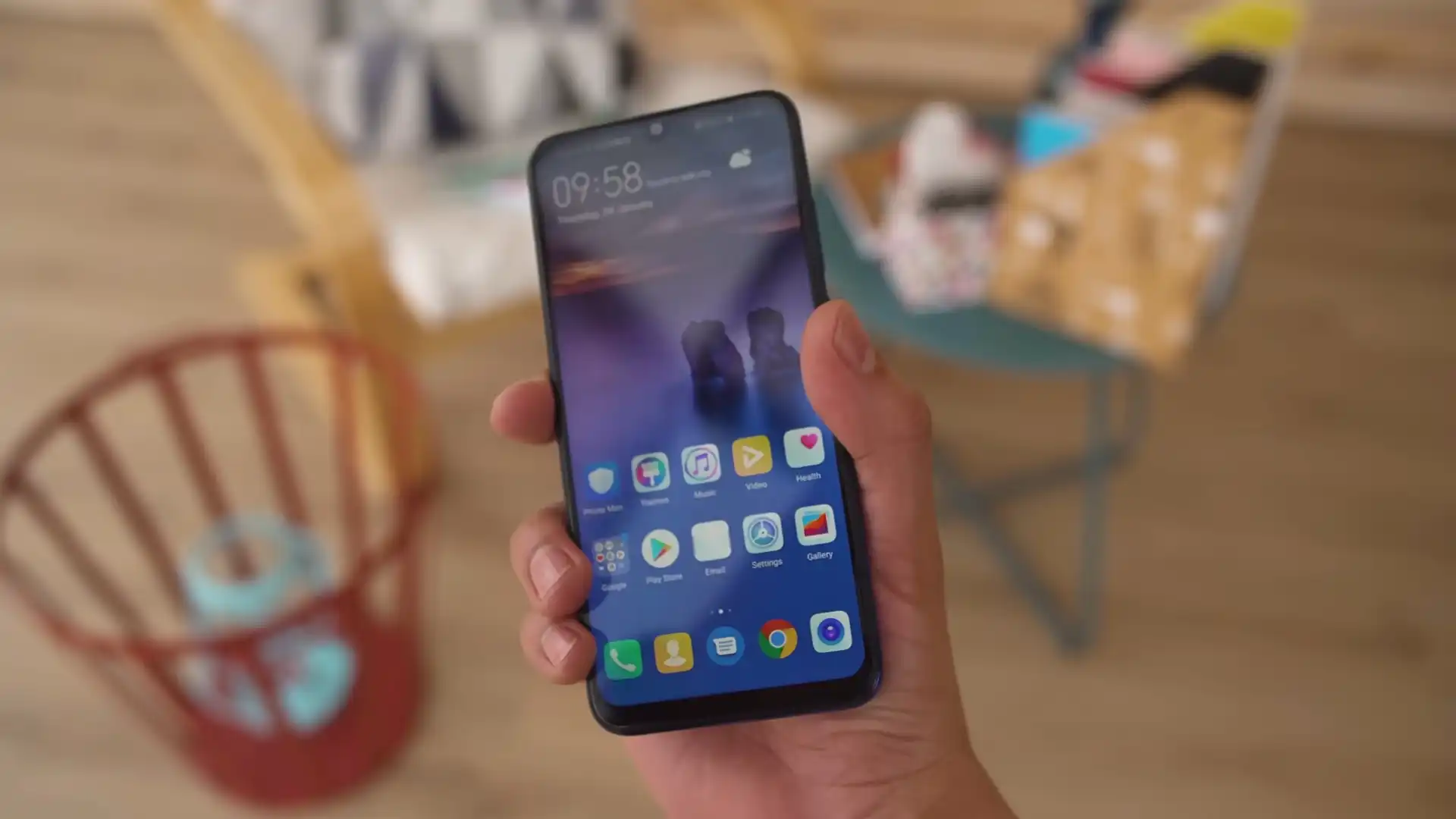
The Huawei P Smart 2019 was released in January 2019, built on the HiSilicon Kirin 710 (12nm) platform. Featuring a 6.21-inch FHD+ dewdrop display, a 3400 mAh battery, and microUSB OTG connectivity, the Potter family encompasses several regional variants including POT-LX1, POT-L21, POT-L21T, and POT-LX1A.
Flashing factory stock firmware via Huawei Dload restores broken system partitions, cures boot loops, and removes unwanted modifications. Follow the verified preparation steps and procedural instructions below to flash your device safely.
Which Flash Mode Should You Use?
Huawei Dload 3-Button Flashing (microSD / USB OTG)
Primary stock recovery method. Reads UPDATE.APP from a FAT32-formatted memory card or USB OTG flash drive to write official partitions. Does not require bootloader unlock.
Huawei eRecovery Mode (Wi-Fi Emergency Restore)
Over-the-air emergency recovery tool built into Huawei Kirin devices. Connects to Wi-Fi to download and flash the latest approved firmware for your specific serial number.
Factory Test Point (HiSilicon USB COM 1.0)
Low-level hardware unbrick procedure for hard-bricked devices that show no display. Used with Huawei Board Software packages and IDT to restore boot partitions.
What You Need Before Flashing
An 8 GB or larger microSD card or USB OTG flash drive formatted with FAT32 file system and MBR partition layout. exFAT is not supported by EMUI recovery.
Download the package matching your exact model number and regional Cust tag (such as POT-LX1 C432 Europe). Check Settings or eRecovery before downloading.
Ensure the non-removable 3400mAh battery holds at least 50% charge to prevent unexpected shutdown during eMMC partition writing.
Use a verified microUSB data cable connected directly to the phone. Charge-only cables will not support emergency USB recovery.
Flashing stock firmware via Dload wipes all user data and installed apps. Back up personal files before proceeding.
How to Flash the Huawei P Smart 2019 — Quick Overview
A fast reference for flashing the Huawei P Smart 2019 (Kirin 710) using Huawei UPDATE.APP. For the complete walkthrough with images and error troubleshooting, see the full guide.
-
Format a microSD card or USB OTG flash drive to FAT32
-
Extract firmware archive and create "dload" directory
-
Connect storage media to the phone
-
Trigger 3-Button Dload recovery mode
-
Allow automated partition flashing to complete
Firmware Package for Kirin 710
Official Huawei stock firmware packages for the P Smart 2019 family are delivered as container archives containing UPDATE.APP. When extracted onto a FAT32 storage medium, the stock recovery partition parses UPDATE.APP to flash system, vendor, product, and kernel partitions over the low-level Dload installer.
UPDATE.APP
Official Huawei stock firmware is supplied as an archive containing UPDATE.APP. Extract the archive and verify that UPDATE.APP sits directly inside a folder named "dload" on the root directory of your FAT32 memory card.
The Huawei P Smart 2019 family is built on the HiSilicon Kirin 710 (12nm) platform under project codename Potter (POT). Hardware variants include the dual-camera P Smart 2019 (POT-LX1, POT-L21, POT-L01), the triple-camera P Smart+ 2019 (POT-L21T, POT-L01T), the refreshed P Smart 2020 (POT-LX1A, POT-L41B, POT-L42B), and Chinese releases (POT-AL00, POT-AL10).
Flashing stock firmware via Dload does not require an unlocked bootloader. However, Huawei security requires strict matching between the package regional Cust tag (e.g. C432 Europe, C431 EEA, C185 Middle East, C10 Russia, C00 China) and the phone motherboard OEMinfo partition. Cross-flashing incompatible regional packages will result in verification failure.
Huawei P Smart 2019 Firmware Versions
Representative tested builds for each confirmed hardware model variant of the Huawei P Smart 2019. Always confirm your model and regional Cust tag before flashing.
| Version | Region | Android Version | Size | MD5 | Download |
|---|---|---|---|---|---|
10.0.0.238(C432E3R4P1) |
POT-L21 / POT-LX1 — Europe Open (Dual SIM) | Android 10 (EMUI 10.0.0) | 3.27 GB | — | ⬇️ Download |
10.0.0.177(C432E4R2P3) |
POT-L21T — Europe Open (P Smart+ 2019 Triple Camera) | Android 10 (EMUI 10.0.0) | 3.26 GB | — | ⬇️ Download |
9.1.0.351(C431E4R3P1) |
POT-LX1A — Europe EEA (P Smart 2020) | Android 9.0 (EMUI 9.1.0) | 3.15 GB | — | ⬇️ Download |
9.0.1.168(C45E8R1P11) |
POT-LX3 / POT-L23 — Latin America | Android 9.0 (EMUI 9.0.1) | 2.93 GB | — | ⬇️ Download |
9.1.0.239(C00E229R2P4) |
POT-AL00a — China All-Netcom | Android 9.0 (EMUI 9.1.0) | 3.40 GB | — | ⬇️ Download |
This device family has 28 verified packages across European, Latin American, Asian, Chinese, and factory board repair releases. Browse the complete 28-package archive on AndroidFirmwareFile.com →
Huawei P Smart 2019 — Important Notes
The Huawei P Smart 2019 and P Smart 2020 carry official Google Mobile Services certification. Performing a clean stock firmware flash preserves certified status, allowing Google Play Protect, Google Wallet, and banking applications to function normally.
If your device is completely bricked (black screen, no vibration, unable to boot into recovery), standard Dload flashing will not initiate. In this state, technicians use factory Board Software packages alongside hardware test point bridging to enter HiSilicon USB COM 1.0 mode, writing initial bootloader partitions via Huawei Image Download Tool (IDT).
Troubleshooting Huawei P Smart 2019 Dload & EMUI Installation Errors
EMUI Verification Error: "Incompatible Cust Package" (C432 / C431 OEMinfo Rejection)
Community repair discussions indicate this error occurs when attempting to install open European C432 firmware onto an operator-branded C431 EEA or Middle Eastern C185 handset. The Kirin 710 bootloader refuses Dload execution if the carrier-config tag does not match the OEMinfo string. Technicians recommend verifying the exact Cust branch in eRecovery before flashing.
Installation Stalls at 5%: "UPDATE.APP Package Integrity Verification Failed"
Usually caused by slow memory card read latency or corrupted multi-part archive extraction on Potter hardware. Repair forum members suggest re-formatting the microSD card as MBR FAT32 (allocating 32KB clusters) and verifying the archive MD5 checksum before copying UPDATE.APP to root "dload".
Device Manager displays "HUAWEI USB COM 1.0" but disconnects after 3–5 seconds during IDT flashing
Occurs during hardware test point recovery when the battery cable remains attached or when using an unpowered front USB port. Bench technicians advise disconnecting the internal battery flex cable before grounding the test point to the shielding can, and using a native motherboard USB 2.0 port.
For complete Huawei Dload error resolutions, test point pinouts, and unbrick walkthroughs: Huawei Flashing & Dload Error Directory →
Frequently Asked Questions — Huawei P Smart 2019
Ensure the phone is powered down entirely rather than being stuck on a sleep screen. If the 3-button combination fails, you can enter the dialer code *#*#2846579#*#* on a working phone, choose "Software Upgrade", and select "SDCard Upgrade". If the phone is boot-looping, connect the USB cable while holding only Volume Up to enter eRecovery, or verify that your Volume buttons are not mechanically stuck.
Direct Dload downgrades across major Android versions are blocked by HiSilicon anti-rollback security (XLOADER version checks). Attempting an unauthorized downgrade will fail with a "Software install failed" error. To roll back safely, you must use official Huawei HiSuite on a PC via the "Switch to other version" rollback option.
Yes. A red logo loop indicates bootloader or system partition corruption while the primary recovery partition remains intact. Inserting a prepared FAT32 microSD card with matching regional C432/C431 firmware and holding all 3 buttons will invoke the low-level Dload installer to write fresh system, vendor, and kernel images.
Yes. The Kirin 710 USB controller fully supports USB 2.0 OTG mass storage in EMUI recovery. Connect a FAT32-formatted USB drive via a microUSB-to-USB-A OTG adapter. If the phone does not detect the drive, ensure the OTG adapter pin 4 is grounded and the phone has at least 50% battery to power the external drive.
Ready to Flash?
Follow the full step-by-step Huawei UPDATE.APP guide with interactive progress tracking, prerequisite checklist, and complete troubleshooting.