

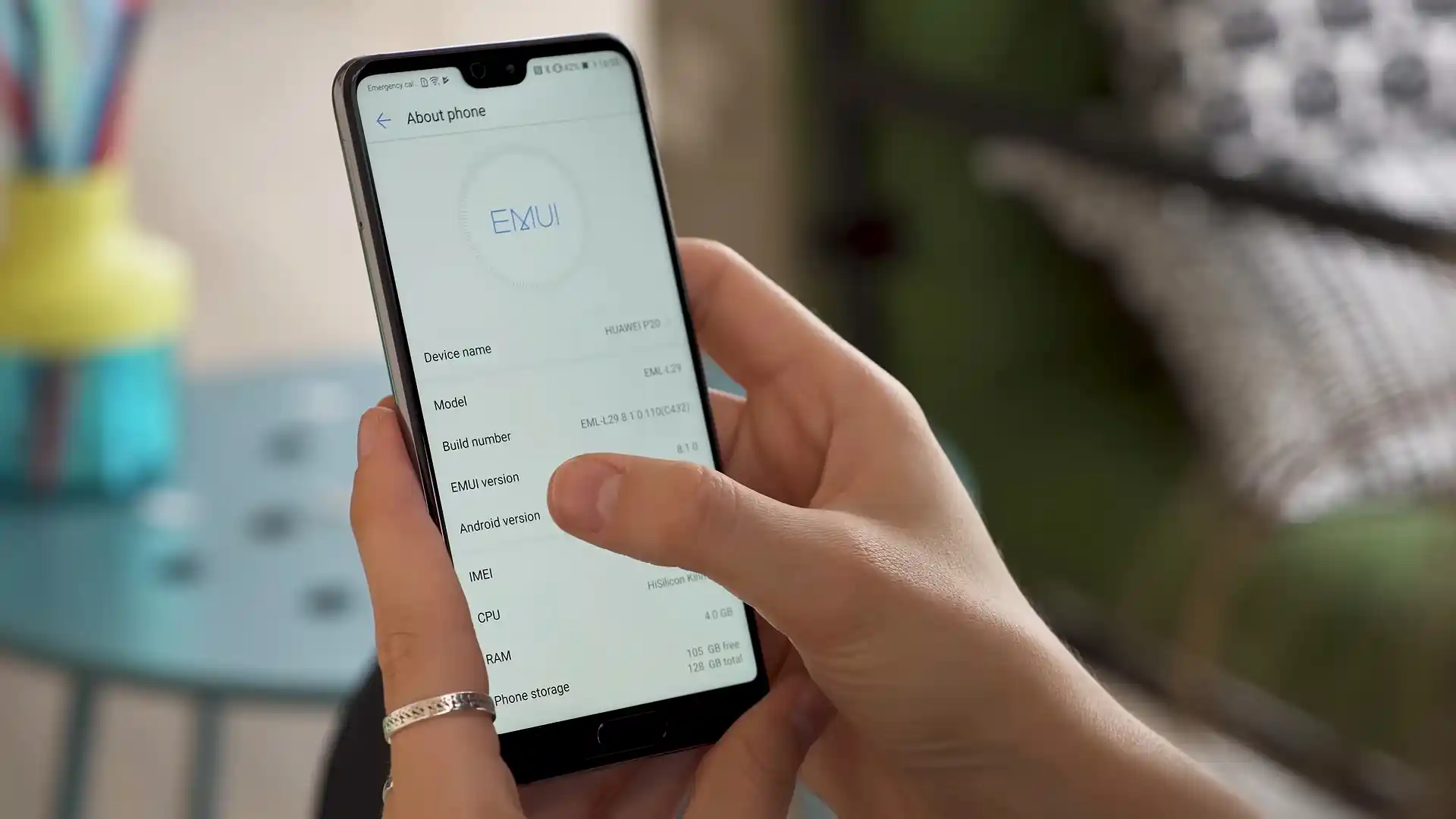
Before you flash: Flashing firmware will erase all data on your device. Back up contacts, photos, and apps before proceeding. FlashGuideHub is not responsible for any damage caused by following this guide.
About the Huawei P20
The Huawei P20 was launched in April 2018, built on the HiSilicon Kirin 970 platform. Known internally under codename Emily (EML Series), the handset combines a 5.8-inch Full HD+ notched display, up to 6 GB of RAM, and dual Leica optics with dedicated neural network hardware.
Flashing factory stock firmware resolves persistent bootloops, restores unrooted factory partition tables, and recovers devices from failed updates. Follow the verified package links and bench steps below to restore your phone safely.
Which Flash Mode Should You Use?
Huawei Dload USB Type-C OTG Method (Recommended)
Standard factory update method using the 3-button hardware combination with UPDATE.APP on a FAT32 USB Type-C flash drive.
Huawei eRecovery Wi-Fi Restore
Official network recovery environment built into EMUI to download and flash matched firmware directly over Wi-Fi.
Fastboot & Rescue Mode
Low-level PC command interface used for partition diagnostics, obtaining device build details, and emergency rescue.
What You Need Before Flashing
Verify your exact hardware model (EML-L09, EML-L29, or EML-AL00) before downloading.
A USB flash drive formatted as FAT32 with MBR layout, containing a root "dload" folder.
OTG operation consumes battery power with no charging; ensure adequate charge before starting.
Ensure a snug, stable Type-C OTG connection to avoid data dropouts during partition writing.
Stock firmware flashing wipes user data; back up personal files and accounts beforehand.
How to Flash the Huawei P20 — Quick Overview
These 5 steps are tailored to the Huawei P20 (Kirin 970). For screenshots, an interactive checklist, and troubleshooting, open the full Huawei UPDATE.APP guide.
-
Format a USB Type-C flash drive as FAT32
-
Create "dload" folder and copy UPDATE.APP
-
Connect USB OTG drive to the phone
-
Trigger 3-button installation
-
Wait for installation and first boot
Firmware Package for Kirin 970 (UPDATE.APP)
Official firmware packages for the Huawei P20 are distributed as cryptographically signed UPDATE.APP archives. These containers hold all critical partition images—including system, vendor, cust, odm, and boot—configured specifically for the 10nm HiSilicon Kirin 970 platform and UFS 2.1 flash storage.
UPDATE.APP
Official Huawei P20 firmware is delivered inside signed UPDATE.APP archives. Extract the downloaded archive and place the UPDATE.APP file inside a folder named "dload" at the root level of your USB flash drive.
Regional verification note: The Kirin 970 bootloader verifies device model and regional Cust signatures before writing partitions. Make sure to download a package matching your exact model number (EML-L29, EML-L09, or EML-AL00) and regional software branch (C432, C782, or C00).
Huawei P20 Firmware Versions
Curated stock firmware packages for the Huawei P20. Verify your exact model number and regional Cust branch before downloading.
| Version | Region | Android Version | Size | MD5 | Download |
|---|---|---|---|---|---|
10.0.0.182(C432E7BR1P3) |
Europe Open (EML-L09 Single-SIM) | Android 10 (EMUI 10.0.0) | 5.47 GB | — | ⬇️ Download |
9.1.0.311(C432E7R1P11T8) |
Europe Open (EML-L29 Dual-SIM) | Android 9.0 (EMUI 9.1.0) | 5.44 GB | — | ⬇️ Download |
10.0.0.180(C00E181R1P4) |
China All-Netcom (EML-AL00) | Android 10 (EMUI 10.0.0) | 4.71 GB | — | ⬇️ Download |
This phone family has 12 additional regional builds, carrier-customized packages, and factory board software unbrick files. Browse the complete archive on AndroidFirmwareFile.com →
Huawei P20 — Important Notes
The Huawei P20 houses a 3400 mAh internal lithium-polymer battery. Flashing via USB Type-C OTG takes between 5 and 10 minutes, during which the phone operates exclusively on battery power. Confirm that your battery has at least 50% charge before beginning the 3-button installation.
Troubleshooting Huawei P20 Flashing & Dload Update Issues
Dload Verification Rejection at 5%: "Software install failed"
Community repair discussions on XDA indicate this error happens when the package's regional Cust code does not match the device's active oeminfo branch (e.g. flashing European C432 on a UK carrier C782 or Russian C10 phone), or when attempting a direct major rollback across anti-rollback version counters. Technicians recommend verifying the exact installed build in fastboot using "fastboot oem get-build-number" before downloading.
USB Type-C OTG Not Recognized: "No update package found"
Technicians frequently observe that modern high-capacity flash drives formatted under Windows default to GPT (GUID Partition Table) or exFAT/NTFS, which the Kirin 970 bootloader cannot mount. Workshop members suggest re-partitioning the USB drive using Windows Diskpart (convert mbr and format fs=fat32 quick) and ensuring the folder name is strictly lowercase "dload".
Post-Flash Camera Black Screen or Laser Autofocus Stalling
In workshop scenarios where raw board-level flashing software or custom recovery tools were previously deployed, the sensor calibration blocks inside the odm partition may become desynchronized. Community technicians recommend performing a full official dual-stage Dload stock flash to write matching factory Leica RGB and monochrome ISP drivers.
For solving common EMUI "Software install failed" messages, USB OTG detection errors, and recovery issues: Huawei & EMUI Flashing Error Directory →
Frequently Asked Questions — Huawei P20
Turn off the Huawei P20 completely. Plug your FAT32 USB Type-C OTG flash drive containing the root "dload" folder and UPDATE.APP into the phone. Press and hold Volume Up, Volume Down, and Power simultaneously. When the device vibrates and the Huawei logo appears, keep holding all three buttons until the circular EMUI update progress screen displays.
The Kirin 970 primary bootloader only recognizes USB storage formatted with a Master Boot Record (MBR) and the FAT32 file system. Modern high-capacity USB drives prepared on Windows 10/11 frequently default to GPT partition tables or NTFS/exFAT file systems, which the bootloader cannot mount. Re-partition the USB drive using Windows Diskpart with "clean", "convert mbr", and "format fs=fat32 quick".
Power off the handset completely. Hold Volume Up and Power together until the screen turns on, then release Power and maintain pressure on Volume Up until the white EMUI eRecovery screen appears. From this menu, you can select "Clear data" followed by "Wipe cache partition" and "Factory reset" to clear corrupted cache blocks.
A dead P20 with an erased or corrupted bootloader requires hardware testpoint connection. Technicians remove the rear glass cover and short the Kirin 970 testpoint pinout to ground using tweezers while connecting the USB cable to a PC. This forces the device into HiSilicon USB COM 1.0 mode, allowing low-level Board Software (HMT) flashing via Huawei IDT to restore the bootloader.
Ready to Flash?
Follow the full step-by-step Huawei UPDATE.APP guide with interactive progress tracking, prerequisite checklist, and complete troubleshooting.