

Before you flash: Flashing firmware will erase all data on your device. Back up contacts, photos, and apps before proceeding. FlashGuideHub is not responsible for any damage caused by following this guide.
About the Motorola Moto C Plus
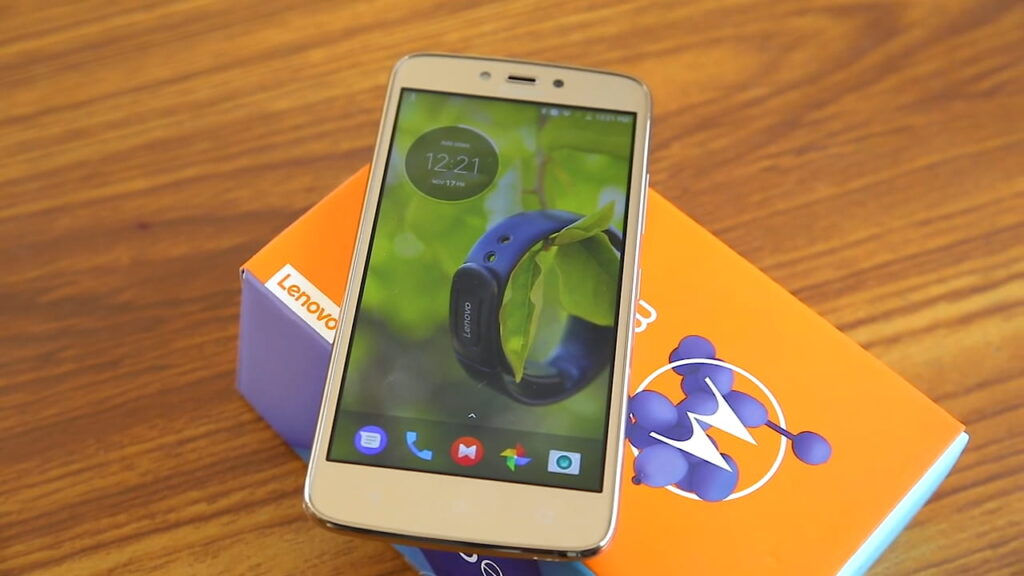
The Motorola Moto C Plus (filename codename tag: panell) is a budget Android smartphone released in May 2017, powered by the MediaTek MT6737M chipset. Motorola distributed it across five XT hardware variants, each targeting a different region.
Each XT variant carries its own radio calibration and, in several cases, its own package format — SP Flash Tool scatter packages for most builds, CFC.xml fastboot packages for others. The Prerequisites and Firmware Package sections below explain how to identify your variant and package type before you begin.
Which Flash Mode Should You Use?
SP Flash Tool (Scatter Package)
The standard method for most Moto C Plus builds. Writes every partition via MediaTek's BROM/preloader interface, which works whether or not the bootloader is unlocked. Requires the exact scatter file (MT6737_Android_scatter.txt) that shipped with your matched region's package. Erases all user data on a full Download.
Manual Fastboot (CFC.xml Packages)
Used for the RETLA/RETBR service packages (parts of XT1724, XT1725, XT1726) that ship as flashfile.xml/CFC.xml instead of a scatter package. Flashes over standard Android fastboot and requires a previously unlocked bootloader. Erases all user data.
EDL / QFIL (Not Applicable)
QFIL and Qualcomm Emergency Download mode are specific to Qualcomm Snapdragon chipsets and do not apply to the Moto C Plus, which uses a MediaTek MT6737M SoC. If SP Flash Tool cannot detect the device even in BROM mode, the device may need MediaTek-specific EDL-equivalent service tools available only to authorized repair centers — do not attempt to force a Qualcomm-oriented tool onto this device.
What You Need Before Flashing
SP Flash Tool officially runs on Windows (community Linux builds exist but are less reliable for MediaTek VCOM driver support). Install the MediaTek USB VCOM (preloader) drivers before connecting the phone.
Download the package that matches your exact XT model number and region tag. Confirm in Settings → About Phone → Model Number. A mismatched region's radio calibration can affect network registration if flashed.
Only required for the RETLA/RETBR fastboot-based CFC.xml packages. Request your device-specific unlock code at motorola.com/unlock-bootloader using your IMEI and Android ID — eligibility is not guaranteed on every regional variant. SP Flash Tool packages do not need this step.
A data-capable USB cable is essential — charge-only cables will not be recognized by SP Flash Tool or fastboot. Use the original Motorola cable where possible, and connect directly to a USB 2.0 port rather than a hub.
A flash takes several minutes and writes the preloader/bootloader early in the sequence. The Moto C Plus's 4000mAh battery is removable, which gives you a safe hard-reset option mid-process if needed, but a power interruption during the early partitions can still cause a brick — charge to at least 30% first.
A full SP Flash Tool Download and the fastboot-based CFC.xml flow both wipe user data. Back up photos to Google Photos, contacts to Google Contacts, and any local files to a PC before beginning.
How to Flash the Motorola Moto C Plus — Quick Overview
7-step quick reference for the Motorola Moto C Plus. Need visuals or troubleshooting help? The full SP Flash Tool guide covers everything in detail.
-
Identify your exact XT variant and package format
-
Install SP Flash Tool and the MediaTek USB VCOM drivers
-
Download the firmware package matching your XT + region
-
Load the scatter file and flash with SP Flash Tool
-
Wait for the green checkmark, then boot
-
For CFC.xml/flashfile packages, use fastboot instead (requires unlocked bootloader)
-
Confirm IMEI/network on first boot
Finding the Firmware Package for MT6737M
The Moto C Plus firmware is distributed by Motorola as either an SP Flash Tool package (a ZIP/RAR containing MT6737_Android_scatter.txt plus individual partition images) or, for several RETLA/RETBR builds, a CFC.xml service package that flashes over standard fastboot instead. After extracting the archive, check which kind you have:
MT6737_Android_scatter.txt
SP Flash Tool packages contain MT6737_Android_scatter.txt at the top level of the extracted folder, alongside individual partition images (boot.img, system.img, etc.). CFC.xml packages instead contain a flashfile.xml or CFC.xml plus a servicefile.xml and partition images, flashed via fastboot rather than SP Flash Tool. Fully extract the archive to a folder on your PC before doing anything else — do not point either tool at a compressed archive.
The Moto C Plus (filename codename tag: panell) has five XT hardware variants, each tied to a region: XT1721 (APAC — India, Indonesia, and nearby markets), XT1723 (EMEA — Europe/Middle East/Africa, in both dual-SIM and single-SIM configurations), XT1724 (RETLA — Latin America retail, dual-SIM), XT1725 (RETLA — Latin America retail, single-SIM), and XT1726 (RETLA/RETBR — Brazil-focused, with a built-in DVB-T2 TV tuner). Always match both the XT number and the region tag in the filename — XT1723 alone ships in both dual-SIM and single-SIM builds for the same EMEA region with different partition layouts.
Two files in the download table ("Motorola_CPLUS_1+16_NRD90M.07.18_ROW") do not carry an XT number in their filename or metadata and could not be confirmed against a specific model — they are flagged unconfirmed in the table rather than assumed to fit any one variant.
Most Moto C Plus builds use SP Flash Tool, which writes over MediaTek's BROM/preloader interface and works even on a locked bootloader. The RETLA/RETBR CFC.xml packages (parts of XT1724, XT1725, and XT1726) instead use standard Android fastboot, which does require bootloader unlock — check which kind of package you downloaded before choosing a method below.
Note: the base Moto C (non-Plus) is a smaller, separate device with its own model numbers and specifications. Even though one Moto C Plus file above is misleadingly named "Motorola_Moto_C_XT1726" rather than "Moto_C_Plus", XT1726 is confirmed as a Moto C Plus model number — never assume a filename's product-name text over the model number itself.
Motorola Moto C Plus Firmware Versions
A representative build for each confirmed XT variant of the Motorola Moto C Plus. Always verify the region matches your device before flashing.
| Version | Region | Android Version | Size | MD5 | Download |
|---|---|---|---|---|---|
V1.0B22 |
XT1721 — APAC generic, Dual SIM | Android 7.0 | 1.2 GB | — | ⬇️ Download |
V1.0B27 |
XT1723 — EMEA, Single SIM | Android 7.0 | 1.2 GB | — | ⬇️ Download |
NRD90M.04.030 |
XT1724 — RETLA (Latin America retail), Dual SIM, subsidy-UNLOCKED | Android 7.0 | 1.2 GB | — | ⬇️ Download |
NRD90M.05.030 |
XT1725 — RETLA (Latin America retail), Single SIM, subsidy-UNLOCKED | Android 7.0 | 1.2 GB | — | ⬇️ Download |
NRD90M.06.046 |
XT1726 — RETBR (Retail Brazil), Dual SIM + TV tuner, subsidy-UNLOCKED | Android 7.0 | 1.24 GB | — | ⬇️ Download |
This device has 14 known files across five confirmed XT variants (plus two unconfirmed-model files). See the complete archive on AndroidFirmwareFile.com →
Motorola Moto C Plus — Important Notes
The Moto C Plus's official software stayed on Android 7.0 Nougat for its full lifecycle — no official OTA to a later major Android version was released. All builds in the table above are Android 7.0; anything newer requires a custom ROM.
The removable 4000mAh battery is a real advantage during flashing: if a write is interrupted or the phone becomes unresponsive mid-flash, the battery can be pulled and reinserted to force a hard reset without needing to hold a button combo for an extended period — a option Qualcomm Motorola devices with sealed batteries don't have. SP Flash Tool still writes the preloader/bootloader partitions early in the sequence, so keep the USB cable connected throughout a flash regardless.
Common Errors on the Motorola Moto C Plus
SP Flash Tool: "BROM ERROR : S_FT_ENABLE_DRAM_FAIL" or download stalls at 0%
Almost always a driver or cable issue on MediaTek devices. Confirm the MediaTek USB VCOM (preloader) driver is installed and shows correctly in Device Manager during the brief moment the phone connects (it appears for under a second in COM-port mode before switching to BROM). Use a data-capable USB cable and a USB 2.0 port directly on the motherboard, not a hub. Disable USB 3.0 "superspeed" hubs and unrelated MTK-based device drivers that can conflict.
SP Flash Tool does not detect the device / stays on "S_DOWNLOAD_INIT_FAIL"
Make sure the phone is fully powered off before connecting (not just screen-off), then hold Volume Down while plugging in the USB cable so SP Flash Tool catches it in BROM mode. If the tool still doesn't detect it, remove the battery for 30 seconds (the Moto C Plus battery is removable), reinsert, and retry with Download mode already armed in SP Flash Tool before connecting.
FAILED (remote: 'Bootloader is not unlocked') — fastboot/CFC.xml packages only
This only applies to the CFC.xml/flashfile-based RETLA/RETBR packages (XT1724/XT1725/XT1726), which use standard fastboot and require an unlocked bootloader. Request your device-specific unlock code at motorola.com/unlock-bootloader using your IMEI and Android ID, boot to fastboot mode, and run fastboot oem unlock UNLOCK_CODE. This wipes all data. SP Flash Tool packages do not have this requirement.
Preloader/scatter mismatch — SP Flash Tool refuses to load the scatter file or partitions look wrong
The scatter file is tied to a specific XT variant's partition table. Confirm the scatter file came from the same archive as the ROM images you're about to select, and that the archive matches your exact XT number and region from the table below — do not mix a scatter file from one Moto C Plus build with ROM images from another.
No signal / wrong IMEI after flashing
Usually caused by flashing a region-mismatched build within the same or a different XT number — each region carries its own radio calibration. Re-flash using the exact package matching your XT number and region from the firmware table below. A full SP Flash Tool "Download" (all partitions checked, not "Firmware Upgrade" which preserves some partitions) with the correctly matched package typically restores network function.
Device stuck on Motorola boot logo after flashing
A failed or interrupted SP Flash Tool write leaves one or more partitions inconsistent. Power off (hold Power for 10+ seconds, or pull the removable battery for 10 seconds), then re-run the full SP Flash Tool "Download" from scratch with the same scatter file and ROM images — do not switch to "Firmware Upgrade" mode to try to save time on a device that failed a full download.
For the full SP Flash Tool error database: SP Flash Tool Error Directory →
Frequently Asked Questions — Motorola Moto C Plus
Go to Settings → About Phone → Model Number for the definitive XT number, also printed on the back label under the removable battery. XT1721 is the APAC build (India/Indonesia and nearby markets); XT1723 covers EMEA (Europe/Middle East/Africa) in both dual-SIM and single-SIM configurations; XT1724 and XT1725 are Latin America retail (RETLA) dual-SIM and single-SIM respectively; XT1726 is the Latin America (Brazil-focused) build with a built-in DVB-T2 TV tuner ("DT"/"DSTV" in the filename). Each region carries its own radio calibration — flashing a mismatched region's firmware can affect network registration.
Not necessarily. SP Flash Tool writes over MediaTek's BROM/preloader interface, which works regardless of bootloader lock state — this is the main reason SP Flash Tool, not fastboot, is the recommended default method for this device. Bootloader unlock is only required for the CFC.xml/flashfile-style packages that flash over standard fastboot (used for some XT1724/XT1725/XT1726 RETLA/RETBR builds), and for installing a custom recovery or ROM.
Motorola's official software for the Moto C Plus stayed on Android 7.0 Nougat; no official OTA to a later major version was released for this device. All builds in the firmware table below are Android 7.0. Anything newer requires a custom ROM, which is outside the scope of this stock-firmware guide.
XT1726 is the Moto C Plus HDTV variant sold primarily in Brazil, with a built-in DVB-T2 digital TV tuner. "DT" and "DSTV" in the filename both refer to this TV-tuner hardware configuration. Flashing a non-TV XT1726 build (if one existed) onto TV hardware, or vice versa, risks leaving the tuner partition/driver mismatched — always keep XT1726 flashes on XT1726-labeled packages.
Those two files (one .rar, one .zip, different sizes and no shared checksum) do not specify an exact XT model number in their filename or metadata, and we could not confirm one from public sources. Treat them as unconfirmed-model until you can verify compatibility against your specific device's model number — when in doubt, use one of the XT-number-labeled builds below instead.
Ready to Flash?
Follow the full step-by-step SP Flash Tool guide with interactive progress tracking, prerequisite checklist, and complete troubleshooting.