

Before you flash: Flashing firmware will erase all data on your device. Back up contacts, photos, and apps before proceeding. FlashGuideHub is not responsible for any damage caused by following this guide.
About the OPPO R9s
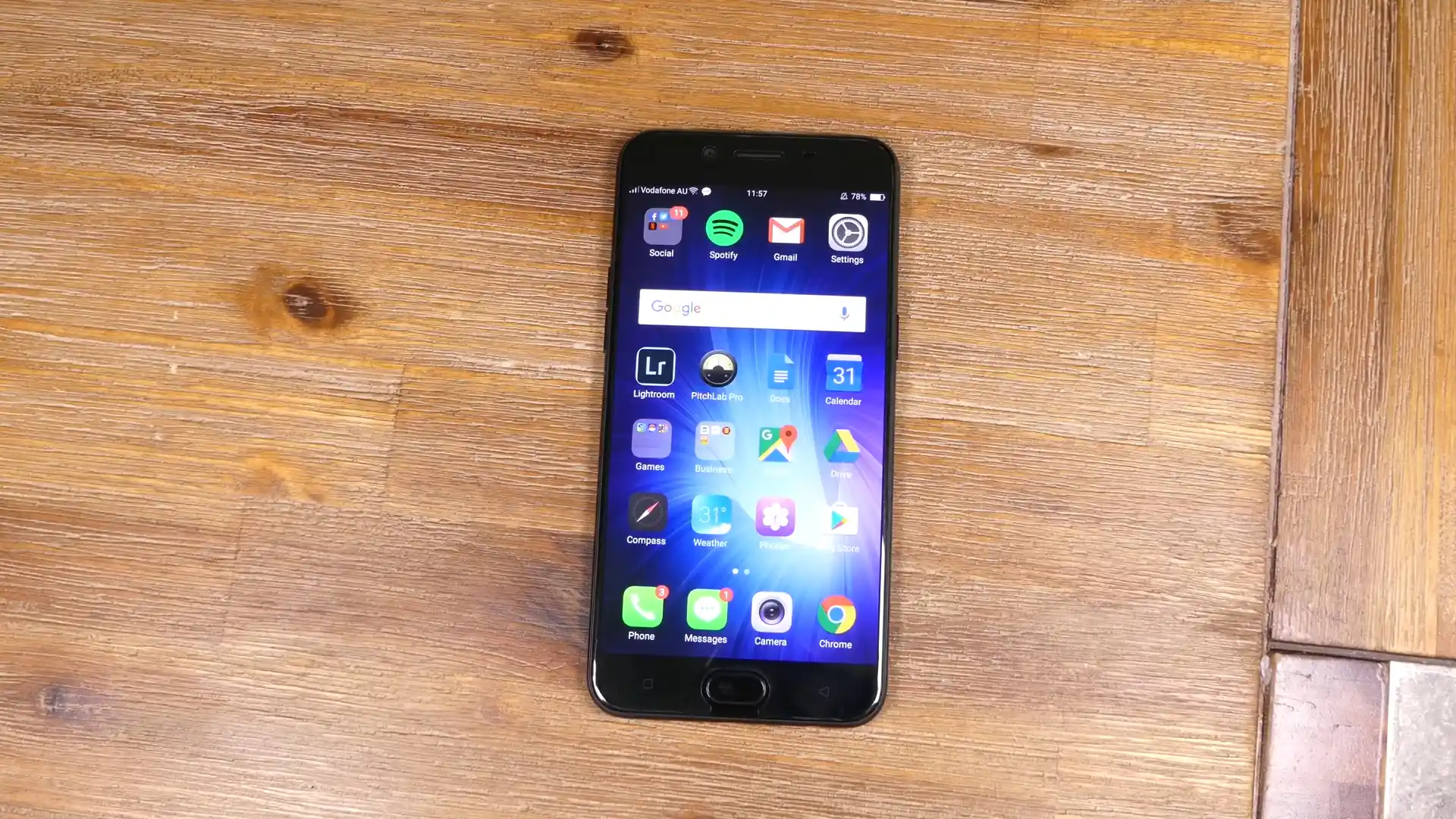
The OPPO R9s was released in October 2016, equipped with the Qualcomm Qualcomm Snapdragon 625 MSM8953 (14nm) octa-core processor and a 5.5-inch AMOLED display. Built on a 14nm FinFET process with 4 GB of RAM, 64 GB of eMMC 5.1 internal storage, and a 16 MP Sony IMX398 rear sensor, the device runs ColorOS 3.0 on Android 6.0.1 Marshmallow.
This practical guide covers flashing official factory stock firmware onto the OPPO R9s using the MSM Download Tool and Qualcomm Flash Image Loader (QFIL). Follow the steps below to configure your USB drivers, connect via Qualcomm Emergency Download (EDL 9008) mode, and restore your device from boot loops or corrupted system partitions.
Which Flash Mode Should You Use?
Qualcomm Emergency Download (EDL 9008)
Low-level BootROM recovery interface used for full partition restoration and unbricking via MSM Download Tool or QFIL.
ColorOS Stock Recovery Mode
On-device recovery environment used for installing official OTA update packages directly from an SD card or internal storage.
Essential Equipment & Qualcomm Driver Checklist
Ensure the internal 3010 mAh battery has sufficient charge to prevent sudden power loss during partition writing.
Use a stable 64-bit Windows PC with certified Qualcomm HS-USB QDLoader 9008 drivers installed.
Connect a reliable microUSB cable to a rear motherboard USB 2.0 port to prevent communication dropouts.
Extract compressed firmware archives using 7-Zip to a short directory path without spaces or special characters.
Full partition flashing completely erases internal storage. Back up critical files if the device is operational.
5-Step OPPO R9s MSM Download Tool Walkthrough
A condensed step-by-step summary specific to the OPPO R9s. Follow the full MSM Download Tool guide for screenshots, an interactive progress checklist, and complete troubleshooting.
-
Download matched CPH1607_EX_11_A.35_190613 firmware package
-
Install Qualcomm HS-USB QDLoader 9008 drivers on Windows
-
Launch MsmDownloadTool as administrator or load Firehose in QFIL
-
Power off and hold Volume Up plus Volume Down to enter EDL 9008
-
Click Start in MSM Download Tool and verify write completion
Qualcomm Firehose & Partition Map Details
Official factory firmware archives for the OPPO R9s unpack to Qualcomm partition binaries paired with prog_emmc_firehose_8953.mbn and rawprogram0.xml mapping descriptors.
prog_emmc_firehose_8953.mbn / rawprogram0.xml
<p>Qualcomm devices do not use MediaTek scatter files. Instead, partition layouts are mapped via XML instruction sheets. The primary loader <code>prog_emmc_firehose_8953.mbn</code> initializes eMMC communication, while <code>rawprogram0.xml</code> assigns sector offsets for system, boot, recovery, and modem images, followed by boundary verification via <code>patch0.xml</code>.</p>
Always verify your model variant before writing partitions. International CPH1607 builds differ from Chinese domestic packages (R9sk, R9st, R9skt). Never format NVRAM or persist partitions.
Tested Stock Firmware Downloads for OPPO R9s
Here are verified stock firmware packages for the OPPO R9s family. Select the build corresponding to your model variant below.
| Version | Region | Android Version | Size | MD5 | Download |
|---|---|---|---|---|---|
CPH1607_EX_11_A.35_190613 |
Global / International (EX) | Android 6.0.1 (ColorOS 3.0) | 1.45 GB | — | ⬇️ Download |
11_A.18_170112 |
China / All-Netcom Edition | Android 6.0.1 (ColorOS 3.0) | 1.53 GB | 8171554911a97008e410b385667fc9f2 |
⬇️ Download |
11_A.04_170414 |
China / China Mobile Edition | Android 6.0.1 (ColorOS 3.0) | 1.50 GB | c45a11ddd8b9ca6efa057efe4caea1e2 |
⬇️ Download |
Need additional regional builds, OTA archives, or board pinout information? Browse the full OPPO R9s archive on AndroidFirmwareFile
MSM8953 Architecture & EDL Protocol Notes
The international OPPO R9s (CPH1607) relies on Qualcomm Emergency Download (EDL) mode for low-level recovery and partition programming. When flashing packages like R9s_cph1607_11_A.35_190613.7z, the MSM Download Tool or QFIL negotiates directly with the Snapdragon 625 BootROM using the Firehose protocol.
Ensure your computer recognizes the handset as Qualcomm HS-USB QDLoader 9008 under Ports (COM & LPT) in Windows Device Manager before starting the transfer. Avoid interrupting the microUSB connection while partitions are being written to prevent eMMC corruption.
Troubleshooting OPPO R9s Qualcomm EDL & MSM Flashing Issues
MSM Download Tool: "Please get authorization from server" or Account Login prompt
Older OPPO MSM packages rely on a local license enabler utility or patch. If the tool demands an authorized account login, ensure you run the bundled enabler tool as administrator prior to launching MsmDownloadTool.exe. Alternatively, use Qualcomm QFIL or QPST in Flat Build mode by loading prog_emmc_firehose_8953.mbn, rawprogram0.xml, and patch0.xml directly.
Qualcomm EDL: Sahara Fail / Port Open Read Timeout (COM Port Dropout)
The initial Sahara handshake between the PC and the Snapdragon 625 BootROM timed out or dropped connection. Disconnect the USB cable, hold Power and Volume Up for 15 seconds to fully reset the board, and reconnect using a short USB cable plugged into a rear motherboard USB 2.0 port rather than a front-panel hub.
MSM / QFIL: Device stuck at "FireHose Communication Failed" / eMMC ACK Timeout
This occurs when the firehose programmer fails to negotiate read/write commands with the eMMC 5.1 storage controller. Common causes include insufficient battery voltage (below 3.6V) or damaged storage sectors. Charge the device for at least 30 minutes using a dedicated wall adapter before attempting the EDL flash again.
Encountering issues during the flashing process? Check common Qualcomm EDL errors and solutions below. Troubleshooting & Error Directory →
OPPO R9s Flashing & Unbrick Workshop FAQ
A QUSB_BULK label indicates that the device has entered Emergency Download mode, but Windows lacks the required signed driver to establish a virtual COM port. To resolve this, download and run the official Qualcomm HS-USB QDLoader 9008 driver installer. If prompted, restart your computer so Windows can map the hardware ID (VID 05C6 / PID 9008) to a proper communication port.
No. Qualcomm EDL 9008 functions at the BootROM level before the secondary bootloader (aboot) initializes. Because official OPPO MSM firmware packages contain cryptographically signed programmer files (prog_emmc_firehose_8953.mbn) verified by the hardware root-of-trust, you can restore bricked handsets without unlocking the bootloader.
When the phone is trapped in Qualcomm 9008 mode, the display remains entirely black without backlighting or vibration feedback. To force a hard reset and exit EDL, disconnect the USB cable, press and hold the Volume Up and Power buttons simultaneously for 15 to 20 seconds until the phone vibrates and reboots into normal mode.
The modemst1, modemst2, and fsg partitions contain device-unique baseband parameters, NVRAM calibrations, and IMEI records. Similarly, the persist partition stores factory calibration tables for the Sony IMX398 Dual Pixel camera sensor. Wiping these partitions erases permanent RF and camera baselines, resulting in invalid IMEI errors or camera autofocus failure.
Ready to Flash?
Follow the full step-by-step MSM Download Tool guide with interactive progress tracking, prerequisite checklist, and complete troubleshooting.