

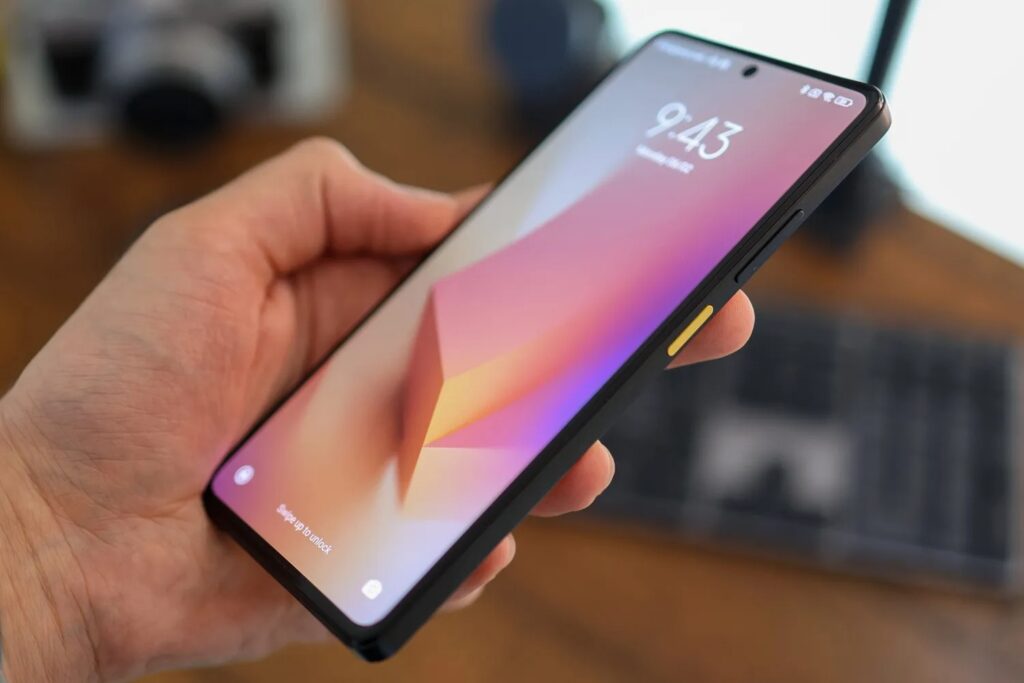
Before you flash: Flashing firmware will erase all data on your device. Back up contacts, photos, and apps before proceeding. FlashGuideHub is not responsible for any damage caused by following this guide.
About the Redmi Note 12 Pro Speed / POCO X5 Pro 5G
The Redmi Note 12 Pro Speed / POCO X5 Pro 5G (codename: redwood) is one piece of hardware sold under two brand names: Redmi Note 12 Pro Speed in China starting December 2022 (Redmi Note 12 Pro Speed, China) / February 2023 (POCO X5 Pro 5G, Global), and POCO X5 Pro 5G internationally soon after. Both run the Qualcomm SM7325 Snapdragon 778G 5G (6nm) and use the same firmware tree from Xiaomi.
Since the two brand names share one firmware tree, a package built for either name flashes onto the other without issue. What actually matters when picking a download is the regional suffix, not the name printed on the retail box.
Which Flash Mode Should You Use?
Mi Flash Tool (Fastboot ROM)
The standard way to reflash redwood. Mi Flash Tool runs the flash_all script bundled inside Xiaomi's official regional package, writing the bootloader, modem, system, and vendor partitions in a single pass. It needs an unlocked bootloader and wipes user data as part of the process.
Manual ADB / Fastboot Commands
Runs individual fastboot flash commands through Platform Tools instead of Mi Flash Tool's interface. This is the route to reach for when only one partition needs replacing, such as a modem image after a bad regional swap, since a full manual reflash puts the burden of getting partition order right on you.
EDL / QFIL (Emergency)
The Snapdragon 778G supports Qualcomm Emergency Download mode at the chip level, which becomes relevant once redwood stops responding in Fastboot entirely. Xiaomi has not released the signed programmer file this specific chipset needs for QFIL, so in practice this path is limited to authorised repair centres rather than a self-service fix.
What You Need Before Flashing
Mi Flash Tool only has a Windows build. Grab it and the Xiaomi USB driver package from Xiaomi's developer site before you connect the phone.
Enable OEM Unlocking in Developer Options, bind a Mi Account, then run Mi Unlock Tool from a PC once Xiaomi approves the request. The unlock itself wipes the phone.
Check Settings → About Phone for your build string and match the suffix — UMSMIXM for Global, UMSEUXM for EEA, UMSINXM for India, and so on.
Fastboot needs a genuine data connection, not just power. Use the cable that came in the box or a confirmed data-rated USB-C cable, plugged straight into a PC port rather than a hub.
A shutdown while the modem or boot partition is mid-write can leave redwood unable to reach Fastboot afterward. Charge to at least 60% and don't unplug during the flash.
The bootloader unlock and the fastboot flash both wipe internal storage separately. Move everything important to cloud storage or a PC first.
How to Flash the Redmi Note 12 Pro Speed / POCO X5 Pro 5G — Quick Overview
A condensed step-by-step summary specific to the Redmi Note 12 Pro Speed / POCO X5 Pro 5G. Follow the full Mi Flash Tool guide for screenshots, an interactive progress checklist, and complete troubleshooting.
-
Check that fastboot reports redwood before downloading anything
-
Unlock the bootloader through Mi Unlock Tool
-
Read your build string and pick the matching regional HyperOS package
-
Install Xiaomi/Qualcomm USB drivers and open Mi Flash Tool
-
Extract the .tgz fully and point Mi Flash Tool at the top-level folder
-
Run the flash and leave the cable untouched until it finishes
-
Let first boot finish, then confirm signal, NFC, and refresh rate
Finding the Firmware Package for SM7325
Xiaomi distributes redwood firmware as one regional fastboot archive (.tgz) per branch. After it is fully extracted, the folder Mi Flash Tool needs holds a flashing script sitting alongside the partition images:
flash_all.bat
This script sits inside the extracted fastboot ROM. Once the .tgz is fully decompressed, look for flash_all.bat (Windows) or flash_all.sh (Linux/Mac) at the top level, next to an images folder holding the individual partition files. Extract the whole archive to a folder on your PC first — Mi Flash Tool will not run correctly from inside the compressed .tgz.
redwood currently has eight known regional branches: UMSMIXM (Global), UMSEUXM (EEA), UMSINXM (India), UMSRUXM (Russia), UMSIDXM (Indonesia), UMSTRXM (Turkey), UMSTWXM (Taiwan), and UMSCNXM (China, sold as the Redmi Note 12 Pro Speed). All eight run on identical hardware and share one partition layout; what differs is default region settings, preinstalled apps, and on some China units, the physical absence of an NFC antenna.
Inside the extracted .tgz, flash_all.bat sits at the top level for Windows, with flash_all.sh alongside it for Linux and Mac, next to an images folder containing the individual partition files. Point Mi Flash Tool's Select field at that top-level folder rather than the images subfolder before clicking Flash.
Since the Redmi Note 12 Pro Speed and POCO X5 Pro 5G are the same redwood hardware sold under two names, a fastboot ROM built for either brand is safe on both, as long as the regional suffix is the one you actually want running on the phone.
Redmi Note 12 Pro Speed / POCO X5 Pro 5G Firmware Versions
Known stock HyperOS 2 fastboot ROM releases for the Redmi Note 12 Pro Speed / POCO X5 Pro 5G. Double-check the regional suffix against your device before flashing any of these.
| Version | Region | Android Version | Size | MD5 | Download |
|---|---|---|---|---|---|
OS2.0.12.0.UMSMIXM |
Global (MI) u2014 HyperOS 2 (Android 14) | — | 6.97 GB | — | ⬇️ Download |
OS2.0.12.0.UMSEUXM |
EEA (Europe) u2014 HyperOS 2 (Android 14) | — | 6.47 GB | — | ⬇️ Download |
OS2.0.13.0.UMSINXM |
India (IN) u2014 HyperOS 2 (Android 14) | — | 6.16 GB | — | ⬇️ Download |
More regional builds and recoveries for redwood → View the source listing on AndroidFirmwareFile.com →
Redmi Note 12 Pro Speed / POCO X5 Pro 5G — Important Notes
redwood is a single hardware platform released under two brand names: Redmi Note 12 Pro Speed in China and POCO X5 Pro 5G in most other markets. The two share an identical chipset, partition table, and firmware tree, so a ROM built for one name installs cleanly on the other.
Because redwood runs on a Qualcomm chipset, a hardware-level EDL/9008 recovery path technically exists through QFIL, but Xiaomi has not published the signed programmer file this platform needs for that route. For almost everyone, Mi Flash Tool with a properly unlocked bootloader is the only self-service way to reflash the phone, and a unit stuck in EDL with no other recovery path usually needs an authorised repair centre.
Common Errors on the Redmi Note 12 Pro Speed / POCO X5 Pro 5G
Mi Flash Tool shows an empty device list while redwood sits in Fastboot
Open Device Manager on the PC while the phone is connected in Fastboot mode. If it appears under "Other devices" instead of as an Android Bootloader Interface, the Qualcomm/Xiaomi USB driver did not install correctly. Reinstall the driver package from Xiaomi's developer site, swap to a cable known to carry data (not a charge-only cable), and use a port on the back of a desktop rather than a front-panel header.
FAILED (remote: 'Command not allowed')
redwood's bootloader is still locked and is refusing the partition write Mi Flash Tool is attempting. Go to Developer Options and check for a "Bootloader unlocked" line rather than trusting that Mi Unlock Tool completed — if the Mi Account bind approval has not cleared, the unlock tool still shows a waiting countdown and nothing has actually unlocked yet.
Sahara Fail S9
Mi Flash Tool loses its Sahara-protocol handshake with the Snapdragon 778G partway through the flash, almost always from a .tgz that did not extract completely or a download that got cut short. Delete the extracted folder, redownload the .tgz for your exact UMSxxXM suffix, extract fresh to a short path such as C:\redwood_rom, and confirm the cable is fully seated before retrying.
NFC toggle missing after flashing the UMSCNXM China build
Many China-market Redmi Note 12 Pro Speed units ship without an NFC antenna installed at all, so the UMSCNXM package will not add NFC back on hardware that never had it. If your specific unit does have the antenna, reflash a Global (UMSMIXM), EEA (UMSEUXM), or India (UMSINXM) build instead, since those regions consistently expose the NFC toggle in Settings.
Phone loops on the redwood boot logo after a flash session
A boot loop right after flashing almost always means the write was interrupted before every partition finished, often from a cable that moved or a PC that went to sleep. Hold Volume Down + Power for roughly 10 seconds to force the phone back into Fastboot mode, reopen Mi Flash Tool, reselect the same extracted ROM folder, and run a full flash rather than trying to resume midway.
For the full firmware error database: Fastboot Error Directory →
Frequently Asked Questions — Redmi Note 12 Pro Speed / POCO X5 Pro 5G
Yes, because both phones share the redwood codename, chipset, and partition table. A regional package released under either brand name will flash and boot correctly on both. What changes between the brand names is mostly default region, preloaded apps, and in some China units, missing NFC hardware — not the underlying firmware.
Yes, twice over. Binding a Mi Account to unlock the bootloader wipes the phone the moment Xiaomi approves the request, and the fastboot flash through Mi Flash Tool formats user data again while writing partitions, especially with "clean all" selected. Copy anything important to cloud storage or a PC before starting either step.
Community reports on redwood and similar Redmi Note 12-series hardware suggest later HyperOS 2 builds do reduce idle CPU wake-ups and adjust thermal ceilings, which often shows up as better standby time and a cooler back panel. It is not guaranteed for every unit, but a clean flash of the newest build for your region is a reasonable first troubleshooting step before assuming a hardware fault.
It usually boots, since all regions share the same redwood hardware, but you inherit the Global build's modem tuning and regulatory flags instead of the ones your unit shipped with. That can show up as weaker signal on certain bands or OTA updates that stop applying cleanly. Sticking to the region that matches your retail unit avoids both problems.
Ready to Flash?
Follow the full step-by-step Mi Flash Tool guide with interactive progress tracking, prerequisite checklist, and complete troubleshooting.