

Before you flash: Flashing firmware will erase all data on your device. Back up contacts, photos, and apps before proceeding. FlashGuideHub is not responsible for any damage caused by following this guide.
About the Xiaomi Mi 11 Lite 5G
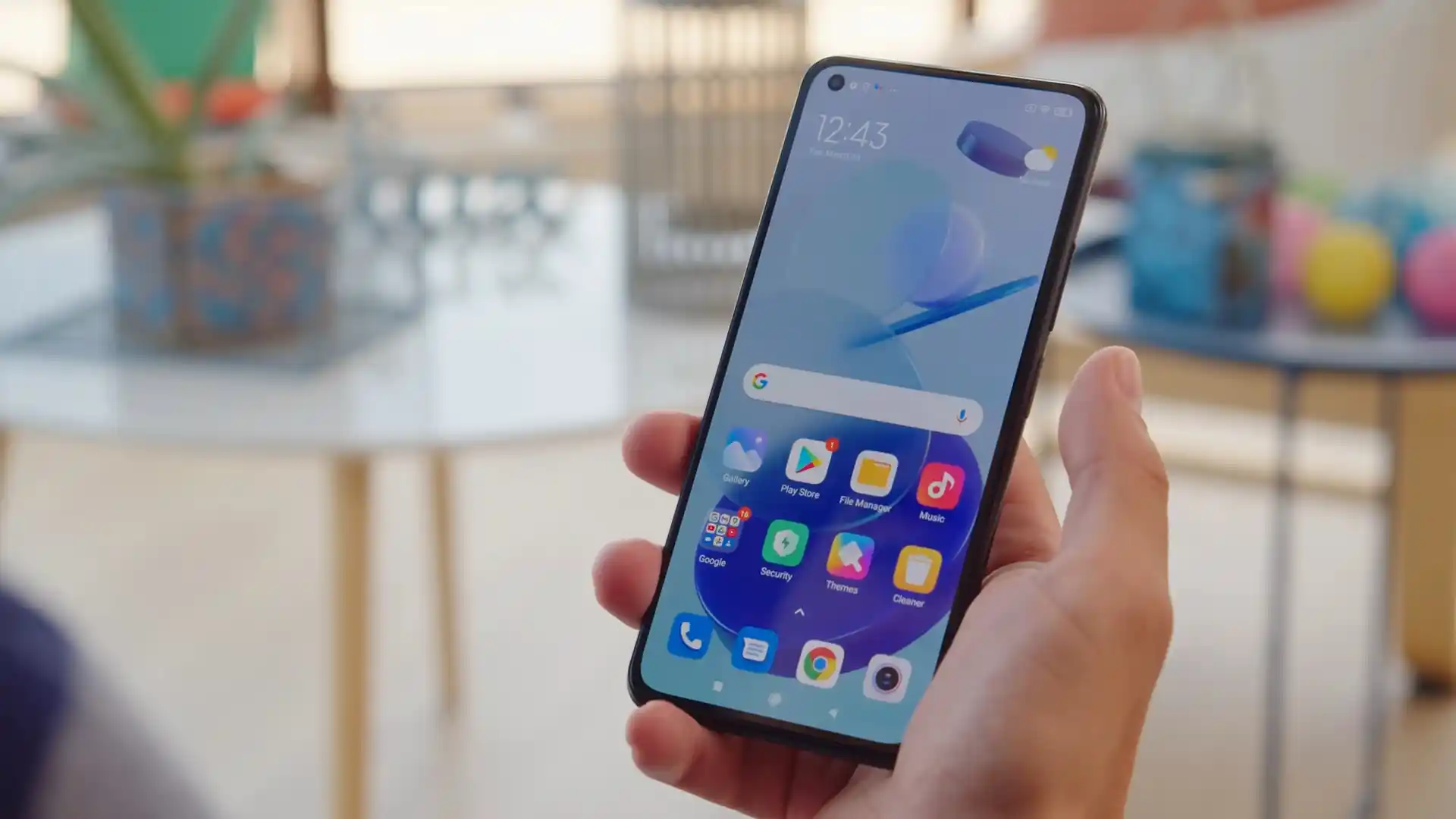
The Xiaomi Mi 11 Lite 5G (hardware codename renoir, model numbers M2101K9G, M2101K9C, M2101K9R) was launched in April 2021, built on the Qualcomm Snapdragon 780G 5G (SM7350-AB, 5nm) processor. Designed with an ultra-thin 6.81mm profile, this platform incorporates an Adreno 642 GPU, a 6.55-inch 90Hz AMOLED display, 33W wired charging, and a 64MP triple camera array.
This walkthrough provides step-by-step instructions for flashing official stock Fastboot firmware and Recovery packages on the Xiaomi Mi 11 Lite 5G. Whether you are unbricking a phone stuck in a bootloop, resolving system glitches after an update, or restoring clean factory MIUI software, follow these verified instructions to restore your device safely.
Which Flash Mode Should You Use?
Xiaomi Mi Flash Tool (Fastboot)
Official flashing utility for unlocked Xiaomi handsets. Writes partition images directly to storage over Fastboot mode.
Stock Recovery / Local Update
Official on-device recovery update method for installing signed Recovery ZIP packages without wiping personal data.
Custom Recovery (TWRP / OrangeFox)
Custom recovery environment for installing flashable ZIP packages, custom ROMs like Xiaomi.eu, or full system backups.
Qualcomm EDL 9008 Mode
Low-level hardware recovery mode for completely bricked devices unable to boot into Fastboot or recovery.
Pre-Flash Hardware Setup & Driver Verification for renoir
A 64-bit Windows 10/11 computer with official Qualcomm USB drivers and current Android SDK Platform Tools.
An officially unlocked bootloader via the Xiaomi Mi Unlock desktop utility is required for Fastboot flashing.
Ensure the 4250 mAh battery retains at least 50% charge to prevent shutdowns during 5GB+ super partition writes.
Use an authentic data sync cable connected directly to a rear motherboard USB 2.0 port to prevent communication drops.
5-Step Mi Flash & Fastboot Walkthrough for Mi 11 Lite 5G
These 5 steps are tailored to the Xiaomi Mi 11 Lite 5G (Snapdragon 780G). For screenshots, an interactive checklist, and troubleshooting, open the full Mi Flash Tool guide.
-
Download and decompress renoir_eea_global_images_V14.0.9.0.TKIEUXM_20231208.0000.00_13.0_eea_31a263a82e.tgz with 7-Zip to C:\renoir_fw
-
Power off handset, hold Volume Down + Power for 8 seconds until FASTBOOT appears on screen
-
Connect via authentic USB Type-C cable to PC and confirm connection using "fastboot devices" in command prompt
-
Open Mi Flash Tool, select the extracted folder, and strictly select the "clean all" radio button
-
Click Flash to write super partition images to UFS 2.2 storage and allow 5 to 8 minutes for reboot
Fastboot Flashing Scripts & Mode Selection
Official Fastboot firmware packages for the Xiaomi Mi 11 Lite 5G contain raw partition images and automated flasher batch scripts tailored for Snapdragon 780G storage: flash_all.bat (clean flash), flash_all_except_storage.bat (preserve user data), and flash_all_lock.bat (clean flash and relock bootloader). For general unbricking and restoring stock MIUI 14, selecting flash_all.bat writes images cleanly across dynamic super partitions.
flash_all.bat
Official Fastboot packages for the Xiaomi Mi 11 Lite 5G contain batch flasher scripts for distinct repair requirements. Understanding their behavior helps you choose the correct option in Mi Flash Tool.
Flashing Safety Rule: Always confirm that "clean all" (flash_all.bat) is selected in Mi Flash Tool before flashing. Because the Mi 11 Lite 5G features multiple regional SKUs (Global M2101K9G, China M2101K9C, Japan M2101K9R), never select "clean all and lock" when installing cross-region or modified firmware, as relocking foreign signatures triggers an immediate hard brick.
Xiaomi Mi 11 Lite 5G Firmware Versions
Below are tested factory Fastboot, official Recovery update, and Xiaomi.eu custom ROM packages for the Xiaomi Mi 11 Lite 5G. For older MIUI releases and additional regional archives, browse the master archive.
| Version | Region | Android Version | Size | MD5 | Download |
|---|---|---|---|---|---|
V14.0.9.0.TKIEUXM (EEA Fastboot) |
EEA (Europe) — M2101K9G | Android 13.0 | 6.2 GB | 31a263a82ebec152bd8c425ba20b9cda |
⬇️ Download |
V14.0.9.0.TKIEUXM (Stock Recovery) |
EEA (Europe) — M2101K9G | Android 13.0 | 4.7 GB | 59de628db60fe3ed3d1f69924c9d9cc6 |
⬇️ Download |
V14.0.7.0.TKIMIXM (Global Fastboot) |
Global — M2101K9G | Android 13.0 | 6.3 GB | e21e2a7d857b7cbf294da846089ce577 |
⬇️ Download |
V14.0.16.0.TKICNXM (China Fastboot) |
China — M2101K9C | Android 13.0 | 6.6 GB | 23c7496ce2082be0451c70076c18d013 |
⬇️ Download |
V14.0.12.0.TKICNXM (Custom ROM) |
Xiaomi.eu Multilingual (Recovery) | Android 13.0 | 4.8 GB | 0514631931520990b674b8a6a3de52c4 |
⬇️ Download |
Need additional packages like historical MIUI builds or custom recovery toolkits? Browse the full Xiaomi Mi 11 Lite 5G archive on AndroidFirmwareFile.com →
Snapdragon 780G Dynamic Partitions & Virtual A/B Slot Mechanics
The Qualcomm Snapdragon 780G platform utilizes Google's dynamic partitions inside a Virtual A/B dual-slot structure. Flashing packages like renoir_eea_global_images_V14.0.9.0.TKIEUXM_20231208.0000.00_13.0_eea_31a263a82e.tgz transfers logical partitions (system, vendor, product, odm, system_ext) inside a 5GB+ super container. Always maintain an uninterrupted connection to a rear motherboard USB 2.0 port throughout the entire installation.
Troubleshooting Xiaomi Mi 11 Lite 5G Flashing Errors
Recovery partition write rejection: "FAILED (remote: 'Partition table doesn't exist' or 'Partition not found: recovery')"
Occurs when attempting to flash recovery directly via "fastboot flash recovery recovery.img". The Mi 11 Lite 5G uses a Virtual A/B architecture where recovery lives inside the boot partition ramdisk rather than an independent physical partition. Use "fastboot boot recovery.img" to boot temporarily into custom recovery, then flash the recovery installer ZIP to patch both boot slots permanently.
Fastboot loop after flashing custom software: "Device boot failure - AVB dm-verity verification mismatch"
Occurs when a custom recovery or modified kernel triggers Android Verified Boot 2.0 enforcement. Patch your verification flags by flashing the stock vbmeta image matching your current MIUI version using "fastboot --disable-verity --disable-verification flash vbmeta vbmeta.img" in Fastboot mode before rebooting.
Mi Flash batch script CRC parse failure: "update sparse crc list failed" or "mismatching image and device"
Occurs when older versions of Mi Flash fail to parse CRC checks in flash_all.bat, or if you accidentally downloaded firmware for a sibling model (such as lisa or courbet). Check that your fastboot getvar product returns "renoir", or open flash_all.bat in a text editor to remove the initial CRC validation lines.
Dynamic super partition write stall or timeout: "error: cannot load 'super.img': data too large or timeout"
The large 5GB+ dynamic super partition container can time out when transferring over front-panel PC ports, USB 3.0/3.1 hubs, or AMD chipsets. Connect your USB Type-C cable directly to a rear motherboard USB 2.0 port, update to the latest Android SDK Platform Tools, and restart the flash process.
Encountering issues during flashing? Review these verified workshop troubleshooting notes for the Xiaomi Mi 11 Lite 5G. Troubleshooting & Common Errors →
Workshop Troubleshooting & Partition Recovery Mechanics
The Xiaomi Mi 11 Lite 5G uses Google's Virtual A/B partition structure where recovery resides inside the boot partition ramdisk rather than a dedicated physical recovery partition. Running "fastboot flash recovery" fails because no partition with that name exists in the partition table. To run custom recovery, execute "fastboot boot twrp.img" from your terminal to boot into TWRP or OrangeFox temporarily, then install the permanent recovery zip within the recovery environment.
On the Mi 11 Lite 5G, biometric sensor calibrations, unique optical fingerprint baseline data, and ultrasonic proximity sensor curves are stored inside the hardware persist partition (/dev/block/by-name/persist). Official scripts like flash_all.bat intentionally omit this block. If persist is accidentally erased or overwritten during manual command-line flashing, the sensors lose factory calibration and fail. Never erase or overwrite the persist partition during software restoration.
Because renoir features dual system slots, an interrupted OTA or flash can leave the active slot unbootable. In Fastboot mode, run "fastboot getvar current-slot" to see which slot is currently active. If slot _a is corrupted, switch to the secondary slot by executing "fastboot set_active b" (or vice versa), then restart the device with "fastboot reboot" to test whether the secondary system boots.
If an interrupted flash corrupts the primary bootloader, the Snapdragon 780G drops into Emergency Download (EDL 9008) mode. Hardware EDL test points are located on the motherboard beneath the rear glass panel, near the motherboard shield and battery connector. Shorting these two test pads to ground while inserting the USB cable forces Qualcomm 9008 port detection; however, writing firmware in EDL mode requires an authorized Xiaomi service account.
Ready to Flash?
Follow the full step-by-step Mi Flash Tool guide with interactive progress tracking, prerequisite checklist, and complete troubleshooting.