

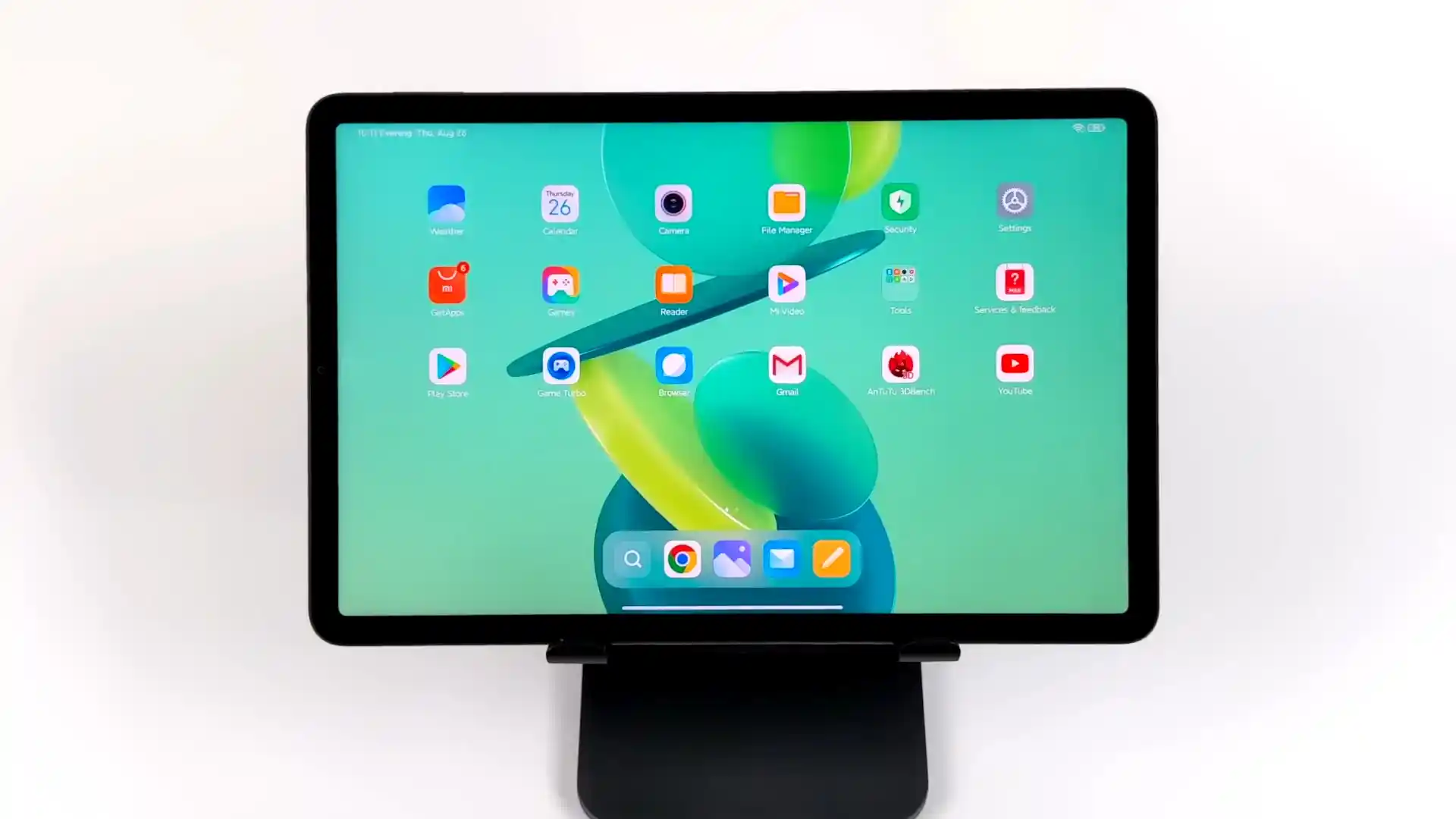
Before you flash: Flashing firmware will erase all data on your device. Back up contacts, photos, and apps before proceeding. FlashGuideHub is not responsible for any damage caused by following this guide.
About the Xiaomi Pad 5 Pro Wi-Fi
The Xiaomi Pad 5 Pro Wi-Fi, released in August 2021 (China import) on Qualcomm's Qualcomm SM8250-AC Snapdragon 870 5G (7nm) platform, delivers exceptional multimedia performance with an 11-inch 120Hz 2.5K display and an eight-speaker audio system. Whether you need to unbrick a tablet stuck on the boot logo, fix software bugs after an update, or return to clean factory HyperOS firmware, this guide provides verified Fastboot flashing steps.
Official firmware restoration on the Xiaomi Pad 5 Pro Wi-Fi is performed using Xiaomi's Mi Flash Tool in Fastboot mode. Follow each preparatory step carefully to ensure flawless partition deployment without risking bootloader or baseband corruption.
Which Flash Mode Should You Use?
Fastboot Mode
Primary flashing environment used by Mi Flash Tool to write bootloader, radio, modem, and dynamic super partitions.
Recovery Mode
Stock recovery interface for official OTA zip installation, factory data wipes, and Mi Assistant connections.
Custom Recovery (OrangeFox Recovery)
Touch recovery environment for flashing community ROMs, Magisk root ZIPs, and managing dynamic partition backups.
Emergency Download (EDL 9008 Mode)
Low-level hardware recovery mode for unbricking hard-bricked units with corrupted bootloaders.
Prerequisites & Preparation for Xiaomi Pad 5 Pro
An officially unlocked bootloader via the Xiaomi Mi Unlock utility. Flashing stock Fastboot images on locked devices will fail.
Use the original Xiaomi 67W cable or a high-quality USB data cable plugged directly into a native motherboard USB 2.0 port.
Ensure the 8,600 mAh battery holds at least 50% capacity to prevent power interruption during the 5 to 8 minute flash process.
Fastboot .tgz packages require two extractions using 7-Zip to extract the images directory and batch scripts properly.
5-Step Fastboot Walkthrough for Xiaomi Pad 5 Pro
A fast reference for flashing the Xiaomi Pad 5 Pro Wi-Fi (Snapdragon 870) using Mi Flash Tool. For the complete walkthrough with images and error troubleshooting, see the full guide.
-
Verify product string reports elish via fastboot getvar product
-
Extract elish_images_OS1.0.2.0.TKYCNXM_20240507.0000.00_13.0_cn_f8476ce7cc.tgz twice using 7-Zip
-
Verify active slot status before flashing dynamic super partitions
-
Load directory into Mi Flash Tool and verify clean all is selected
-
Click Flash and keep USB cable undisturbed during super partition transfer
Understanding the Fastboot Flash Script on Xiaomi Pad 5 Pro
On the Xiaomi Pad 5 Pro Wi-Fi (elish), official Fastboot flashing is coordinated by the flash_all.bat batch script rather than a raw partition scatter file. The script provisions GPT partition table mapping, writes boot, modem, and vendor images, and directs the sequential transfer of dynamic super partition sparse chunks.
flash_all.bat
Xiaomi Fastboot ROMs for Snapdragon platforms do not utilize MediaTek scatter text files. Instead, partition layouts and image deployments are governed by executable batch scripts (flash_all.bat for complete wipe and reflash).
Always verify that "clean all" (flash_all.bat) is selected at the bottom right of Mi Flash Tool. Selecting "clean all and lock" on imported China-market hardware running unofficial software will lock the bootloader against mismatched security signatures and produce an unbootable system.
Tested Firmware Packages for Xiaomi Pad 5 Pro
Tested and recommended official stock Fastboot firmware builds and custom recoveries for the Xiaomi Pad 5 Pro Wi-Fi. Select the package matching your specific hardware model variant.
| Version | Region | Android Version | Size | MD5 | Download |
|---|---|---|---|---|---|
OS1.0.2.0.TKYCNXM (Android 13.0) |
China (CN) | Android 13.0 (HyperOS 1.0) | 5.01 GB | f8476ce7cc2f9a87276bb62398903b2f |
⬇️ Download |
R11.3_A16-Unofficial (Android 14-16) |
Universal / Community | Android 14.0 / 15.0 / 16.0 | 66.62 MB | N/A |
⬇️ Download |
Need additional archive builds or historical recovery packages? View the complete Xiaomi Pad 5 Pro archive on AndroidFirmwareFile.com
Board Architecture & Hardware Flashing Notes
USB Connection Stability: Dynamic super partition sparse chunks total over 4GB on HyperOS. Connect the tablet directly to a native motherboard USB 2.0 port. Front-panel USB hubs and uncertified cables can drop packets during the multi-gigabyte transfer.
Battery Safety Threshold: Ensure the 8,600 mAh battery holds at least 50% charge before beginning. If power is interrupted while writing the dynamic super partition, the device will be left without a bootable operating system.
Nested Archive Extraction: Xiaomi Fastboot archives (.tgz) like elish_images_OS1.0.2.0.TKYCNXM_20240507.0000.00_13.0_cn_f8476ce7cc.tgz contain a nested tar archive. Always use 7-Zip to extract the file twice until the images folder and flash_all.bat script appear in the target folder.
Troubleshooting Xiaomi Pad 5 Pro Flashing & Connection Issues
error: Missmatching image and device
Occurs in Mi Flash Tool when flashing an enuma (5G) or nabu (standard Pad 5) package onto an elish board. The flash_all.bat batch script checks the "fastboot getvar product" string. If the returned codename does not match the image manifest, the script aborts immediately. Always verify your tablet returns "elish" before flashing.
FAILED (remote: sparse image write failure)
During the transfer of dynamic partition chunks (super.img can exceed 4GB), USB 3.0 controller dropouts or unpowered front-panel ports cause fastboot write timeouts. Connect the tablet directly to a rear USB 2.0 motherboard port, use a high-quality data cable, and update to the latest Google platform-tools.
FAILED (remote: Partition recovery not found)
Xiaomi Pad 5 Pro uses Virtual A/B partitioning where the recovery ramdisk is integrated inside boot.img rather than a standalone recovery block. Executing "fastboot flash recovery" fails because the partition does not exist. Use "fastboot boot recovery.img" to boot temporarily, or flash directly to the active boot partition.
Encountering flashing errors or connection timeouts? Review verified troubleshooting steps for the Xiaomi Pad 5 Pro below. Troubleshooting & Error Resolutions →
Xiaomi Pad 5 Pro Flashing & Troubleshooting FAQ
The Pad 5 Pro integrates the recovery ramdisk directly inside the boot partition (boot.img). To install OrangeFox, first boot the live image via "fastboot boot OrangeFox-R11.3_A16-Unofficial-elish.img". Once inside the OrangeFox interface, flash the OrangeFox-R11.3_A16-Unofficial-elish.zip installer package or navigate to Advanced > Flash Current OrangeFox to permanently patch the active boot slot.
On Qualcomm Snapdragon 870 devices, Xiaomi secures the primary bootloader stage with cryptographic signature verification. When a tablet is forced into EDL mode (9008) via hardware test points or a deeply corrupted bootloader, the Sahara firehose programmer refuses handshake commands unless authenticated with an authorized Xiaomi service account token.
When installing unofficial GSI builds, modified kernels, or rooting on Android 13, Android Verified Boot (AVB 2.0) must be disabled to prevent dm-verity bootloops. In Fastboot mode, execute "fastboot --disable-verity --disable-verification flash vbmeta vbmeta.img" before booting into your custom environment.
The core Xiaomi.eu developer pipeline builds exclusively for smartphones. Tablets such as the Pad 5 Pro (elish), Pad 5 Pro 5G (enuma), and standard Pad 5 (nabu) are excluded due to specialized MIUI/HyperOS Pad framework patches, tablet multi-window management, and pen/keyboard docking subsystems that the smartphone translation tree does not maintain.
Ready to Flash?
Follow the full step-by-step Mi Flash Tool guide with interactive progress tracking, prerequisite checklist, and complete troubleshooting.