

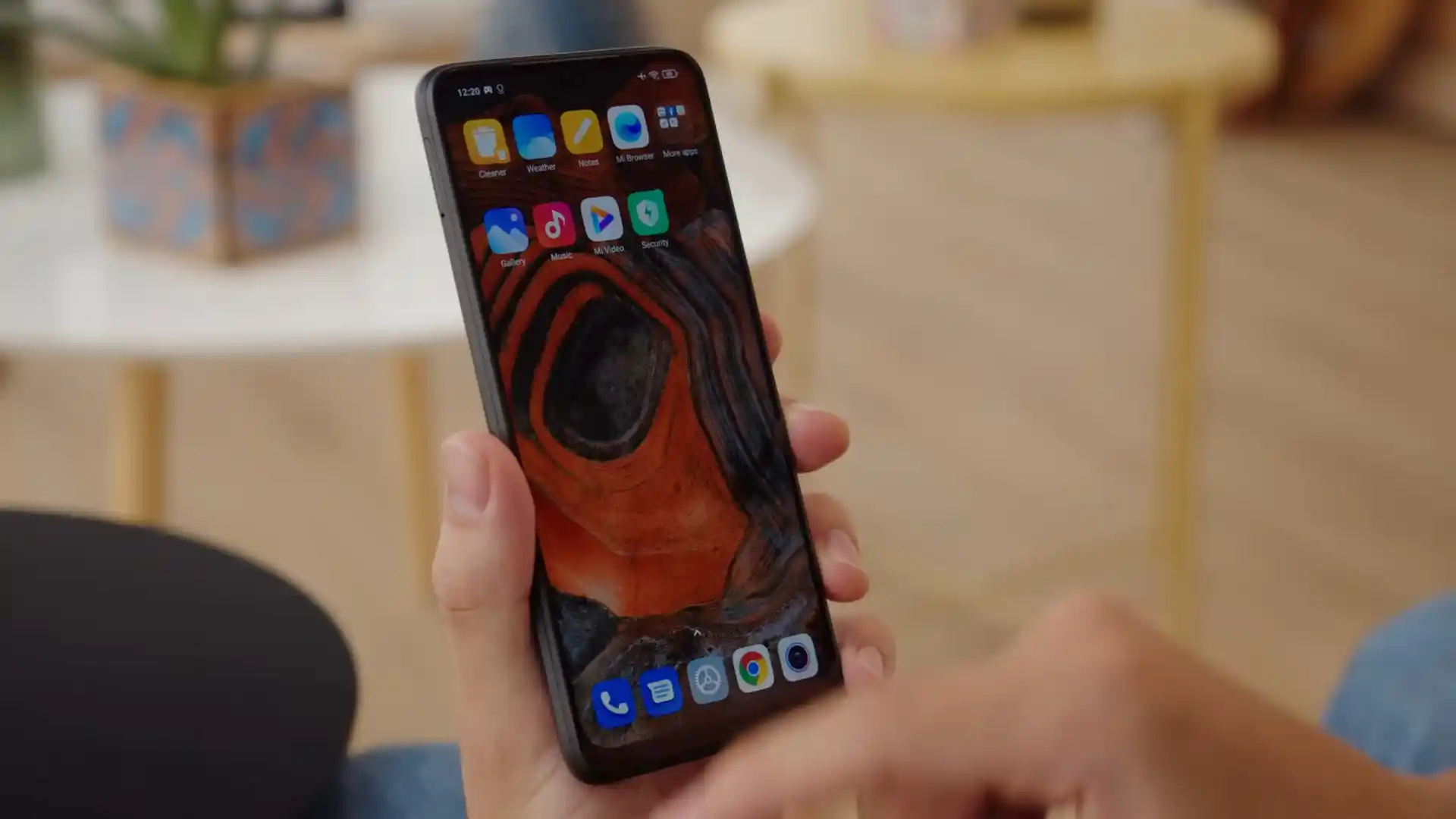
Before you flash: Flashing firmware will erase all data on your device. Back up contacts, photos, and apps before proceeding. FlashGuideHub is not responsible for any damage caused by following this guide.
About the Xiaomi POCO M3
This workshop guide provides step-by-step restoration instructions to flash official stock Fastboot firmware to the Xiaomi POCO M3 (November 2020) using Mi Flash Tool. Writing multi-gigabyte system and dynamic super partitions to Qualcomm's Qualcomm SM6115 Snapdragon 662 platform over UFS storage requires stable USB driver handshakes and correct batch script selection.
Whether your phone is trapped in a startup bootloop, experiencing performance issues after an update, or returning to clean official MIUI 14 (Android 12.0), follow the verified prerequisites, battery precautions, and step-by-step flashing procedures detailed below.
Which Flash Mode Should You Use?
Xiaomi Mi Flash Fastboot Flashing (Recommended)
Standard official method for restoring stock MIUI firmware using an unlocked bootloader and Mi Flash Tool in Fastboot mode.
Custom Recovery & Xiaomi.eu Flashing
Custom recovery environment used for installing OrangeFox or TWRP and flashing community custom ROMs like Xiaomi.eu.
Recovery Sideload & Local Update
Official recovery interface used for installing signed recovery update packages directly over USB or on-device storage.
Essential Prerequisites & USB Setup Before Flashing POCO M3
Fastboot flashing requires an officially unlocked bootloader via the Xiaomi Mi Unlock utility.
A 64-bit Windows PC with Qualcomm USB drivers and updated Android SDK Platform Tools installed.
Ensure the 6,000 mAh battery holds at least 50% charge to prevent shutdown during 5GB+ sparse partition writes.
Use a certified USB Type-C data sync cable plugged directly into a rear motherboard USB 2.0 port.
Flashing stock Fastboot firmware with "clean all" completely wipes internal UFS storage and applications.
Decompress the .tgz archive twice using 7-Zip until flash_all.bat is exposed in a clean root directory.
Step-by-Step Mi Flash Walkthrough for POCO M3 (citrus)
These 5 steps are tailored to the Xiaomi POCO M3 (Snapdragon 662). For screenshots, an interactive checklist, and troubleshooting, open the full Mi Flash Tool guide.
-
Verify citrus codename with "fastboot getvar product"
-
Extract citrus_eea_global_images_V14.0.2.0.SJFEUXM_20230509.0000.00_12.0_eea_170ad598a5.tgz twice
-
Hold Volume Down + Power for 10 seconds to enter Fastboot mode
-
Open Mi Flash Tool and select "clean all" (flash_all.bat)
-
Click Flash to write dynamic partitions and allow 5 to 7 minutes for first boot
Firmware Package for Snapdragon 662 (flash_all.bat)
Official Fastboot firmware packages for the Xiaomi POCO M3 are distributed as multi-gigabyte .tgz archives containing raw partition binaries (boot.img, recovery.img, vbmeta.img, dtbo.img, and sparse super.img dynamic partitions) flashed via flash_all.bat across the Qualcomm Snapdragon 662 UFS storage controller.
flash_all.bat
Official Xiaomi POCO M3 firmware is distributed as multi-gigabyte .tgz archives. Extract the archive twice using 7-Zip until the folder containing "flash_all.bat" and the raw partition images is visible.
Fastboot Flashing Rule: Always select "clean all" (flash_all.bat) when flashing official firmware to avoid bootloader lock bricks on cross-regional builds.
Xiaomi POCO M3 Firmware Versions
Official stock firmware downloads for the Xiaomi POCO M3. Verify your hardware model variant before downloading.
| Version | Region | Android Version | Size | MD5 | Download |
|---|---|---|---|---|---|
V14.0.2.0.SJFEUXM (MIUI 14) |
EEA (Europe / UK) | Android 12.0 | 5.0 GB | 170ad598a5e6ca8856c91f13604ad882 |
⬇️ Download |
V14.0.2.0.SJFMIXM (MIUI 14) |
Global (MI) | Android 12.0 | 5.2 GB | f12c1c51fe6d01f86518229f9556fab0 |
⬇️ Download |
V14.0.2.0.SJFINXM (MIUI 14) |
India (IN) | Android 12.0 | 3.8 GB | 556181e7de3b6c18e5f2760aa45cdfb3 |
⬇️ Download |
Xiaomi.eu V14.0.2.0.SJFMIXM |
Multi-Language (EU / Custom) | Android 12.0 | 3.7 GB | bc21ef9c809420ae69cee5fb6922d10520c97ccffc95a0abfcf004837049a111 |
⬇️ Download |
This phone has 15 additional regional, recovery, and custom recovery builds in the full archive. Browse the complete archive on AndroidFirmwareFile.com →
POCO M3 Board Architecture & Fastboot Flashing Notes
The Xiaomi POCO M3 houses a 6,000 mAh internal lithium-polymer battery. Writing the full MIUI 14 dynamic super partition archive (such as citrus_eea_global_images_V14.0.2.0.SJFEUXM_20230509.0000.00_12.0_eea_170ad598a5.tgz) takes approximately 3 to 5 minutes over UFS storage. Ensure your battery holds at least 50% charge before beginning the flashing process to prevent unexpected shutdowns during partition writes.
Troubleshooting Xiaomi POCO M3 Flashing & Bootloader Errors
Anti-Rollback Version Mismatch: "FAILED (remote: 'Anti-rollback check failed') during partition flash"
Xiaomi bootloaders enforce hardware anti-rollback (ARB) protection to prevent flashing older MIUI versions with lower security patch levels. If your device has an ARB index higher than the target firmware, the flash script halts to prevent a hard brick. Workshop technicians verify the phone counter using "fastboot getvar anti". If ARB is triggered, only flash equal or newer builds such as MIUI 14 V14.0.2.0.
AVB Signature Verification Trap: "FAILED (remote: 'Error verifying data') / Recovery bootloop on stock Android 12"
The stock Android 12 MIUI bootloader enforces Android Verified Boot (AVB 2.0). Flashing a custom recovery image (OrangeFox or TWRP) alters the cryptographic hash of the recovery partition. When booting, the bootloader detects a mismatch against the signed vbmeta tree and refuses to start. To resolve this, run "fastboot --disable-verity --disable-verification flash vbmeta vbmeta.img" using the stock vbmeta binary from your official Fastboot package before flashing custom recovery.
EDL Authorization Trap: "Only nop and sig tag can be received before authentication (QDLoader 9008)"
When the POCO M3 drops into Qualcomm HS-USB QDLoader 9008 mode due to the known citrus PMIC sleep defect, attempting direct programmer flashing via Mi Flash or QFIL throws an authorization rejection. Modern Xiaomi bootloaders require an authorized service account token for EDL flashing. In many instances, the phone is not permanently dead; workshop members recommend resetting the power management IC by unplugging the battery connector for 10 minutes or allowing complete battery discharge before booting back into Fastboot.
For solving common Mi Flash Tool timeout codes, AVB verification issues, and PMIC sleep recoveries: Xiaomi Flashing Error Directory →
POCO M3 Workshop Flashing & Recovery FAQs
The side-mounted capacitive fingerprint scanner and camera sensor calibration rely on unique cryptographic keys and hardware offset values stored in the dedicated persist partition (persist.img). Official Fastboot flashing with flash_all.bat intentionally skips writing or formatting the persist partition, keeping factory biometric hashes and optical calibration intact. If fingerprint recognition feels sluggish after a major Android 12 update, clearing cache partitions and re-enrolling fingerprints restores standard speed.
Unlike newer Virtual A/B smartphones where recovery is integrated into the boot ramdisk (requiring "fastboot flash boot"), the POCO M3 operates on an A-only partition layout with a dedicated physical recovery partition (/dev/block/by-name/recovery). Flashing TWRP or OrangeFox requires targeting recovery directly via "fastboot flash recovery .img". Flashing a custom recovery image to the boot partition will overwrite the device kernel and cause an immediate startup bootloop.
During the initial startup following a clean Fastboot installation, Android 12 must perform first-time cryptographic initialization of the user data partition, re-generate system caches, and pre-compile core Android Runtime (ART) packages across the Qualcomm Snapdragon 662 CPU cores. The POCO logo may remain visible on screen for 5 to 8 minutes. Do not force-restart or interrupt the phone during this initial boot phase.
To verify your hardware identity before flashing, connect your phone in Fastboot mode to a computer and execute "fastboot getvar product". The terminal will output "product: citrus" for official POCO M3 units. If the command returns "lime" or "lemon", your device belongs to the Redmi 9T family and requires different radio firmware. You can also run "fastboot getvar anti" to check the device anti-rollback counter before applying updates.
Ready to Flash?
Follow the full step-by-step Mi Flash Tool guide with interactive progress tracking, prerequisite checklist, and complete troubleshooting.