

Before you flash: Flashing firmware will erase all data on your device. Back up contacts, photos, and apps before proceeding. FlashGuideHub is not responsible for any damage caused by following this guide.
About the Xiaomi Redmi A1 / Redmi A1+ / POCO C50
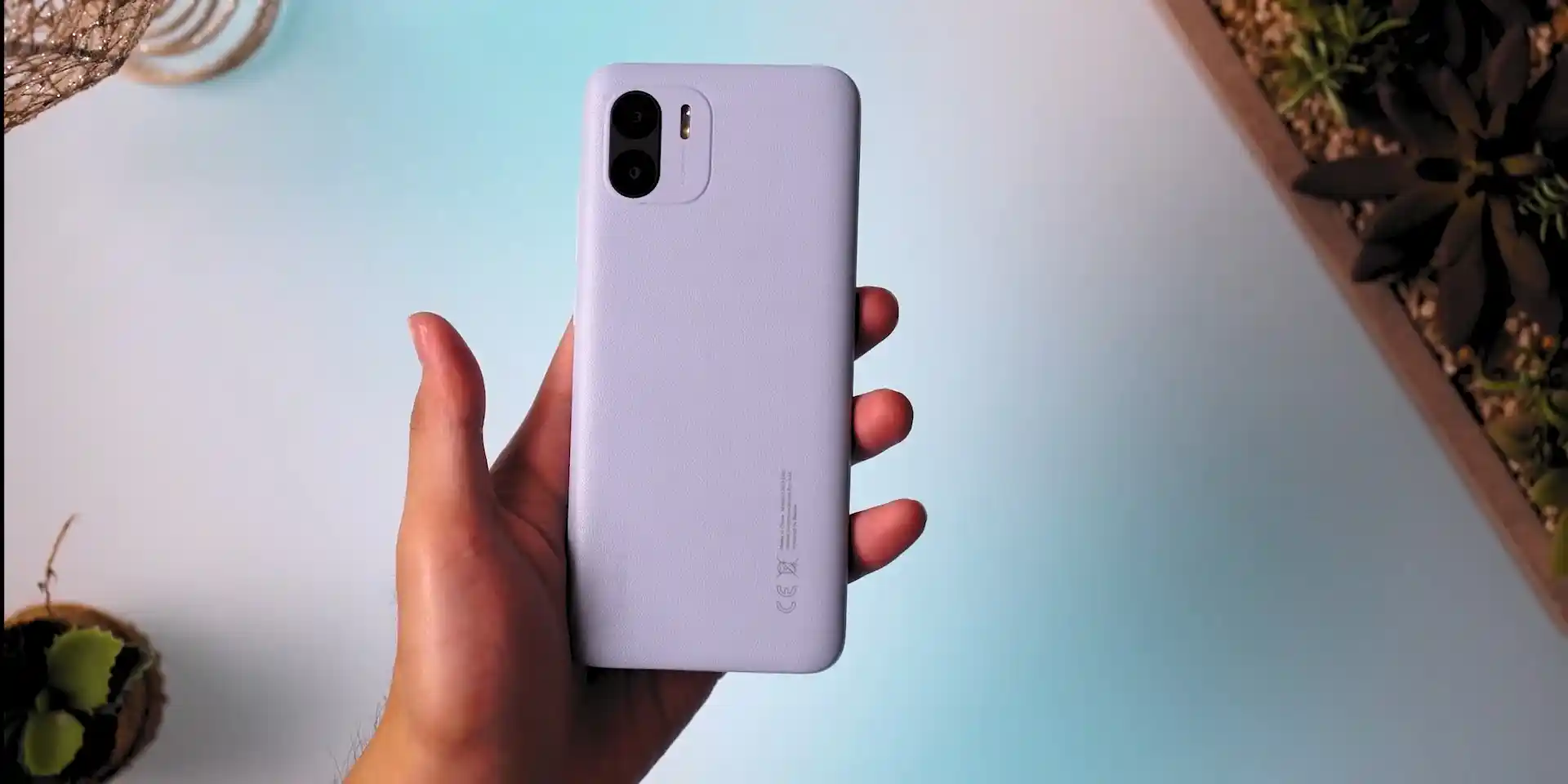
The Xiaomi Redmi A1 / Redmi A1+ / POCO C50, launched in September 2022 on MediaTek's MediaTek Helio A22 MT6761 (12nm FinFET) processor, represents an entry-level smartphone platform built around Google's lightweight Android 12 (Go Edition). Whether you need to restore your phone from an update bootloop, unbrick a phone stuck on the boot logo, or return to clean factory software, this guide provides verified Fastboot flashing steps.
Official flashing on the Xiaomi Redmi A1 / Redmi A1+ / POCO C50 is performed using Xiaomi's Mi Flash Tool in Fastboot mode. Follow each preparatory step carefully to ensure smooth partition deployment without risking bootloader or baseband corruption.
Which Flash Mode Should You Use?
Fastboot Mode
Primary flashing environment used by Mi Flash Tool to write bootloader, radio, and system partitions.
Stock Recovery Mode
Stock recovery environment for OTA zip sideloading and factory data wipes.
MediaTek Boot ROM Mode (BROM)
Hardware emergency recovery interface for unbricking hard-bricked units with damaged preloader code.
What You Need Before Flashing
A computer running Windows 10 or 11 with MediaTek USB VCOM drivers and Xiaomi Fastboot drivers installed.
An officially unlocked bootloader via the Xiaomi Mi Unlock utility. Flashing stock Fastboot images on locked devices will fail.
Use a verified microUSB data cable connected directly to a rear motherboard USB 2.0 port to prevent communication drops.
Ensure the 5,000 mAh battery holds at least 50% capacity to prevent power interruption during the 4-minute flash operation.
Fastboot .tgz packages require two extractions (tar.gz -> tar -> folder) using 7-Zip to unpack the images folder properly.
How to Flash the Xiaomi Redmi A1 / Redmi A1+ / POCO C50 — Quick Overview
A quick 5-step overview built specifically for the Xiaomi Redmi A1 / Redmi A1+ / POCO C50. The full Mi Flash Tool guide adds screenshots, progress tracking, and fixes for common errors.
-
Unlock bootloader with Xiaomi Mi Unlock
-
Decompress Fastboot TGZ archive twice
-
Enter Fastboot mode
-
Configure Mi Flash Tool with "clean all"
-
Flash firmware and await first boot
Understanding the Fastboot Flash Script on Redmi A1 / A1+ / POCO C50
On Xiaomi MediaTek platforms like the Xiaomi Redmi A1 / Redmi A1+ / POCO C50, official Fastboot flashing is managed by the flash_all.bat batch script rather than an open scatter file. This script coordinates sequential partition writing to internal eMMC 5.1 storage through Google Fastboot communication protocols.
flash_all.bat
While MediaTek chipsets fundamentally use scatter configurations, Xiaomi packages official stock firmware for the Redmi A1 family as Fastboot ROM archives utilizing Windows batch scripts (flash_all.bat). The script automatically issues fastboot commands to partition tables, writes the bootloader, radio firmware, and partitions, and reboots the phone into Android 12 Go Edition.
Always confirm that "clean all" (flash_all.bat) is selected in Mi Flash Tool. Selecting "clean all and lock" on cross-regional firmware packages can lock the bootloader against mismatched security tokens and brick the phone.
Xiaomi Redmi A1 / Redmi A1+ / POCO C50 Firmware Versions
Tested and recommended official stock Fastboot firmware builds for the Xiaomi Redmi A1 / Redmi A1+ / POCO C50. Select the package matching your specific hardware model variant.
| Version | Region | Android Version | Size | MD5 | Download |
|---|---|---|---|---|---|
V13.0.18.0.SGMEUXM (Android 12 Go) |
2.1 GB | c6e2eb289a |
⬇️ Download | ||
V13.0.24.0.SGMMIXM (Android 12 Go) |
2.2 GB | 88a9b0725e |
⬇️ Download | ||
V13.0.17.0.SGMINXM (Android 12 Go) |
2.0 GB | 23eb3d326d |
⬇️ Download |
Looking for additional regional channels or older builds? Browse the full archive on AndroidFirmwareFile.com →
Xiaomi Redmi A1 / Redmi A1+ / POCO C50 — Important Notes
MicroUSB Port Cleanliness: Because this device uses a microUSB port rather than reversible Type-C, inspect the port under illumination for lint or bent pins before flashing. Loose seating causes communication dropouts during multi-megabyte system partition writes.
Battery Safety Threshold: The internal 5,000 mAh battery must have at least 50% charge. Flashing onto eMMC 5.1 memory draws continuous power; a mid-flash shutdown can corrupt the preloader partition.
Decompression Hierarchy: Xiaomi Fastboot archives (.tgz) contain an internal tar archive. Always use 7-Zip to extract the file twice until the images folder and flash_all.bat batch script appear in the primary directory.
Troubleshooting Redmi A1, A1+ & POCO C50 Flashing Issues
Bootloader Unlock Permission Denied: "FAILED (remote: 'flashing_permission_denied')"
Fastboot commands fail because the bootloader lock flag is active. On Android Go edition phones, linking a Mi account initiates an account authorization timer. Technicians advise checking Developer Options on the device to confirm the bootloader state, ensuring Mi Unlock shows 100% completion before flashing.
MicroUSB Cable Connection Dropout: "error: cannot read from device" / Empty Device List
Budget microUSB cables frequently carry charge pins without reliable high-speed data shielding. If Mi Flash Tool drops communication while writing the system partition, repair technicians suggest switching to a certified shielded microUSB cable, connecting to a rear USB 2.0 port, and reinstalling the MediaTek USB VCOM driver package.
Hardware Sibling Codename Mismatch: "fastboot getvar product returns snow"
A subset of Redmi A1+ units use a board revision identifying as "snow" rather than "ice". Attempting to force-flash an "ice" Fastboot ROM onto a "snow" board leads to touch digitizer failure or bootloops. Community repair discussions advise verifying your exact product variable and halting if it does not report "ice".
Fix common flashing interruptions, Fastboot handshake errors, and bootloop issues encountered on the Redmi A1, A1+, and POCO C50. Troubleshooting & Error Resolutions →
Frequently Asked Questions — Xiaomi Redmi A1 / Redmi A1+ / POCO C50
Because the Redmi A1 relies on a legacy microUSB 2.0 interface, worn cables or loose female connector ports frequently drop data packets mid-flash. Workshop technicians recommend using a short, certified 4-wire microUSB data cable plugged directly into a rear motherboard USB 2.0 port on the PC. In Windows Device Manager, ensure the phone appears under "Android Device" as "Android Bootloader Interface" without yellow warning marks.
This error indicates that the bootloader remains cryptographically locked. On Android Go Edition devices, binding a Mi Account can require a mandatory waiting period (typically 7 days / 168 hours) before Xiaomi's server authorizes the unlock token. Run "fastboot getvar unlocked" from the command prompt; if it returns "unlocked: no", you must wait out the countdown and rerun Mi Unlock before attempting Fastboot partition flashing.
While the vast majority of Redmi A1, Redmi A1+, and POCO C50 units share the "ice" motherboard, certain production batches of the Redmi A1+ in global distribution report hardware codename "snow". Flashing an "ice" partition table and boot image onto a "snow" board can break the touch panel digitizer, disable the rear fingerprint sensor, or cause a bootloop. Always run "fastboot getvar product" first to verify your board identifier.
If the device is hard-bricked with a corrupted preloader and fails to reach Fastboot mode, the MediaTek Helio A22 SoC enters hardware Boot ROM (BROM) mode. Connecting the powered-off phone while holding Volume Down initiates a BROM handshake. However, Xiaomi locks MT6761 BROM with SLA/DAA cryptographic authentication, requiring authorized service tools or an MTK bypass utility with SP Flash Tool to restore partition tables.
Ready to Flash?
Follow the full step-by-step Mi Flash Tool guide with interactive progress tracking, prerequisite checklist, and complete troubleshooting.