

Before you flash: Flashing firmware will erase all data on your device. Back up contacts, photos, and apps before proceeding. FlashGuideHub is not responsible for any damage caused by following this guide.
About the Xiaomi Pad 5 Pro 5G
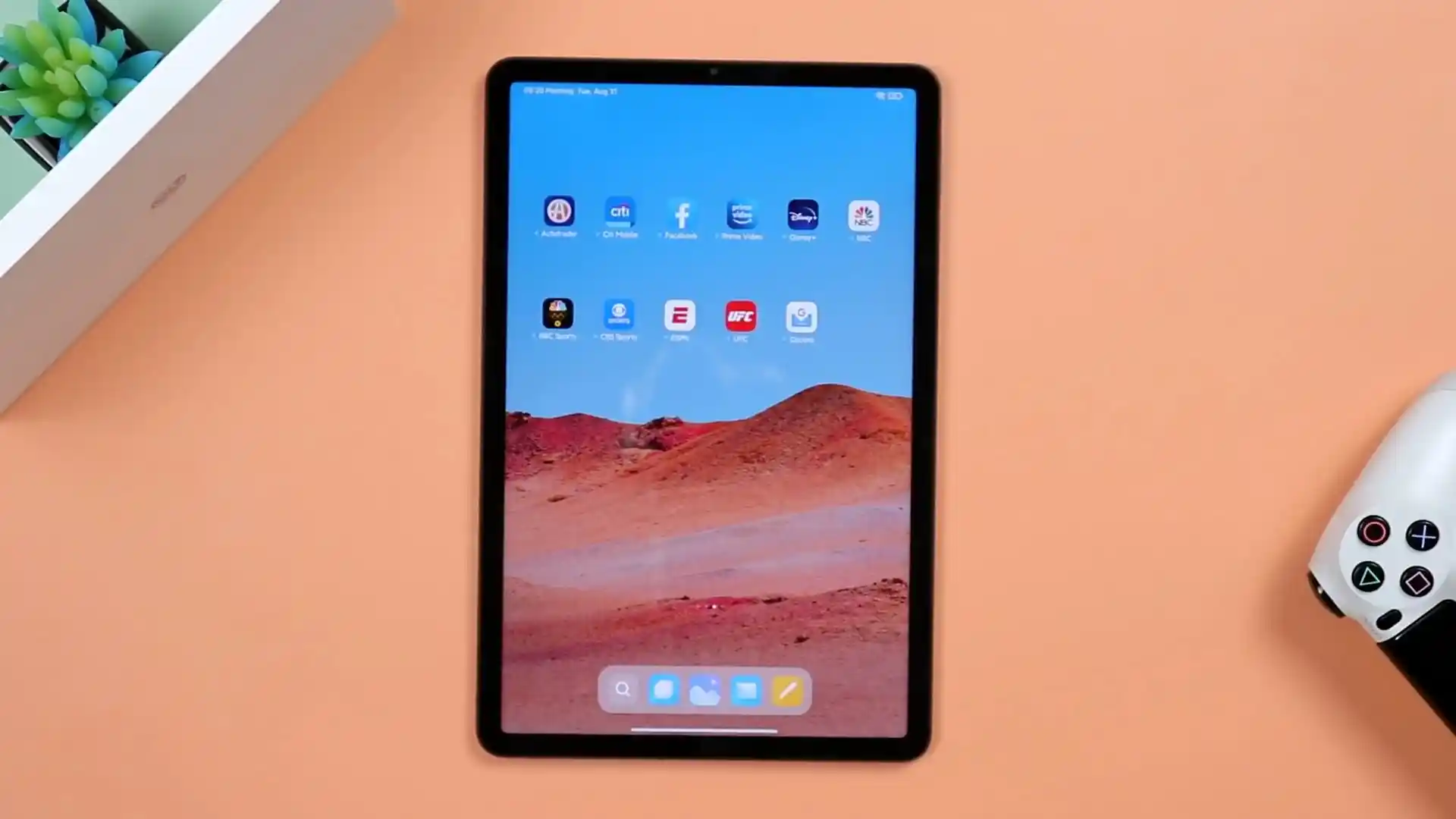
Internally, Xiaomi designated the Xiaomi Pad 5 Pro 5G under codename enuma, releasing it through mainland channels in August 2021 (Mainland China). Powered by the Qualcomm SM8250-AC Snapdragon 870 5G (7nm) platform with an integrated Snapdragon X55 5G modem, it features an 11.0-inch 120Hz 2.5K display, an 8600 mAh battery with 67W fast charging, and a 50MP primary rear camera sensor.
Because enuma was manufactured exclusively for China distribution, all official Fastboot and Recovery packages carry the CNXM regional identifier, culminating in HyperOS 1.0 running on Android 13.
Which Flash Mode Should You Use?
Mi Flash Tool (Fastboot ROM)
Primary flashing route for enuma. Directs flash_all.bat through the bootloader, kernel, and system partitions automatically. Requires an unlocked bootloader and performs a complete data reset.
Manual Fastboot CLI
Flashing individual partition images via command-line interface using Android SDK Platform Tools. Useful for targeted recovery or flashing boot images.
OrangeFox Custom Recovery
Unified custom recovery for the sm8250 tablet platform. Supports dynamic partition decryption, full touch scaling, and flashing AOSP custom ROMs.
Qualcomm EDL / Emergency Mode
Hardware-level Emergency Download mode on Snapdragon 870 for unbricking devices when the bootloader interface is unresponsive. Requires authorized Xiaomi service account credentials.
Pre-Flash Prerequisites & Preparation for enuma
Install Mi Flash Tool and Qualcomm USB drivers on a 64-bit Windows PC before connecting the tablet.
Enable OEM Unlocking in Developer Options, bind your Mi Account, and complete unlocking via official Mi Unlock Tool.
Download the official China CNXM Fastboot archive and extract it twice using 7-Zip to a direct path.
Use a verified USB Type-C data cable connected directly to a rear motherboard USB 2.0 port.
Ensure the 8600 mAh battery has at least 50% charge to prevent unexpected power loss during partition writes.
Fastboot flashing with "clean all" completely wipes user storage; back up necessary files prior to flashing.
Xiaomi Pad 5 Pro 5G Fastboot Flashing Steps
A condensed step-by-step summary specific to the Xiaomi Pad 5 Pro 5G. Follow the full Mi Flash Tool guide for screenshots, an interactive progress checklist, and complete troubleshooting.
-
Confirm fastboot reports codename enuma before downloading
-
Unlock tablet bootloader using official Xiaomi Mi Unlock
-
Extract enuma_images_OS1.0.3.0.TKZCNXM .tgz archive twice
-
Target unpacked directory in Mi Flash Tool with clean all selected
-
Check active slot with fastboot getvar current-slot and click Flash
Firmware Archive Structure for SM8250-AC
Xiaomi packages official stock firmware for the Xiaomi Pad 5 Pro 5G as a Fastboot archive (.tgz). After full extraction, the directory contains partition images alongside execution scripts including flash_all.bat for Windows and flash_all.sh for Linux.
flash_all.bat
The downloaded .tgz package must be fully unpacked twice using 7-Zip. Inside the extracted directory, flash_all.bat handles automated Windows flashing, while flash_all.sh supports Unix environments. Mi Flash Tool must be directed to this top-level folder where flash_all.bat is located.
The Xiaomi Pad 5 Pro 5G (enuma) operates exclusively on the China (CNXM) software branch, culminating in HyperOS 1.0 on Android 13.
Inside the unpacked folder, point Mi Flash Tool directly to the top-level directory where flash_all.bat is located, never the images subfolder directly.
Always choose "clean all" at the bottom right of Mi Flash Tool to flash cleanly without relocking the bootloader.
Xiaomi Pad 5 Pro 5G Firmware Versions
Official stock Fastboot package for the Xiaomi Pad 5 Pro 5G running HyperOS 1.0 on Android 13. This clean factory image allows full unbricking and system restoration.
| Version | Region | Android Version | Size | MD5 | Download |
|---|---|---|---|---|---|
OS1.0.3.0.TKZCNXM |
China (CN) — HyperOS 1.0 (Android 13) | Android 13.0, May 2024 | 5.04 GB | fc06cc99cc67649c61917638667ae67c |
⬇️ Download |
Looking for custom recovery images, stock boot dumps, or OTA ZIPs? → Browse the full archive on AndroidFirmwareFile.com →
Important Architecture & Hardware Notes for enuma
The Xiaomi Pad 5 Pro 5G (codename: enuma) is powered by Qualcomm's Snapdragon 870 platform with an integrated Snapdragon X55 5G modem, featuring an 11-inch 120Hz 2.5K display and an 8600 mAh battery supporting 67W fast charging. It differentiates itself with an upgraded 50MP rear camera sensor and cellular connectivity.
Official stock Fastboot packages such as enuma_images_OS1.0.3.0.TKZCNXM_20240508.0000.00_13.0_cn_fc06cc99cc.tgz allow owners and repair workshops to unbrick tablets stuck on the boot logo, restore damaged partitions, or return to clean factory software. Ensure the bootloader is unlocked before beginning Fastboot flashing.
Troubleshooting Xiaomi Pad 5 Pro 5G Fastboot Flashing & Mi Flash Errors
FAILED (remote: 'Flashing is not allowed in Lock State')
The tablet bootloader is locked and rejects partition writes. You must enable OEM Unlocking in Developer Options, bind your Mi Account under Mi Unlock Status, and run official Xiaomi Mi Unlock Tool on Windows until unlock confirmation reaches 100%.
fastboot: error: cannot load 'boot.img': No such file or directory
Occurs when attempting to execute fastboot boot or fastboot flash boot from a directory that does not contain the target boot image. Ensure your terminal prompt is navigated directly to the folder containing the extracted boot.img or OrangeFox ramdisk image.
Missmatching image and device error in Mi Flash Tool
Mi Flash verifies the getvar product string against the flashing script. If you attempt to flash firmware intended for the Wi-Fi model (elish) or 12.4-inch model (dagu) onto enuma, the script aborts. Verify your tablet returns enuma before proceeding.
For additional error resolutions and bootloader guides: Fastboot Error Directory →
Xiaomi Pad 5 Pro 5G Flashing & Troubleshooting FAQ
Because the Xiaomi Pad 5 Pro 5G implements Google's Virtual A/B architecture, recovery logic is integrated directly inside the kernel boot partition (boot.img) rather than a dedicated physical recovery partition. To boot custom recovery without overwriting stock software, run "fastboot boot OrangeFox-R11.3_A16-Unofficial-elish.img". Once booted into the OrangeFox interface, you can make it permanent by flashing the recovery installer ZIP or selecting Flash Current OrangeFox under Advanced settings.
When flashing custom recoveries, patched boot images for Magisk root, or community AOSP ROMs on Android 13 HyperOS, Android Verified Boot (AVB 2.0) checks the digital signature of the kernel. If modified partitions are detected without disabling verification flags, the device enters a bootloop. Running "fastboot --disable-verity --disable-verification flash vbmeta vbmeta.img" bypasses signature checks, allowing custom boot images to initialize.
Selecting flash_all_lock.bat executes "fastboot oem lock" after flashing. On imported hardware running modified firmware or modified regional configurations, relocking the bootloader triggers cryptographic validation checks upon reboot. If discrepancies are found, the tablet displays "This MIUI version can't be installed on this device" and refuses to boot, requiring an authorized service center connection to recover.
The persist partition houses factory calibration tables for the 50MP rear camera sensor, stylus digitizer sensitivity, and audio tuning parameters. The official flash_all.bat script intentionally omits persist.img to protect these settings. Flashing third-party scripts that wipe or overwrite persist causes persistent sensor failure and pen tracking offsets that cannot be restored through standard OTA packages.
Ready to Flash?
Follow the full step-by-step Mi Flash Tool guide with interactive progress tracking, prerequisite checklist, and complete troubleshooting.