

Before you flash: Flashing firmware will erase all data on your device. Back up contacts, photos, and apps before proceeding. FlashGuideHub is not responsible for any damage caused by following this guide.
About the Redmi Note 11T Pro / Pro+ / POCO X4 GT / Redmi K50i
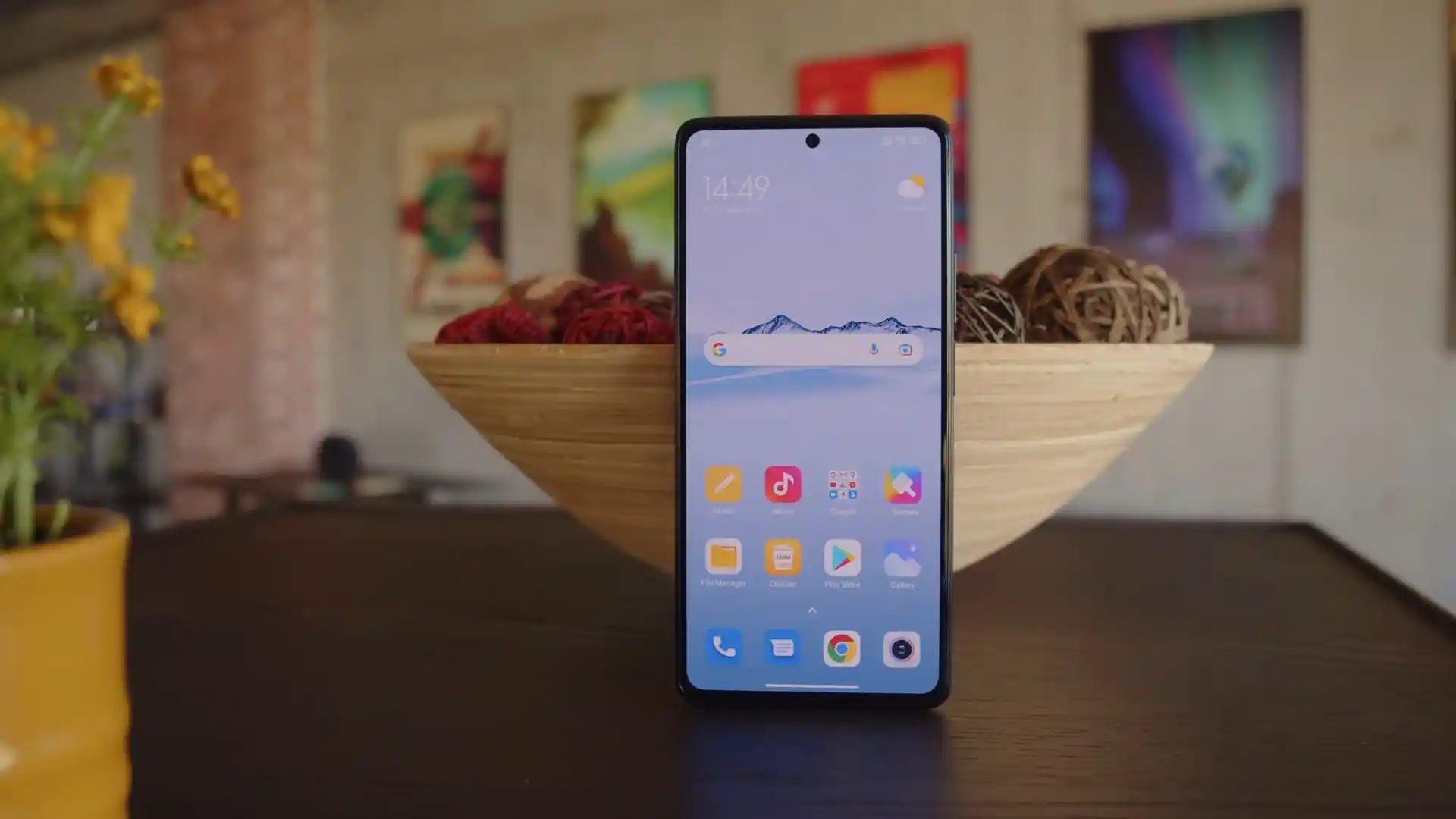
The Redmi Note 11T Pro / Pro+ / POCO X4 GT / Redmi K50i, launched in May 2022 / June 2022 on MediaTek's MediaTek Dimensity 8100 5G (5nm TSMC MT6895Z/TCZA) processor, delivers flagship-grade gaming performance with a 144Hz DisplayMate A+ display, Dolby Atmos stereo audio, and 67W fast charging. Whether you need to recover your phone from an update bootloop, fix system errors, or return to clean stock HyperOS software, this guide provides verified Fastboot flashing steps.
Official flashing on the Redmi Note 11T Pro / Pro+ / POCO X4 GT / Redmi K50i is performed using Xiaomi's Mi Flash Tool in Fastboot mode. Follow each preparatory step carefully to ensure flawless partition deployment without risking bootloader or baseband corruption.
Which Flash Mode Should You Use?
Fastboot Mode
Primary flashing environment used by Mi Flash Tool to write bootloader, radio, vendor_boot, and system partitions.
Recovery Mode
Stock recovery environment for OTA zip sideloading, factory data wipes, and Mi Assistant connections.
MediaTek BROM / Preloader Mode
Hardware emergency recovery interface for unbricking hard-bricked units with corrupted bootloaders.
Custom Recovery (TWRP)
Touch recovery environment for flashing custom ROMs, kernels, Magisk root ZIPs, and full partition backups.
Essential Equipment & Pre-Flashing Preparation for xaga
A computer running Windows 10 or 11 with MediaTek USB VCOM drivers and the latest Android SDK Platform Tools installed.
An officially unlocked bootloader via the Xiaomi Mi Unlock utility. Flashing stock Fastboot images on locked devices will fail.
Use the original Xiaomi 6A cable or a certified USB data cable plugged directly into a rear motherboard USB 2.0 port.
Ensure the 5,080 mAh battery holds at least 50% capacity to prevent power interruption during the 5-minute flash operation.
Fastboot .tgz packages require two extractions (tar.gz -> tar -> folder) using 7-Zip to extract the images directory properly.
Step-by-Step Mi Flash Flashing Walkthrough for POCO X4 GT
These 5 steps are tailored to the Redmi Note 11T Pro / Pro+ / POCO X4 GT / Redmi K50i (Dimensity 8100 5G). For screenshots, an interactive checklist, and troubleshooting, open the full Mi Flash Tool guide.
-
Authorize bootloader unlock through Xiaomi Community HyperOS account binding
-
Unpack xaga_eea_global_images_OS2.0.3.0.ULOEUXM_20250427.0000.00_14.0_eea_34223f337b.tgz twice
-
Trigger Fastboot mode via physical Volume Down and Power key combination
-
Verify Virtual A/B active slot and board codename via fastboot getvar all
-
Execute flash_all.bat in Mi Flash Tool selecting clean all to flash HyperOS 2.0
Understanding the Fastboot Flash Script on POCO X4 GT / Redmi Note 11T Pro
On the Xiaomi POCO X4 GT and Redmi Note 11T Pro (xaga), official Fastboot flashing is managed by the flash_all.bat batch script rather than a standalone MediaTek scatter file. The script automates GPT partition table mapping, writes boot, vendor_boot, and radio firmware, and coordinates the sequential transfer of dynamic super partition sparse chunks.
flash_all.bat
Although xaga is powered by a MediaTek Dimensity 8100 chipset, Xiaomi packages its official factory firmware in the Fastboot TGZ format managed by flash_all.bat. The script provisions GPT partition tables, writes essential modem, boot, and vendor_boot images to the active slot, and transfers the multi-gigabyte dynamic super partition via fastboot and fastbootd protocols.
Always confirm that "clean all" (flash_all.bat) is selected in Mi Flash Tool. Selecting "clean all and lock" on cross-regional firmware builds (such as flashing European ROM xaga_eea_global_images_OS2.0.3.0.ULOEUXM_20250427.0000.00_14.0_eea_34223f337b.tgz onto Chinese 22041216C hardware) will lock the bootloader against mismatched security certificates and brick the phone.
Tested Firmware Packages for POCO X4 GT & Redmi Note 11T Pro
Tested and recommended official stock Fastboot firmware builds for the Redmi Note 11T Pro / Pro+ / POCO X4 GT / Redmi K50i. Select the package matching your specific hardware model variant.
| Version | Region | Android Version | Size | MD5 | Download |
|---|---|---|---|---|---|
OS2.0.3.0.ULOEUXM (Android 14.0) |
EEA (Europe) | Android 14.0 (HyperOS 2.0) | 7.1 GB | 34223f337b0c89901797c2963fb9b41a |
⬇️ Download |
OS2.0.12.0.ULOCNXM (Android 14.0) |
China (CN) | Android 14.0 (HyperOS 2.0) | 7.3 GB | d8e1bf7f30831f4b5892848d663a7efd |
⬇️ Download |
OS2.0.3.0.ULOINXM (Android 14.0) |
India (IN) | Android 14.0 (HyperOS 2.0) | 6.6 GB | d8e1206d089a3d06a7db77c790cd107d |
⬇️ Download |
Kernel 5.10 Community |
Universal / Custom Recovery | Android 12.0 - 14.0 Compatible | 64 MB | Community Release |
⬇️ Download |
Official Fastboot Mirror |
Universal / Stock Partition | Android 12.0 - 14.0 Compatible | 64.0 MB | Official Binary Mirror |
⬇️ Download |
Looking for additional regional channels or recovery archives? Browse the full archive on AndroidFirmwareFile.com →
MediaTek Dimensity 8100 Flashing Architecture & Script Notes
USB Connection Stability: Dynamic super partition chunks total over 7GB on HyperOS 2.0. Connect the device directly to a native motherboard USB 2.0 port. Front panel USB hubs and third-party USB 3.2 controllers can drop connection during the userspace fastbootd handoff.
Battery Safety Threshold: Ensure the internal 5,080 mAh battery holds at least 50% capacity before proceeding. If power is lost while flashing the super partition, the device will fall into a preloader loop requiring MTK BROM auth bypass to recover.
Decompression Hierarchy: Xiaomi Fastboot archives (.tgz) contain a nested tar archive. Always use 7-Zip to extract the file twice until the images folder and flash_all.bat batch script appear in the primary directory.
Troubleshooting POCO X4 GT & Redmi Note 11T Pro Flashing Issues
Fastbootd Dynamic Super Partition Timeout: "FAILED (remote: 'data too large' / 'transport stalled')"
During flash_all.bat execution, xaga transitions into userspace fastbootd to write dynamic super partitions totaling over 7GB. If a computer USB host controller drops power or experiences latency during this handoff, the script halts. Experienced owners suggest connecting directly to a native motherboard USB 2.0 port, executing Mi Flash Tool as Administrator, and avoiding USB hubs.
Cross-Regional Bootloader Lockout: "This HyperOS version can't be installed on this device"
Selecting "clean all and lock" (flash_all_lock.bat) when flashing European or Global firmware onto a Chinese domestic Redmi Note 11T Pro (22041216C) activates regional cryptographic bootloader checks. The bootloader locks against mismatched signatures and traps the handset in recovery mode. Community repair discussions indicate recovering from this state requires MediaTek BROM auth bypass or authorized service credentials. Always select "clean all" (flash_all.bat) when flashing cross-regional packages.
MediaTek BROM SLA Handshake Authentication Error: "STATUS_SEC_AUTH_FILE_NEEDED (0xC0020005)"
When attempting emergency low-level flashing via SP Flash Tool on a hard-bricked Dimensity 8100 board, the boot ROM demands a signed SLA/DA authentication file. Without this handshake, the download agent terminates immediately with error 0xC0020005. Community developers recommend using the MTK Auth Bypass utility (or mtkclient) with libusb filter drivers to temporarily disable hardware security before triggering the SP Flash Tool download.
Fix common flashing interruptions, Fastboot handshake errors, and bootloop issues encountered on the POCO X4 GT and Redmi Note 11T Pro. Troubleshooting & Error Resolutions →
Workshop Troubleshooting & Flashing Safety FAQ
When flashing custom recoveries or kernel patches, corrupting the dedicated vendor_boot partition prevents the ramdisk from mounting, dropping the phone straight into Fastboot mode. In Fastboot mode, restore the stock boot chain by executing "fastboot flash vendor_boot vendor_boot.img" using the official binary image mirror, then reboot via "fastboot reboot".
Because xaga utilizes Google's Virtual A/B architecture with dual recovery partitions (recovery_a and recovery_b), issuing a single "fastboot flash recovery <image>.img" command on certain platform-tools versions can fail if the active slot is ambiguous. Using "fastboot flash recovery_ab <image>.img" writes the recovery payload to both slots simultaneously, ensuring recovery boots reliably regardless of slot state.
Connect to a rear motherboard USB 2.0 port and execute "fastboot devices" in PowerShell or Command Prompt. Ensure Device Manager shows the device under "Android Phone" as "Android Bootloader Interface" without yellow warning flags. Run "fastboot getvar product" to confirm the board reports "xaga" prior to initiating flash_all.bat.
Ready to Flash?
Follow the full step-by-step Mi Flash Tool guide with interactive progress tracking, prerequisite checklist, and complete troubleshooting.