

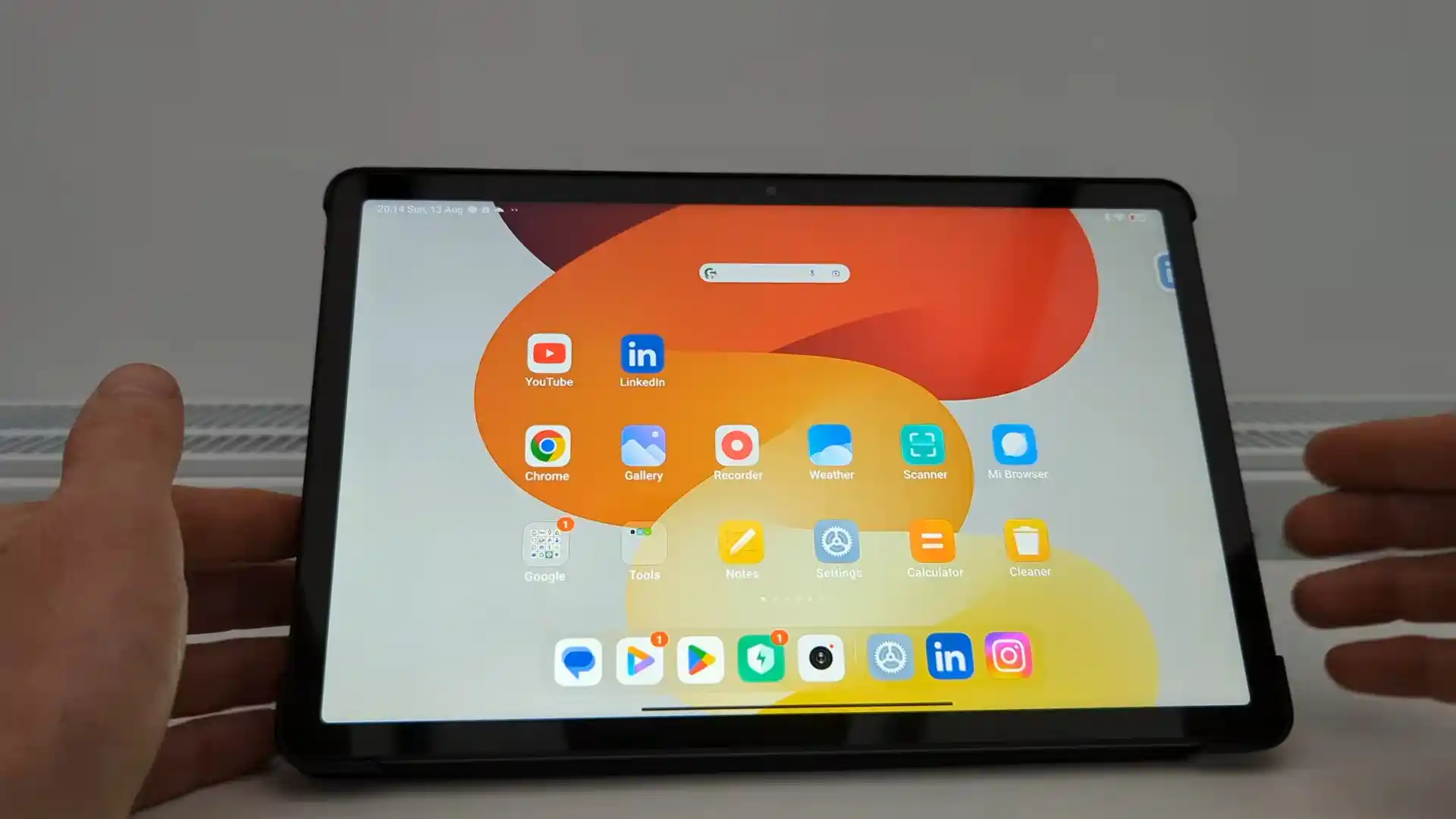
Before you flash: Flashing firmware will erase all data on your device. Back up contacts, photos, and apps before proceeding. FlashGuideHub is not responsible for any damage caused by following this guide.
About the Xiaomi Redmi Pad SE
This guide provides step-by-step instructions to flash official stock Fastboot firmware to the Xiaomi Redmi Pad SE (August 2023) using Mi Flash Tool. Writing multi-gigabyte system and dynamic super partitions to Qualcomm's Qualcomm Snapdragon 680 4G SM6225 (6nm) platform over eMMC 5.1 storage requires stable USB driver handshakes and correct batch script selection.
Whether your tablet is trapped in a startup bootloop, recovering after an update, or returning to clean official HyperOS 2.0 (Android 15.0), follow the verified prerequisites, 8,000 mAh battery precautions, and step-by-step flashing procedures detailed below.
Which Flash Mode Should You Use?
Fastboot Mode (Mi Flash Tool)
Standard official flashing interface for unlocked Xiaomi devices via flash_all.bat.
Mi Assistant (Recovery Sideload)
Emergency recovery interface used to restore official stock software without wiping storage on locked bootloaders.
Qualcomm EDL / Test Point Mode
Low-level Qualcomm HS-USB QDLoader 9008 emergency interface used when the tablet is hard-bricked or cannot enter Fastboot.
Pre-Flash Checklist for Redmi Pad SE & Snapdragon 680
Fastboot flashing requires an officially unlocked bootloader via the Xiaomi Mi Unlock utility.
A 64-bit Windows PC with official Xiaomi Fastboot and Qualcomm QDLoader 9008 drivers installed.
Ensure the 8,000 mAh battery has at least 50% charge to prevent power loss during sparse super partition writes.
Use a quality USB Type-C data cable connected directly to a rear motherboard USB 2.0 port to prevent handshake dropouts.
Flashing stock Fastboot firmware with "clean all" completely wipes internal storage and installed applications.
Decompress the .tgz archive twice using 7-Zip until flash_all.bat is exposed in a clean root directory.
How to Flash the Redmi Pad SE (xun) with Mi Flash
These 5 steps are tailored to the Xiaomi Redmi Pad SE (Snapdragon 680). For screenshots, an interactive checklist, and troubleshooting, open the full Mi Flash Tool guide.
-
Confirm Bootloader is Unlocked in Developer Options
-
Extract xun_eea_global_images_OS2.0.207.0.VMUEUXM_20260622.0000.00_15.0_eea_003c89fbea.tgz Twice with 7-Zip
-
Boot Redmi Pad SE into Fastboot Mode via Volume Down + Power
-
Load Directory in Mi Flash Tool and Select "clean all"
-
Click Flash and Wait for Success Banner and Automatic Reboot
Firmware Package for Snapdragon 680 (flash_all.bat)
Official Fastboot firmware packages for the Xiaomi Redmi Pad SE 11" are distributed as .tgz archives containing raw partition images (boot.img, recovery.img, vbmeta.img, and sparse super.img) managed by flash_all.bat across the Qualcomm Snapdragon 680 platform.
flash_all.bat
Official Xiaomi Redmi Pad SE firmware is distributed as multi-gigabyte .tgz archives. Extract the archive twice using 7-Zip until the folder containing "flash_all.bat" and the raw partition images is visible.
Fastboot Flashing Rule: Always select "clean all" (flash_all.bat) at the bottom right of Mi Flash Tool. Never select "clean all and lock" (flash_all_lock.bat) on imported or cross-regional hardware, as locking a non-matching regional ROM triggers an immediate recovery lock brick.
Xiaomi Redmi Pad SE Firmware Versions
Official stock Fastboot firmware packages for the Xiaomi Redmi Pad SE. Verify your hardware model variant before downloading.
| Version | Region | Android Version | Size | MD5 | Download |
|---|---|---|---|---|---|
OS2.0.207.0.VMUEUXM (HyperOS 2.0) |
Europe / EEA (EU) | Android 15.0 | 5.8 GB | 003c89fbeaf73ea5c0958330ef8a3280 |
⬇️ Download |
OS2.0.209.0.VMUMIXM (HyperOS 2.0) |
Global (MI) | Android 15.0 | 5.9 GB | 0dee6f46cfdb2b0f3553ee2857cc83dc |
⬇️ Download |
Need recovery OTA packages, other regions, or custom recoveries? Browse all 19 xun firmware packages on AndroidFirmwareFile.com →
Essential Flashing & Storage Notes for Redmi Pad SE
The Xiaomi Redmi Pad SE houses an 8,000 mAh internal battery and utilizes eMMC 5.1 storage. Flashing the complete HyperOS 2.0 package xun_eea_global_images_OS2.0.207.0.VMUEUXM_20260622.0000.00_15.0_eea_003c89fbea.tgz typically takes 5 to 8 minutes as large dynamic super partition chunks are written. Verify that your tablet has at least 50% battery before starting, and never disconnect the USB cable during active write operations.
Troubleshooting Redmi Pad SE (xun) Flashing Issues
Mi Flash Error: "cannot receive hello packet" / Handshake Dropout
USB cable disconnection or port controller latency during initial Fastboot device detection. Switch to a rear motherboard USB 2.0 port and verify Windows Device Manager displays "Android Bootloader Interface".
Mi Flash Error: "flash_all.bat not found" or mismatched directory depth
Occurs when selecting the inner "images" folder rather than the parent folder containing flash_all.bat. Select the root folder (such as C:\xun_fw\) in Mi Flash.
Super Partition Write Timeout: "FAILED (remote: 'data too large' / write timeout)"
Writing multi-gigabyte super partition chunks over eMMC 5.1 storage can exceed USB timeout limits if using outdated platform tools. Ensure you use Android SDK Platform-Tools v35+ and run Mi Flash as Administrator.
For solving common Mi Flash Tool timeout codes, fastboot write errors, and HyperOS recovery issues: Xiaomi Flashing Error Directory →
Frequently Asked Questions About Flashing Redmi Pad SE
If the tablet suffers a hard brick where neither Android nor Fastboot starts, the Snapdragon 680 platform can be forced into Qualcomm HS-USB QDLoader 9008 mode by shorting the hardware test points located on the motherboard under the rear metal casing. Flashing in EDL mode on modern HyperOS builds requires an authorized Xiaomi Service Account to sign the firehose programmer.
No. The 11-inch Redmi Pad SE (xun) is built on a Qualcomm Snapdragon 680 processor, whereas the smaller 8.7-inch models (flare Wi-Fi / spark 4G) run on the MediaTek Helio G85 platform. Attempting to cross-flash software between these devices will fail partition verification and will permanently brick the tablet.
Android 15 applies file-based encryption (FBE) to the userdata partition by default. When booting into custom recoveries like OrangeFox or PBRP after an update, the recovery cannot decrypt storage without wiping cryptographic keys. To restore access, navigate to the Wipe menu in recovery, select "Format Data", type "yes", and confirm.
Standard Xiaomi phones require cellular mobile data to pair SIM card credentials during bootloader unlock binding. Because the Redmi Pad SE (xun) is a Wi-Fi-only tablet without a cellular modem or SIM tray, Xiaomi's system allows account pairing directly over an active Wi-Fi connection under Settings → Developer Options → Mi Unlock Status.
Ready to Flash?
Follow the full step-by-step Mi Flash Tool guide with interactive progress tracking, prerequisite checklist, and complete troubleshooting.