

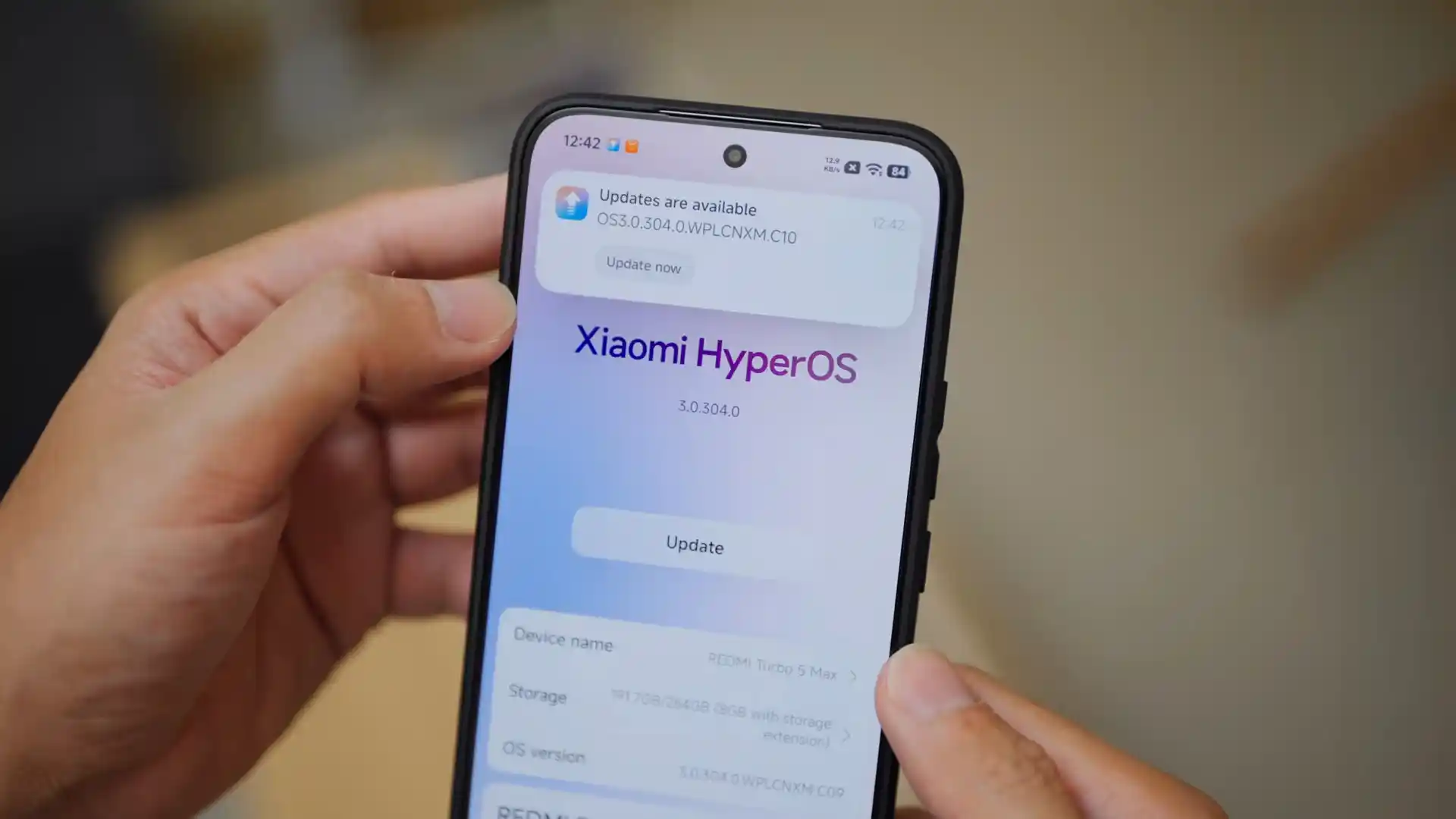
Before you flash: Flashing firmware will erase all data on your device. Back up contacts, photos, and apps before proceeding. FlashGuideHub is not responsible for any damage caused by following this guide.
About the Xiaomi Redmi Turbo 5 Max / POCO X8 Pro Max
The Xiaomi Redmi Turbo 5 Max / POCO X8 Pro Max (hardware codename dash, released in 2026) is built on the MediaTek Dimensity 9400 (3nm TSMC, ARMv9.2-A Octa-Core All-Big-Core) platform featuring an octa-core ARMv9.2-A all-big-core processor, high-bandwidth LPDDR5X memory, and a fast UFS 4.0 flash storage layout. Operating on a modern 64-bit Virtual A/B architecture with System-as-Root, the handset delivers official factory stock restoration through the Xiaomi Fastboot environment.
Whether you are recovering an unbootable handset stuck on the initial boot screen, fixing update glitches, or returning an unlocked bootloader to clean factory software, this guide provides the official stock Fastboot and Recovery procedures. Following our verified walkthrough with package dash_eea_global_images_OS3.0.304.0.WPLEUXM_20261012.0000.00_16.0_eea_2e5b8eda93.tgz will restore your device safely to factory condition.
Which Flash Mode Should You Use?
Xiaomi Fastboot Mode
Primary flashing environment for installing official stock Fastboot TGZ packages and custom recovery images via Mi Flash Tool or platform-tools.
Custom Recovery Mode (OrangeFox / TWRP)
Touch recovery environment for decrypted internal storage access, flashing custom ZIPs, and creating partition backups on unlocked bootloaders.
Stock Android Mi-Recovery 5.0 Mode
Stock recovery interface used to execute factory data wipes, cache clearance, or apply official recovery update packages via Mi Assistant sideload.
MediaTek BROM / Preloader Mode
Emergency hardware download mode for deep brick recovery when Fastboot mode is inaccessible due to corrupted bootloader fuses.
Essential Equipment & Pre-Flash Setup for dash
Ensure the 6,500 mAh / 7,000 mAh battery holds at least 50% charge to prevent power loss during partition writes.
A PC running 64-bit Windows with Mi Flash Tool and official MediaTek MTK USB VCOM drivers installed.
Extract package dash_eea_global_images_OS3.0.304.0.WPLEUXM twice with 7-Zip until flash_all.bat is located in the root directory.
Connect via the original Type-C cable to a rear USB 2.0 port on the computer motherboard to prevent data transfer dropouts.
In Mi Flash Tool, select the "clean all" (flash_all.bat) script at the bottom right before clicking Flash.
5-Step Mi Flash Restoration Guide for POCO X8 Pro Max
A fast reference for flashing the Xiaomi Redmi Turbo 5 Max / POCO X8 Pro Max (Dimensity 9400) using Mi Flash Tool. For the complete walkthrough with images and error troubleshooting, see the full guide.
-
Download & extract dash_eea_global_images_OS3.0.304.0.WPLEUXM_20261012.0000.00_16.0_eea_2e5b8eda93.tgz twice to C:\dash_fw\
-
Boot into Fastboot mode via Volume Down + Power hardware handshake
-
Query hardware rollback fuses and active slot with fastboot getvar anti and fastboot getvar current-slot
-
Launch Mi Flash Tool, select C:\dash_fw\, and explicitly check "clean all" (flash_all.bat)
-
Click Flash to write super partition images and allow 5 to 8 minutes for initial HyperOS boot
Fastboot Script & Partition Map for Dimensity 9400
Official Fastboot firmware packages for the Xiaomi Redmi Turbo 5 Max and POCO X8 Pro Max (dash) deploy partition images (boot.img, init_boot.img, vendor_boot.img, super.img, vbmeta.img, and preloader binaries) via flash_all.bat. In Mi Flash Tool, this batch script writes raw partition binaries directly to the MediaTek Dimensity 9400 UFS 4.0 flash storage controller.
flash_all.bat
Official factory Fastboot firmware for the Xiaomi Redmi Turbo 5 Max and POCO X8 Pro Max executes through flash_all.bat. In Mi Flash Tool, select the root extracted folder containing this script and choose "clean all" at the bottom right before clicking Flash.
The Redmi Turbo 5 Max and POCO X8 Pro Max (board codename dash, models 2512FPC34G, 2512FPC34I, and 2512FRT34C) operate on a 64-bit ARMv9.2-A Virtual A/B partition layout with compression (VABC). Logical system sub-partitions reside dynamically inside the hardware super partition, and anti-rollback fuses are enforced across HyperOS 3.0 and 4.0.
Xiaomi Redmi Turbo 5 Max / POCO X8 Pro Max Firmware Versions
Tested stock firmware packages for the confirmed hardware variants of the Xiaomi Redmi Turbo 5 Max / POCO X8 Pro Max. Always confirm your model codename is "dash" before flashing.
| Version | Region | Android Version | Size | MD5 | Download |
|---|---|---|---|---|---|
OS3.0.304.0.WPLEUXM (20261012.0000.00) |
Europe / EEA (EU) — POCO X8 Pro Max (2512FPC34G) | Android 16.0 (HyperOS 3.0) | 9.38 GB | 2e5b8eda93b29a6a362889328848b11a |
⬇️ Download |
OS3.0.304.0.WPLMIXM (20260922.0000.00) |
Global (MI) — POCO X8 Pro Max (2512FPC34G) | Android 16.0 (HyperOS 3.0) | 10.16 GB | 38488ca0db8cf17dec8180c2db2bf095 |
⬇️ Download |
OS4.0.3.0.XPLCNXM (20261021.0000.00) |
China (CN) — Redmi Turbo 5 Max (2512FRT34C) | Android 17.0 (HyperOS 4.0) | 10.67 GB | 658e7c4052600912175ab302047f2bb9 |
⬇️ Download |
The complete dash archive includes 16 verified packages across China HyperOS 4.0, Global HyperOS 3.0, and European regional branches. Browse the complete 16-package archive on AndroidFirmwareFile.com →
Redmi Turbo 5 Max & POCO X8 Pro Max Platform & Partition Architecture
The Xiaomi Redmi Turbo 5 Max / POCO X8 Pro Max (dash) utilizes Google Virtual A/B partition architecture where core runtime components (system, system_ext, product, vendor, vendor_dlkm, and odm) reside inside the dynamic super partition. Flashing package dash_eea_global_images_OS3.0.304.0.WPLEUXM_20261012.0000.00_16.0_eea_2e5b8eda93.tgz via Mi Flash Tool using the flash_all.bat script writes complete signed factory binaries across both physical and dynamic partitions.
For owners performing root acquisition or recovery customization, note that the Linux Generic Kernel Image (GKI) is housed in boot, while the first-stage ramdisk is separated into init_boot. Root patches via Magisk, KernelSU, or APatch should always target init_boot.img directly.
Troubleshooting POCO X8 Pro Max & Turbo 5 Max Flashing Issues
FAILED (remote: 'sparse image size exceeds maximum download size' or super.img write timeout)
MediaTek Dimensity 9400 UFS 4.0 storage uses dynamic super partitions exceeding 10GB split into large sparse chunks. Older fastboot executables lack large transfer buffer handling and time out during partition writing. Use Google Android SDK Platform-Tools v35.0.0 or newer and connect to a rear motherboard USB 2.0 port to maintain steady packet flow without timeout aborts.
Bootloop into Fastboot: "dm-verity corruption" or "system has been destroyed"
Occurs when flashing cross-slot partitions without matching vbmeta cryptographic flags or when third-party recovery scripts modify the vendor_boot partition on locked state. Re-flash stock init_boot and boot partitions from the matching Fastboot TGZ package, or execute fastboot flash vbmeta --disable-verity --disable-verification vbmeta.img if running modified community kernels.
Permanent System Freeze: "This MIUI version can't be installed on this device"
Triggered when executing "clean all and lock" (flash_all_lock.bat) on cross-regional hardware (such as flashing Global/EEA firmware onto a Chinese domestic Redmi Turbo 5 Max). Locking the bootloader with mismatched region signatures activates hardware fuse lockouts. If this occurs, the device requires an authorized service account via MediaTek BROM mode to recover.
For comprehensive Xiaomi Fastboot error codes, EDL testpoint instructions, and driver troubleshooting: Mi Flash Tool Error Directory →
POCO X8 Pro Max / Redmi Turbo 5 Max Flashing & Workshop FAQ
The Redmi Turbo 5 Max and POCO X8 Pro Max operate on Android 16 and 17 Virtual A/B architecture with Generic Kernel Images (GKI). Under this structure, the core Linux kernel resides in the boot partition, whereas the first-stage ramdisk is isolated inside the init_boot partition. Root managers such as Magisk, KernelSU, and APatch must inject modifications directly into init_boot.img; attempting to flash a patched boot.img corrupts the kernel signature and triggers a bootloop into Fastboot mode.
The MediaTek Dimensity 9400 boot ROM presents a preloader USB interface that closes within 3 seconds if no software handshake begins. To stabilize communication, install the signed MediaTek MTK USB VCOM Driver, launch Mi Flash Tool with administrator rights before connecting the phone, and use a direct rear motherboard USB 2.0 port rather than a front-panel hub.
The dash platform uses a true Virtual A/B dual-slot partition architecture where recovery resides in dedicated hardware partitions (recovery_a and recovery_b). Flashing only a single slot can leave the inactive slot corrupted or cause recovery boot failures if an OTA update or fastboot command triggers an automatic slot changeover. Always execute fastboot flash recovery_a recovery.img followed by fastboot flash recovery_b recovery.img.
Ready to Flash?
Follow the full step-by-step Mi Flash Tool guide with interactive progress tracking, prerequisite checklist, and complete troubleshooting.