

RSD Lite – How to Flash Motorola SBF Firmware (Older Devices)
Learn how to use RSD Lite to flash SBF firmware on older Motorola and Droid devices. This guide covers Motorola USB driver setup, SBF file loading, bootloader entry, and flash recovery — plus guidance on when to use RSD Lite versus Motorola Software Fix for newer devices.
Pre-Flight Checklist
Complete ALL items before proceeding. Skipping any step increases the risk of bricking your device.
Guide Steps
Install the Motorola USB drivers first, then install RSD Lite. Run RSD Lite as Administrator on Windows 10/11.
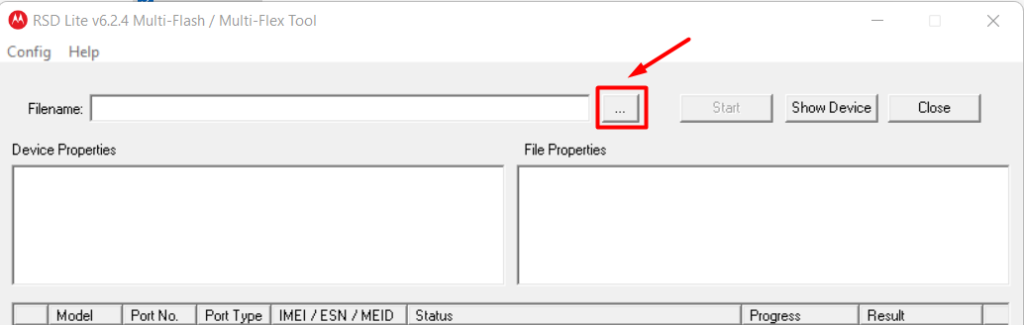
bcdedit /set testsigning on, then reboot.Open RSD Lite. Click the Browse (…) button next to the filename field. Navigate to your .sbf file and select it.
RSD Lite will display the firmware file details. Confirm the product name matches your device model.
Power off the device completely. Then enter the bootloader using the hardware button combination for your model:
- Most Motorola devices: Hold Volume Down + Power until the bootloader/fastboot screen appears.
- Older RAZR/Droid series: Hold Volume Up + Volume Down + Power.
Connect the device to the PC via USB. RSD Lite will detect the device and populate the device field automatically.
With the device connected and firmware loaded, click Start in RSD Lite.
RSD Lite will flash partitions sequentially — bootloader, radio, system, and more. The progress bar and status field will update for each partition. Total time is typically 5–15 minutes depending on firmware size.
When complete, RSD Lite displays "Pass" status. The device will reboot automatically.
First boot after a full SBF flash can take 5–10 minutes. Allow it to complete without interruption.
Verify the firmware version in Settings → About Phone → Build Number.
Congratulations! Flash Successful!
You've successfully completed all steps. Your device should now be running the new firmware. If it's booting normally — you're done! Check the troubleshooting section below if you encounter any issues.
Troubleshooting & FAQ
Common errors and their solutions. Read this before asking for help.
Reinstall the Motorola AP Fastboot Interface driver from Device Manager. Try a different USB port (USB 2.0 preferred) and a known-good cable. Ensure the device is in bootloader/fastboot mode and not Android mode. On Windows 10/11, run RSD Lite as Administrator.
This usually indicates a wrong firmware package or corrupted SBF file. Verify the firmware is for your exact model and redownload it. Also check the MD5 hash. Try a different USB cable — a loose connection during partition writes causes failures.
RSD Lite is for older Motorola devices (generally pre-2014, e.g. Droid series, older RAZR, Atrix). Newer Motorola devices (Moto G, Moto E, Edge series) use Motorola Software Fix instead.
RSD Lite 6.1.4 can work on Windows 11 but may require disabling driver signature enforcement for the Motorola USB driver. It is recommended to run it in Windows 7 compatibility mode and as Administrator.
Prioritize our guides in your Google search results.
No comments yet. Be the first to share your experience with this guide!