

Before you flash: Flashing firmware will erase all data on your device. Back up contacts, photos, and apps before proceeding. FlashGuideHub is not responsible for any damage caused by following this guide.
About the Huawei Ascend G7
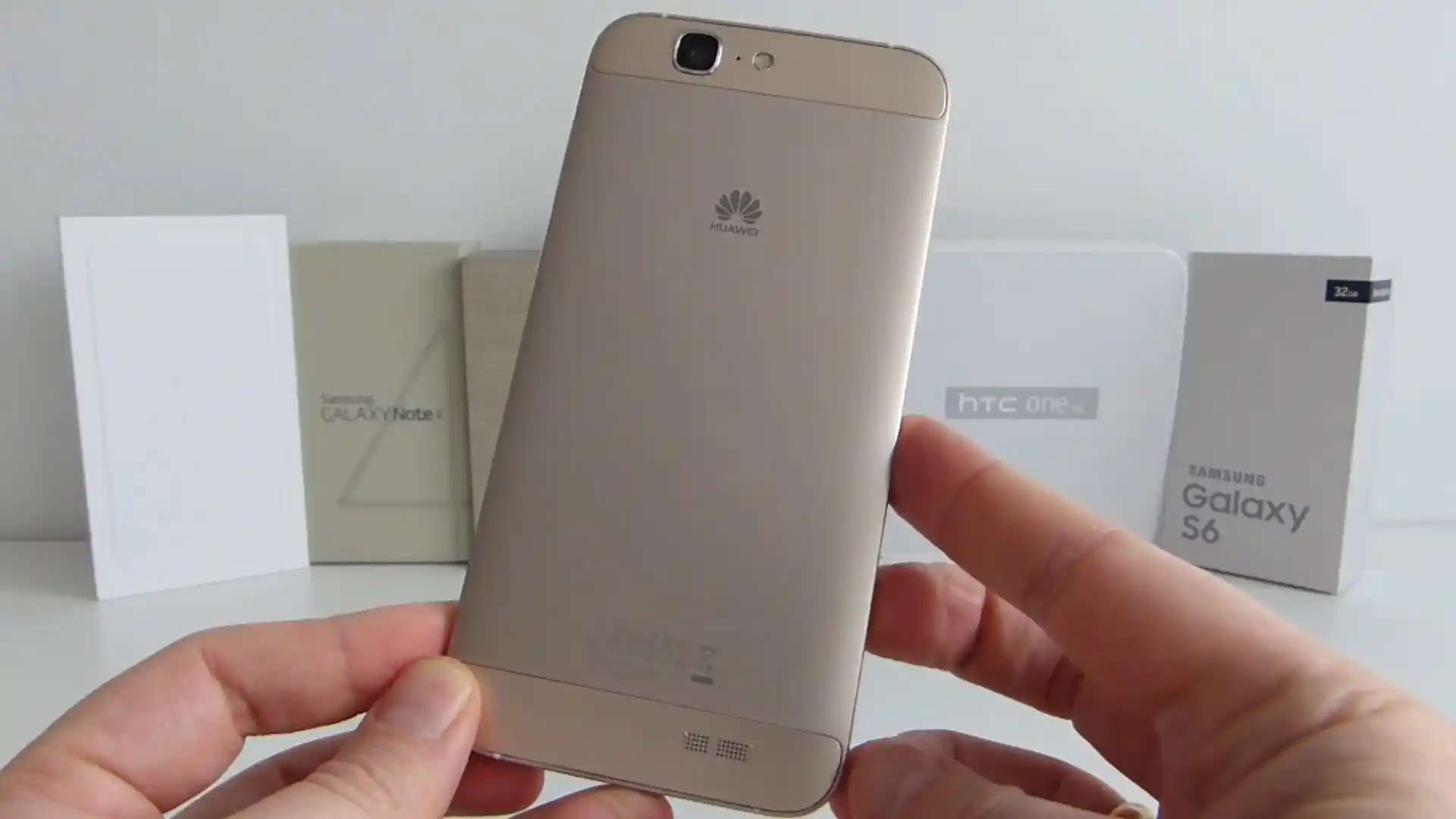
The Huawei Ascend G7 was released in October 2014, built on the Qualcomm Snapdragon 410 (MSM8916) processor. Featuring a 5.5-inch HD display, a 3000 mAh battery, and a 13 MP rear camera, the Ascend G7 family includes single-SIM European editions (G7-L01), North American carrier models (G760-L03), and international dual-SIM variants (G7-L11).
Flashing factory stock firmware via Huawei dload unbricks boot-looping phones, restores factory software integrity, and clears persistent software errors. Follow the verified preparation steps and procedural guide below to service your phone safely.
Which Flash Mode Should You Use?
Huawei Dload 3-Button Mode (microSD / USB OTG)
Primary stock flashing method. Reads UPDATE.APP from a FAT32-formatted memory card to flash factory partitions. Does not require bootloader unlock.
Qualcomm QFIL / EDL 9008 Mode
Low-level Qualcomm hardware recovery method for unbricking dead phones. Writes partition images directly to eMMC via Emergency Download mode.
Huawei eRecovery Mode (Emergency Restore)
Emergency recovery interface built into the stock bootloader. Used to wipe user data or attempt automated Wi-Fi package recovery.
What You Need Before Flashing
An 8GB or larger microSD card formatted with FAT32 file system and MBR partition layout. exFAT is not supported by Huawei stock recovery.
Download the package matching your exact model number and regional Cust tag (such as G7-L01 C432 Europe). Check Settings or the regulatory label before flashing.
Ensure the non-removable 3000mAh battery holds at least 40% charge to prevent unexpected power failure during partition flashing.
Use a verified microUSB data cable connected directly to the device. Damaged or charge-only cables will interrupt data transfer.
Flashing stock firmware via dload completely wipes user data, internal memory, and installed apps. Back up personal files before proceeding.
How to Flash the Huawei Ascend G7 — Quick Overview
5-step quick reference for the Huawei Ascend G7. Need visuals or troubleshooting help? The full Huawei UPDATE.APP guide covers everything in detail.
-
Format a microSD card to FAT32 MBR on your PC
-
Extract firmware archive and create "dload" folder
-
Insert the microSD card into the handset
-
Trigger 3-Button Dload recovery mode
-
Allow automated partition flashing to complete
Firmware Package for Snapdragon 410
Official Huawei stock firmware packages for the Ascend G7 are supplied as UPDATE.APP container archives for on-device dload restoration, or as raw partition dumps and XML files for Qualcomm QPST and QFIL service repair.
UPDATE.APP
Official Huawei stock firmware is supplied as an archive containing UPDATE.APP. Extract the package and ensure UPDATE.APP sits directly inside a folder named "dload" on the root of your FAT32 memory card.
The Huawei Ascend G7 is built on the 64-bit Qualcomm Snapdragon 410 (MSM8916) architecture under internal project codename G7 / G760. Hardware variations include G7-L01 (single-SIM Europe with NFC), G7-L03 / G760-L03 (single-SIM North America), G7-L11 (dual-SIM international), G7-UL20 (China Unicom dual-SIM), and G7-TL00 (China Mobile).
Flashing stock firmware via dload does not require an unlocked bootloader. However, Huawei bootloader security validates the carrier Cust string (e.g. C432 Europe, C185 Middle East, C636 Asia Pacific, C119 Canada). Cross-flashing mismatched Cust packages via dload will be rejected at the verification check.
Huawei Ascend G7 Firmware Versions
Representative tested builds for each confirmed hardware model variant of the Huawei Ascend G7. Always confirm your model and regional Cust tag before flashing.
| Version | Region | Android Version | Size | MD5 | Download |
|---|---|---|---|---|---|
G7-L01C432B350 |
G7-L01 — Europe Open Market (Single SIM) | Android 5.1.1 (EMUI 3.1) | 1.54GB | — | ⬇️ Download |
C636B330 (05012WCP) |
G7-L11 — Asia Pacific (Dual SIM) | Android 5.1.1 (EMUI 3.1) | 1.27GB | — | ⬇️ Download |
V100R001C119B261 |
G760-L03 — Canada / North America | Android 4.4.4 (EMUI 3.0) | 1.04GB | — | ⬇️ Download |
V100R001CHNC00B251 |
G7-UL20 — China Unicom (Dual SIM) | Android 4.4.4 (EMUI 3.0) | 1.00GB | — | ⬇️ Download |
This device family has 12 verified packages across European, Asia Pacific, Canadian, and China domestic releases. Browse the complete 12-package archive on AndroidFirmwareFile.com →
Huawei Ascend G7 — Important Notes
The Huawei Ascend G7 originally launched with Android 4.4.4 KitKat (EMUI 3.0) and received official regional upgrades to Android 5.1.1 Lollipop (EMUI 3.1) and Android 6.0.1 Marshmallow (EMUI 4.0). Flashing official dload firmware restores damaged system partitions, removes software bugs, and unbricks devices stuck in bootloops while preserving Google certification.
For deeply bricked handsets that cannot power on or access stock recovery, repair technicians utilize Qualcomm Emergency Download (EDL 9008) mode. Shorting the motherboard hardware testpoints allows Qualcomm Flash Image Loader (QFIL) or QPST to flash factory board software directly to the eMMC 4.5 flash memory blocks.
Troubleshooting Huawei Ascend G7 Flashing & Qualcomm EDL Errors
Qualcomm MSM8916 Sahara Protocol Failure (0x10000002 / Hello Packet Timeout)
Community repair discussions indicate this error occurs in QFIL or QPST during the initial EDL handshake with the Snapdragon 410 chipset. Technicians report that this is commonly caused by USB packet delays on front-panel USB 3.0 ports or attempting communication with the battery flex cable connected. Disconnecting the battery flex and plugging directly into a rear USB 2.0 port resolves the handshake timeout.
EMUI Recovery Cust Verification Failure: "Software install failed - Incompatible partition table"
Repair forum members recommend verifying that the package regional Cust string matches the original hardware assignment in oeminfo. The Ascend G7 stock recovery validates regional certificates before writing system blocks; cross-flashing unbranded European C432 packages directly over Middle East C185 devices, or flashing dual-SIM G7-L11 software on single-SIM G7-L01 hardware, results in immediate rejection.
MicroSD Card Read Failure: Device Boots Directly into Fastboot / Rescue Mode
Usually caused by formatting the microSD card with exFAT or GPT partition tables, which are unsupported by Huawei stock recovery. Technicians recommend using an MBR FAT32-formatted memory card and confirming that the UPDATE.APP file sits directly inside the root dload directory without intermediate subfolders.
For complete Huawei dload error resolutions, testpoint diagrams, and driver walkthroughs: Huawei Flashing & Dload Error Directory →
Frequently Asked Questions — Huawei Ascend G7
To force Qualcomm 9008 EDL mode on a dead or bricked Ascend G7, unclip the metal rear housing and unscrew the upper logic board bracket. Locate the two gold circular testpoint pads situated near the battery flex connector and SIM tray module. Disconnect the battery flex cable, bridge the two testpoint pads together using fine conductive tweezers, and insert the microUSB cable connected to your PC. Windows Device Manager should immediately enumerate "Qualcomm HS-USB QDLoader 9008".
This error occurs during the initial boot handshake when the Qualcomm Sahara protocol fails to send the firehose programmer (prog_emmc_firehose_8916.mbn). Common bench causes include plugging into a front-panel USB 3.0 port with high packet latency, using an excessively long microUSB cable, or leaving the battery connected without proper grounding. Connecting directly to a rear PC motherboard USB 2.0 port with the battery disconnected resolves the handshake drop.
Stock EMUI recovery verifies the package regional Cust string against the motherboard's secure oeminfo partition before beginning the write sequence. If you attempt to flash an Asian dual-SIM C636 package or a Canadian C119 package onto a European C432 device, the recovery engine rejects the update. Technicians must ensure the downloaded package matches the device's exact model number and carrier Cust code.
When flashing board software or eMMC dumps via QPST, QFIL, or dongle tools like UMT, never select "Format All" or check the modemst1, modemst2, or fsg partitions. Flash only the core operating system partitions (boot, recovery, system, cust). Preserving the NVRAM partitions protects your unique factory RF calibration and IMEI certificates.
Ready to Flash?
Follow the full step-by-step Huawei UPDATE.APP guide with interactive progress tracking, prerequisite checklist, and complete troubleshooting.