

Before you flash: Flashing firmware will erase all data on your device. Back up contacts, photos, and apps before proceeding. FlashGuideHub is not responsible for any damage caused by following this guide.
About the Motorola Moto C
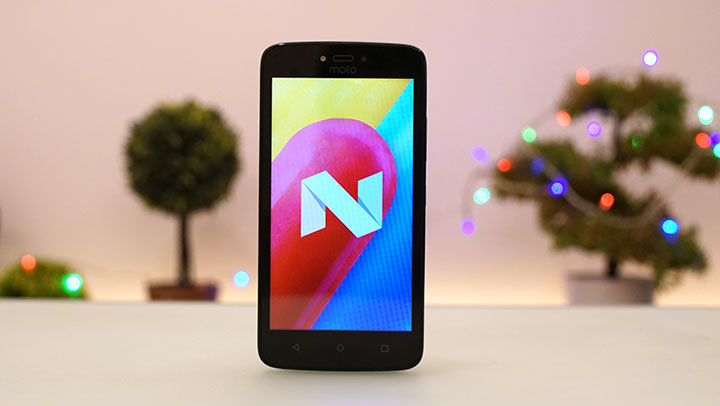
The Motorola Moto C is a budget Android smartphone released in 2017, split across two MediaTek chipsets: MediaTek MT6580 (3G-only) or MediaTek MT6737M (4G/LTE) — depends on model number, see Prerequisites. Motorola distributed it across six XT hardware variants, each targeting a different region or carrier network.
Most XT variants are fixed to one chipset, but one model number (XT1755) has shipped under both — flashing a package built for the wrong chipset will not boot. The Prerequisites and Firmware Package sections below explain how to identify your exact variant and chipset before you begin.
Which Flash Mode Should You Use?
SP Flash Tool (recommended)
The standard method for MediaTek devices, applicable to both MT6580 and MT6737M Moto C hardware. Loads a scatter file and writes every partition in one pass via the MediaTek BootROM/preloader handshake. Does not require a manually unlocked bootloader the way Fastboot-based Qualcomm devices do.
Motorola Rescue and Smart Assistant
Motorola's official PC-based rescue tool can re-flash the device automatically once it detects the connected model, without manually sourcing a scatter file or CFC package yourself. Download from Motorola's support site, connect the phone via USB, and follow the on-screen instructions. Limited to Motorola-approved firmware versions and may not cover every XT variant.
flashfile.bat / CFC XML Fastboot Script
Several Moto C builds (notably XT1754, XT1756, XT1757, XT1758 carrier packages) are distributed as CFC.xml service packages that run through fastboot via a generated flashfile.bat, rather than a raw SP Flash Tool scatter package. Use this method only when your downloaded package is in this format.
What You Need Before Flashing
SP Flash Tool is Windows-only. Install the MediaTek USB VCOM drivers so the device is recognised during the BootROM handshake. If using the CFC/flashfile route instead, ADB/Fastboot platform-tools and Motorola USB drivers are required instead.
Check Settings → About Phone → Processor, or a CPU-identifier app. This is required before downloading a package for an XT1755 unit specifically, since that model number has shipped under both chipsets.
Download the firmware package that matches your exact XT model number, confirmed chipset, and carrier/subsidy tag. Confirm the model in Settings → About Phone → Model Number. A mismatched package contains a different radio firmware and can corrupt cellular connectivity if flashed.
A data-capable USB cable is essential — charge-only cables do not support either SP Flash Tool or Fastboot communication. Use the original Motorola cable or a known-good data cable, connected directly to a PC port rather than through a hub.
Flashing writes multiple partitions over several minutes. A power-off during that window can cause a permanent brick. The 2350mAh battery is removable — charge it to at least 30% before starting, and keep the USB cable connected throughout.
Both SP Flash Tool full-package flashing and the CFC/flashfile fastboot route wipe all user data. Back up photos to Google Photos, contacts to Google Contacts, and app data or documents to a PC or cloud service before beginning.
How to Flash the Motorola Moto C — Quick Overview
7-step quick reference for the Motorola Moto C. Need visuals or troubleshooting help? The full SP Flash Tool guide covers everything in detail.
-
Identify your exact XT model number AND chipset
-
Download the firmware package matching your XT number, chipset, and carrier build
-
Install SP Flash Tool and MediaTek USB VCOM drivers
-
Load the scatter file and ROM images in SP Flash Tool
-
Power off, click Download, then connect the USB cable
-
Wait for the green success circle, then reboot
-
Confirm IMEI and network behavior after flashing
Finding the Firmware Package for MT6580 / MT6737M
Moto C firmware is distributed by Motorola as either an SP Flash Tool package (scatter-loading .txt plus partition images) or a CFC.xml/flashfile fastboot service package, depending on the build. After extracting the firmware archive, look for one of these two formats — they require different tools and are not interchangeable:
MT6580_Android_scatter.txt or MT6737M_Android_scatter.txt
The scatter-loading .txt file is inside the SP-Flash-Tool-format firmware ZIP. After extracting the archive, look for a file named similarly to MT6580_Android_scatter.txt or MT6737M_Android_scatter.txt at the top level of the extracted folder, alongside the individual .img partition files. If your package instead contains a flashfile.bat/flashfile.xml or a CFC.xml file, it is a fastboot-format package — use the flashfile.bat / CFC XML method instead of SP Flash Tool.
The Moto C has six XT model numbers split across two MediaTek chipsets: MT6580 (3G-only, XT1750 and one XT1755 build) and MT6737M (4G/LTE, XT1754, XT1756, XT1757, XT1758, and a second XT1755 build). Each XT number is further split into carrier-specific builds (e.g. RETEU, 3UK, OPENMX, RETCO, RETTH) with their own radio (modem) firmware and subsidy configuration. Always match the XT number, confirmed chipset, and carrier/subsidy tag in the filename — two builds can share an XT number and Android version yet still carry different, incompatible radio images or target a different chipset entirely.
Before flashing an XT1755 package specifically, confirm your unit's chipset (Settings → About Phone → Processor) — this is the one model number in the current firmware set that has shipped under both MT6580 and MT6737M hardware.
Firmware packages from third-party repositories (such as androidfirmwarefile.com) may include a flashfile.bat and flashfile.xml, or a CFC.xml-based package, in place of a raw SP Flash Tool scatter package — check which format your specific download uses before picking a method.
Note: the Moto C Plus (XT1721/XT1723, codename namath in some sources) is a separate, larger-battery device from the standard Moto C. Their factory images are not verified interchangeable — do not flash Moto C Plus images on a Moto C unit or vice versa without independently confirming compatibility.
Motorola Moto C Firmware Versions
A representative build for each XT variant of the Motorola Moto C. Always verify the region, chipset, and carrier tag match your device before flashing.
| Version | Region | Android Version | Size | MD5 | Download |
|---|---|---|---|---|---|
Unspecified (27 Jul 2017 package) |
XT1750 — MT6580, generic | Android 7.0 | 884 MB | — | ⬇️ Download |
NRD90M.060 |
XT1754 — MT6737M, generic single-SIM (54SS) | Android 7.0 | 1.2 GB | — | ⬇️ Download |
V057 (14 Sep 2017 package) |
XT1755 — MT6580, generic | Android 7.0 | 1.2 GB | — | ⬇️ Download |
NRD90M.075 |
XT1756 — MT6737M, Open Mexico (OPENMX, unlocked) | Android 7.0 | 1.61 GB | — | ⬇️ Download |
NRD90M.063 |
XT1757 — MT6737M, generic | Android 7.0 | 1.3 GB | — | ⬇️ Download |
Unspecified |
XT1758 — MT6737M, Asia UMTS generic | Android 7.0 | 1.24 GB | — | ⬇️ Download |
This device has 23 known carrier/regional builds across six XT variants and two chipsets. See the complete archive on AndroidFirmwareFile.com →
Motorola Moto C — Important Notes
All six Moto C model numbers launched on Android 7.0 Nougat; no broader official OS update path is confirmed for this device family. Some regions received later Nougat security-patch builds under the same major Android version rather than a version upgrade.
The removable 2350mAh battery is an advantage during flashing: if the battery drains mid-process, it can be removed, charged separately, and reinserted before retrying. As with any MediaTek flash via SP Flash Tool, do not disconnect the USB cable or remove the battery while a partition write is actively in progress (before the green success circle appears).
Common Errors on the Motorola Moto C
SP Flash Tool: "BROM ERROR: S_FT_ENABLE_DRAM_FAIL" or hangs on connect
The tool cannot complete the BootROM handshake. Confirm the MediaTek USB VCOM drivers are installed (check Device Manager for "MediaTek USB Port" during connect). Use a data-capable USB cable, try a USB 2.0 port directly on the PC (avoid hubs), and make sure the device is fully powered off — not just screen-off — before clicking Download and connecting.
SP Flash Tool: "Preloader not found" or "STATUS_SEC_STOP_BEFORE_BROM_CMD"
This is a scatter-file/authentication mismatch — usually caused by loading a scatter file from a package built for the wrong chipset (MT6580 scatter on MT6737M hardware or vice versa) or by newer preloader security blocking an older/mismatched image. Re-confirm your device's chipset (Settings → About Phone → Processor) and re-download the package matching both the XT number and confirmed chipset.
flashfile.bat / CFC XML: "FAILED (remote: unknown command)" or fastboot does not detect device
Confirm the Motorola USB drivers (not just the generic MediaTek VCOM driver) are installed, and that the phone is in fastboot mode (Volume Down + Power) rather than SP Flash Tool's download mode — these are two different connection states on this device and are not interchangeable.
Device stuck on Motorola boot logo after flashing
A failed or interrupted flash leaves one or more partitions in an inconsistent state. Reconnect to SP Flash Tool (or re-run flashfile.bat for CFC packages) and re-flash from scratch using the same, confirmed-matching package. If the device no longer responds to either method, Lenovo Rescue and Smart Assistant can recover some units that are unresponsive to manual flashing.
IMEI reads 0/unknown or "No Service" after flashing
Almost always caused by a carrier/subsidy tag mismatch within the same XT number — each carrier SKU carries a distinct radio/modem image. Re-flash using the exact package matching your XT number, chipset, and carrier tag from the firmware table below.
For the full SP Flash Tool error database: SP Flash Tool Error Directory →
Frequently Asked Questions — Motorola Moto C
Check Settings → About Phone → Processor field, or use a CPU-identifier app that reads /proc/cpuinfo. The model number alone is not always enough — XT1750, XT1756, XT1757, and XT1758 are fixed to one chipset each (MT6580, MT6737M, MT6737M, and MT6737M respectively), XT1754 is fixed to MT6737M, but XT1755 has been seen shipping as both MT6580 and MT6737M hardware depending on region.
Yes for packages distributed as CFC.xml/flashfile service packages (common on XT1754, XT1756, XT1757, XT1758) — these run through fastboot via flashfile.bat. Packages distributed only as a scatter-file archive require SP Flash Tool instead. Check which format your downloaded package uses before choosing a method.
No. QFIL and EDL are Qualcomm-specific recovery paths and do not apply to this device — the Moto C uses MediaTek MT6580/MT6737M silicon exclusively. SP Flash Tool already communicates with the MediaTek BootROM/preloader directly, which is the equivalent low-level access point on this chipset family.
This almost always means the firmware package didn't match your device's exact XT number, chipset, and carrier/subsidy tag — for example, flashing an Open Mexico (OPENMX) build onto a Claro Chile (AMXCL) XT1756 unit, or an MT6580 package onto MT6737M hardware. Re-flash using the package that exactly matches your XT number, confirmed chipset, and carrier tag from the firmware table below.
Ready to Flash?
Follow the full step-by-step SP Flash Tool guide with interactive progress tracking, prerequisite checklist, and complete troubleshooting.