

Before you flash: Flashing firmware will erase all data on your device. Back up contacts, photos, and apps before proceeding. FlashGuideHub is not responsible for any damage caused by following this guide.
About the Xiaomi Redmi 15C / POCO C85
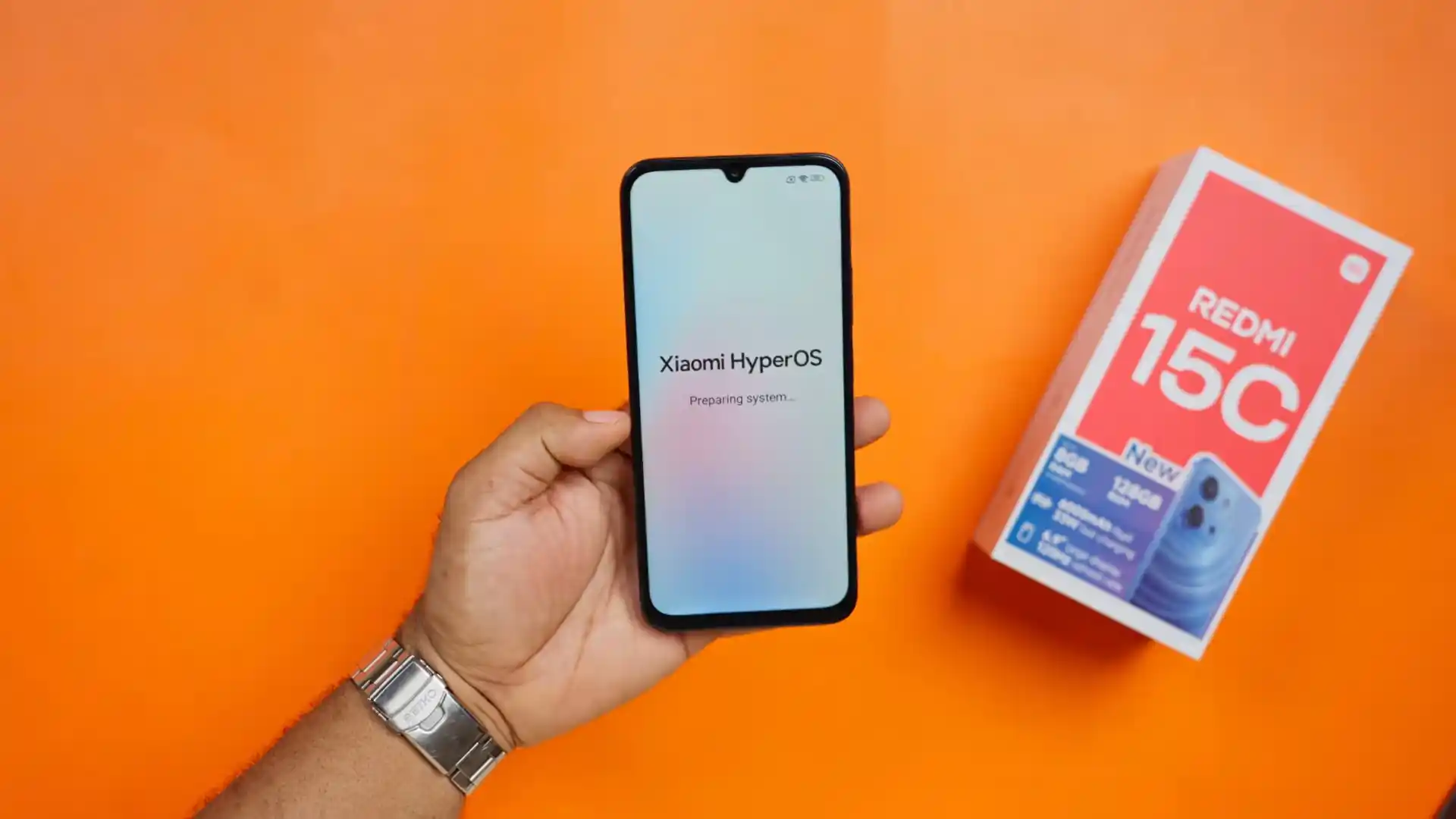
The Xiaomi Redmi 15C / POCO C85 family (codename: dew) launched on MediaTek's MediaTek Helio G81 Ultra (12 nm) processor with HyperOS 3.0 on Android 16.0, a 6.88-inch 120Hz display, and a 5,160 mAh battery.
Whether unbricking a phone stuck in a bootloop with dew_global_images_OS3.0.307.0.WBNMIXM_20260915.0000.00_16.0_global_e0508e6475.tgz or installing European firmware dew_eea_global_images_OS3.0.302.0.WBNEUXM_20260921.0000.00_16.0_eea_36be8d52e8.tgz, follow the verified steps below.
Which Flash Mode Should You Use?
Mi Flash Tool (Fastboot / flash_all.bat)
Full factory restore mode executing flash_all.bat over Fastboot to write boot, vendor_boot, super, and userdata partitions cleanly.
Stock Recovery (ADB Sideload OTA)
Installs official signed Recovery OTA ZIP packages without wiping personal data or requiring an unlocked bootloader.
MediaTek SP Flash Tool (BROM Emergency Flash)
Low-level hardware unbricking path for MediaTek chipsets when Fastboot and Recovery are inaccessible.
Essential Requirements Before Flashing dew
Ensure your Xiaomi account is authorized and verify bootloader status before flashing Fastboot packages.
Install Google Android Bootloader and MediaTek MTK VCOM drivers on 64-bit Windows.
Connect using a sturdy USB Type-C data cable plugged directly into a rear PC port to avoid data write timeouts.
Ensure your 5,160 mAh battery has ample charge so the phone does not power down during partition writes.
Running flash_all.bat with clean all erases internal storage completely. Back up files before starting.
Mi Flash Tool Execution Steps for Helio G81 Ultra
5-step quick reference for the Xiaomi Redmi 15C / POCO C85. Need visuals or troubleshooting help? The full Mi Flash Tool guide covers everything in detail.
-
Verify bootloader unlock status through Developer Options and Fastboot CLI
-
Extract dew_global_images_OS3.0.307.0.WBNMIXM_20260915.0000.00_16.0_global_e0508e6475.tgz to C:\dew_fw\
-
Install MediaTek MTK USB VCOM and Google Android Bootloader drivers on your PC
-
Enter Fastboot mode and connect via a rear USB motherboard port
-
Select firmware path in Mi Flash Tool, choose clean all, and flash
Locating flash_all.bat & Firmware Images in Helio G81 Ultra
Official Xiaomi Redmi 15C and POCO C85 Fastboot packages are distributed as double-compressed .tgz files. Extracting twice using 7-Zip places flash_all.bat at the top folder level beside the images subfolder holding boot, vendor_boot, and super partition binaries:
flash_all.bat
Unpacking dew_global_images_OS3.0.307.0.WBNMIXM_20260915.0000.00_16.0_global_e0508e6475.tgz twice with 7-Zip extracts flash_all.bat at the top level alongside the images folder holding super.img, boot, and vendor partitions. Select the top directory in Mi Flash Tool.
Hardware codename dew covers both Redmi 15C and POCO C85 on the MediaTek Helio G81 Ultra. Never flash files intended for earlier devices like earth (Redmi 13C).
Select the outer directory containing flash_all.bat in Mi Flash Tool (e.g. C:\dew_fw\), never the inner images subfolder.
Always ensure clean all is selected; relocking cross-regional software can cause bootloops.
Xiaomi Redmi 15C / POCO C85 Firmware Versions
Tested Global, European, and Indonesian Fastboot builds for the Xiaomi Redmi 15C / POCO C85 (dew). Access additional regional archives below.
| Version | Region | Android Version | Size | MD5 | Download |
|---|---|---|---|---|---|
OS3.0.307.0.WBNMIXM |
Global (MI) — Android 16.0 | Android 16.0 (HyperOS 3.0), Sep 2026 | 7.50 GB | e0508e647539830c6e32a1b131ee7c8b |
⬇️ Download |
OS3.0.302.0.WBNEUXM |
Europe / UK EEA (EU) — Android 16.0 | Android 16.0 (HyperOS 3.0), Sep 2026 | 7.01 GB | 36be8d52e8ffec1b47ae0b6383a98c5a |
⬇️ Download |
OS3.0.302.0.WBNIDXM |
Indonesia (ID) — Android 16.0 | Android 16.0 (HyperOS 3.0), Sep 2026 | 7.16 GB | 8ee81021bf61b94bf2e5120beaef96f1 |
⬇️ Download |
Browse all 10 regional HyperOS 3.0 packages for Redmi 15C & POCO C85 on AndroidFirmwareFile.com → View full archive on AndroidFirmwareFile.com →
Available Flashing Modes for Redmi 15C / POCO C85
The Xiaomi Redmi 15C and POCO C85 (hardware codename dew) run on the MediaTek Helio G81 Ultra platform with HyperOS 3.0 on Android 16.0. Flashing factory Fastboot packages like dew_global_images_OS3.0.307.0.WBNMIXM_20260915.0000.00_16.0_global_e0508e6475.tgz or European release dew_eea_global_images_OS3.0.302.0.WBNEUXM_20260921.0000.00_16.0_eea_36be8d52e8.tgz through Mi Flash Tool provides a clean factory restoration.
For standard maintenance updates on functioning systems with locked bootloaders, signed Recovery OTA ZIP archives can also be installed using stock Recovery ADB sideload.
Resolving Redmi 15C & POCO C85 Fastboot & Driver Issues
Fastboot Error: "FAILED (remote: 'Flashing is not allowed in Lock State')"
Appears when attempting to flash official Fastboot packages while the bootloader remains locked. You must complete the official Xiaomi bootloader unlock process through Mi Unlock and verify that fastboot getvar unlocked returns yes before flashing.
MediaTek Preloader COM Port Drop & Windows Device Manager Disconnect
On 64-bit Windows systems, the Helio G81 Ultra preloader handshake may drop after 2 to 3 seconds if driver signature enforcement interferes. Install official MediaTek MTK VCOM drivers, disable driver signature enforcement if necessary, and use a rear USB 2.0 port.
Mi Flash Progress Bar Freezes on "super.img sparse block write"
Because dew uses budget eMMC 5.1 storage for its dynamic partition structure, transferring the large 4.5 GB+ super.img payload takes 4 to 8 minutes. The progress bar may pause during sparse chunks; never unplug the cable during write pauses to prevent corrupting the storage layout.
Encountering an unexpected error code or connection drop? MediaTek & Fastboot Error Solutions →
MediaTek Helio G81 Ultra & HyperOS 3.0 Q&A
Under HyperOS 3.0 on Android 16, Xiaomi enforces account tier validation via the official Mi Community application before generating unlock tokens. Unlike older MIUI handsets where a 7-day wait timer was the only requirement, HyperOS devices must have active account binding approved in developer settings before fastboot flash scripts will execute.
Mi Flash Tool is the recommended path for official Fastboot TGZ packages (flash_all.bat) whenever your device can still enter the Fastboot bootloader screen. MediaTek SP Flash Tool or MTKClient is strictly reserved for emergency BROM unbricking when the device is completely unresponsive and cannot display the Fastboot interface.
Yes. Official flash_all.bat scripts for dew write system partitions including boot, init_boot, vendor_boot, super, and userdata, while leaving nvram, nvdata, and /persist untouched. Your device unique dual-SIM IMEI numbers, Wi-Fi MAC addresses, and cellular RF tuning tables remain completely safe.
Ready to Flash?
Follow the full step-by-step Mi Flash Tool guide with interactive progress tracking, prerequisite checklist, and complete troubleshooting.